Travel connectivity guide
Huawei Mate 40 Pro 256GB eSIM
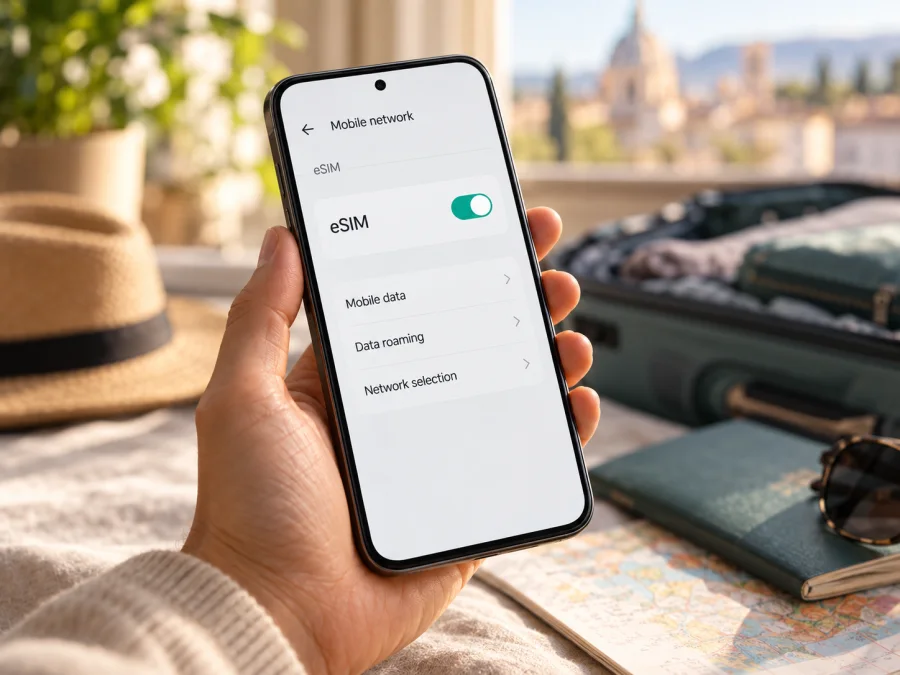
Huawei Mate 40 Pro 256GB eSIM: compatibility and setup
The Huawei Mate 40 Pro 256GB can support eSIM, but the storage-size label by itself does not confirm that a particular handset has the required eSIM hardware and software enabled. Huawei’s current support guidance lists the Mate 40 Pro in both single-SIM and dual-SIM 8 GB + 256 GB configurations as applicable products for eSIM. Huawei also cautions that the feature varies by device, carrier, country, and region. The practical answer is therefore: check the EID and eSIM controls on your own phone, then confirm that the provider and travel plan you intend to use accept that exact version.
This guide covers the device checks, installation, travel setup, and common connection issues. The result depends on the exact phone version, regional firmware, carrier restrictions, and plan conditions.
Does Huawei Mate 40 Pro 256GB support eSIM?
Huawei’s support documentation names the Mate 40 Pro in 8 GB + 256 GB single-SIM and dual-SIM configurations under its eSIM instructions. It describes checking an EID, adding a profile from a QR code or activation code, and managing eSIM in SIM management. That is affirmative evidence that certain 256 GB Mate 40 Pro variants are eSIM-capable.
It does not establish that every phone sold as Huawei Mate 40 Pro 256GB supports eSIM. The task name does not include the model number, SIM configuration, original sales region, firmware build, or carrier status. Those details matter. A handset for one market can differ from a similar-looking version sold elsewhere, and the presence of two physical SIM slots does not itself prove that eSIM is available. Nor does an eSIM-capable chipset guarantee that a local operator or a travel eSIM provider will support that particular phone.
| Item | What can be confirmed | What you should check |
|---|---|---|
| Device in this guide | Huawei Mate 40 Pro 256GB | Keep the full variant name when checking a listing or asking support. |
| Manufacturer’s eSIM guidance | Lists Mate 40 Pro single-SIM and dual-SIM 8 GB + 256 GB versions | Confirm your own model number and configuration; the task name does not specify either. |
| On-device evidence | Huawei directs users to Settings > About phone > Show EID; its setup guide uses Mobile network > SIM management | Look for an EID and an eSIM add/management option on your handset. Menu wording can vary by software. |
| Country and carrier | Huawei says availability can vary by country, region, and carrier | Ask the relevant provider about the exact model and the market where you will use the profile. |
| Travel data | A travel eSIM plan has its own destination, validity, and data conditions | Check the destination, data allowance, validity, activation timing, and device requirements before purchase. |
The storage size is not an eSIM setting. It identifies capacity, not the radio configuration or eSIM entitlement of an individual phone. A marketplace listing that says only “256GB” is not enough to settle compatibility. If the device is second-hand, imported, refurbished, or supplied by a mobile operator, verify it directly before relying on it for a trip.
Regional versions and the operator market
Huawei’s regional support pages list the Mate 40 Pro configurations noted above, but also say eSIM availability varies by device, country or region, and carrier. That listing does not guarantee that every national-market variant or firmware build exposes eSIM, or that a particular operator issues a profile for it. Do not infer local regulatory status, retail availability, or network support from the phone name alone.
Check three things separately: whether this handset exposes an EID and eSIM controls; whether eSIM is offered in the market where you will activate it; and whether the specific provider accepts your model for the country where you will use it. A phone may have eSIM hardware while a local operator does not support it. A travel provider may also have device-specific restrictions.
If the phone was imported, refurbished, or supplied by a carrier, ask about the exact model number and whether it is network unlocked. “Dual SIM” or “global version” does not prove eSIM compatibility or remove a carrier lock.
Check your phone before choosing a plan
Use the handset itself as the first compatibility check. Menu labels can vary with EMUI version, region, and language. If a route below is not present, search Settings for “EID” or “SIM management,” then ask Huawei support to identify the device using its exact model number.
Find the EID
- Open Settings.
- Tap About phone.
- Look for Show EID or an EID entry. On some software versions, you may need to open the status or device information screen first.
- If the EID is displayed, record it privately and provide it only through the trusted activation flow when requested. An EID is a device identifier; do not post it publicly.
- If the EID is missing, restart the phone and check for a system update, then search Settings once more. If it remains absent, treat that handset as unconfirmed and ask Huawei or the seller to verify the exact model and regional configuration before buying an eSIM plan.
Huawei’s support instructions say that if EID information is not displayed, eSIM is not supported on that phone. A missing EID should not be “fixed” by installing an unrelated app or changing hidden settings. Contact support with the model number and software version instead.
Look for the eSIM controls
Open Settings > Mobile network > SIM management. Depending on the version, SIM 2 may have a control for changing the SIM type to eSIM, adding an eSIM, or viewing eSIM profiles. On a single-SIM model, Huawei notes that the management screen can still show SIM 1 and SIM 2, with eSIM assigned to the SIM 2 position. The menu may look different from screenshots made for another country or firmware build.
An EID and an add-eSIM control are useful checks together. If the EID appears but the add option is missing, do not assume that the phone is ready for a travel profile: check the device region, software version, carrier lock, and applicable local support. If an add option appears but no EID is shown, confirm the result with Huawei before proceeding. The phone’s own current menu and confirmation from the plan provider are more relevant than a generic compatibility list.
Compatibility checklist
Before paying for a travel plan, check each item:
- [ ] The phone is exactly Huawei Mate 40 Pro 256GB, and you have noted its full model number and SIM configuration.
- [ ] Settings shows an EID, and SIM management offers an eSIM add or management option.
- [ ] The original carrier has confirmed that the phone is unlocked for another provider, if you are using a different provider.
- [ ] eSIM use is available in the relevant country or region, and the specific operator or profile provider accepts this model.
- [ ] You have an internet connection available during installation, such as Wi-Fi.
- [ ] The plan covers your destination and route, and you understand its data allowance, validity, activation timing, and roaming requirements.
- [ ] You can keep the QR code or activation details available on another screen or in a secure place while setting up the phone.
Check your device before you choose a travel plan. If your compatibility result is unclear, pause the purchase and ask Huawei or the eSIM provider to check the model number rather than relying on the 256 GB label alone.
How to install an eSIM on Huawei Mate 40 Pro 256GB
Install over stable Wi-Fi. Keep the QR code on another screen or use the provider’s approved manual activation method. Some QR codes are single-use; do not repeatedly scan, delete a profile, or reset the phone unless the provider confirms it can be reissued. Huawei menu names can differ by software version.
- Confirm the plan and device. Make sure the provider accepts your exact model number and your phone shows an EID and eSIM controls.
- Open SIM management. Go to Settings > Mobile network > SIM management.
- Select Add eSIM. Follow any prompt about changing SIM 2 to eSIM. Huawei notes that a physical SIM in slot 2 may need to be disabled on some dual-SIM configurations.
- Scan or enter the activation details. Use the QR code supplied by the provider, select a saved image if offered, or enter the code manually only if supported.
- Wait for the profile to install. Keep the phone online until the profile appears. Give it a clear name such as “Travel data.”
- Choose when to use it. Keep your regular line selected for data until you are ready, subject to the plan’s activation rules.
The Android installation guide shows a general Android flow, but its screen names may differ because it is tailored to another Android interface. The iOS installation guide is for Apple devices and does not describe Huawei settings. On the Mate 40 Pro, use the eSIM options actually shown in SIM management and the instructions supplied with your profile.
A profile may install before it can register on a network. Some plans connect only after arrival or at a scheduled time. Keep the confirmation and activation details until you have verified service. If the QR code says it has already been used, contact the provider instead of deleting the profile.
Once your device check is complete, explore current destinations and travel plans in Kaspersky eSIM Store. This is the general store page for browsing options, not a country-specific tariff page. Review the destination and conditions shown before deciding.
Use the eSIM for mobile data on a trip
Before departure, decide which line handles calls and messages and which profile uses mobile data. Travel eSIM plans are commonly data-only; check the plan rather than expecting a local phone number, ordinary calls, or SMS. Messaging and internet calls may work through apps when data is available, subject to your accounts and the connection.
On arrival, open Settings > Mobile network > SIM management, enable the travel eSIM, and select it for Mobile data. If the plan requires data roaming for that profile, enable roaming for the eSIM only. Keep roaming off for your home SIM if you want to avoid charges from your home operator, and confirm that the home SIM is not selected for data.
Huawei says only one eSIM can be used at a time. On some dual-SIM configurations, adding an eSIM may disable a physical SIM in slot 2. Check which lines remain available, and do not assume two profiles can provide mobile data simultaneously.
Three practical travel scenarios
- Install before departure: Use reliable Wi-Fi and keep the regular line selected until you need the travel profile. Check whether plan validity begins at purchase, installation, a scheduled date, or first connection.
- Connect after landing: Save the activation details securely so they are available offline. Enable the travel eSIM, select it for data, and follow the provider’s roaming instructions. Allow time for network registration.
- Visit several countries: Confirm the plan covers every destination and stopover where you need data. A plan for one country does not automatically cover neighbouring countries; review the regional scope, validity, and data allowance.
Kaspersky eSIM Store is an app and website where you can choose, arrange, and activate an eSIM with a suitable mobile-data plan for an international trip. Check the plan’s destination and conditions. The Store is not the mobile operator or network owner; service still depends on a compatible device, an eligible profile, and network availability where you travel.
Common problems and what to check
The EID is not shown or Add eSIM is missing
Search Settings for “EID,” check About phone, restart once, and verify the model number and software version. If EID is still absent, treat compatibility as unconfirmed and ask Huawei or the seller about the exact regional configuration. If EID appears but Add eSIM does not, check for updates, a carrier lock, or SIM 2 configuration, then contact Huawei. Do not assume 256 GB alone confirms support.
The QR code will not scan
Raise the brightness on the screen displaying the code, clean the camera lens, and make sure the code is the activation QR, not a payment or website QR. Try displaying it on another device. If the code was already used or expired, ask the provider to reissue it; use manual activation only when the provider offers it.
The profile installs but there is no connection
Confirm that the profile is enabled and selected for mobile data, that you are in a covered destination, and that the plan’s activation time has arrived. Toggle airplane mode, restart if needed, and enable data roaming for the travel profile if instructed. Allow several minutes for network registration. Enter an APN only when the provider supplies the exact value.
Data uses the wrong SIM or does not work
Recheck the selected data line, mobile-data switch, and SIM 2 arrangement. Confirm the plan is active, has data remaining, and has not expired. Keep the home SIM’s roaming setting in mind because charges are controlled by your home operator.
It works at home but not abroad
Phone compatibility does not guarantee service on every network. Check that the plan covers the country, the activation date is valid, and the provider’s local network is available. Follow instructions for roaming or manual network selection and ask the provider to check the profile against your model and destination.
Should I delete the profile or reset the phone?
Do not do this as a first troubleshooting step. Huawei warns that a deleted profile may not be recoverable, and deleting it does not necessarily cancel an operator agreement. Ask the provider before removing the eSIM, resetting the phone, or changing SIM 2 back to a physical SIM.
Frequently asked questions
Is Huawei Mate 40 Pro 256GB eSIM-compatible?
Huawei’s support guidance lists certain 8 GB + 256 GB single-SIM and dual-SIM Mate 40 Pro configurations. Your task name does not identify the exact configuration or market. Check your handset’s EID and Add eSIM control, then confirm provider support for its model number.
Does every Mate 40 Pro with 256 GB have eSIM?
The storage capacity alone cannot establish that. Huawei says availability can vary by device, country or region, and carrier. Verify the regional model, firmware, EID, and operator support.
Can I use the eSIM with my regular SIM?
Possibly, depending on configuration. Huawei says only one eSIM can be used at once and some dual-SIM setups may disable the physical SIM in slot 2. Check which lines remain available and select the eSIM for data.
Do I need data roaming turned on?
Some travel plans require roaming on the eSIM. Follow the provider’s instructions, and consider roaming charges controlled by your home operator when configuring the regular SIM.
Does the plan include a phone number?
Not necessarily. Kaspersky eSIM Store describes its travel eSIM plans as data-only. Check the terms of the specific plan before relying on it for calls or SMS.
Can I move the profile to another phone?
Do not assume so. Some activation codes can be used only once, and deleting the profile may prevent reuse. Check the provider’s terms before changing phones or resetting this one.
What if Huawei’s settings differ from this guide?
Search Settings for EID or SIM management and follow the labels on your software version. Huawei’s general routes are Settings > About phone > Show EID and Settings > Mobile network > SIM management; availability and wording can vary. Avoid following steps that apply to another Android brand.
Before you choose a travel eSIM
For Huawei Mate 40 Pro 256GB, the useful answer is conditional but testable: Huawei’s current documentation includes certain 8 GB + 256 GB Mate 40 Pro single-SIM and dual-SIM configurations as eSIM-capable, while the exact market version and operator support still matter. Confirm that your own handset displays an EID and the eSIM controls, and check that it is unlocked and accepted by the profile provider for your destination.
Then compare the destination, data amount, validity, start time, and roaming requirements for the plan you intend to use. Kaspersky eSIM Store helps you choose, arrange, and activate an eSIM with a mobile-data plan for an international trip; review the current terms for the destination rather than assuming a general store page represents a particular country tariff. Browse current travel destinations and plan options.
If the EID is absent, the model number is unclear, or the operator cannot confirm support, ask the seller, Huawei, or the plan provider to verify that exact handset before purchase. If the phone passes those checks, install over a reliable connection, keep your activation details, and select the travel eSIM for mobile data only when you are ready to use it.


