Travel connectivity guide
Huawei P40 256GB eSIM Compatibility
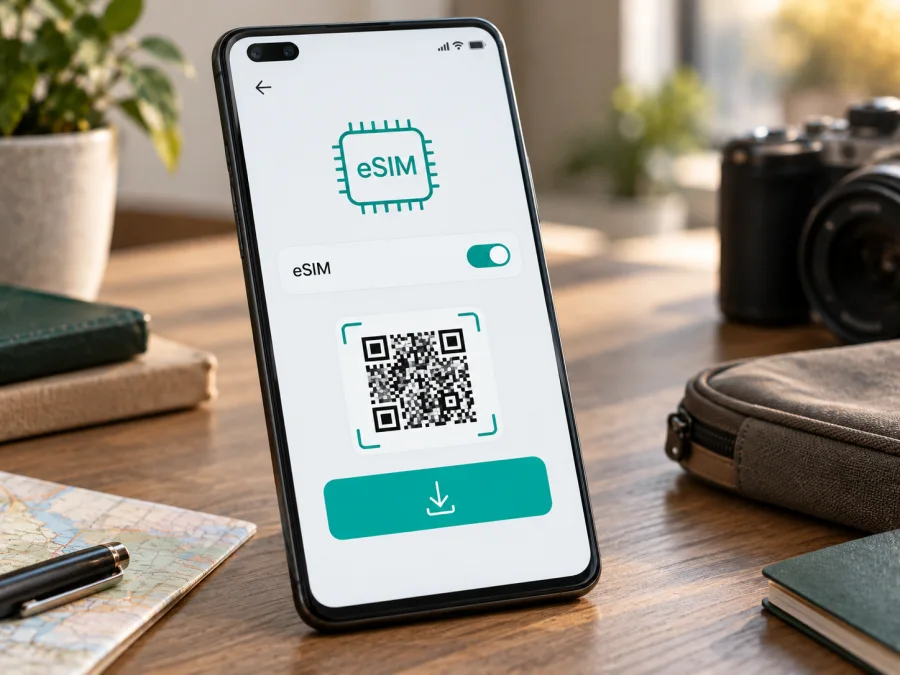
Huawei P40 256GB eSIM compatibility: what to check before you travel
The answer for Huawei P40 256GB is conditional: the P40 family includes eSIM-capable configurations, but the storage label alone does not establish that a particular phone has an eSIM chip or the required software option. Huawei’s specifications describe a single-SIM P40 configuration with one Nano-SIM and one eSIM, while a dual-SIM configuration uses two Nano-SIM cards. Huawei also says eSIM availability varies by country or region, device variant, and carrier. Before choosing a travel plan, check the actual phone for an EID and an eSIM management option.
“256GB” describes storage capacity; it does not identify the SIM hardware, firmware region, or carrier status. A listing may also combine details from different P40-series models. Keep the exact name Huawei P40 256GB, then verify the phone’s model number and settings.
At a glance
| Item | What to know about Huawei P40 256GB |
|---|---|
| Device named in this guide | Huawei P40 256GB |
| eSIM verdict | Possible on supported single-SIM P40 configurations; not guaranteed for every regional or dual-SIM variant represented by a 256GB listing |
| Strongest on-device check | An EID displayed in About phone, plus an eSIM option under SIM management |
| Huawei’s published SIM distinction | Single-SIM configuration: Nano-SIM + eSIM; dual-SIM configuration: Nano-SIM + Nano-SIM |
| Storage | 256GB does not identify the SIM hardware configuration |
| Before you buy a plan | Verify EID, eSIM menu, network unlock status, plan compatibility, and destination coverage terms |
Does Huawei P40 256GB support eSIM?
Huawei documents eSIM for certain HUAWEI P40 versions. Its official P40 specifications describe a single-SIM model that can use one Nano-SIM and one eSIM, and distinguish it from a dual-SIM model that uses two Nano-SIMs. Huawei support material also explains that eSIM support can vary with the device, country or region, and carrier. The practical conclusion is therefore not a universal yes for every phone sold as Huawei P40 256GB: the handset supports eSIM only if its particular hardware and software version expose the eSIM capability.
Some Huawei market specifications list 8GB RAM and 128GB storage, and regional eSIM support pages identify specific P40 configurations. They do not confirm every third-party “256GB” listing. Do not infer RAM, SIM arrangement, or eSIM support from storage capacity alone.
Check the model code printed in Settings → About phone, on the box, or in the device documentation. Compare it with the precise regional model information from Huawei for the market where the phone was sold. A phone imported from another country may have different hardware, firmware, SIM tray options, and carrier restrictions. Software updates can change menus, but an update cannot add an eSIM chip to hardware that does not include one.
The best quick test is to look for the phone’s EID, a long identifier associated with the embedded SIM. Also check the SIM-management screen for an option such as Add eSIM, Add mobile plan, or Manage eSIM. Menu wording can differ by EMUI version and region. A visible EID is strong evidence that an eSIM component is present; a working eSIM still depends on firmware support, an unlocked device, and a compatible plan. If there is no EID and no eSIM option after checking the menus, treat this Huawei P40 256GB as not confirmed for eSIM and ask Huawei support using the full model code before purchasing.
Why P40 versions can behave differently
Huawei describes a single-SIM P40 arrangement with one Nano-SIM and one eSIM, and a dual-SIM arrangement with two Nano-SIM cards. Regional models can differ in hardware, firmware, and carrier restrictions. Huawei also says eSIM availability depends on the device, country or region, and carrier. A listing that says “dual SIM” may mean two physical cards, so verify the exact model code and settings.
Storage, 5G capability, and eSIM are separate characteristics. “256GB” does not establish the phone’s RAM, SIM arrangement, or embedded-SIM capability. An update may change menu availability, but it cannot add eSIM hardware to a model that lacks it. Confirm the specific phone with its EID and SIM-management menu before purchasing a plan.
Compatibility check before buying a plan
Use this checklist on the phone you intend to take. If the seller cannot demonstrate these settings, ask for the model code and return terms before relying on eSIM.
- [ ] In Settings → About phone, record the model name, model number, EMUI version, and build number.
- [ ] Search Settings for EID or open Settings → About phone → Show EID if that item is available. Huawei places EID information in the phone settings on supported software versions.
- [ ] Open Settings → Mobile network → SIM management and look for Add eSIM, Add mobile plan, or a similar option.
- [ ] Confirm that the phone is network-unlocked. A locked handset can reject another provider’s profile or prevent registration on a supported network.
- [ ] Ask the plan provider whether the plan works on a Huawei P40 eSIM and whether the destination, network, and activation method are supported.
- [ ] Keep the primary physical SIM active if you need its number for calls, messages, or account verification, but confirm how the phone selects its mobile-data SIM.
- [ ] Check that you can connect to Wi-Fi during installation and that your phone has enough battery and current system software.
<a id="kesim-device-compatibility"></a>
Check the EID and eSIM menu yourself
Open Settings → About phone and look for Show EID; Settings search for “EID” can help if the menu differs. An EID is a long identifier associated with the embedded SIM. Keep it private. Then open Settings → Mobile network → SIM management and look for Add eSIM, Add mobile plan, or similar wording.
An EID is strong evidence of eSIM hardware, but you still need a visible management option, compatible firmware, an unlocked phone, and a plan accepted by the device. If neither EID nor eSIM controls appear, restart, check official updates, and confirm the model code with Huawei for the phone’s original market. If only one check succeeds, ask Huawei support before purchasing a non-refundable plan. Do not infer SIM support from the tray or a seller title. For a quick compatibility reminder, check your device against the list above.
Installing and activating a travel eSIM
Install the profile while you have a stable internet connection, preferably before departure if the plan allows pre-installation. Follow the plan’s instructions: some plans start their validity when installed, while others begin at first network connection or activation. Read the validity and activation conditions before scanning a QR code. Many profiles can only be installed once or on one device, so do not delete a profile to troubleshoot unless the plan provider confirms that it can be reinstalled.
Step-by-step setup
- Confirm support: Check the EID, eSIM option, model code, and network-unlock status; ask the plan provider to confirm this Huawei P40 configuration.
- Choose a plan: Review destination coverage, data allowance, validity, supported networks, price, and when activation begins. Check whether the plan is data-only.
- Prepare: Connect to reliable Wi-Fi, charge the phone, and keep the activation QR code or details ready. Install official system updates if available.
- Add the profile: Open Settings → Mobile network → SIM management, select the eSIM or add-plan option, then scan the QR code or enter details supplied by the provider. Keep the QR code private.
- Wait for installation: Leave Wi-Fi connected until the profile appears. Label it “Travel” if possible. Do not delete it during troubleshooting unless the provider confirms reinstallation is allowed.
- Choose the data SIM: Select the travel profile for mobile data when appropriate. Keep calls and SMS on your regular SIM if needed, and review automatic data switching.
- Activate and test: Follow the plan’s start rules. On arrival, disable airplane mode, enable data roaming for the travel eSIM only if instructed, and test a webpage or messaging app.
Huawei uses Android-based EMUI, so menus differ from iOS. See the Android eSIM installation instructions and iOS eSIM installation instructions for general QR setup guidance. Follow the plan’s specific instructions if they differ.
Using the eSIM on a trip
A travel eSIM can provide mobile data after landing without removing the physical SIM. Select it for data in a covered destination to use maps, ride-hailing, translation, bookings, email, and messaging apps, subject to coverage and allowance.
Before departure, decide which SIM handles mobile data, calls, and SMS. Keep your regular number active if you need it, and check its roaming charges. Turn off data roaming on the regular line if you want to avoid accidental usage; enable roaming for the travel line only when the plan instructions require it. For multi-country trips, confirm each destination is covered. Download maps over Wi-Fi and limit backups or streaming if data is limited.
Kaspersky eSIM Store is an app and website where you can choose, arrange, and activate an eSIM with a mobile-data plan for an overseas trip. Compare the destination, data amount, validity, and activation conditions with your itinerary. The Store is not a mobile network: signal and service depend on the plan’s partner network, destination, and local coverage. Check plan terms for voice calls or SMS; data plans may provide internet access only. If installation starts plan validity, follow that timing rather than waiting until arrival.
Troubleshooting common problems
- No eSIM option: Check the EID, model code, regional firmware, and official updates. If EID and eSIM controls are absent, do not assume this 256GB listing is compatible; confirm with Huawei.
- QR code fails: Use stable Wi-Fi, ensure the code is current and unused, and try manual entry only if the provider offers it. Some codes allow one installation.
- Profile installed but no signal: Confirm the eSIM is enabled and selected for data, airplane mode is off, the destination is covered, and roaming is enabled if required. Follow provider guidance for manual network selection.
- Connected without internet: Check remaining data, plan start time, and active data SIM. Toggle airplane mode or restart. Change APN only when the provider gives you a value.
- Unexpected home-SIM charges: Recheck the selected data line, roaming settings, and automatic switching. Calls and SMS may still be billed by your home carrier.
- Slow or intermittent data: Local signal, congestion, supported bands, and network availability affect performance. 5G capability does not guarantee 5G coverage; 4G can still support common travel tasks.
- Profile removed or transfer needed: Do not delete or transfer it before asking the provider. Some plans bind a profile to the first device and may not permit another download.
Frequently asked questions
Does Huawei P40 256GB definitely support eSIM?
No universal guarantee follows from the storage label. Huawei documents eSIM on certain single-SIM P40 configurations and distinguishes them from dual-SIM versions with two Nano-SIM cards. Confirm that this exact phone has an EID and an eSIM menu, and check its model code, region, and firmware before buying a plan.
Is the P40’s eSIM the same as using two physical SIM cards?
No. Huawei describes the eSIM-capable single-SIM arrangement as one Nano-SIM plus one eSIM. The dual-SIM arrangement can instead use two Nano-SIM cards. Which configuration applies depends on the actual model variant; a reseller’s “dual SIM” wording may not explain the difference.
If my phone shows an EID, can I use any travel eSIM?
Not automatically. An EID indicates an embedded SIM identifier, but you also need an available eSIM management option, an unlocked handset, compatible software, and a plan supported in your destination. Check the plan’s device and network requirements.
Does eSIM provide a phone number?
A travel data plan may be data-only. Do not expect a local number, ordinary voice calls, or SMS unless those services are explicitly included in the plan terms. Messaging and internet calls can use data when the relevant apps are available.
Should I install the eSIM before flying?
Installing over Wi-Fi before departure can be convenient, but follow the plan’s validity rules. Some plans start at installation; others begin at first connection or activation in the destination.
Can I remove and reinstall it if setup fails?
Do not delete it until the provider confirms another download is allowed. Activation codes may be limited to one installation. Preserve the profile and ask the plan provider for help.
Final device check before choosing a trip eSIM
For Huawei P40 256GB, use the phone’s own identifiers to make the final decision. Confirm the model number and software version, look for an EID, and make sure SIM management includes an eSIM add or activation option. Then confirm the phone is unlocked and that the plan supports the eSIM profile, destination, and expected data use. If one of these checks is missing, ask Huawei or the plan provider to verify the exact regional configuration before purchase.
Once compatibility is confirmed, choose a plan by destination, data allowance, validity, and activation timing. Kaspersky eSIM Store lets you use its app or website to choose, arrange, and activate a suitable eSIM plan for mobile data during an overseas trip. Review the terms, install the profile according to its instructions, and select the travel eSIM for data when appropriate. Check before departure to avoid discovering a hardware or regional limitation at the airport.


