Travel connectivity guide
Huawei Pura 70 Pro 256GB eSIM Compatibility
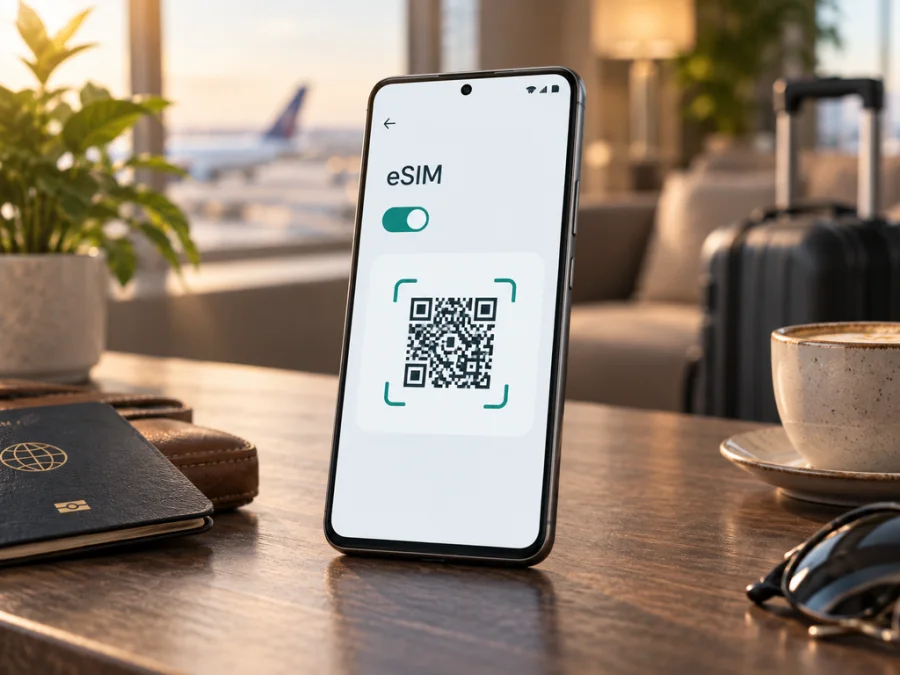
Huawei Pura 70 Pro 256GB eSIM compatibility and setup guide
The Huawei Pura 70 Pro 256GB name identifies a storage configuration, but storage capacity alone does not determine whether a phone can use eSIM. Huawei’s published information confirms eSIM on certain regional Pura 70 Pro configurations, while the official support information available for this feature names a 12 GB + 512 GB dual-SIM version. Huawei’s Singapore specifications also describe eSIM on listed single-SIM and dual-SIM versions of model HBN-LX9. The documentation does not let us confirm that every phone sold as Huawei Pura 70 Pro 256GB has the same eSIM hardware and software.
Practical answer: treat eSIM compatibility for Huawei Pura 70 Pro 256GB as unconfirmed until you verify the exact model number and the eSIM controls on your own phone. Some Pura 70 Pro versions support eSIM, but that does not establish support for every 256GB regional or carrier edition. Look for an EID and an option to add an eSIM; if neither is present, ask Huawei or the seller to confirm the full model code and market variant before buying a travel plan.
Huawei Pura 70 Pro 256GB: key details to check
| Item | What to know |
|---|---|
| Device named in this guide | Huawei Pura 70 Pro 256GB |
| Storage in the requested variant | 256GB; this alone does not prove eSIM support |
| eSIM status | Confirmed for some Pura 70 Pro regional configurations; not confirmed here for every 256GB variant |
| Officially documented examples | Huawei support lists a 12 GB + 512 GB dual-SIM configuration; Singapore specifications describe eSIM options for HBN-LX9 single-SIM and dual-SIM models |
| Decisive checks on your handset | An EID in device information and an eSIM add/download control in SIM management |
| Network and plan | The phone must be unlocked, and the eSIM plan must support the destination and available network bands |
A shop listing, box, or invoice may omit details that matter. The same family name can cover different regional hardware, SIM arrangements, software, or carrier settings. A 256GB listing may refer to a local release or an import. Check the full model code in Settings > About phone and compare it with official information for the country where the handset was sold. Do not infer capability from another storage option, market, or tutorial.
Regional and operator differences
Start with the country of sale. An imported phone can share a product name but have a different model code, SIM arrangement, firmware, or carrier setting. Local policy and operator support can affect whether eSIM is enabled. A carrier lock can also prevent use of another provider’s profile.
Keep two checks separate: phone capability (model, EID, eSIM controls) and plan suitability (unlock status, destination coverage, network bands, activation conditions). One does not guarantee the other. Ask Huawei or the seller to verify the complete model code, not only “Pura 70 Pro.” If they cannot confirm it, use the on-device checks before relying on eSIM during a trip.
Check compatibility before choosing a plan
Use this checklist on the exact Huawei Pura 70 Pro 256GB you will take with you:
- [ ] Find the full model number in Settings > About phone. Record the model code and software version; do not share the IMEI publicly.
- [ ] Search device settings for EID. An EID is a long identifier associated with an embedded SIM. If available, it is a strong sign that the handset has eSIM capability, although the operator and plan must still accept it.
- [ ] Open Settings > Mobile network > SIM management and look for an option such as Add eSIM, Add eSIM card, or a control attached to SIM 2. The wording can vary by software release.
- [ ] Confirm that the phone is not locked to a carrier. Contact the original operator if you are unsure.
- [ ] Check that the operating system is current and that the phone has a stable Wi-Fi connection for profile download.
- [ ] Match your exact model code and market version against Huawei’s official specifications or ask Huawei support to confirm it.
- [ ] Check that the travel eSIM plan covers every country on your itinerary and review its activation, validity, data allowance, and network-selection instructions.
If both an EID and an eSIM installation control appear, the phone is likely equipped for eSIM, but regional policy or a carrier lock can still prevent activation. If the menu is absent, restart after updating the software and search Settings for “eSIM” and “EID.” Some device-information screens show the EID only after a profile is added, while others show it before setup. If neither the EID nor an add-eSIM option can be found, do not assume the device is compatible based only on the Pura 70 Pro name. Confirm the result with Huawei or the retailer.
For a quick guided check, check your device before selecting a plan. Keep a note of the exact model code, country of purchase, and software version; these details help support teams answer a regional-variant question accurately.
What EID and SIM settings tell you
The EID is not the same as an IMEI, phone number, or SIM serial number. It identifies the eSIM component for provisioning. Look in Settings > About phone > Status or use the Settings search field for EID; menu locations vary between EMUI and HarmonyOS. Keep this identifier private and share it only with trusted support when needed.
SIM management is a second clue. A supported version may show an eSIM entry or add-eSIM button under Mobile network > SIM management or SIM 2. Physical SIM tray slots alone do not settle compatibility: some dual-SIM models let the second slot use either Nano-SIM or eSIM, while others differ. A visible EID is useful evidence, but regional policy, carrier lock, and plan support still matter. If both the EID and add-eSIM control are missing after a software update and restart, ask Huawei or the seller to verify the complete model code. A factory reset cannot add eSIM hardware and may erase an installed profile.
Install and activate an eSIM
Only start once you have confirmed compatibility, unlocked status, plan conditions, and the supported installation method. Keep the phone connected to Wi-Fi and have the activation email or QR code ready. Many QR codes are single-use and tied to the device or account for which the plan was issued. Do not scan a code repeatedly, delete a profile to troubleshoot casually, or share a screenshot containing the activation details.
- Read the plan instructions first. Check the supported destination, when validity begins, whether installation requires Wi-Fi, and whether the profile should be installed before departure or after arrival. Keep any manual activation details private.
- Open SIM management. On a supported Huawei version, go to Settings > Mobile network > SIM management, then choose the eSIM or add-eSIM control. The exact menu label can differ by model and software build.
- Add the profile. Choose the QR-code option and scan the code supplied for your plan. If the provider supplies manual details, enter them only through the phone’s eSIM setup screen. Do not use a QR code from another person or another plan.
- Wait for download. Keep Wi-Fi on and do not close the setup screen until the profile is downloaded. Name the line something recognisable, such as “Travel data,” so you can distinguish it from your home SIM.
- Choose what each SIM does. Keep your home line selected for calls or messages if you need it, and choose the travel eSIM for mobile data when its service should begin. Review any warning that says adding eSIM will disable SIM 2 or change your existing SIM arrangement.
- Activate at the right time. Some plans start their validity at installation; others start on first connection to a supported network. Follow the plan terms. If activation is intended for arrival, leave the travel profile off until then unless the instructions say otherwise.
- On arrival, enable the travel line and data. Select the travel eSIM for mobile data. Turn on data roaming for that line only if the plan instructions require it. Then wait for network registration and test a simple webpage or messaging app.
Huawei’s menu names may differ from generic Android instructions, so follow the prompts on your phone and the plan provider’s steps. See Android eSIM installation instructions and iOS eSIM installation instructions. The iOS guide is a general reference; iPhone menu labels do not apply to this Huawei handset.
Kaspersky eSIM Store is an app and website where travellers can choose, arrange, and activate an eSIM with a mobile-data plan for an overseas trip. After confirming that Huawei Pura 70 Pro 256GB supports eSIM, use it to review a destination plan’s data allowance, validity, and coverage details, then follow the setup instructions. The app and website do not replace compatibility checks for the exact variant.
Use the eSIM on a trip
For a single-country holiday, install over dependable Wi-Fi and follow the plan’s start rule. If validity begins on first network connection, install at home but keep the line off until instructed. Select the travel eSIM for mobile data when needed; check home-carrier roaming charges before leaving your regular SIM active.
For a multi-country route, make sure every destination is covered, including layovers. Review validity against trip length and expected use of maps, messaging, and browsing. For work trips, decide which SIM handles data and whether the other remains available for calls; check tethering rules and limit large backups if data is capped. Download maps and important documents in advance.
A data plan may not include a regular number, calls, or SMS unless its terms say so. Internet messaging and voice apps can work over data; account verification texts may still depend on your home line and carrier roaming. Prepare recovery options before travelling.
If setup or mobile data does not work
There is no Add eSIM option. Search Settings for eSIM, check About phone for an EID, update and restart, then confirm the complete model code and region with Huawei. If both indicators remain absent, do not keep retrying QR codes; the feature may not be available on that handset or firmware.
The QR code will not scan. Brighten the screen showing the code, clean the camera lens, and keep the full QR image visible. Use manual details only if the plan provider supplies them. The code may have expired, already been used, or been issued for another device. Contact support before deleting a partially installed profile.
The profile downloads but shows no service. Confirm the travel line is enabled and selected for mobile data, the destination is covered, and the plan’s activation condition is met. Turn on data roaming for that eSIM only if instructed. Check airplane mode, restart, and allow time for registration. If needed, follow provider directions for choosing a partner network.
Connected, but there is no internet. Check data selection, allowance, validity, and any provider-specified APN. Briefly turn Wi-Fi off to test mobile data. Review VPN, private DNS, or data-saving settings if access still fails; avoid removing the profile as a first step.
The home SIM stopped working. Check SIM management for a disabled SIM 2 or changed default line. Re-enable it if available and review the instructions for the exact model. Some combinations are not supported.
When contacting support, provide the model code, software version, country of purchase, current country, and exact error. Share an EID only through a trusted channel when requested. Never publish a QR code or activation code.
Frequently asked questions
Does Huawei Pura 70 Pro 256GB support eSIM?
It is not confirmed for every phone sold with this exact 256GB name in the official information reviewed. Huawei documents eSIM for some regional Pura 70 Pro versions, including configurations other than this requested storage variant. Check the EID and eSIM settings, then have Huawei or the seller verify the full model code.
Is 256GB the same as the documented 12GB + 512GB version?
No. They are different storage configurations. A support note for 12GB + 512GB does not establish support for a 256GB handset. Check its model number and menus directly.
Can I use an eSIM with a physical SIM?
Some regional versions allow one Nano-SIM with eSIM; certain dual-SIM versions may use a second Nano-SIM or eSIM. The combination varies, and adding eSIM may affect SIM 2. Check the exact phone’s SIM management screen.
Does an EID guarantee a travel plan will work?
No. The phone must be unlocked, the plan must support the destination and device, and the available network must be compatible. Confirm coverage and activation conditions before purchase.
When should I install or remove a travel eSIM?
Follow the plan’s validity rule: some plans start at installation, others on first network connection. Install over Wi-Fi when directed. Remove the profile only if the provider says it is safe; deleting it does not necessarily cancel a plan.
Before you travel: verify the phone, then choose the plan
Check that your exact Huawei Pura 70 Pro 256GB shows an EID and an option to add eSIM, and confirm its model code with Huawei or the seller if either check is unclear. Make sure the phone is unlocked, the plan covers your destination and travel dates, and you understand when validity starts and whether roaming must be enabled. Once compatible, use Kaspersky eSIM Store’s app or website to choose, arrange, and activate an eSIM data plan for the trip. Save the instructions and test the line after arrival.


