Travel connectivity guide
Húsavík eSIM: Mobile Internet for Your Trip
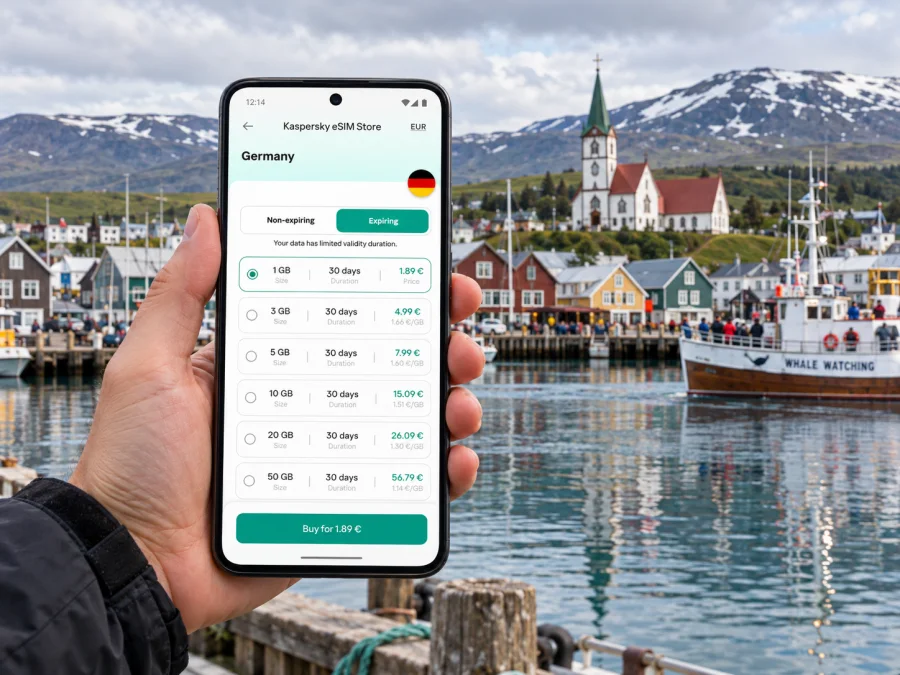
Húsavík eSIM: Mobile Connection and Internet for Your Trip
Húsavík is a small harbour town in northeast Iceland, set beside Skjálfandi Bay and known for whale-watching departures, its Whale Museum and the GeoSea sea baths. A phone can help you find a guesthouse, check a tour’s meeting point, follow a road route and keep plans flexible when weather changes. An eSIM can provide mobile data on a compatible, unlocked device, while your regular SIM remains available for calls or messages if your plan supports them.
The useful question is not simply whether an eSIM works in Iceland. Before travelling to Húsavík, check which Iceland destination and data allowance a plan covers, when its validity begins, whether your phone supports eSIM, and what connection is likely to be available on the route beyond town. Coverage and speed depend on the local network, location, terrain, weather and the plan’s terms. No digital SIM can guarantee a signal on every road, boat or trail.
What mobile data helps with in Húsavík
Húsavík’s compact centre is easy to explore on foot, but your phone still has a practical role. The harbour is the starting point for many whale-watching tours; nearby streets lead to cafés, accommodation and the Húsavík Whale Museum. GeoSea sits above the bay, away from the central waterfront. A map can help you check the walking route, while a booking confirmation or message can clarify where and when to meet.
Mobile data is also useful for everyday tasks that are easy to overlook while planning a trip:
- opening a saved map when a street name is unfamiliar;
- checking a tour operator’s latest meeting instructions or weather notice;
- contacting accommodation if arrival is delayed;
- translating a short sign or menu when needed;
- checking a bus timetable before leaving for Akureyri;
- sharing a location with your travel companion;
- finding updated road or weather information before a regional drive.
Arriving and getting oriented
Húsavík has an airport, but air services and onward arrangements can vary. Confirm your arrival airport, operating dates, baggage arrangements and transfer directly with the airline or travel provider before building an itinerary around a flight. Many visitors also reach the town by road from elsewhere in North Iceland. If you are connecting through Akureyri, check the current transfer options and allow time for schedule changes rather than assuming a direct connection will match your flight.
Strætó lists Route 79 between Húsavík and Akureyri. Its timetable and stops can change by season or operating day, so check the current journey details before setting off. If a bus is central to your plan, save the departure time and stop in advance, and verify that your arrival and onward journey line up. Mobile internet makes it easier to recheck updates, but you should not rely on a live connection as your only record of the route.
At arrival, connect to trusted Wi-Fi if available and take a moment to confirm your accommodation location. A useful first sequence is:
- Check the local time and your next confirmed booking.
- Open the route to your lodging and save the address offline.
- Confirm whether you will walk, meet a transfer or collect a rental car.
- Test your eSIM data before leaving a place with Wi-Fi.
- Keep your regular SIM active if you need its number for calls or verification messages.
If your itinerary includes a rental car, download the map for the wider region and review the route before departure. A small town can feel straightforward on arrival, but the distance between services grows quickly once you leave the built-up area.
Walking between the harbour, centre and GeoSea
Most first-time visitors spend time around the harbour and the central streets. Tour boats, the Whale Museum and waterfront cafés make the harbour a natural reference point. The town’s visitor map also marks accommodation, public services and places to eat. Use these known landmarks when meeting someone rather than relying on a vague instruction such as “near the water.”
GeoSea is at Vitaslóð 1 on the headland above the bay. It is a separate destination from the harbourfront, so check the walking route and weather before setting out. Wind and rain can make a short walk feel different from a sheltered street; take suitable outerwear and shoes. If you have a timed reservation, leave a margin rather than planning to arrive at the last minute.
| Stop or task | How a phone can help | Prepare before you go |
|---|---|---|
| Harbour and whale-watching departure | Locate the quay and check the meeting point | Save the operator’s confirmation and departure time |
| Húsavík Whale Museum | Find the museum near the waterfront | Check opening details for your travel date |
| GeoSea | Navigate to Vitaslóð 1 above the bay | Confirm your booking and route from the centre |
| Guesthouse or hotel | Share arrival updates and follow directions | Save the street address and check-in instructions |
| Café or shop | Search for current opening information | Keep a second option in mind outside peak hours |
Opening times, tour schedules and availability are not fixed year-round. Check directly with the venue or operator on the day. If a page does not load, a saved confirmation, map or message may be enough to keep moving without searching for a signal.
Choosing data for a Húsavík itinerary
Choose an eSIM plan by considering how you will use your phone, not by choosing the largest allowance automatically. A short stay focused on walking, messages and occasional directions needs less data than a trip involving frequent video calls, cloud uploads or streaming. Use accommodation Wi-Fi for large downloads and video where practical, and reserve mobile data for maps, transport checks and communication while out.
| Your travel pattern | Data use to consider | A sensible preparation |
|---|---|---|
| One night in town | Maps, messages, booking details | Save the town map and key confirmations offline |
| Several nights with tours | Navigation, tour updates, photos shared selectively | Check how much data your usual photo backup uses |
| Work during the visit | Email, documents, calls over data | Confirm your work apps function on mobile data and have a Wi-Fi backup |
| Road trip from Húsavík | Navigation and changing route information | Download offline maps; check roads and weather before each drive |
| Boat trip or outdoor day | Meeting details and occasional messages | Follow the operator’s instructions and do not assume continuous signal offshore |
Before purchase, compare the destination, allowance, validity period, price and activation terms displayed for the specific plan. Check whether the plan is data-only. An eSIM intended for travel data may not include an Icelandic phone number, ordinary voice calls or SMS unless its terms explicitly say so. You can generally keep your main SIM for calls and texts while selecting the eSIM for mobile data, but the exact settings depend on your phone and carrier.
If Iceland is one stop on a multi-country trip, verify that the selected coverage matches every destination on your route. A plan labelled for a region may have different included countries and conditions from an Iceland-specific option. Read the plan details rather than assuming that a regional label includes every stop.
Once you have a rough itinerary and data estimate, you can review the available Iceland eSIM options and compare the current terms shown for your travel dates. Kaspersky eSIM Store is an app and website where you can select, purchase and activate an eSIM plan for mobile data abroad; the plan’s network, coverage, allowance and conditions are defined by the offer you choose.
Check your phone before buying
An eSIM requires a compatible device that is not restricted from using another carrier’s profile. Support can differ between device models, regional variants and carrier-locked versions of the same product name. Do not infer support from a similar phone owned by someone else. Check the manufacturer’s specification for your exact model and the settings on your own device. You can also check whether your device is compatible with eSIM.
Before travelling, confirm that:
- your exact phone variant supports eSIM;
- the device is unlocked for use with another eSIM profile;
- you can access the email or account used to receive setup details;
- you know how to switch the mobile-data line on your operating system;
- the eSIM can be installed while you still have dependable Wi-Fi;
- you understand whether installation, activation or first network use starts the plan’s validity.
If your phone does not support eSIM, keep your existing roaming option or look into a physical SIM from a local provider after checking its current terms and availability. A second device with verified eSIM support may be another practical option. Avoid buying a plan until you know which device will use it.
Install and activate without losing access
Installation steps vary by phone and plan. Follow the instructions shown with your selected eSIM and keep a Wi-Fi connection available until the profile is installed. If you want step-by-step help, use the Android eSIM installation guide or iOS eSIM installation guide.
A careful setup sequence is:
- Before purchase, read the destination, data allowance, validity and activation terms.
- Install the eSIM at a time and place where stable Wi-Fi is available, following the plan’s instructions.
- Label the new line clearly, such as “Iceland data,” so it is easy to recognize beside your home SIM.
- Keep your home line selected for calls and SMS if you need it, and choose the travel eSIM for mobile data when appropriate.
- Enable data roaming for the eSIM only if the plan’s setup instructions require it. Roaming settings can be part of how a travel eSIM connects; check the supplied terms rather than assuming.
- After arrival, turn on the eSIM line and check that the phone registers on a supported local network. Allow a little time and follow the troubleshooting steps supplied with the plan if it does not connect.
- Monitor data use and validity in your device settings or account, and use Wi-Fi for large updates.
Do not delete an installed eSIM profile to troubleshoot unless the provider’s instructions tell you to. Some profiles cannot be installed again after removal. If the connection does not start, first check that the eSIM line is enabled, the correct line is selected for data, airplane mode is off, and the phone has restarted or reselected a network. Then consult the plan’s support instructions.
Mobile coverage around town and beyond
A phone may connect well in central Húsavík and behave differently on a boat, in a valley or along a rural road. Iceland’s travel-safety guidance notes that coastal coverage is generally good but that limited-signal areas can occur, including narrow canyons and deep valleys. This is a general observation, not a guarantee for a specific carrier, plan or point on a route. The eSIM uses a local partner network according to its plan terms, and reception can vary by network and terrain.
For whale watching, treat time on the water as a possible offline interval. Download any ticket or meeting information beforehand, tell someone your plan if appropriate, and follow crew instructions. For drives to Lake Mývatn, Goðafoss, Ásbyrgi Canyon or other Diamond Circle stops, save route maps and check road and weather conditions before leaving. Do not use a phone while driving; set navigation before moving and stop safely if you need to change the route.
Keep emergency readiness separate from ordinary data planning. Iceland’s emergency number is 112. Carry a charged phone, and do not assume that a data eSIM alone guarantees that emergency calling will work in every location or on every device. Check that your handset is compatible with current local mobile-network requirements and keep another traveller informed of your route. In a weak-signal area, move only when it is safe to do so; avoid leaving a safe route in search of reception.
Working remotely from Húsavík
Ask your accommodation about Wi-Fi quality before arrival if video calls are essential. Treat mobile data as a backup for messages or brief tasks rather than a guaranteed replacement for broadband. Download documents and maps in advance, keep meeting details accessible offline, and use Wi-Fi for large uploads or software updates. A travel eSIM provides a connection option; it does not change your device’s usual security responsibilities, so keep your phone locked and updated.
Common connection problems
The eSIM is installed but there is no data. Confirm the line is switched on and selected for mobile data. Check whether the plan requires data roaming, then follow its instructions. Move to an open area and restart the phone if needed.
The phone shows a network but apps do not load. Check data allowance and validity, turn Wi-Fi off briefly to test mobile data, and verify that the correct SIM is set for data. If you use a VPN or private DNS setting, check whether it affects the connection, then use the plan’s support guidance.
Maps stop updating outside town. Treat this as a possible coverage gap. Use the offline map you saved, follow road signs and avoid detours based only on a stale map display. Check current road conditions before setting out again.
A verification text arrives on the wrong line. Review the default voice and SMS line in your phone settings. Keep your usual number enabled if you need it, and check any roaming charges with your home carrier.
You are unsure whether the plan is active. Review the plan’s stated start condition and its account or app status. Some plans begin validity at installation; others begin when first connected. Never assume the activation rule—use the terms shown for that plan.
A simple connectivity plan by trip type
Short stop in Húsavík: Install the eSIM before departure if the plan’s activation terms make that suitable. Save your lodging address and tour confirmation. Use data for directions and messages, and keep an offline map for the centre.
Whale-watching day: Check the departure location and weather notice before walking to the harbour. Save the ticket and meeting time. Expect that connection may be intermittent offshore and enjoy the trip without depending on live updates.
Húsavík and Akureyri by bus: Verify Route 79’s current timetable and stop information for your date. Keep the departure details offline, then use data for changes or onward navigation when available. Leave enough time for your connection.
Self-drive around North Iceland: Download maps in advance, check road conditions and weather on the morning of travel, and plan fuel and rest stops. A route can cross areas where coverage varies, so navigation should not depend solely on live data.
Remote work between activities: Agree on dependable Wi-Fi before booking if video calls are essential. Reserve the mobile plan for backup access and communication away from the accommodation, and keep important documents available offline.
Before you leave home
Use this checklist the day before travel:
- [ ] Confirm the exact Iceland plan coverage, data amount, validity and price.
- [ ] Verify eSIM support and carrier-unlocked status on your specific phone.
- [ ] Install the profile with Wi-Fi and save its setup details.
- [ ] Decide which line handles data, calls and SMS.
- [ ] Download an offline map of Húsavík and your planned driving area.
- [ ] Save lodging addresses, tour confirmations and Route 79 details.
- [ ] Check opening times, departures, weather and roads close to the day.
- [ ] Carry a charger or power bank and keep emergency information accessible.
Frequently asked questions
Is an eSIM useful for a visit to Húsavík?
It can help with directions, tour updates, accommodation messages and regional planning. Its usefulness depends on your phone, the selected plan’s Iceland coverage and terms, and your expected data use.
Does an eSIM guarantee internet everywhere around Húsavík?
No. Reception depends on the supported network and location, and can differ between town, roads, valleys and open water. Save information offline.
Will the eSIM give me a local phone number?
Do not assume so. Travel eSIM plans may be data-only. Check the specific offer for calls and SMS, and keep your home SIM available if you need your usual number.
Can I keep my home SIM active?
Many dual-SIM phones let you keep both lines active and select one for data. Options vary, so confirm your device settings and home-carrier roaming charges before travel.
When should I install the eSIM?
Installing where dependable Wi-Fi is available can simplify setup. Check the plan terms first because validity may begin at installation or at first network connection, depending on the offer.
What if I lose signal on a day trip?
Use saved maps and booking details, follow signs and your planned route, and wait for a safe place with service before relying on live information. Do not expect continuous coverage at sea or in every rural area.
Get ready for Húsavík
Before you travel, verify your phone, compare the Iceland plan details and install the eSIM with a reliable Wi-Fi connection. Save the harbour meeting point, your accommodation address and offline maps, then use mobile data for the moments it is most useful. Open Kaspersky eSIM Store to choose an eSIM plan for your trip to Iceland and review the current allowance, validity and conditions before purchase.


