Travel connectivity guide
Infinix Note 60 Pro 128GB 5G eSIM Guide
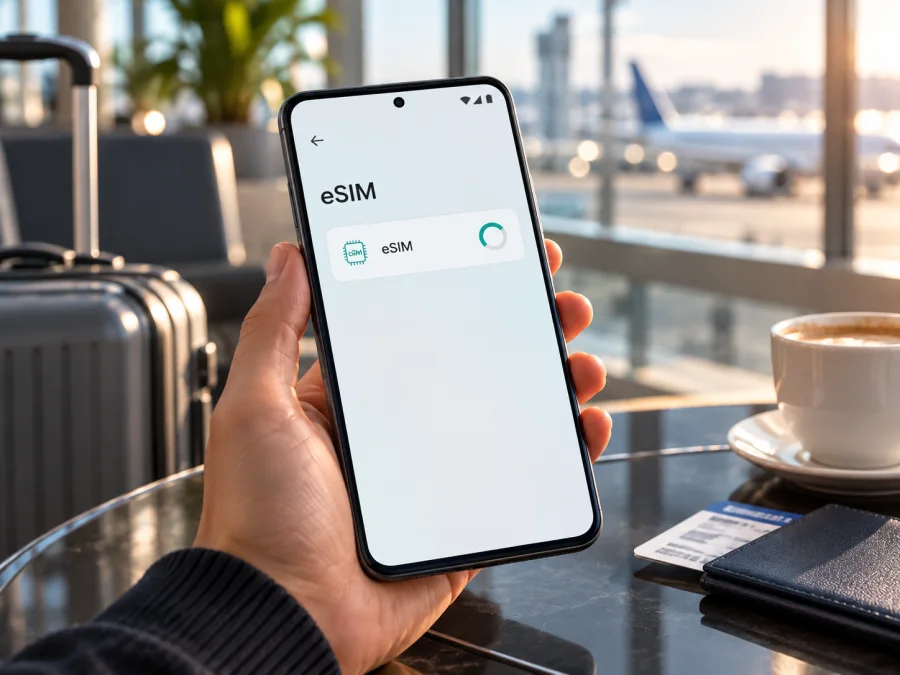
Infinix Note 60 Pro 128GB 5G eSIM: compatibility and setup
The Infinix Note 60 Pro 128GB 5G needs a market-specific check before you rely on eSIM for a trip. Current official Infinix information does not support one universal answer for every regional version: the India product listing for the 8GB/128GB Note 60 Pro identifies two nano-SIM slots, while an Infinix Mexico product page describes built-in eSIM for the Note 60 Pro. The listing name alone does not identify which radio and SIM configuration is inside your handset. Treat eSIM as unconfirmed on your individual phone until you find an EID or a working “Add eSIM” option in its settings and confirm the exact model code with the seller.
That distinction matters when preparing mobile data abroad. 5G support, 128GB storage and dual physical SIM capability do not by themselves prove eSIM support. Infinix’s India listing labels the device model X6878, offers a 128GB configuration and notes that network availability may vary by region and local provider. Its detailed connection specification says “2 nano SIMs.” The Mexico product page, checked on 2 November 2026, separately describes a built-in eSIM. Infinix does not make those market-specific details interchangeable, so do not infer that the Indian SKU has eSIM simply because another regional page mentions it.
Quick compatibility answer
There is no single confirmed eSIM answer for every phone sold under the name Infinix Note 60 Pro. The official India listing for its 128GB configuration documents two physical nano-SIMs and does not list eSIM in its connection specification. An Infinix Mexico product page describes a built-in eSIM for the Note 60 Pro, but that does not establish that every 128GB 5G unit, every model code or every imported handset has the feature. Check the exact device in hand. If it has no EID and no eSIM setup control, assume it cannot install a travel eSIM unless Infinix support confirms otherwise for its full model and regional software build.
| Item | What is documented | What it means for eSIM |
|---|---|---|
| Exact name supplied | Infinix Note 60 Pro 128GB 5G | Storage and 5G do not confirm eSIM. |
| India product configuration | Infinix India lists 8GB RAM / 128GB storage and two nano-SIM slots | The listed configuration is physical-SIM focused; its page does not list eSIM. |
| Other regional information | Infinix Mexico’s Note 60 Pro page describes a built-in eSIM | This is evidence for a regional version, not a guarantee for all markets. |
| Model identifier on India listing | X6878 | Check the full model identifier and sales region printed on your own box and in About phone. |
| Practical decision | Regional variant not specified in the task name | Verify on the handset before purchasing an eSIM plan. |
The regional pages describe different market configurations, not a software setting that can be assumed to appear on all phones after an update. An operator-sold phone can also have network or activation restrictions. A firmware update can change menus, but it cannot add an eSIM hardware component to a version that lacks one. If the store listing, box and Settings screen disagree, pause and ask the seller or Infinix support to confirm the product code and SIM capability in writing.
Check the phone itself before buying
Look for both an EID and a real Add eSIM flow. Menus vary by XOS and Android version, so use them together with the full model code. The strongest confirmation is an EID plus a setup screen that reaches QR scanning or manual activation.
1. Look for an EID
Search Settings for EID. It may appear under About phone, Status or SIM status. You can also try *#06# in the dialler; some Android phones show EID there, while others show only IMEI numbers. An EID is an identifier used by eSIM-capable devices. Google’s Pixel help page explains the identifier, but its menu directions are specific to Pixel and may not match Infinix.
If you find an EID, keep it private and confirm it belongs to your handset. If it is missing, check the menu names and software version before drawing a conclusion.
2. Look for the add-eSIM option
In Settings, open SIM cards & mobile networks, Mobile network or the closest matching section. Search Settings for eSIM, Add eSIM or mobile plan. A working path should let you download a plan, scan a QR code or enter activation details. Stop before scanning an actual code merely to test the menu: many codes are single-use.
3. Confirm the exact unit
A tray with two nano-SIM positions confirms physical SIM capacity, not eSIM. Check the full model number in About phone and compare it with the box and sales region. For an operator phone, ask whether it is unlocked and can use another provider’s eSIM. If the details conflict, ask Infinix or the seller to confirm eSIM for that exact SKU in writing.
If support is still uncertain, use your physical SIM or Wi-Fi for the trip rather than buying a plan you may not install.
What the regional specifications mean
Infinix India’s current listing identifies the 8GB/128GB option as model X6878 and specifies two nano-SIM slots. Infinix’s Mexico Note 60 Pro page separately describes a built-in eSIM. Both are official regional product descriptions, but they do not establish that every 128GB model has the same SIM hardware. The model name, storage capacity and 5G label are not enough to distinguish these configurations.
If you have the India-market X6878, follow the India specification unless Infinix confirms an eSIM-enabled subvariant for your exact unit. If your phone was sold elsewhere, check its own settings and full model code. Retail pages can copy specifications across markets, so ask the seller to confirm eSIM for the actual SKU rather than accepting “dual SIM” or “global version” as proof.
Prepare the eSIM for a trip
Once compatibility is confirmed, decide how you want to use the phone before leaving. A travel eSIM is commonly used for mobile data in the destination, while your existing SIM remains available for calls or messages if your carrier and device allow dual-SIM use. The exact combination depends on the phone’s supported configuration and the selected plan. The Kaspersky eSIM Store app and website help you choose, arrange and activate an eSIM with a mobile-data plan for an international trip. They do not replace the need for an eSIM-capable, unlocked device or guarantee local network availability. Before choosing a plan, check whether your device is compatible. Confirm that the result applies to your market and model, not a similarly named Note 60 Pro. If support is still uncertain, do not buy a plan for this handset until the seller or Infinix confirms it.
Before selecting a plan, compare the destination or region it covers with your itinerary. Check the data allowance, validity period, when the validity begins, whether the plan supports tethering if you need it, and the plan’s activation requirements. A multi-country route may need a regional option; a trip confined to one country may be easier to match with a country-specific plan. Read the plan conditions in the store at the time of purchase because offers and service terms can change.
For a destination-neutral starting point, browse the Kaspersky eSIM Store and check current travel plans. The homepage is a general store entry point, not a specific country tariff. Choose your destination there only after your phone passes the compatibility check. An eSIM plan for mobile data typically does not supply a regular phone number for voice calls or SMS unless the plan explicitly says otherwise; continue using your primary line or internet messaging apps as appropriate.
Before you leave
- Confirm that the phone is unlocked and the plan covers every country on your route.
- Check the data allowance, validity period and when validity begins.
- Keep the QR code or activation details available on another screen; setup may require internet.
- Decide which SIM handles mobile data and which remains available for calls or messages.
- Read whether installation, first network connection or a scheduled date starts the plan.
Installation and activation are not always the same event. If the plan’s timing is unclear, ask the provider before scanning its one-time code.
How to install and activate an eSIM
Proceed only after the EID/add-eSIM check succeeds and the provider confirms the exact model. Use stable Wi-Fi or mobile data and keep the QR code on another screen. Menu names differ by Android and XOS version. Kaspersky eSIM Store’s Android installation guide gives general Android steps; the iOS installation guide is for Apple devices, not this Android phone.
- Review the plan. Confirm destination, data, validity, activation timing and whether the plan is data-only.
- Open SIM settings. Tap Add eSIM or the equivalent option under mobile-network settings.
- Choose a method. Scan the provider’s QR code or enter its activation details manually.
- Download the profile. Follow the prompts and wait for installation to finish. Do not close the setup screen.
- Label the line. Name it “Travel” or use the destination so you can identify it later.
- Choose when to enable it. Leave it off until needed if your plan permits early installation and does not begin validity at installation.
- Set the data SIM. Enable the travel profile and select it for mobile data when ready. Keep your home SIM for calls only if you understand its roaming terms.
- Set roaming if needed. Some plans require data roaming on the travel profile. Follow the plan instructions and check roaming on your primary SIM separately.
- Test the connection. After arrival, allow a few minutes to register, turn Wi-Fi off and load a webpage. Confirm that the travel eSIM is selected for data.
If the menu offers only Add physical SIM or opens a carrier page without eSIM download, stop before checkout and verify the phone with Infinix or the seller. Do not use an unofficial app to force installation.
Using the travel profile day to day
At your destination, select the travel eSIM for mobile data and keep your home SIM in the role you intended. If you want to retain your usual number for calls or verification texts, check your home carrier’s roaming charges and turn off data on that line. If available, disable automatic data switching so the phone does not move data to the wrong SIM when the travel profile loses signal.
A data-only plan can support maps, ride-hailing, email, browsing and messaging apps, but it may not include a regular phone number, calls or SMS. Network availability and performance depend on the local network, the plan, the phone’s supported bands and your location; 5G branding does not promise a 5G connection everywhere. For a multi-country route, check the plan’s destination list before crossing a border. Monitor data use in the phone settings and provider account, and save maps or key travel details offline.
Common problems and checks
No “Add eSIM” menu appears
Search Settings for eSIM, check About phone for an EID and restart after official system updates. If neither appears, the handset may be a physical-SIM-only regional version. Ask Infinix or the retailer using the full model code. Do not try to add the feature with unofficial firmware.
The QR code will not scan
Raise the brightness on the screen showing the code, clean the camera lens and hold the phone steady. If the code is on the same handset, use manual entry or another screen if the provider permits. Check that the code belongs to the selected plan and has not already been used. Keep it private because it can contain installation credentials.
The profile downloads but will not activate
Check internet access, confirm the eSIM is enabled and review the plan’s activation timing. Some plans connect only in the destination or on a scheduled date. Avoid deleting an installed profile; a one-time code may not work again. Contact the provider if the profile remains pending.
The eSIM is installed but has no service
Turn off airplane mode, enable the travel profile, select it for mobile data and verify that the destination is included. Enable data roaming for that eSIM only if the plan instructions require it. Restart the phone and allow a few minutes to register. If the handset is locked, ask the original operator about unlocking.
Signal appears but data does not work
Signal bars do not confirm internet access. Check the active data SIM, plan allowance and activation date. Turn Wi-Fi off for a short test. Set an APN only when the provider has supplied a value; otherwise leave it automatic. Check data limits or app restrictions before changing other network settings.
A reset or device change interrupts service
An eSIM profile may be tied to one device or a one-time installation code. Ask the provider about recovery before a factory reset or transfer, and do not remove a working profile just to troubleshoot a temporary network issue.
Practical travel examples
Short city break: Install the profile over reliable Wi-Fi before departure only if the plan permits early installation. On arrival, select the travel line for data, turn off Wi-Fi briefly and test a webpage.
Multi-country itinerary: Match every border with the plan’s current destination list. Confirm that the validity period covers the whole route and allow time for the phone to register on a local network after crossing a border.
Work trip with a primary number: Keep the usual SIM for calls or verification if needed, and use the travel profile for data. Disable data roaming on the primary line and check call charges before answering abroad.
Imported phone: Check both eSIM capability and carrier lock. An unlocked phone may lack an EID; a phone with an EID may still be restricted by its original operator.
Frequently asked questions
Does the Infinix Note 60 Pro 128GB 5G support eSIM?
It depends on the exact regional version. Infinix India’s 8GB/128GB listing for model X6878 specifies two nano-SIM slots and does not list eSIM. An Infinix Mexico page describes a built-in eSIM for the Note 60 Pro. The product name and storage alone do not tell you which configuration you own. Check for an EID and a working add-eSIM menu, then confirm the full model code with Infinix or the seller.
Does 5G mean the phone has eSIM?
No. 5G describes a cellular network capability; it does not say whether the handset has an embedded SIM. Check the eSIM settings and the regional specifications for the exact SKU.
Can a software update enable eSIM?
An update can change menus or carrier support, but it cannot add missing eSIM hardware. Install official updates and recheck; if EID is still absent, ask Infinix about the exact regional model.
Does the travel eSIM replace my usual phone number?
Usually a travel data plan supplies mobile data rather than a regular phone number, calls and SMS. Check the selected plan’s conditions. You can keep using messaging and calling apps over data if their account setup and local availability permit.
Should I install the eSIM before leaving?
You can install ahead if the plan permits it and you know when validity begins. Some plans start at installation, others at first connection or a scheduled time. Read the selected plan details before scanning the code.
Should I enable data roaming?
Some travel eSIMs require roaming on their profile. Follow the plan instructions and check the home SIM separately to avoid unexpected charges.
Can I move the eSIM to another phone?
Do not assume that you can. Transfer and reinstall rules depend on the provider. Contact support before changing or resetting the handset, and do not delete the profile unless instructed.
Final check: device first, plan second
For the Infinix Note 60 Pro 128GB 5G, the safe answer is to verify the actual unit: official regional product information differs, and the India 8GB/128GB listing documents two nano-SIMs while Infinix’s Mexico page describes built-in eSIM. Find the EID, open the add-eSIM flow and match the phone’s full model code to its country of sale. If those checks fail or remain unclear, do not buy a travel eSIM for that handset until Infinix or the seller confirms support.
When compatibility is confirmed, review the travel plan’s country coverage, data allowance, duration and activation timing. In the Kaspersky eSIM Store app or website, choose and arrange an eSIM plan for mobile data on your trip, then follow the Android installation steps and select the travel profile for mobile data when appropriate. Check compatibility before checkout, keep your primary SIM’s roaming settings in view, and save the plan instructions for the journey.


