Travel connectivity guide
Infinix Note 60 Pro 128GB eSIM: compatibility
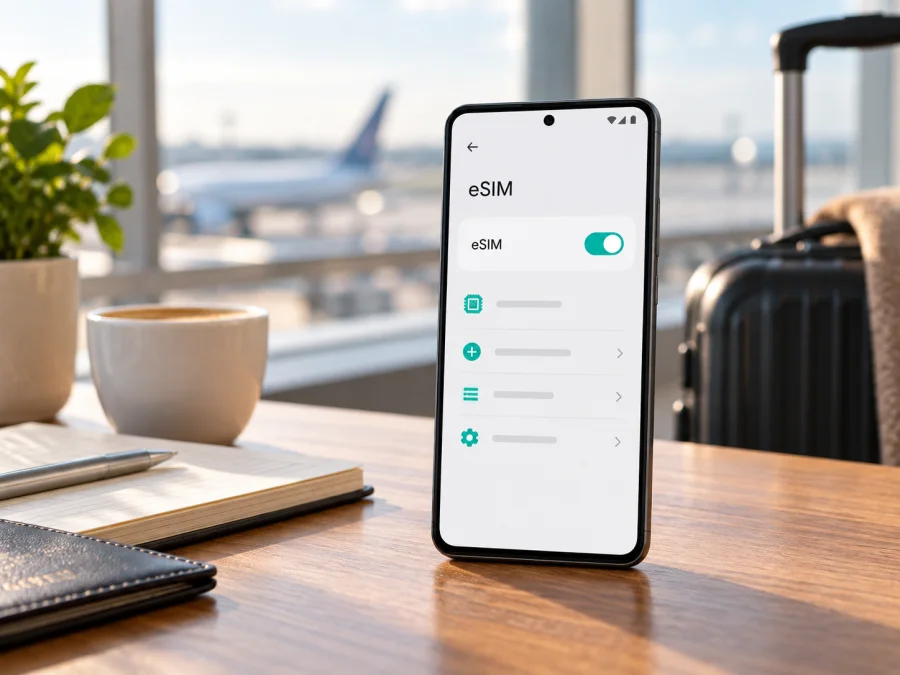
Infinix Note 60 Pro 128GB eSIM: compatibility and setup
If you are checking whether the Infinix Note 60 Pro 128GB can use an eSIM for mobile data while travelling, the short answer is: the NOTE 60 Pro family is presented by Infinix as eSIM-supported, but that support is not universal across every market configuration. Infinix’s current official product information labels the model family “eSIM Supported” and adds an important qualification: eSIM availability depends on the carrier and region. The storage name in your listing does not remove that qualification. A phone sold as Infinix Note 60 Pro 128GB still needs to expose the eSIM function in its own settings and be accepted by the network or eSIM tariff you intend to use.
That makes a quick on-device check essential. Before paying for a travel eSIM, confirm the EID or “Add eSIM” option, check that the phone is not carrier-locked, and verify the exact market version. If those checks pass, the eSIM can serve as a data line alongside a physical SIM, subject to the plan’s limits.
What the official information says about eSIM support
The official Infinix page for the NOTE 60 Pro lists eSIM as a supported feature. It also states that eSIM availability is carrier- and region-dependent and may not be supported in all countries. This is the most useful way to interpret support for the Infinix Note 60 Pro 128GB: the model family has the capability, while the individual handset, software build, sales market and carrier determine whether the capability is enabled for you.
The word “supported” is not a promise that every market unit has an identical SIM layout. The 128GB capacity identifies the requested variant, but does not by itself prove an eSIM profile, an EID or compatibility with every network. The safest evidence is the handset in your hand, followed by confirmation from the seller or carrier if the settings are unclear.
Quick compatibility summary
| Check | What can be said about Infinix Note 60 Pro 128GB |
|---|---|
| Device variant | Infinix Note 60 Pro 128GB; keep this exact name when checking a listing or invoice. |
| eSIM status | Infinix lists eSIM support for the NOTE 60 Pro family. |
| Important limitation | Infinix says availability depends on carrier and region. |
| Storage | 128GB is part of the requested variant name; it is not proof of eSIM availability. |
| Mobile network | The family is marketed with 5G capability, but supported bands and carrier access can vary by market. |
| Best local proof | An EID and an eSIM-addition control in the phone’s settings. |
| Before purchase | Check the exact region, carrier lock status, software, and the destination plan’s conditions. |
Why regional and carrier versions matter
An eSIM needs compatible hardware, firmware and a menu that can provision a profile. The carrier or eSIM service must also be able to issue a profile for that device and destination. A unit for one market may show eSIM controls while a similar unit for another market exposes only physical-SIM controls. Network bands, certification and imported-device restrictions can affect registration after installation.
Carrier locking is a separate issue. A phone can display an EID and still reject an eSIM from another carrier if it is locked. Ask the seller to identify the market version and confirm that the device is unlocked. Do not rely only on a product photograph or on another owner’s experience with a different unit.
Device compatibility check before buying a plan
<a id="kesim-device-compatibility"></a>
Use the following checklist on the actual Infinix Note 60 Pro 128GB. If a menu name differs slightly because of XOS language or version, look for the same function under mobile network, SIM management or connections.
- [ ] Open the phone settings and search for “eSIM”, “SIM”, or “mobile network”.
- [ ] Look for “Add eSIM”, “Download a SIM”, “Add mobile plan”, or a comparable option.
- [ ] Look for an EID in the device information or SIM-status area. An EID is a strong sign that the phone has an eSIM identity, but the network still has to accept it.
- [ ] Confirm that the handset is unlocked or that the planned eSIM provider is allowed by the carrier lock.
- [ ] Connect the phone to reliable Wi‑Fi before installation; a new profile normally needs an internet connection to download.
- [ ] Install pending system updates, then re-check the menu after the restart.
- [ ] Read the travel plan’s destination, validity, data allowance, activation rules and hotspot conditions.
- [ ] Confirm that the plan is for mobile data if you need internet rather than a normal phone number.
For a fast route through the checks, use Check your device and compare the result with the plan requirements before making a purchase. If there is no EID and no eSIM-addition option after an update and restart, treat the exact handset as not ready for this eSIM use case. Contact the seller or the device manufacturer rather than trying to force installation with an unrelated QR code.
A practical eSIM travel setup
Once the handset check is positive, prepare the service in a calm order. Kaspersky eSIM Store is an app and website where you can select, arrange and activate an eSIM with a suitable mobile-data plan for an international trip. It is not a mobile operator, a network owner or a provider of mobile internet. The underlying service and coverage depend on the selected plan and the local operator networks described in its conditions.
Review the destination and plan details in Kaspersky eSIM Store. Select the country, region or route that matches your itinerary, compare data allowance and validity with your expected use, and check when validity starts. Follow the terms shown for the selected plan.
You can prepare the profile before departure or after arrival. Installing before the flight can reduce airport tasks, while arrival installation requires Wi‑Fi or another working connection.
How to install and activate eSIM
The menu can vary by XOS build and region. The steps below describe the general Android flow; use the wording shown on your Infinix Note 60 Pro 128GB.
1. Confirm the prerequisites
Check eSIM support, the EID or add-eSIM control, an unlocked handset and a stable internet connection. Keep the QR code or activation details available on another screen.
2. Open mobile-network settings
Go to Settings and open the section for mobile network, SIM management or connections. Select the control for adding a SIM or adding an eSIM. If you cannot find it, use the settings search for “eSIM”. A missing control is a compatibility warning, not a cue to scan the QR code repeatedly.
3. Scan or enter the profile details
Choose the QR-code option and scan the code supplied in your Kaspersky eSIM Store profile or confirmation message. Keep the code flat, bright and fully visible. Use a manual activation-code option only when the plan instructions provide one. Do not assume a QR code can be reused on another phone.
4. Wait for the profile to download
Allow the phone to contact the provisioning service; the download can take several minutes. Avoid switching networks repeatedly during the process. When the profile appears, give it a clear label such as “Travel data”.
5. Choose the mobile-data line
In SIM settings, set the new eSIM as the line for mobile data when you are ready. Decide separately which line should handle calls and messages. A data plan does not automatically include a phone number, voice calls or SMS unless its conditions say so.
6. Set roaming and network controls carefully
Data roaming may need to be enabled on the travel eSIM so it can use an eligible network abroad. Enable it only for that profile and follow the plan instructions. Keep roaming off for your home SIM if you want to avoid accidental charges. Automatic network selection is a sensible starting point.
For device-specific guidance, use the Android installation instructions or the iOS installation instructions. The Infinix Note 60 Pro 128GB follows the Android path; these links do not guarantee support for an unsupported regional handset.
Using the eSIM for mobile internet on a trip
Consider three common scenarios.
Weekend city break
Before leaving, verify the destination and validity, install over home Wi‑Fi if allowed, and label the eSIM “Travel data”. On arrival, enable the profile, select it for data and enable roaming for that profile if required. Keep the home SIM from becoming the default data line.
Work trip with two lines
Use the physical SIM for your usual number when appropriate and the eSIM for data. Check which SIM is selected for data and disable automatic switching if available. Video meetings and file uploads can consume data quickly, so monitor the plan and use trusted Wi‑Fi for large downloads when practical.
Multi-country route
Check whether the plan covers every country on the route or only one destination. A profile can install successfully and still fail outside its coverage. When crossing a border, review the active data line, network selection, roaming setting and validity.
An eSIM for travel is primarily a mobile-data solution. It can reduce dependence on airport Wi‑Fi and physical SIM swaps, but your home carrier’s roaming rules still matter. Kaspersky eSIM Store helps you choose and activate the workflow; the connection is governed by the selected plan, destination and local network availability.
Common problems and what to check
There is no “Add eSIM” option
Restart the phone, install official system updates and search again. Confirm the market version with the seller and check for an EID. If both the EID and add-eSIM control are absent, wait for manufacturer or seller confirmation.
The QR code will not scan
Increase screen brightness on the device showing the code, clean the camera lens, hold the phone steady and avoid glare. Make sure the whole code is in frame. Use a manual method only when the plan details include one. Never edit the QR code or use a code from a different order.
The profile will not download
Check Wi‑Fi, date and time, available storage and whether the profile is already installed. Retry on a trusted network and review any activation window or installation limit. Keep the error message for support instead of deleting the profile immediately.
The eSIM is installed but there is no service
Confirm that the profile is enabled, selected for data and allowed to roam when required. Check airplane mode, restart once and leave network selection on automatic. Installation does not guarantee service outside the plan’s destination or on a locked device.
The phone shows service but apps have no internet
Verify the active data SIM, mobile-data switch, data limit and any access-point settings required by the plan. Disable automatic switching between SIMs, then test with Wi‑Fi off and check remaining data.
Data is being used on the wrong line
Open SIM settings and make the travel eSIM the default for mobile data. Disable switching on the home line where available, and keep its roaming off unless you deliberately need it. Background sync and video can use the selected line without an obvious prompt.
FAQ
Does Infinix Note 60 Pro 128GB support eSIM?
The NOTE 60 Pro family is listed by Infinix as eSIM-supported. However, Infinix also says that availability depends on the carrier and region. Confirm the EID and add-eSIM option on the exact Infinix Note 60 Pro 128GB before purchasing a travel plan.
Is 128GB enough to prove that eSIM works?
No. eSIM availability is controlled by the exact hardware, software, market and carrier conditions. The phone’s settings and EID are better evidence than storage alone.
Can I keep my physical SIM active?
Often, a compatible dual-line configuration can keep a physical SIM active while the eSIM handles data, but supported combinations depend on the handset and regional software. Test it before travel.
Does a travel eSIM give me a normal phone number?
Not necessarily. A travel eSIM plan here is for mobile internet unless its terms explicitly include voice and SMS. Use your normal line or an internet messaging app for calls and messages.
Can I move the installed eSIM to another phone?
Do not assume so. Profiles can have device or installation restrictions. Check the plan conditions before changing devices.
Is Kaspersky eSIM Store a mobile operator?
No. Kaspersky eSIM Store is an app and website that helps you select, arrange and activate an eSIM with a suitable mobile-data plan for an international trip. It is not the operator, network owner or direct provider of mobile internet.
Conclusion: check first, then prepare the trip eSIM
For the Infinix Note 60 Pro 128GB, the accurate conclusion is qualified support: Infinix identifies the NOTE 60 Pro family as eSIM-supported, while its official note says availability depends on carrier and region. Treat 128GB as the exact variant you are checking, not proof that every regional unit is identical.
Before buying, open the device settings, find the EID or an add-eSIM option, confirm that the phone is unlocked, and match the plan’s destination and conditions to your itinerary. After purchase, install the profile over a reliable connection, choose it for mobile data, enable roaming only for that travel line when required, and monitor the plan during the trip. If the menu, EID or network registration is missing, pause and confirm the regional version instead of assuming that repeated QR scans will fix it.
When those checks are complete, use Kaspersky eSIM Store to choose and activate an eSIM plan suited to the destination. Base the decision on the Infinix Note 60 Pro 128GB and the selected plan’s conditions.


