Travel connectivity guide
Infinix Note 60 Pro 256GB 5G eSIM Guide
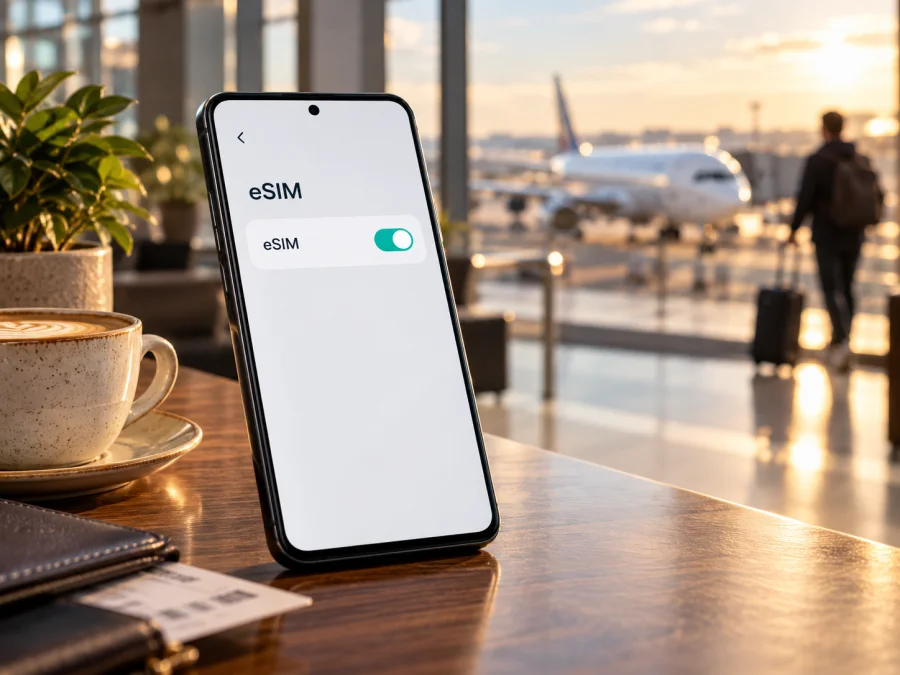
Infinix Note 60 Pro 256GB 5G eSIM: compatibility and setup guide
The short answer is conditional: Infinix advertises eSIM support for the NOTE 60 Pro, but says availability depends on the carrier and region. That statement does not establish that every phone sold as Infinix Note 60 Pro 256GB 5G has an enabled eSIM. The storage size and 5G label alone cannot identify its sales market or SIM hardware. Before choosing a travel data plan, check the phone itself for an EID or an option to add an eSIM, and ask the seller to confirm the exact regional model.
The same product name can cover regional configurations with different network features. Infinix’s regional information is not uniform: one official product page makes eSIM carrier- and region-dependent, while a regional specification sheet lists two nano-SIMs. Treat the device’s model number, software and country of sale as decisive. A listing mentioning 5G, 256GB or NOTE 60 Pro does not guarantee eSIM.
Does the Infinix Note 60 Pro 256GB 5G support eSIM?
It may, but the exact 256GB 5G variant cannot be confirmed from that name alone. Infinix’s NOTE 60 Pro product information includes eSIM support and explicitly qualifies availability by carrier and region. The official Thai specification page identifies a NOTE 60 Pro variant as model X6878 and lists two nano-SIMs. These statements describe different regional information and do not prove that every X6878 or every 256GB configuration has the same eSIM capability. A specification sheet’s two physical SIM positions also does not, by itself, prove whether a separate embedded profile is enabled.
The practical answer is to check the specific handset before relying on it for a trip. A visible EID or a working “Add eSIM” flow is strong evidence that eSIM is present in that configuration. If neither appears, or the phone reports that eSIM is unavailable, pause before buying a plan and confirm the SKU with Infinix support or the seller. A software update may change menus or fix a setup issue, but it cannot add eSIM hardware to a variant that lacks it.
| Item | What can be established | What it means for eSIM |
|---|---|---|
| Name supplied | Infinix Note 60 Pro 256GB 5G | Preserve this exact storage and network variant; it does not identify the sales region. |
| Product family | NOTE 60 Pro | Infinix advertises eSIM for the model family, subject to regional and carrier availability. |
| Regional identity | Not included in the supplied name | Confirm the model code, country of sale and firmware before assuming support. |
| Storage | 256GB | Storage capacity does not determine eSIM capability. |
| Mobile network | 5G in the supplied name | 5G network support and eSIM support are separate features. |
| Exact verdict | Conditional; verify on the device | Look for an EID or an eSIM adding option before selecting a travel plan. |
Why regional and carrier versions matter
Phone makers sometimes enable features differently across markets. A regional SKU can have different SIM hardware, firmware, supported bands or carrier configuration, even when the retail name looks almost identical. Operators can also restrict a phone sold through them, or a handset may be carrier-locked and unable to use another provider’s profile. The amount of RAM, storage or the presence of 5G does not settle any of those questions.
If you are buying the phone, ask for its full model or SKU code and the country where it was intended for sale. Ask the seller to demonstrate the eSIM setting on that unit. If you already own it, compare its model code with the regional support information and ask Infinix or the seller to confirm whether that exact code and firmware expose eSIM. Get confirmation before purchase if eSIM is essential.
Do not infer the sales market from the phone language, a 5G badge or a shop title. Imported phones may use different regional firmware. Plan availability, device support, carrier lock, local network compatibility and plan terms are separate checks.
Check compatibility before buying a plan
You can check the phone in a few minutes. Menu names can differ across XOS releases, Android versions and regions, so look for equivalent terms such as SIM manager, Mobile network, Add eSIM, Download a SIM or Add mobile plan.
- Find the EID. Open Settings and use its search field for “EID”. On Android, the identifier may also appear under About phone or Status. An EID is the identifier associated with an embedded SIM. If the search returns an EID, note that it is present; do not share the full identifier publicly.
- Look for eSIM controls. Open the SIM or mobile-network settings. Check whether there is an option to add, download or scan a SIM profile. A menu that only lets you manage inserted nano-SIM cards is not confirmation of eSIM support.
- Check the add flow without activating anything. If “Add eSIM” is present, open it only far enough to see whether the phone offers a QR-code or manual activation flow. Do not scan a paid activation code as a test; some codes can be used only once.
- Check lock status. If the handset was bought through a mobile operator, ask whether it is network-unlocked and whether third-party eSIM profiles are allowed. An eSIM menu does not remove a carrier lock.
- Confirm the destination and plan. Review the plan’s countries, supported network access, data allowance, validity period, activation rules and device requirements. Check whether it requires data roaming for the travel profile.
Use this quick checklist before checkout:
- [ ] The exact phone in hand shows an EID or an eSIM-adding option.
- [ ] The model code and country of sale are known.
- [ ] The phone is not locked to a carrier that blocks the intended profile.
- [ ] The device software is current and the setup can use a stable internet connection.
- [ ] The plan covers the destination and matches the trip length and expected data use.
- [ ] You understand when the plan validity begins and whether roaming must be enabled for that eSIM.
Check your device compatibility before you purchase a travel plan. If the menu is missing, take a screenshot of the device’s model information and contact the seller or Infinix support. Do not buy a plan on the assumption that an update, a different operator or a QR code will make an eSIM option appear.
What you need before installing an eSIM
Before starting, confirm regional eSIM support, unlock status, a stable internet connection, and access to the profile and activation instructions. Check when plan validity begins. If the QR code is displayed on this phone, show it on another screen or use a manual method if offered. Keep the code private; it may be single-use. Avoid deleting an installed profile to troubleshoot, since some profiles cannot be installed again.
How to install and activate an eSIM on Android
The precise wording and order can vary by XOS version and the eSIM provider. Keep the phone connected to Wi‑Fi, and follow the instructions shown by the device and plan provider. For device-specific guidance, see the Android eSIM installation instructions or the iPhone eSIM installation instructions. The iPhone guide is included for readers setting up a different device; it does not apply to the Infinix Android handset.
- Check support and lock status. Confirm an EID or eSIM option is available on this exact phone. Resolve any carrier-lock question before you buy or install a profile.
- Connect to Wi‑Fi. Profile installation usually needs an internet connection. Keep Wi‑Fi available until the profile has downloaded and the phone shows the new line.
- Open SIM settings. Go to Settings and search for “eSIM” or open the SIM manager/mobile-network section. Choose the control for adding or downloading a SIM.
- Choose the provider’s installation method. Scan the QR code supplied for the plan, or use the manual details if the provider offers them. Do not scan a code that belongs to another device or an old order.
- Confirm the download. Follow the on-screen prompts to download the profile. Wait until the phone confirms that the eSIM has been added; do not interrupt the process by switching networks or restarting unless the phone asks you to.
- Name the line. Give it a clear label such as “Travel” so you can distinguish it from your home SIM. Naming is for your convenience and does not change the plan.
- Choose when to use it. If you are preparing before departure, leave the home line as your normal default and keep the travel profile off or without data use until you are ready, following the plan’s start rules. Some plans start their validity on installation or purchase, while others start on first network connection. Check the specific plan terms.
- Set mobile data to the travel eSIM. In SIM settings, select the travel profile for mobile data when you want to use it. Keep calls and texts assigned to your regular SIM if you need them and your device allows separate line choices.
- Enable data roaming only if required. Some travel profiles need roaming enabled to connect to a local partner network. Check the plan instructions; roaming for that eSIM uses the plan’s data allowance, but your home SIM may incur separate charges if it also uses roaming.
- Test the connection. When you reach a covered destination and the plan is active, turn Wi‑Fi off briefly and open a simple webpage. Confirm that mobile data is using the travel line and that the phone has connected to a supported local network.
Activation is not always the same as installation. Installing downloads the profile to the phone; activation or first use may occur at a different time depending on the plan. Do not delete the profile if it does not connect immediately. Check the plan’s validity, destination and network-selection instructions first.
Using the eSIM for mobile data while travelling
Three useful travel scenarios
- Set up at home: install the profile on Wi‑Fi if the plan allows it, then keep it ready until its validity should begin.
- Connect on arrival: select the travel eSIM for mobile data and enable its data roaming only if the plan instructions require it. Check that the home SIM is not using roaming data.
- Cross a border: confirm that the same plan covers the next country. If it does not, compare a plan for the next destination before relying on mobile data there.
Keep activation timing and which line handles calls, texts and data in mind throughout the trip.
After arrival, select the travel eSIM as the mobile-data line. If the plan requires data roaming, enable roaming for that eSIM only. Avoid enabling roaming on your home SIM unless you understand your home operator’s charges. A phone may show both profiles as active while only one is selected for mobile data; check the label next to the data setting rather than relying on signal bars alone.
The travel plan is intended for mobile data. It does not automatically provide a regular phone number, voice calls or SMS; these are included only if the specific plan says so. You can usually continue using internet messaging and calling apps over the data connection, subject to each app’s account and service requirements. Keep your home number’s SIM enabled for account verification only if its roaming settings and costs are acceptable.
Performance depends on the local network, location and device support; a country listing does not promise a particular speed everywhere. Keep essential tickets and maps available offline between destinations.
Kaspersky eSIM Store is an app and website where you can choose, arrange and activate an eSIM plan for mobile data on an overseas trip. The terms shown for the selected plan determine its data allowance, validity, destinations and activation conditions. The service is not the mobile network itself, and it does not make an incompatible or locked phone compatible.
Common problems and checks
There is no EID or “Add eSIM” option
Confirm that you are checking the correct phone and not a similarly named model. Search Settings for “EID” and “eSIM”; inspect the full model code and market version. Install available official system updates and restart once, then check again. If the options remain absent, ask the seller or Infinix support about the exact SKU. A missing control may indicate that the regional variant does not offer eSIM, so do not purchase a profile until support is confirmed.
The QR code will not scan or the profile will not download
Check that the screen with the QR code is bright, in focus and not cropped. Make sure the phone is online and that the code was issued for this plan and has not already been used. If you are scanning the code from the same device, display it elsewhere or use the provider’s manual method if available. Check for an existing profile with the same label before trying again. If the phone says the code is invalid, contact the plan provider rather than repeatedly scanning it.
The eSIM is installed but shows no service
Check whether the plan has started and whether you are in a destination it covers. Make sure the eSIM profile is switched on and selected for mobile data. Follow the provider’s instructions for data roaming and network selection; if automatic network selection fails, choose a listed network manually and allow time for registration. Toggle airplane mode briefly or restart the phone after confirming those settings. If service is still unavailable, contact support with the model code, destination and non-sensitive error message. Do not post an EID, QR code or activation credentials publicly.
The phone connects but apps have no internet
Verify that mobile data is assigned to the travel profile and that the plan has remaining data and is within its validity period. Turn Wi‑Fi off for a brief test, then check whether the phone shows data activity. If the provider gives an access-point-name (APN) setting, compare it with the value in the instructions and enter it only as directed. Check that data-saving settings, a disabled profile or a mobile-data limit are not blocking use. A signal icon alone confirms neither an active plan nor a working data route.
The home SIM is using roaming
Return to SIM settings and check which line is selected for mobile data. If you only want the travel profile to use data, assign mobile data to that eSIM and disable data roaming on the home SIM. Calls and SMS routing are separate choices. Review your home operator’s conditions before keeping its line active abroad.
5G appears unavailable
An eSIM can connect through a network generation supported by the plan, the local partner network and the device’s regional bands. 5G printed in the phone’s name does not guarantee 5G at every destination or on every plan. Test ordinary mobile data first, confirm that the plan and local network support 5G, and check the device’s preferred network mode. A 4G connection may still provide usable data where 5G is unavailable.
Frequently asked questions
Is eSIM guaranteed on the 256GB version?
No. The available storage is not enough to identify the regional SIM configuration. Infinix advertises eSIM on the NOTE 60 Pro with a carrier- and region-dependent qualification. Check the exact handset for an EID or eSIM adding control, and confirm the regional model code before relying on it.
Does 5G support mean the phone has eSIM?
No. 5G describes access to fifth-generation mobile networks; eSIM is a way to store a mobile subscription digitally. A phone can support 5G and still have only physical SIM capability in a particular regional variant.
Can I install an eSIM before travelling?
Often, yes, provided the phone is compatible, you have internet access and the plan’s terms allow early installation. Read when validity begins. Keep the profile available and select it for mobile data when the plan and trip require it.
Can I use my regular number and a travel eSIM at the same time?
That depends on the active-SIM configuration and the profiles. If supported, keep the home line for calls or texts and direct mobile data through the travel eSIM. Check your home operator’s roaming terms.
Will removing an eSIM let me install it again?
Not necessarily. Some activation codes are single-use and some profiles cannot be transferred after installation. Keep the profile installed unless the provider instructs you to remove it, and contact support before deleting it to solve a connection issue.
Does this travel eSIM include calls and SMS?
Check the selected plan. If it is data-only, internet calling and messaging apps can work over mobile data, but the eSIM does not provide a regular phone number.
Before you choose a travel eSIM
For the Infinix Note 60 Pro 256GB 5G, verify the exact market version first: find the EID or eSIM menu, confirm the model code, and make sure the device is not restricted by its original operator. If the information is inconclusive, pause and ask the seller or Infinix support about that SKU. Then compare a plan’s destination coverage, data amount, validity and activation rules with your itinerary.
Once compatibility is confirmed, you can browse current eSIM options for your trip on the Kaspersky eSIM Store website or in the app. Check the plan conditions before choosing, install the profile using a reliable internet connection, and set the travel eSIM as the mobile-data line when appropriate. This simple sequence helps avoid buying a plan that the phone cannot use and makes setup easier before you leave.


