Travel connectivity guide
Infinix Note 60 Pro 512GB eSIM Guide
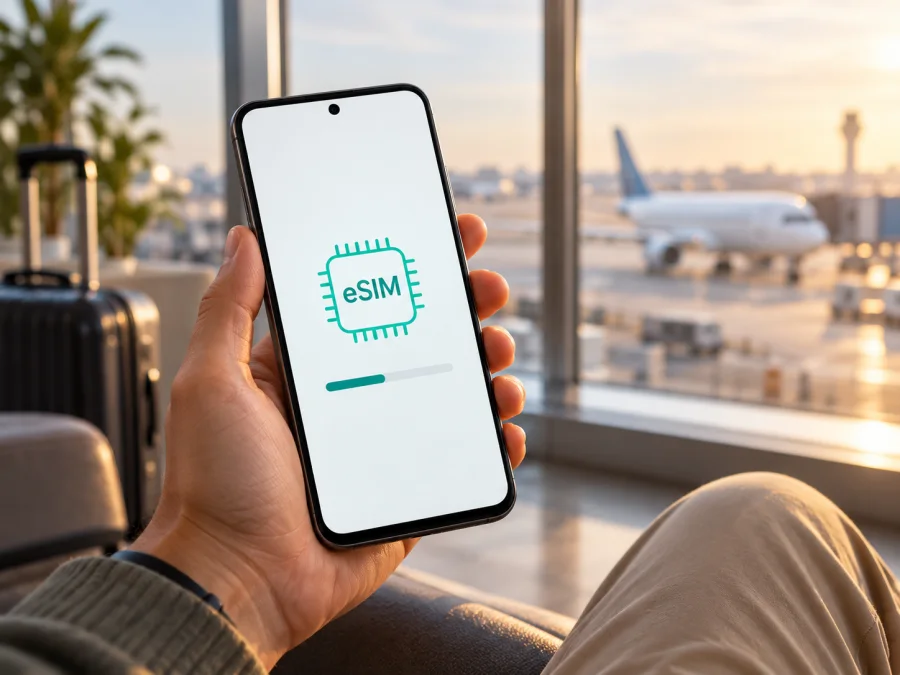
Infinix Note 60 Pro 512GB eSIM: compatibility and setup
If you are checking whether the Infinix Note 60 Pro 512GB can use an eSIM, the best answer is: Infinix lists eSIM support for the NOTE 60 Pro, but says availability depends on the carrier and region. The exact 512GB configuration is not separately identified in the official information I could verify. Treat the model-level listing as a useful indication, not a guarantee for every phone sold under this storage description. Before choosing a travel plan, check the handset itself for an EID and an option to add an eSIM, and confirm that it is unlocked.
The storage capacity does not establish whether an eSIM profile is present. Devices sold under the same family name can differ by market, software build, and carrier configuration. Your phone’s own settings are the practical check for your particular unit.
Does the Infinix Note 60 Pro 512GB support eSIM?
Infinix’s product information for NOTE 60 Pro says that eSIM is supported, then qualifies that statement: eSIM availability is carrier- and region-dependent and may not be supported in every country. That qualification matters. It means the general product name alone cannot confirm that every regional or retailer-specified variant has an active eSIM feature.
For the exact Infinix Note 60 Pro 512GB, I could not verify an official specification page that ties the 512GB storage configuration to a particular country SKU or explicitly confirms eSIM for that SKU. The model family has manufacturer-listed eSIM capability; the availability of that capability on a particular 512GB device remains something to verify on the device and with its seller or carrier. Do not infer eSIM support from 5G, dual-SIM wording, a large storage capacity, or the presence of two physical SIM slots. Those are separate features.
| Check | What can be established | What you should verify |
|---|---|---|
| Device named in this guide | Infinix Note 60 Pro 512GB | Match the name and storage on the box, receipt, or About phone screen |
| Model-family eSIM information | Infinix lists eSIM for NOTE 60 Pro | Availability depends on region and carrier |
| Exact 512GB market variant | No separate official 512GB eSIM confirmation verified | Ask the seller for the full model/SKU and check the phone’s EID |
| Network lock | Not established by the model name | Confirm the handset is unlocked for another carrier |
| Travel eSIM readiness | Depends on the individual handset and plan | Confirm EID/add-eSIM menu, destination, and plan conditions |
How to check your own phone
Check the actual device before you pay for a plan. Menu names can vary with XOS version, Android version, language, and sales region, so use more than one indicator when possible.
- Find the EID. Open the Phone app and dial
*#06#. If the device displays an EID (an eSIM identification number) alongside its other identifiers, that is a strong sign that the eSIM hardware is present. You can also look in Settings under About phone, Status, or SIM information. The exact path varies. - Look for an add-eSIM control. Open Settings and search for “eSIM,” “SIM,” or “mobile network.” Check SIM management or the network and internet section for an option such as Add eSIM, Add mobile plan, or Download a SIM. Do not rely on a menu label alone if it opens a general carrier page; proceed only if it offers to add or download an eSIM profile.
- Check the software and market details. Note the full model number, region, Android/XOS version, and any carrier branding. Install available official system updates, restart the phone, and check again. An update may change menus, but it cannot guarantee that a regional device includes eSIM hardware.
- Ask the seller or carrier about the exact unit. Provide the full model code and country of purchase. Ask whether eSIM is enabled on that SKU and whether the handset is network-unlocked. If this is a carrier-supplied phone, ask whether it can accept a travel eSIM from another provider.
- Confirm before checkout. If you cannot find an EID or an add-eSIM option, pause and verify with Infinix support or the seller before purchasing a plan. Check whether your device is compatible before you choose a destination package.
An EID is more specific than an eSIM icon in an advertisement because it is an identifier associated with the embedded SIM capability in the handset. Still, an EID does not prove that a carrier has removed a network lock or that every eSIM plan will work. Compatibility has several parts: the device must be able to store an eSIM profile, its software must expose that capability, it must be allowed to connect to another network, and the selected plan must support the destination and network bands available there.
Compatibility checklist
Before purchase, make sure each point is clear:
- [ ] The phone is the Infinix Note 60 Pro 512GB you intend to use, and you have its full model code.
- [ ] An EID is visible or Settings offers a real option to add/download an eSIM.
- [ ] The phone is unlocked, or the carrier confirms that another provider’s eSIM can be installed.
- [ ] Android/XOS is current and the phone can connect to Wi-Fi for profile installation.
- [ ] The chosen plan includes every country or region on your itinerary and its data terms suit your trip.
- [ ] You know whether installation, activation, and the start of data use happen at different times under that plan.
- [ ] You have saved the installation instructions and can reach the QR code or in-app installation flow on another screen if needed.
What eSIM changes for a trip
An eSIM is a digital SIM profile downloaded to a compatible phone. It can let you use a data package abroad without inserting another plastic SIM. You may be able to keep your home SIM for its usual services and select the travel profile for mobile data, depending on the phone’s configuration.
Kaspersky eSIM Store is an app and website where you can choose, arrange, and activate an eSIM with a mobile-data plan for an overseas trip. Destination coverage, data allowance, validity, activation rules, and other terms depend on the option selected. A travel data eSIM should not be assumed to provide a regular phone number, voice calls, or SMS; check the plan terms. Messaging and internet calls can use data through your existing apps.
The store’s general destination pages can help you review available options; confirm the exact country and package terms before selecting one.
The practical advantage is preparation: check compatibility at home, select an option for your route, and install the profile over reliable Wi-Fi if its rules allow it. This can reduce the need to find a SIM shop immediately after landing, but it does not guarantee reception everywhere. Coverage and performance depend on the local network, handset bands, location, and plan.
For a short break, estimate data use from maps, messaging, ride-hailing, and browsing. For remote work or video, include calls, cloud backups, and hotspot use. If your route crosses borders, check that each country is included; a single-country option may not cover a neighboring destination. Compare validity and activation rules as well as data allowance.
When using multiple SIMs, select the travel eSIM for mobile data and keep the home SIM for calls or messages if needed. Turn off automatic data switching or data roaming for the home line where appropriate to avoid unintended charges. Some travel profiles require data roaming on the eSIM itself; follow the plan instructions. The label “data roaming” on that profile does not by itself mean your home carrier is billing the data.
How to install and activate an eSIM
Install only after checking compatibility and reading the plan instructions. Use stable Wi-Fi, keep the phone charged, and do not delete a profile simply because it has not connected yet. A QR code may be single-use.
The Infinix Note 60 Pro uses Android-based XOS, so use the Android flow. Menu names differ by software version; the general Android guide linked here includes Samsung-specific screenshots and may not match this phone exactly. Follow the prompts on your device and the plan instructions: Android eSIM installation guide. The iOS installation guide is included for reference but does not apply to this Infinix phone.
- Prepare. Connect to Wi-Fi. Open the account where the eSIM is available and display its QR code on another screen, unless the provider offers an in-app installation flow.
- Open SIM settings. In Settings, search for “eSIM” or look under SIM management, Mobile network, or Network & internet. Select Add eSIM, Add mobile plan, or the equivalent download option. Stop if no eSIM option appears; recheck compatibility.
- Download the profile. Scan the supplied QR code or follow the guided installation. Keep the phone online until the profile downloads. Do not repeatedly scan a code if installation pauses; check its status and instructions first.
- Label and enable it. Choose a clear name such as “Travel data.” When ready to use the plan, enable the profile and select it for mobile data. Keep your usual line for calls or texts if desired, and disable automatic data switching if you want to control which SIM uses data.
- Set roaming or APN only if instructed. Enable data roaming on the travel eSIM when required by the plan. Enter an APN only if the provider gives you one and automatic configuration has not worked. Do not reuse APN settings from another plan.
- Test at the destination. Turn off Wi-Fi briefly, confirm the travel profile is selected for data, and open a webpage. Allow a few minutes to register, then check the plan status or balance.
Installation downloads the profile; activation and the start of validity may be separate events. They can depend on switching the profile on, connecting in the destination, scanning a code, or a plan-specific step. Check the selected plan’s rule instead of assuming that installing early always starts—or never starts—the validity period.
Using the eSIM after landing
Before departure, save the plan instructions and support details offline. If you install at home, confirm that the profile appears in SIM settings, then decide whether to leave it disabled until arrival. Enable it there, select it for data, allow it to register, and briefly turn off Wi-Fi to test the connection.
When your phone is confirmed compatible, browse the Kaspersky eSIM Store to check current destinations and plan options. This general store link does not guarantee a specific country or package; confirm the terms for your itinerary before selecting one.
If you are travelling with multiple SIMs, give each one a clear label. Set the travel eSIM for data and your preferred line for voice calls or SMS. Check the data-switching setting so that Android does not move data to the home SIM when the travel profile has weak reception. If you need to receive a verification SMS on your regular number, confirm with your home operator whether keeping that SIM active abroad could incur roaming charges.
A phone can show signal bars while data is unavailable. Check that Mobile data is enabled for the eSIM, that the right profile is selected, and that the plan covers the country you are in. If a roaming switch is required, it must be enabled on the correct profile. Wait briefly, then toggle airplane mode off and on or restart the phone. Use manual network selection only if the provider’s support instructions recommend it; an incorrect network choice can make a working profile appear offline.
Common problems and what to check
There is no EID or Add eSIM option
Confirm the handset and full model number, restart it, install available official updates, and check again. If the EID and add-eSIM control are still missing, ask the seller or Infinix support whether that regional SKU includes eSIM. The model-family listing does not guarantee every market version.
The QR code will not scan
Increase the display brightness, clean the camera lens, and show the whole QR code on another screen. Check that it has not already been used or expired. If available, use the provider’s in-app or manual installation method.
The profile will not download
Check Wi-Fi, set date and time automatically, and make sure the phone has an available eSIM profile slot. A VPN may interfere, so temporarily turn it off if appropriate. Do not delete a partial profile or retry repeatedly without checking the plan instructions; contact support with the error and order details, never passwords or payment credentials.
The profile is installed but there is no service
Enable the eSIM and select it for mobile data. Check airplane mode, destination eligibility, and carrier lock status. Enable roaming on the travel profile if required, then restart or toggle airplane mode and wait for registration. Coverage can vary by location; follow provider instructions before manually choosing a network.
There is signal but no data
Confirm that the travel eSIM is the data line, the plan is valid and has data remaining, and the phone is not using Wi-Fi during your test. Enter an APN only if the provider supplied one. Check any activation schedule or destination trigger.
Data is using the wrong SIM, or the eSIM was deleted
Select the travel eSIM for mobile data and disable automatic data switching if available. Review your home carrier’s roaming conditions before leaving that SIM active. If you delete a travel profile, do not assume its QR code can be reused: check the plan rules and contact support before reinstalling.
Practical travel scenarios
You want data as soon as you land. Check EID and unlock status before departure. Install over home Wi-Fi if the plan allows it, note the activation trigger, and select the eSIM for data when appropriate.
You are visiting several countries. Compare the package’s country list with every stop and check validity and activation terms. Do not assume a regional label covers your whole itinerary; after each border crossing, verify the selected profile and network.
You need your usual number or a hotspot. Keep the home SIM only if you understand its roaming charges, and use the travel eSIM for data. Confirm that tethering is supported and allowed by the plan. For work calls, test the connection before relying on it and keep a backup option for weak-signal areas.
Frequently asked questions
Is eSIM guaranteed on every Infinix Note 60 Pro 512GB?
No. Infinix lists eSIM for NOTE 60 Pro, but states that availability depends on region and carrier and may not be supported in every country. The exact 512GB regional SKU has not been separately confirmed here. Check the specific phone for an EID and an add-eSIM control.
Does 512GB storage mean the phone supports eSIM?
No. Storage capacity and eSIM are separate properties. The storage label does not show whether the device has an enabled eSIM capability. Use the EID and Settings checks, and verify the full model code.
Can a locked phone use a travel eSIM?
Not necessarily. A carrier lock can prevent a phone from using a profile from another provider. Ask the carrier or seller to confirm that the exact handset is unlocked before you purchase a travel plan.
Can I install the profile before my trip?
Often you can, but follow the selected plan’s instructions. Profile installation, activation, and the start of validity are separate steps and may happen at different times. Check the stated rule so that you do not activate earlier than intended.
Does a travel eSIM replace my main SIM?
Usually you can keep both profiles if the device and software support the arrangement, then select which line handles mobile data. A travel data eSIM does not automatically provide your usual number, calls, or SMS. Check the plan terms and your home carrier’s roaming conditions.
What if the menu is missing after an update?
Search Settings for “eSIM” and inspect About phone or SIM status for an EID. Restart after updating and check the full model code. If both the EID and add-eSIM option are missing, ask the seller or manufacturer whether that regional SKU includes eSIM; do not assume an update will add absent hardware.
Final check before you travel
For the Infinix Note 60 Pro 512GB, the manufacturer confirms eSIM at the NOTE 60 Pro model-family level and explicitly warns that regional and carrier availability can differ. The 512GB label alone does not settle compatibility. Check the EID, find the add-eSIM option, confirm the exact model code and unlock status, and test installation while you still have reliable Wi-Fi.
Once the phone is confirmed compatible, compare the travel plan’s destination list, data allowance, validity, and activation rules with your itinerary. Choose the eSIM profile for mobile data when you are ready to use it, and keep your home line’s roaming settings under control. A few checks before checkout can prevent a plan from being tied to a device that cannot install it and make setup easier when your trip begins.


