Travel connectivity guide
Infinix Note 60 Pro eSIM Compatibility and Setup
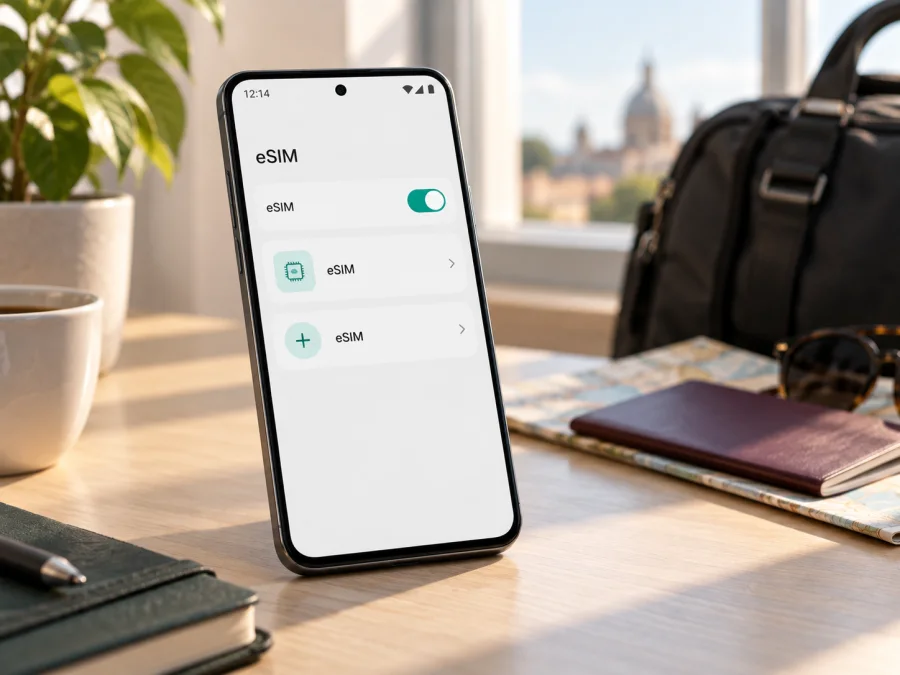
Does the Infinix Note 60 Pro support eSIM?
Short answer: the Infinix Note 60 Pro supports eSIM in some regional configurations, but not necessarily every unit. Infinix lists eSIM support on one regional product page and says availability depends on region and carrier; another official regional specification lists two nano-SIM slots without eSIM. Check your phone’s EID and Add eSIM setting, confirm it is unlocked, and verify that the plan covers your destination before buying.
5G and dual physical-SIM support do not prove that eSIM is enabled. The checks below help establish which regional configuration you have.
Infinix Note 60 Pro eSIM compatibility at a glance
| Check | What to know |
|---|---|
| Device covered here | Infinix Note 60 Pro; the exact regional unit should be checked |
| eSIM support | Confirmed on some official regional Infinix pages; not safe to assume for every market |
| Regional variation | Infinix notes that eSIM availability depends on region and carrier; other regional specs list two nano-SIMs without mentioning eSIM |
| Best device check | Look for an EID and “Add eSIM” or “Download a SIM” in Settings |
| Network lock | The phone must be unlocked for the travel plan and destination network you intend to use |
| Typical travel use | Keep your regular SIM for calls and messages, and select the eSIM for mobile data where supported |
The model name alone cannot settle compatibility. RAM and storage capacity do not prove eSIM availability; use the country version or model code and check the actual handset before paying for a plan.
Does the Infinix Note 60 Pro have eSIM?
Infinix’s product page for NOTE 60 Pro advertises “eSIM Supported” and adds a specific note: availability is carrier and region dependent, and the feature may not be supported in all countries. That is manufacturer confirmation that some Note 60 Pro configurations can use eSIM; it is not a promise that every unit worldwide can. On an official Indonesian product specification, the connection section instead lists “2 nano SIMs” and does not name eSIM. A physical-SIM specification is a useful regional clue, but the settings and EID on your individual phone are the practical confirmation.
For a purchase in a particular market, ask the seller to confirm eSIM for the exact SKU and country version, rather than relying on a generic page for NOTE 60 Pro. If you already own the phone, use the checks below. If no EID or eSIM controls appear, ask Infinix support or the seller whether that market version supports eSIM and whether a software update is required. Do not try to install a travel profile until support is confirmed.
How to check EID and eSIM settings
An EID identifies the phone’s embedded SIM hardware and differs from its IMEI. An EID or “Add eSIM” control is a useful sign; menu names vary by XOS version and region.
- Connect to Wi-Fi and install available official system updates, if appropriate.
- Open Settings and use its search field for EID, eSIM, SIM, or Add SIM.
- If search does not find the setting, open SIM & network settings, Mobile network, or a similarly named menu, then look for Add eSIM, Download a SIM, or Manage eSIMs.
- Check About phone or Status for an EID entry. On some versions, it appears under SIM status or device identifiers.
- If available, open the add-eSIM screen far enough to confirm it exists, but do not scan a QR code or confirm installation yet.
- Compare the result with the exact regional model and ask the seller or Infinix support if it remains unclear.
A missing menu is not always definitive by itself: the carrier, regional firmware, an outdated operating system or device management settings can hide features. But if there is no EID and no eSIM option after an update and a restart, treat the phone as unsupported until Infinix or the seller confirms otherwise. Do not rely on a third-party code generator, an online “eSIM converter,” or an app claiming to turn a physical-SIM-only phone into an eSIM device. Software cannot add eSIM hardware to a handset that lacks it.
What to check before choosing a travel eSIM
Use this checklist before selecting a plan:
- Regional version: identify the country of sale and exact SKU or model code. Ask the seller to confirm eSIM support for that unit.
- EID and settings: look for an EID and an Add eSIM option. You normally need only confirm that an EID exists; avoid posting the full number publicly.
- Network lock and restrictions: confirm the phone is unlocked. Update XOS through the official updater; if the phone is managed by work or school, check whether profile installation is allowed.
- Plan conditions: verify the destination, data allowance, duration and when validity begins. Network availability and speeds depend on the local network and location.
- Installation access: arrange Wi-Fi and display the QR code on another screen. Keep the code private and do not delete a profile unless the provider confirms it can be installed again.
- Included services: travel eSIM plans are often data-only. Check conditions before expecting a local number, ordinary calls or SMS.
For a quick self-check, check whether your device is compatible. This check is especially useful before purchase when the model name is shared by devices from multiple markets.
How to install eSIM on Infinix Note 60 Pro
Only proceed if your Note 60 Pro shows an EID or an eSIM installation option and is not restricted by a carrier lock. Read the plan instructions first: activation timing differs. Some plans begin when you install the profile, while others begin when the eSIM first connects to a supported network. If you want to preserve the plan for later, do not install early unless its terms allow it.
1. Prepare the phone and installation details
Connect the Infinix Note 60 Pro to reliable Wi-Fi, charge it, and make sure the display can show the QR code or activation details. If you received a QR code by email, open it on another device or print it; the phone cannot scan a code displayed on its own screen with its own camera. Keep the confirmation email or order page available in case the manual details are needed.
2. Open the eSIM setup screen
Go to Settings and search for Add eSIM or Download a SIM. Depending on the XOS version, the control may be under SIM management or mobile-network settings. Choose the option to add or download a mobile plan. If these choices are absent, stop and verify regional compatibility rather than continuing with a QR code.
3. Add the eSIM profile
Choose to scan a QR code and point the camera at the code supplied for your plan. Follow the on-screen prompts to download the profile. If scanning is unavailable, check whether your plan provider supplied manual activation details and whether the phone offers a manual entry option. Enter details exactly as provided. Do not share the QR code or activation code: anyone with a usable code may be able to install the profile.
4. Name the line and choose defaults
After installation, label the profile something easy to recognize, such as Travel data or the destination name. If you keep a physical SIM active, select which line should handle calls and messages. Choose the travel eSIM for mobile data only when you are ready to use the plan. Review the data-switching setting so the phone does not silently move data back to your home SIM and trigger roaming charges.
5. Activate at the right time
Follow the provider’s activation instructions. Some eSIMs can be installed at home but should remain switched off until arrival; others activate on installation or on first network connection. At the destination, enable the eSIM line and mobile data for that line. If the plan instructions require it, turn on data roaming for the travel eSIM. Roaming is a setting that permits that profile to connect to a partner network; it does not mean you should enable roaming for your home SIM. Check the selected data line before switching roaming on.
6. Confirm that data works
Wait a few minutes for the phone to register, then check the network indicator and open a simple webpage or messaging app. If the profile shows no service, try the troubleshooting steps below before deleting anything. For step-by-step platform guidance, see Android eSIM installation instructions and iOS eSIM installation instructions. The iOS guide is for Apple devices; on your Infinix, follow the Android flow and the instructions supplied with your particular plan.
Using eSIM for mobile data while travelling
A common arrangement is to keep your regular SIM available for calls and messages while assigning mobile data to the travel eSIM. Whether both lines can be active together depends on the regional Note 60 Pro configuration and software. In SIM settings, check the line names carefully and select the travel eSIM for data. Keep data roaming off for your home SIM unless you deliberately intend to use your carrier’s roaming service.
Check when your plan begins before installing it. Validity may start at purchase, installation, activation or first connection to a supported network. Installing before departure can save time, but may start the clock, so follow the plan’s stated rule. Keep the QR code and plan details somewhere you can access without mobile data.
For a route through several countries, confirm that every stop is included. Coverage depends on the destination, local partner network and location. The Note 60 Pro’s 5G capability does not guarantee 5G on every plan or in every place: plan terms, network support, bands and coverage all matter. A 4G connection may be available where 5G is not.
Travel eSIMs are commonly intended for mobile data. Use messaging and calling apps over data if needed, and do not assume the plan includes a phone number, ordinary calls or SMS unless its conditions say so. Download important tickets and maps as a backup before travel.
Common problems and what to try
There is no Add eSIM option
Search Settings for EID and eSIM, install an available official update and restart. Confirm the exact country version with the seller or Infinix. If no EID or eSIM option appears, do not assume an app or QR code can enable support; ask whether your unit is a physical-SIM-only version.
The QR code will not scan
Show the full code on a different screen, increase its brightness and hold the phone steady. If scanning still fails, use manual details only if the plan provider supplied them, or contact its support team. Keep the QR code private.
The profile will not download
Check Wi-Fi, restart the phone and confirm the QR code belongs to this plan and has not already been used. If the phone reports an invalid or used code, contact the plan provider with the error and order details. Avoid deleting an existing profile while troubleshooting.
The eSIM is installed, but there is no service
Make sure the eSIM line is enabled, the destination is covered and the plan is active. Select it for mobile data and enable data roaming for that profile if the plan instructions require it. Try airplane mode briefly or restart, then contact support if it still cannot register.
Signal appears, but apps have no internet
Check that mobile data is assigned to the travel eSIM and that the plan has data remaining. Turn Wi-Fi off briefly to test the mobile connection; check any access-point details supplied with the plan. If the home SIM is using data abroad, turn off its data roaming and disable automatic data switching if available.
Frequently asked questions
Is eSIM supported on every Infinix Note 60 Pro?
No universal guarantee is available. Infinix confirms eSIM support on some regional product information, but also says availability depends on region and carrier. Another official regional specification lists two nano-SIM slots without eSIM. Check the exact handset’s EID and settings.
Can I use a physical SIM and an eSIM at the same time?
Possibly, depending on the regional version and software. Check SIM settings; mobile data may use only one line at a time.
Does 5G mean the phone has eSIM?
No. 5G describes cellular network capability; it does not establish that an eSIM is installed or enabled. Verify EID and the add-eSIM setting separately.
Will installing the profile start my plan?
It depends on the plan. Validity may begin on installation, activation or first connection, so read the conditions before scanning.
Can I remove and reinstall the eSIM?
Not always. Ask the provider before deleting a profile or resetting the phone; installation codes may be one-time.
Does the travel eSIM replace my number?
Usually it is for data only. Keep your regular SIM for calls or SMS if its carrier terms allow it.
Check compatibility, then prepare your trip
Before selecting a travel plan for the Infinix Note 60 Pro, verify the regional version, confirm that Settings shows an EID or an eSIM installation option, and make sure the phone is unlocked. Then check the plan’s destination, data allowance, validity period and activation timing. These steps establish whether your own unit can install the profile and whether the plan fits your route.
Kaspersky eSIM Store is an app and website where you can choose a destination and plan, complete the order, and activate an eSIM for mobile internet on an international trip. Review the plan conditions, install the profile only when the timing is right, and choose the travel eSIM as your data line when you are ready to use it. If your phone’s regional version does not expose eSIM settings, confirm support with the seller or Infinix before choosing a plan.


