Travel connectivity guide
Infinix Note 60 Ultra 5G eSIM Compatibility & Setup
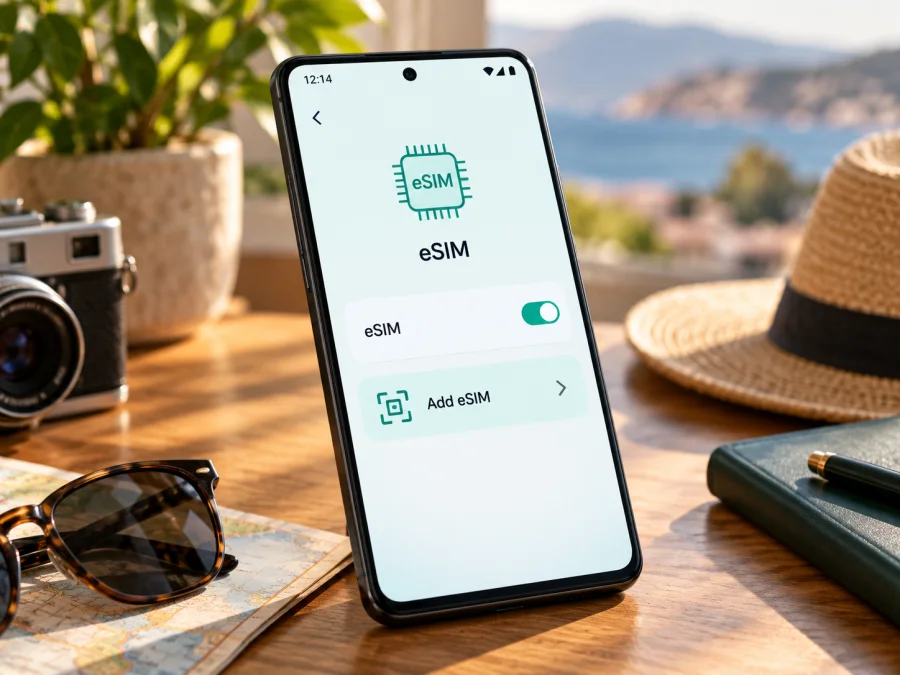
Infinix Note 60 Ultra 5G eSIM: compatibility and travel setup
The Infinix Note 60 Ultra 5G is listed by Infinix with eSIM support, but that does not guarantee that every unit sold under this name can add an eSIM in every country. Infinix’s current Mexico specifications identify model X6877, list two nano-SIMs and eSIM, and qualify availability by country and carrier. The practical answer is therefore conditional: this model family supports eSIM in at least some configurations, while the handset in your hand must be checked for its regional software and operator-market restrictions before you choose a travel plan.
The “5G” in the exact device name identifies its cellular generation; it does not by itself confirm eSIM. A 5G phone may have only physical SIM slots, and the same model family can be sold with different network or SIM configurations. Do not rely on a retailer’s short title, a photograph of the SIM tray, or another owner’s experience as the final compatibility check.
Does Infinix Note 60 Ultra 5G support eSIM?
Infinix’s official specification page for the NOTE 60 Ultra lists “eSIM: Yes” and states that eSIM availability may vary by country and carrier. Its product specifications also identify the model code X6877 and list support for two nano-SIMs. The company’s NOTE 60 series product information gives the same regional and carrier qualification for eSIM. These details support a positive answer for the model family, with an important condition: the specific market version, firmware and carrier configuration determine whether the eSIM controls are available and whether a particular profile can be activated.
| Item | What to know |
|---|---|
| Device covered | Infinix Note 60 Ultra 5G |
| Manufacturer model identifier shown in Infinix Mexico specifications | X6877 |
| Network generation | The official listing includes 5G; bands and connectivity depend on market and local service provider |
| SIM configuration shown by Infinix Mexico | Two nano-SIMs, with eSIM also listed |
| eSIM answer | Supported in listed configurations; availability depends on country and carrier |
| Best proof for your phone | An EID and an eSIM add/download option in settings, plus seller or operator confirmation for that unit |
| Before ordering a travel plan | Confirm eSIM capability, unlocked status, and eligibility in the destination market |
This table describes a listed configuration, not a universal guarantee. Imported or carrier-supplied units may have different firmware, network access or eSIM availability. Verify the operator market for your exact phone: an enabled eSIM feature may still be restricted by a carrier or its activation rules.
Why region and operator matter
A device model name can cover phones prepared for more than one market. Manufacturers may adjust cellular bands, SIM provisioning, software menus, regulatory features and carrier certification by destination. “Regional version” refers to the configuration intended for a country or group of markets; “operator version” refers to a handset sold, provisioned or managed by a mobile operator. Those distinctions are related but not interchangeable. An unlocked regional phone can still have market-specific capabilities, and an operator-sold phone can have a network lock or custom restrictions even when the base hardware includes an eSIM component.
For the Infinix Note 60 Ultra 5G, Infinix explicitly says that eSIM availability depends on country and carrier. That is the verified scope. The public specification does not provide a complete country-by-country compatibility matrix or promise availability on every carrier-branded unit. If you are buying an import, ask the seller for the full model code, country of sale, firmware region and written confirmation that eSIM is enabled. Then verify with the operator whose profile you intend to use. A general statement that the phone is “global” or “5G” is not enough.
Check compatibility before choosing a plan
Use this short checklist on the actual phone. Menu names may vary slightly with XOS release, region and language. If the path differs, search Settings for “eSIM”, “SIM” or “EID”.
- [ ] Find the EID. Open Settings → My Phone/About phone → Status or Settings → SIM & mobile network and look for an EID. Some software versions place identifiers under Status information. The EID is a long identifier for the embedded SIM; do not post it publicly or send it to an unverified person.
- [ ] Look for an add-eSIM control. Open Settings → SIM & mobile network (or Mobile network) and check for Add eSIM, Download a SIM, Set up an eSIM, or Add mobile plan. Availability of the wording and location can differ by XOS version.
- [ ] Confirm the exact model. Check About phone, the original box or the purchase record for the model code, then match it with the device offered by the seller. Infinix’s Mexico specification page identifies the NOTE 60 Ultra as X6877; ask support to confirm that the code on your unit is the same supported market configuration.
- [ ] Check for a carrier or network lock. Ask the original operator or seller whether the device is unlocked and whether it accepts eSIM profiles from another provider. A SIM lock can block a travel eSIM even when the EID is present.
- [ ] Check the software and network conditions. Install available official system updates while connected to Wi-Fi, restart the phone, and confirm that mobile network settings are available. Do not install unofficial firmware to reveal a menu.
- [ ] Ask about the destination and issuing operator. Confirm that the operator for the plan accepts the Infinix Note 60 Ultra 5G and the phone’s market version. A destination being covered by a plan does not by itself confirm device eligibility.
If you find both an EID and an add-eSIM option, the phone is a stronger candidate, but still confirm that it is unlocked and accepted by the operator. If neither appears, do not purchase on the assumption that a software update or QR code will create eSIM capability. Check with the seller or Infinix support using the model code and software build. You can also check your device before selecting a travel eSIM.
How to install and activate an eSIM
Only start after confirming compatibility and unlocking. The phone needs a working internet connection to download a profile, usually Wi-Fi. Keep the QR code or manual activation details accessible on another screen or printed page; a phone cannot scan a QR code displayed on its own screen unless the activation flow offers a photo or manual-entry method. Follow the instructions supplied for the specific plan because the sequence and activation timing can vary.
- Prepare the device. Connect the Infinix Note 60 Ultra 5G to stable Wi-Fi, charge it, and install available official XOS updates. Keep the original SIM active if you still need calls or messages on that number.
- Open SIM settings. Go to Settings → SIM & mobile network or Mobile network. Choose Add eSIM, Download a SIM, or the closest equivalent. If prompted, confirm that you want to add a mobile plan.
- Scan or enter the activation details. Scan the provider’s QR code with the phone’s setup screen. If scanning is unavailable, choose manual entry and enter the details exactly as provided by the issuing service. Do not reuse a QR code that has already been redeemed unless the issuer confirms it can be reused.
- Download the profile. Keep Wi-Fi on and wait for the profile to finish installing. A successful download adds the eSIM to the SIM manager; it does not necessarily mean that its data plan has started or that it is already connected to a mobile network.
- Name and configure the line. Give the profile a label such as “Travel” so it is easy to distinguish from your home SIM. Choose which SIM should handle mobile data, calls and texts. Travel data plans commonly provide mobile data only; check the specific plan terms before expecting a phone number, standard calls or SMS.
- Set activation timing carefully. Some profiles can be installed before departure and used after arrival; others begin their validity period when installed, first connected or manually activated. Check the plan’s own instructions. Do not toggle or delete the profile to troubleshoot before confirming the provider’s reinstallation policy.
- On arrival, select the travel profile for data. Turn on the eSIM line and choose it under Mobile data. Enable data roaming for that eSIM only if the plan’s instructions require it. Roaming can be necessary for a travel profile to register on its partner network, but follow the plan’s directions and keep roaming off for a home SIM when you want to avoid home-network charges.
- Check connection and data use. Wait for registration, then open a webpage or messaging app. Confirm that mobile data is assigned to the travel profile and monitor the plan’s allowance in the relevant app or account. If it does not connect, use the troubleshooting steps below.
For broader device steps, see the Android eSIM installation guide or iPhone eSIM installation guide. The iOS guide is for Apple devices; this Infinix uses Android/XOS, so use the Android steps for this phone and treat any menu labels here as version-dependent.
Using the eSIM for mobile data on a trip
The Infinix Note 60 Ultra 5G can keep a home SIM and a travel eSIM available together when the software and local configuration allow it. The phone’s SIM manager controls which line is used for each function. Set the travel eSIM as the mobile-data line when you want the travel plan to carry internet traffic. Keep the home SIM selected for calls or messages if you need it, and check its roaming settings and your home operator’s charges before leaving.
A practical arrival routine is: turn off airplane mode, enable the travel eSIM, select it as the data line, wait for network registration, then test a lightweight webpage. If the profile does not register automatically, toggle that eSIM line off and on once, or restart the device. If the plan specifies a supported network selection or access point name (APN), follow those instructions exactly. Avoid changing unrelated network settings at random; first check the issuer’s setup notes and the local operator selection available in the phone.
Three travel situations
Preparing at home: Confirm that the plan allows installation before its validity begins. If it does, download the profile on Wi-Fi, label it “Travel” and leave it switched off until the issuer’s activation instructions say otherwise.
Arriving or crossing borders: Before departure, check the plan’s start time and coverage for every stop. On arrival, select the travel profile for mobile data, enable roaming for that line if required and wait for registration. If you add profiles for different regions, label them clearly and switch data intentionally.
A multi-country itinerary: Confirm that the selected plan covers each country on the route and that its validity lasts for the full trip. A regional plan name is not proof that every stop is included.
Kaspersky eSIM Store is an app and website where you can choose, arrange and activate an eSIM plan for mobile data during an international trip. After confirming that your Infinix configuration is compatible, you can use it to review the destination and plan details, then follow the supplied setup instructions. The plan’s availability and operation are subject to the issuing service, local network and the specific conditions shown for that plan.
Common problems and what to check
There is no “Add eSIM” option
First confirm the exact model code and software region, then search settings for “eSIM” and “SIM”. Restart the phone and install official system updates over Wi-Fi. If the option remains missing, contact the seller or Infinix support with the model code and XOS version. Ask whether eSIM is enabled on the unit sold for your country. A missing setting can reflect a regional or carrier-specific configuration; do not rely on unofficial firmware or assume that resetting the phone will enable a hardware feature.
The EID is missing
Check all identifier screens, including About phone, Status and SIM & mobile network. Search Settings for “EID”. If it is still absent, verify the model code and ask official support or the seller to confirm whether that exact regional build includes enabled eSIM functionality. A missing EID is a reason to pause before purchase, not something to solve by entering a random number or using another phone’s identifier.
The QR code will not scan or the download fails
Use a stable Wi-Fi connection, raise screen brightness on the device showing the QR code and clean the camera lens. Make sure the code belongs to the plan you intend to install and has not expired or already been used. If the issuer provides manual activation details, enter them carefully. Do not repeatedly scan a single-use code or delete a partially installed profile until the issuer tells you what recovery options are available.
The profile is installed but there is no signal
Confirm that the eSIM is switched on, the correct profile is selected for mobile data and airplane mode is off. Restart the phone once. Check whether the plan has reached its start time and whether you are in a covered destination. If the plan requires roaming, enable data roaming for the travel eSIM. If the issuer specifies manual network selection or an APN, use those values; otherwise do not guess. Persistent registration failure should be reported to the plan issuer with the location, time, model code and a description of the status shown, while keeping the EID private unless a verified support channel requests it.
The phone connects but apps have no internet
Check that mobile data is assigned to the travel profile rather than the home SIM, and verify that the data limit or plan balance has not been reached. Check the plan’s validity and APN instructions. Temporarily disable Wi-Fi to confirm that the test is using mobile data. If a VPN, data saver or app-specific restriction is active, temporarily check whether it is affecting the connection, then restore your preferred settings. Network congestion or local coverage can also affect service; a phone showing signal bars does not guarantee an active data session.
The home SIM uses data unexpectedly
In the SIM manager, set the travel eSIM as the mobile-data line and review any automatic data-switching option. Disable data roaming on the home SIM if you do not want it to use a visited network. Remember that selecting a line for calls is separate from selecting the line for mobile data. If you are unsure, check your home operator’s roaming rules before arrival and keep the home line’s mobile data disabled while relying on the travel plan.
A transfer or reset removed the profile
Do not assume the same QR code can be scanned again. Contact the issuing provider before erasing the phone or deleting an active profile. If you have already reset the device, explain that the previous eSIM was removed and ask whether a replacement can be issued. Keep access to the account or purchase record associated with the plan.
Frequently asked questions
Is Infinix Note 60 Ultra 5G definitely eSIM compatible?
Infinix lists eSIM for the NOTE 60 Ultra and qualifies availability by country and carrier. That verifies support in listed configurations, not a universal guarantee for every regional or operator version. Check the EID and add-eSIM setting on your exact phone and confirm the model code with the seller or operator before choosing a plan.
Can I use a physical SIM and an eSIM together?
The manufacturer lists two nano-SIM slots alongside eSIM for the specified NOTE 60 Ultra configuration. The number of lines that can be active together and the supported combinations can depend on software and region. Check the SIM manager on the device and avoid assuming that all three identities can be active simultaneously.
Should I turn on data roaming?
Follow the plan instructions. A travel eSIM may need roaming enabled to connect to a partner network. Enable it for the travel profile when required, and review the home SIM’s roaming setting separately to avoid unintended charges.
Can I delete and reinstall the eSIM if something goes wrong?
Do not delete it until the issuer confirms that you can reinstall it. Activation codes may be single-use, and profile transfer rules vary. Start with the line selection, data setting, network registration and plan instructions; contact support before removing the profile.
Final check before your trip
For Infinix Note 60 Ultra 5G, the verified answer is conditional support: Infinix’s listed NOTE 60 Ultra configuration includes eSIM, while the manufacturer says availability depends on country and carrier. Check your own phone for an EID and an add-eSIM option, confirm that it is unlocked and verify the exact model and operator market. Then check destination coverage, data allowance, validity timing, roaming requirements and any restrictions that apply to the plan.
When those checks are complete, choose an eSIM plan for the countries on your route, install it according to the issuer’s instructions and set it as the mobile-data line when you are ready to use it. Kaspersky eSIM Store provides an app and website for choosing, arranging and activating an eSIM plan for mobile internet on an international trip. Confirm compatibility before you proceed, and keep the plan details available while travelling.


