Travel connectivity guide
Infinix Note 60 Ultra eSIM Compatibility & Setup
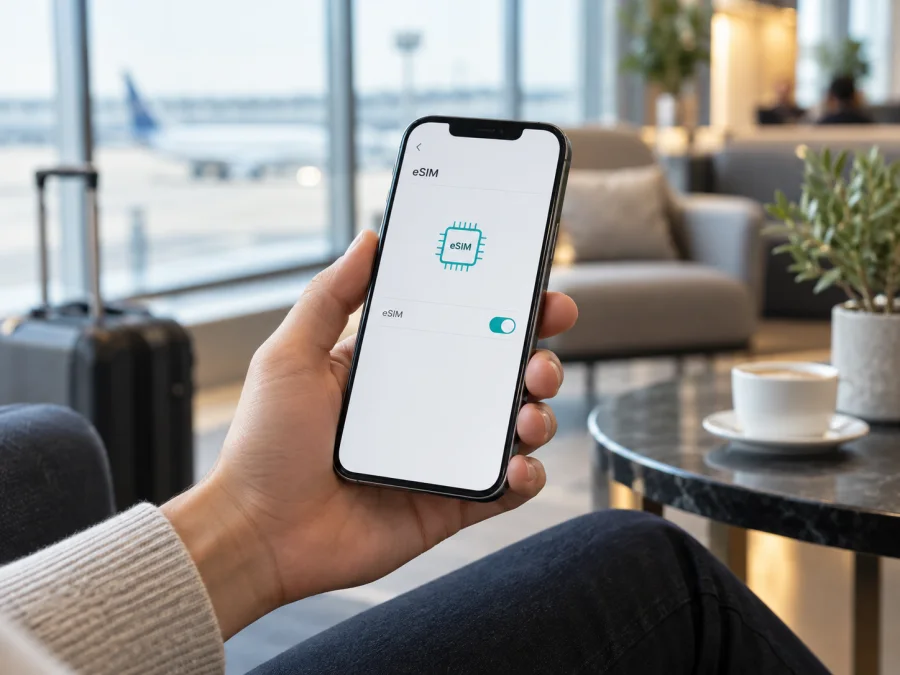
Infinix Note 60 Ultra eSIM: compatibility and setup guide
The Infinix Note 60 Ultra belongs to the NOTE 60 family, for which Infinix announced eSIM connectivity. The announcement also says availability depends on carrier and region, and may not be supported in every country. So the model is designed for eSIM, but you should verify the exact regional and carrier version in your hands before buying a travel plan.
This guide covers how to check the phone for an EID and eSIM setup option, install a profile, select it for travel data, and handle common connection problems.
Infinix Note 60 Ultra eSIM compatibility at a glance
| Item | What to know |
|---|---|
| Device | Infinix Note 60 Ultra |
| Manufacturer statement | Infinix announced eSIM connectivity for the NOTE 60 Series, including the NOTE 60 Ultra. |
| Qualification | Availability depends on carrier and region; not every country or software version is guaranteed. |
| Check before purchase | Look for an EID and an add-eSIM option on your exact handset; confirm it is unlocked. |
| Travel use | Select the travel eSIM for mobile data; retain a regular SIM for calls or texts if desired. |
Does the Infinix Note 60 Ultra support eSIM?
Infinix’s NOTE 60 Series announcement includes eSIM support and identifies the NOTE 60 Ultra as part of that family. It also explicitly warns that carrier and regional availability can differ. The practical answer is: the Infinix Note 60 Ultra is designed with eSIM support, but verify that eSIM is enabled on your exact market and carrier version.
Do not infer eSIM support from 5G capability or a retailer’s general listing alone. Different regional SKUs can have different model codes, firmware, SIM configurations, supported bands, or carrier restrictions. A carrier-supplied phone may also be locked to its original network. Ask the seller to confirm eSIM and EID for the exact unit, ideally by showing its settings screen. Then check that your chosen plan supports the phone and every destination on your route.
Check eSIM compatibility on your phone
<a id="kesim-device-compatibility"></a>
An EID is an identifier associated with the embedded SIM hardware. If your phone shows one, that is strong evidence of eSIM hardware, but it does not by itself confirm that eSIM is enabled by the regional software, that the phone is unlocked, or that a particular plan will work. If no EID appears, the feature might be absent, hidden, or disabled on that SKU. Check with Infinix or the seller using the precise model code.
Find the EID
- Connect to Wi-Fi or mobile data and install any available stable system update for your region.
- Open Settings and search for EID. It may appear under About phone, Status, or SIM information.
- Alternatively, enter
*#06#in the dialler. Some software builds show the EID with the IMEI numbers; a carrier may disable this shortcut. - Keep EID and IMEI details private. Share them only with official support if requested.
Look for an eSIM setup option
In Settings, check Network & internet, SIM cards and mobile networks, or the closest mobile-network menu. Look for Add eSIM, Download a SIM, Add mobile plan, or similar wording. Search Settings for “eSIM” if the menu is not obvious. If the EID and setup option are both missing after an update and restart, confirm with Infinix whether eSIM is enabled for your regional model.
Before buying a plan, use this checklist:
- [ ] Confirm the exact model and regional model code.
- [ ] Find an EID and an eSIM installation option in the phone’s settings.
- [ ] Confirm the device is unlocked and eligible to use another provider’s eSIM.
- [ ] Check that the plan covers each destination and supports Android eSIM installation.
- [ ] Review data allowance, validity, price, supported networks, tethering rules, and when validity starts.
- [ ] Make sure you can access the QR code or manual activation details and have reliable internet for setup.
The device compatibility checklist summarizes these checks.
Install and activate a travel eSIM
An eSIM profile is downloaded to the phone and stored digitally. Installing it and using it are separate steps: the profile can be added before departure, while service may begin only when you enable it or it connects to a supported destination network. Read the plan’s activation rules because some plans start validity at installation and others on first connection.
On Android, the exact menu labels and the order of prompts can differ between XOS builds. Keep the phone online until the profile is fully downloaded, and confirm the new line appears in SIM settings before leaving home. For setup walkthroughs, see the Android eSIM installation instructions or the iOS eSIM installation instructions. The Android guide applies to the Infinix Note 60 Ultra; the iOS page is for a separate Apple device.
Before adding the profile
- Verify compatibility and unlock status. Check the EID, add-eSIM menu, and carrier restriction on the phone you will travel with.
- Read the plan terms. Confirm destination coverage, data amount, validity, network, tethering, and activation timing. Data-only plans generally do not provide a regular number, calls, or SMS.
- Prepare the activation details. Display the QR code on another screen or print it. Keep any manual code available, and do not share it. A QR code may be single-use.
- Use stable Wi-Fi. Install at the time recommended by the plan provider, particularly if validity begins when the profile is added.
Install by QR code
- Open Settings and enter the SIM or mobile-network menu.
- Tap Add eSIM, Add mobile plan, or the equivalent, then choose the QR-code option.
- Scan the code supplied with your plan. If it is displayed on the Infinix screen, use another device to display it or choose manual entry if offered.
- Review the plan shown by Android and confirm Download, Add, or Continue.
- Wait for the profile download to finish without interrupting the connection. Label the new line Travel data or with the destination name.
- If Android asks for defaults, keep your usual SIM for calls and texts if needed, and choose the travel eSIM for mobile data when you are ready to use it.
If scanning is unavailable, select manual setup only when the plan provides the required SM-DP+ address and activation code. Enter them exactly as supplied, including any confirmation code. If activation fails, ask the plan provider to check the order before deleting the profile or attempting another installation.
Turn on the eSIM for data
In SIM settings, enable the travel line and choose it as the preferred SIM for Mobile data. At your destination, enable data for that line and switch on data roaming for the eSIM if the plan instructions require it. This setting is for the selected travel line; check which SIM is selected before enabling roaming. Give the phone a few minutes to register. Some eSIMs connect only in their intended destination, so successful installation at home does not guarantee immediate service there.
If it does not connect, toggle airplane mode once or restart, then follow the plan’s network selection guidance. Avoid deleting the profile as a first troubleshooting step because some activation codes cannot be reused.
Use the Infinix Note 60 Ultra while travelling
A travel eSIM can provide mobile data for maps, transport, translation, messages, bookings, and email. If your specific Note 60 Ultra configuration allows both lines, you may keep a physical SIM active while routing data through the eSIM. Check SIM manager settings: defaults and dual-SIM behaviour can vary by region and carrier.
Install before departure
With reliable Wi-Fi, check compatibility, install and label the profile, and leave it switched off if the plan recommends activation on arrival. Save setup instructions somewhere accessible. When you land, enable the eSIM, select it for data, and apply the plan’s roaming instructions.
Travel across several countries
Confirm that the plan covers every country on the itinerary. Regional plans can have different partner networks, speeds, or fair-use rules in each place. Track validity and remaining data as you move; an installed profile does not mean a plan includes every border you cross.
Keep your regular number available
You can often leave your home SIM enabled for voice calls or verification texts and use the travel eSIM for data. Check roaming charges with your home carrier. To avoid accidental data use, set the eSIM as the data line, turn off automatic data switching if available, and disable data roaming on the home SIM. Calls and texts on that line may still be billed by your carrier.
Share the connection
If you need a hotspot, check tethering terms for the plan and the phone. Turn on Wi-Fi hotspot after the eSIM has data service, and monitor usage because laptops can consume data through updates and cloud sync.
Kaspersky eSIM Store is an app and website where travellers can choose, arrange, and activate an eSIM with a mobile-data plan for an international trip. Review the destination, data allowance, validity, and price shown for a plan before deciding. Plans generally focus on mobile data, so use internet messaging or calling apps unless the particular plan states that voice or SMS is included.
After checking compatibility, review the Android installation steps before selecting a travel data plan. Knowing the setup flow makes it easier to have the right activation details and internet connection ready.
Troubleshooting eSIM setup and data
Check one setting at a time, and avoid deleting an installed profile just to retry. A QR code may be single-use, so contact the plan provider before removing a profile that will not reconnect.
| Problem | What to check |
|---|---|
| No EID or add-eSIM option | Confirm model code and regional SKU; update and restart; ask Infinix or the seller whether eSIM is enabled on that version. |
| QR code does not scan | Raise screen brightness, clean the camera lens, enlarge the code, and ensure it belongs to your order. Use manual entry only with supplied details. |
| Activation code is rejected | Check for typing errors and confirm the code is unused and meant for this device. Ask the plan provider to verify the order. |
| Installed profile has no signal | Turn on the eSIM, select it for data, confirm destination coverage, and enable roaming for that line if required. Toggle airplane mode or restart once. |
| Signal but no internet | Check plan start time and balance, select the correct data SIM, and review any provider-supplied APN details. Test with Wi-Fi off. |
| Slow or intermittent data | Try a location with better reception and check network-selection guidance, speed limits, and fair-use terms. Performance varies by place and time. |
| Home SIM uses data | Set the travel eSIM as the data SIM, disable automatic data switching if available, and switch off roaming for the home line. |
| Hotspot does not work | Confirm tethering is allowed, enable hotspot after mobile data connects, and check the other device’s Wi-Fi credentials. |
Menu labels can change with an XOS update or regional software build. Search Settings for SIM, mobile network, EID, or eSIM. For a profile that installs but will not register, contact the plan provider with your order reference and error details. For a missing EID, missing menu, or possible carrier lock, contact Infinix or the handset seller. Share device identifiers only with official support when necessary.
Frequently asked questions
Is eSIM guaranteed on every Infinix Note 60 Ultra?
Infinix announced eSIM for the NOTE 60 Series, including the NOTE 60 Ultra, subject to carrier and regional availability. Verify your phone’s EID, setup menu, and unlock status.
Does 5G mean that eSIM will work?
No. 5G and eSIM are separate capabilities. Check for the EID and add-eSIM option directly.
Can I use a physical SIM and an eSIM together?
The available combination depends on the phone’s SIM configuration, software, and carrier. If both lines appear in SIM settings, check which can handle calls, texts, and data at the same time.
Does a travel data eSIM replace my phone number?
Usually not. Data-only plans do not include a regular number, calls, or SMS. Keep your usual SIM if needed and check its roaming costs.
Should I install the eSIM before travelling?
Install over Wi-Fi before leaving if the plan permits it. Check whether validity begins at installation or first connection.
Can I transfer an eSIM to another phone?
Do not assume it can be moved. Profiles may be tied to the first device, and transfer or reinstallation depends on provider rules. Check before deleting the profile.
Final device check before your trip
Before choosing a travel eSIM for the Infinix Note 60 Ultra, make sure that:
- The phone shows an EID and an Add eSIM option.
- The regional handset is unlocked and its software allows eSIM setup.
- Your plan covers every destination and its data, price, validity, network, and activation terms suit the trip.
- You install the profile at the recommended time over a stable connection and keep its activation details private.
- On arrival, you select the travel eSIM for data and enable only the roaming settings required for that line.
Infinix includes the Infinix Note 60 Ultra in its eSIM-capable NOTE 60 Series, subject to carrier and regional availability. Verify the exact device before purchase, then use the Kaspersky eSIM Store app or website to choose, arrange, and activate a suitable eSIM data plan for your trip.


