Travel connectivity guide
Apple iPhone 13 Pro 1TB eSIM Compatibility
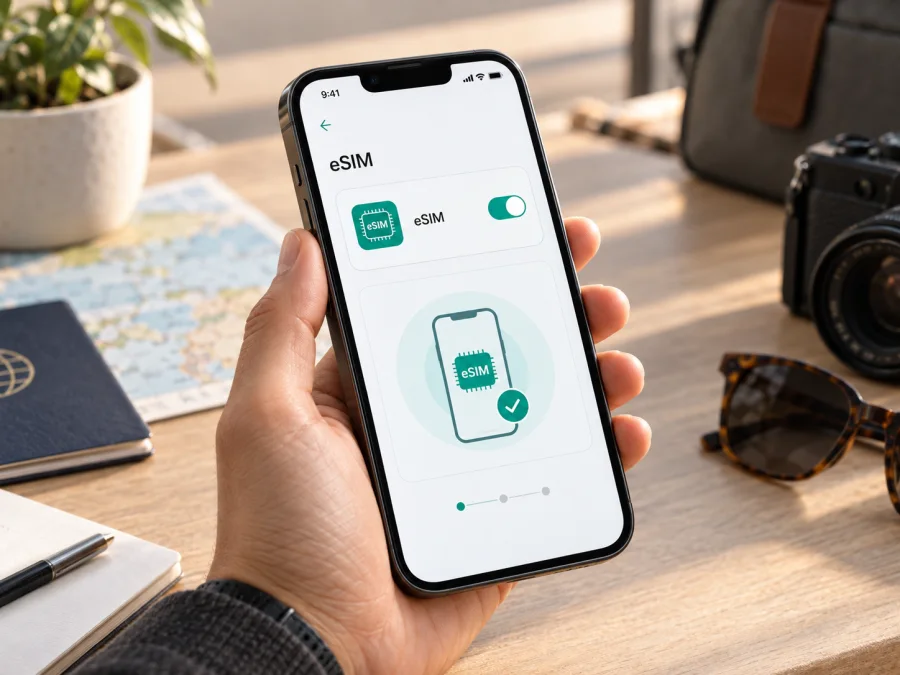
Apple iPhone 13 Pro 1TB eSIM compatibility and setup
The Apple iPhone 13 Pro 1TB supports eSIM in most markets where Apple sells an eSIM-capable version. Apple lists the iPhone 13 Pro family as supporting Dual SIM with one nano-SIM and one eSIM, and Dual eSIM. The 1TB storage option does not change cellular hardware: eSIM capability depends on the actual regional model and carrier configuration, not storage capacity. Before choosing a travel plan, check the iPhone itself for an EID and an option to add an eSIM.
There is an important regional exception. An iPhone 13 Pro sold for mainland China, Hong Kong, or Macao may be configured for two physical nano-SIM cards and may not support eSIM. Apple also notes that eSIM is not available in every country or region and can be disabled on phones purchased from some carriers. Therefore, the model name alone is not enough to confirm that a particular used or imported handset can install a travel eSIM.
Apple iPhone 13 Pro 1TB at a glance
| Item | Details |
|---|---|
| Device variant | Apple iPhone 13 Pro 1TB |
| Product generation | iPhone 13 Pro, introduced in 2021 |
| Storage in this variant | 1TB |
| eSIM support | Yes on eSIM-capable regional versions; verify the exact handset |
| SIM arrangements | Typically one nano-SIM plus eSIM; Dual eSIM is supported where eSIM is available |
| Regional caveat | Some China mainland, Hong Kong, and Macao versions use two physical nano-SIMs |
| Carrier caveat | The device must be unlocked for use with another carrier; carrier restrictions can also affect eSIM |
| Best pre-purchase check | Look for an EID and “Add eSIM” or “Add Cellular Plan” in Settings |
The 1TB figure refers to built-in storage for apps, photos, videos, and files. It does not mean the phone can store an unlimited number of active mobile lines. iPhone can keep multiple eSIM profiles, while the number that can be active at once and the exact dual-SIM arrangement depend on the model and iOS. Apple lists iPhone 13 and later as supporting two eSIMs, but only one cellular data line is used at a time.
Does this exact variant support eSIM?
For a standard international or North American Apple iPhone 13 Pro 1TB, the answer is generally yes. Apple's technical specifications list both “Dual SIM (nano-SIM and eSIM)” and “Dual eSIM support” for iPhone 13 Pro. The storage tier does not create a separate eSIM feature set, so the 128GB, 256GB, 512GB, and 1TB versions of an otherwise equivalent regional model share the same SIM capability.
That statement does not guarantee that every phone carrying the iPhone 13 Pro name will accept an eSIM. Apple identifies model number A2639 as the version for China mainland, Hong Kong, and Macao; the regional design uses two nano-SIM cards. Apple’s current support information says iPhone 13 Pro models are not among the iPhone models that can install an eSIM profile from a carrier in mainland China. A handset from another region may also be subject to its original carrier’s policy or a lock.
Check EID and eSIM settings before you buy
Use this checklist on the Apple iPhone 13 Pro 1TB you plan to use:
- Connect the iPhone to Wi-Fi and open Settings.
- Tap General, then About.
- Scroll down and look for EID. You may also see IMEI information for the cellular lines.
- Return to Settings and open Cellular or Mobile Data. Look for Add eSIM, Add Cellular Plan, or a similar option. The exact wording varies by iOS version and region.
- If the device has a physical SIM tray, inspect whether the Settings page lists an eSIM option anyway. A tray by itself does not prove eSIM is absent.
- Ask the seller or original carrier whether the phone is carrier-unlocked. In Settings > General > About, some iOS versions show Carrier Lock; “No SIM restrictions” indicates an unlocked device.
- If either EID or the add-plan option is missing, confirm the exact A-number and consult Apple or the carrier before paying for an eSIM plan.
Treat the EID and the add-plan menu as a pair of checks. A model number can identify the sales region, but Settings shows whether this specific handset exposes eSIM setup. For example, Apple identifies A2639 with China mainland, Hong Kong, and Macao; this regional iPhone 13 Pro configuration uses two physical nano-SIMs. By contrast, another market’s model may support eSIM yet still be locked to its original carrier. Ask to see Settings > General > About on the actual phone, and confirm both its A-number and EID before buying a used or imported device.
For more information on your device's compatibility, check your device before choosing a plan. A compatibility check is especially useful if a phone has been imported, repaired, replaced under warranty, or resold without its original packaging.
Why regional and carrier versions matter
For a travel data eSIM, verify all three layers:
- Hardware: this specific regional handset includes eSIM capability.
- Software: iOS is current enough and Settings offers eSIM installation.
- Service: the phone is unlocked and the plan provider supports the destination and activation method.
Kaspersky eSIM Store is an app and website where travelers can choose, arrange, and activate an eSIM with a mobile data plan for an international trip. After checking the phone, you can review the destination and plan conditions in the app or on the site and prepare the profile before departure.
Install an eSIM on iPhone 13 Pro
Have the plan’s installation details ready before starting. Depending on the provider, you may receive a QR code, an activation link, an in-app installation flow, or manual details. Follow the instructions supplied for that specific plan; QR codes are generally intended for one-time use and should not be shared publicly.
For official step-by-step help, see the iOS eSIM installation instructions. Android devices use a different flow; the Android eSIM installation instructions are available for another compatible handset.
Before installation
- Confirm the iPhone has an EID and an eSIM option in Settings.
- Make sure the phone is unlocked if the eSIM comes from a different carrier.
- Connect to stable Wi-Fi and charge the phone.
- Check the plan’s destination, data allowance, validity period, supported network, and installation deadline.
- Read when the plan starts: some plans begin validity at installation, while others begin when the eSIM first connects to a supported network.
- Keep the installation email or app accessible on another screen if you need to scan a QR code. If the code is displayed on the iPhone itself, use the provider’s manual or in-app option where available.
Step-by-step setup
- Open Settings > Cellular or Mobile Data.
- Tap Add eSIM or Add Cellular Plan.
- Choose the offered installation method. On supported iOS versions, options may include transferring from a nearby iPhone, scanning a QR code, or entering details manually.
- If scanning, position the QR code within the camera frame and follow the on-screen prompts. If prompted for a confirmation code, use the code supplied by the plan provider.
- Wait while iPhone activates and downloads the profile. Keep Wi-Fi connected and do not close the setup flow until the line appears under SIMs.
- Give the line a clear label such as “Travel data” so that it is easy to distinguish from your home number.
- When asked about defaults, keep your home line selected for calls and messages if you want to continue using it. Set the travel eSIM as the line for Cellular Data when you are ready to use the travel plan.
- Review the eSIM line’s Turn On This Line setting. Keep it off until you want to use it, if the plan’s instructions permit this.
- When you reach the destination, turn on the line and select it for cellular data. Turn on Data Roaming for that line only if the plan provider’s instructions require it.
- Open a webpage with Wi-Fi turned off to confirm that mobile data is working.
Use the travel eSIM without losing track of your home line
The Apple iPhone 13 Pro 1TB can make travel data practical while preserving access to a home number, when the regional model and plan support the required arrangement. In Settings > Cellular, label each line, choose the travel profile under Cellular Data, and decide whether Allow Cellular Data Switching should be on. Leaving switching off can help prevent data from unexpectedly moving to another line.
A common travel setup is to keep the home line available for incoming messages and calls, while selecting the travel eSIM for data. Check the home carrier’s roaming charges and voicemail or Wi-Fi Calling rules before departure. If you only need data and want to avoid roaming charges, you may turn off the home line, though that also makes that line unavailable until switched back on. iPhone uses one cellular data network at a time.
Practical trip scenarios
Set up at home, use after landing. Install over reliable Wi-Fi and label the profile. If you plan to enable it on arrival, first confirm whether installation starts validity; plan rules differ.
Use data on a multi-country itinerary. Confirm that every country on your route is included. A single-country plan may not cover stopovers or neighboring destinations. Allow a few minutes for network registration after crossing a border.
Keep a home SIM for calls and a travel eSIM for data. Choose the voice and data lines separately. Check home-line roaming charges, and confirm the travel profile is selected for Cellular Data.
Arrive without Wi-Fi. If the profile is already installed, turn on the travel line and test data. Otherwise, you will need a supported connection or another installation method supplied with the plan.
Troubleshooting: when an eSIM will not install or connect
Check the cause in a practical order rather than deleting the profile immediately.
| What you see | What to check |
|---|---|
| No “Add eSIM” option | Look for EID in Settings > General > About; confirm the regional model number and check for restrictions or management profiles |
| “Unable to activate” | Confirm Wi-Fi or another internet connection, check the activation details, restart iPhone, then retry according to the provider’s instructions |
| QR code will not scan | Use a bright display, clean the camera, enlarge the code, or choose manual entry if the provider supports it |
| Profile installed but no data | Turn on the eSIM line, select it for Cellular Data, check the provider’s APN instructions, and enable Data Roaming only when required |
| Signal appears but websites do not load | Toggle Airplane Mode briefly, check the plan’s destination and validity, then test again with Wi-Fi off |
| eSIM works at home but not abroad | Check destination coverage, supported network selection, data roaming, and whether the plan has reached its start date |
| Travel eSIM is rejected | Confirm the iPhone is unlocked and that the plan supports this model and activation region |
| Home line incurs roaming use | Recheck Cellular Data, Allow Cellular Data Switching, and the home line’s roaming setting |
Frequently asked questions
Does the 1TB version support eSIM differently?
No. The 1TB designation describes storage capacity. eSIM behavior follows the iPhone 13 Pro’s regional hardware, software, carrier policy, and plan support. A 1TB version from an eSIM-capable market has the same eSIM capability as another storage tier from that same configuration.
Can Apple iPhone 13 Pro 1TB use two eSIMs?
Apple lists Dual eSIM support for iPhone 13 Pro, and its current Dual SIM guidance includes two eSIMs for iPhone 13 and later. Availability depends on the region and carrier. Two lines can be set up, but iPhone uses one cellular data network at a time.
Is an iPhone 13 Pro from China, Hong Kong, or Macao compatible?
Do not assume it is. Apple identifies the A2639 configuration with China mainland, Hong Kong, and Macao, where the iPhone 13 Pro can use two physical nano-SIM cards. Check the actual EID and Add eSIM screen. A model purchased in a different region may also be unable to install a local carrier eSIM in mainland China; destination and source region are separate questions.
Does eSIM mean I can make ordinary calls and send SMS?
The eSIM profile itself does not guarantee voice or SMS service. Many travel plans are data-only. Check the plan terms for included services and use internet messaging or calling apps over data when appropriate.
Check the device, then choose an eSIM for your trip
Before buying a plan for Apple iPhone 13 Pro 1TB, confirm the EID and Add eSIM option on the actual phone, identify its A-number in Settings > General > About, and make sure the device has no carrier lock that blocks the provider. This is particularly important for imported A2639 models and second-hand devices with an unknown service history.
Then check that the chosen plan covers every destination on your itinerary, fits the amount of data you expect to use, and has a validity period and activation trigger that suit your travel dates. Kaspersky eSIM Store is the app and website for selecting, arranging, and activating an eSIM plan for mobile data on an international trip. A few minutes spent checking device and plan compatibility can help you avoid discovering a limitation after you arrive.


