Travel connectivity guide
Ipoh eSIM: Mobile Internet & Connection in Malaysia
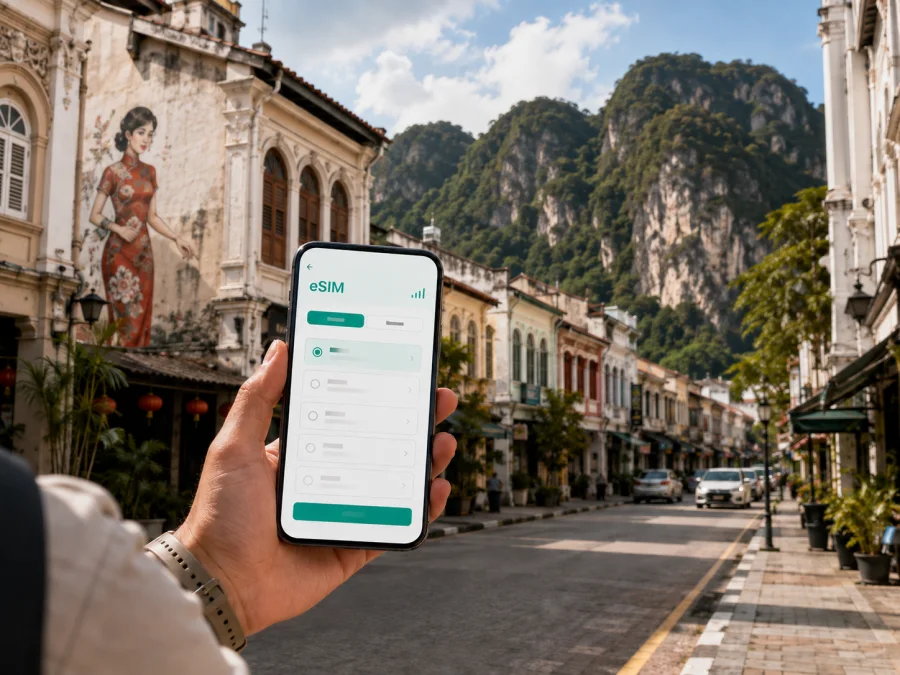
Ipoh eSIM: reliable mobile connection and internet for your Malaysia trip
Ipoh is a practical base for exploring Perak, a rewarding stop between Kuala Lumpur and northern Peninsular Malaysia, and a city where a dependable mobile connection makes everyday travel easier. You may need internet as soon as you land, while walking through Old Town, finding a hotel in New Town, arranging a ride to a cave temple, or checking a train departure. An eSIM, or digital SIM, lets you prepare mobile data for a compatible phone without removing your regular physical SIM.
This guide focuses on Ipoh itself: arrival routes, neighbourhoods, food and heritage walks, business days, short stopovers, and trips from the city. It explains how to choose an eSIM tariff for the way you travel and how to avoid small connection problems that can turn a simple arrival into a long search for Wi-Fi.
Why mobile internet matters in Ipoh
Ipoh travel is often a sequence of short decisions: opening a hotel address, comparing breakfast places, confirming a ride, or changing direction when the weather changes. Maps, translation, booking confirmations, payment apps, messaging, and transport information all depend on a working data connection.
The city also extends beyond one sightseeing street. The railway station and Old Town are useful reference points, while accommodation, shopping, restaurants, offices, and attractions may be in different parts of the urban area. Live maps help you judge distances and travel time instead of relying on memory or interpreting every turn offline.
An eSIM is useful when you want to keep your usual SIM active for calls or incoming messages while using a separate data line during the trip. It is not a replacement for a normal phone number: voice calls and SMS are not included unless the selected tariff says otherwise. Travellers often use messaging or calling apps over mobile data and keep booking details in an app or email account.
Prepare before departure
- Save your accommodation name and full address in an offline note.
- Decide which activities need live maps: a heritage walk, a meeting, or a trip outside the centre.
- Estimate how often you will use video, photo uploads, navigation, and hotspot sharing.
- Check the eSIM conditions, data allowance, validity, activation rules, and top-up options.
- Keep access to the account or email address used to receive the eSIM details.
Choose a package for your actual itinerary. A short stopover with maps and messages differs from a week with remote work and frequent photo uploads.
Arriving in Ipoh: airport, rail, and the first connection
Sultan Azlan Shah Airport is about 6 km south of Ipoh city. On arrival, the first tasks are practical: open your accommodation details, confirm onward transport, and tell someone you have landed. Having mobile data ready means you do not need to make the first decision of the trip around airport Wi-Fi.
If your journey reaches Ipoh by rail, Ipoh railway station is a central orientation point. KTMB’s Electric Train Service connects Ipoh with routes on the West Coast Line, including the Kuala Lumpur area and destinations farther north. Service type, departure time, seat availability, and ticket conditions can change, so check your booking and the current timetable before travelling. For a same-day connection, keep the booking message accessible and leave time to move from the station to your accommodation.
At either arrival point, a connection supports orientation, coordination with a host or driver, and continued use of maps and translation after leaving the terminal.
Arrival checklist
Before leaving the airport or station, confirm that:
- the eSIM line is visible and selected for mobile data;
- data roaming is enabled for the eSIM if the tariff requires it;
- automatic updates and cloud photo backup are limited;
- the home SIM’s data roaming is disabled if needed;
- the hotel or meeting address is saved offline.
If the connection does not appear, do not delete and reinstall the eSIM. First check the selected data line, network selection, airplane mode, and activation instructions.
Choosing an eSIM tariff for an Ipoh itinerary
There is no single correct data allowance for every visitor. The right choice depends on length of stay, number of devices, and whether your days are built around walking, driving, meetings, or content creation. A pre-paid tariff can make the cost easier to understand because you select the destination, data volume, and validity before use, subject to the conditions shown for that tariff.
| Travel pattern in Ipoh | Typical data behaviour | What to prioritise |
|---|---|---|
| One-day stopover | Messages, maps, searches, booking checks | Short validity and enough navigation data |
| Heritage and food weekend | Directions, restaurant searches, photos, ride coordination | Allowance and validity covering the whole visit |
| Work trip | Email, messaging, calls, documents, occasional hotspot | More data, hotspot terms, and account access |
| Road trips from the city | Navigation, weather checks, attraction information | Full-route validity and a buffer for detours |
| Longer stay | Daily maps, social apps, media, internet calls | Larger allowance or a suitable top-up option |
Before payment, read the tariff information rather than choosing only the largest data figure. Check when validity begins, whether the package is data-only, and whether tethering is permitted.
For a short city visit, a smaller package may be enough if maps and hotel information are saved in advance and automatic media uploads are limited. For a business stay, a larger allowance may be more comfortable because video calls and hotspot use can consume data quickly.
Installing an eSIM before the trip
Install the travel eSIM while you have stable internet and time to read the instructions. Keep your regular SIM in place if you want calls or messages, but decide which line will handle data after arrival.
The menu names vary by phone model and operating system. A typical process is:
- Open the Kaspersky eSIM Store app or website and sign in to the account used for the purchase.
- Open the eSIM details and locate the provided installation method, such as an in-app flow or QR code.
- In mobile-network settings, choose the option to add a mobile plan or eSIM.
- Scan the QR code or follow the guided steps. Do not scan a code intended for a different device.
- Label the new line “Malaysia trip” so it is easy to identify.
- Keep the home line for calls if needed, and select the travel eSIM for mobile data when ready.
For system-specific details, use the Android installation instructions or the iOS installation instructions. After installation, do not assume that data is already active: activation may depend on the tariff, device settings, and local network conditions.
Check device compatibility first
Not every phone supports eSIM, and a device can also be restricted by an operator lock or regional model differences. Before choosing a tariff, check whether your device supports eSIM. Confirm that the phone is unlocked for another mobile plan, has suitable software, and has enough battery for installation.
If you are travelling with another device, check it separately. An eSIM installed on one device is not automatically available on another. Follow the tariff instructions and contact support if the activation state is unclear.
Settings that help on arrival
The common mistake is installing the profile correctly but leaving the home SIM selected for data. Take a screenshot of relevant settings before the flight if changing them in a busy arrival hall may be difficult.
Review these options in Ipoh:
- Mobile data: select the Malaysia travel eSIM.
- Data roaming: turn it on for the travel line only if required by the tariff.
- Home line: keep it for calls or verification messages, but turn off its data roaming if needed.
- Automatic switching: disable settings that can move data to another line unexpectedly.
- Personal hotspot: use it only when the tariff permits tethering.
- Background activity: pause updates and large photo backups when data is limited.
If the phone shows no data, check the selected line, toggle airplane mode, restart the phone, and verify that the eSIM profile is enabled. Registration can take time and depends on the device and local network. If needed, review the instructions and contact support with the device model and the step where the problem appeared.
Kaspersky eSIM Store is an app and website where you can choose, arrange, and activate an eSIM tariff for mobile internet during an overseas trip. You can choose an eSIM tariff for your Malaysia trip after checking the conditions that fit your Ipoh itinerary.
Moving around Ipoh with a connected phone
Ipoh benefits from a layered approach to movement. Heritage streets and food stops can be combined on foot, while attractions outside the centre may require a car, taxi, or ride-hailing service. Mobile data helps you switch modes without losing the day’s plan.
Old Town and New Town
Old Town is associated with the railway station, historic buildings, cafés, murals, and lanes such as Concubine Lane. Save the hotel and station pins before starting, and keep the return route available if you explore in hot or wet weather.
New Town has a modern commercial rhythm, with restaurants, shops, and accommodation options. The areas can be combined, but walking time depends on the start point, weather, traffic, and stops. Use live navigation for final turns.
Gunung Rapat, Meru, and beyond the core
If your plans include a cave temple, viewpoint, shopping area, or hotel away from the heritage centre, check the route before leaving. Mobile data helps confirm the destination pin, compare transport options, and send an updated arrival time.
Meru and the northern side can suit travellers who want a larger hotel or a route toward northern destinations. Gunung Rapat and the limestone landscape south of the centre are better treated as a separate half-day plan; road conditions, weather, and transport choice affect the journey.
Navigation routine
- Search using the full place name and Ipoh.
- Check the pin, entrance, and meeting point.
- Compare walking and vehicle routes, then save the destination and return point.
This works for hotel check-in, a restaurant reservation, a meeting, or a transfer to Ipoh station, while limiting unnecessary data use.
Food, heritage, and practical itineraries
Ipoh is often planned around food and heritage rather than one headline attraction. A connected phone supports opening-hour checks, saved places, menu translation, and messages to a companion.
One-day city plan
- Leave time for check-in or luggage storage, then walk around Old Town while the route is easy to adjust.
- Keep the return address visible before ordering a ride and limit photo backup until you know the allowance.
- Check the next day’s train, meeting, or road-trip plan before sleeping.
Two- or three-day plan
Combine a heritage walk with one or two food areas, reserve vehicle-based attractions outside the centre for a separate part of the day, and allow extra time and data for route changes.
Leave room for a change: Ipoh can be the destination or a base for other parts of Perak. Mobile data keeps the city portion and onward journey in the same place.
Business trips and hotel work
Business travellers may need meetings, documents, hotspot sharing, or messages between the station, hotel, and venue. Before the first workday:
- confirm the hotel address and check-in window;
- test the eSIM while you have reliable internet;
- decide between hotel Wi-Fi and phone hotspot, then check the tariff’s hotspot terms;
- download essential documents and keep a charging cable available.
Avoid large updates or complete photo uploads over a limited package. Close apps that refresh in the background and reserve data for work that matters.
Kaspersky eSIM Store helps organise the choice and activation of an eSIM tariff, while the actual connection depends on the selected tariff, compatible device, and local network conditions. Plan a backup such as an offline agenda and a second way to contact the organiser.
Stopovers and trips from Ipoh
A short stopover benefits from preparation. Keep the station or airport route, accommodation address, and one flexible activity in your notes; if time changes, adjust the plan around the centre.
For an onward train, check current KTMB information and your ticket before leaving. For a road trip, confirm the meeting point and return plan while connected. Do not plan from map distance alone.
Three useful scenarios
One night: use data for the arrival route, messages, the hotel booking, and the next departure. Save the address offline.
Three days with a day outside the centre: use maps and messages during city walks, then allow extra data for road navigation and the return ride.
Work plus an evening walk: prioritise email and meetings, use hotspot only when allowed, and plan the walk around the hotel or venue.
Frequently asked questions
Is an eSIM useful for a trip focused only on Ipoh?
Yes, if you need data for arrival, maps, messaging, bookings, and movement between neighbourhoods. The value depends on your device and usage pattern.
Can I keep my regular SIM active?
On a compatible dual-line device, you can often keep the home SIM available while assigning data to the travel eSIM. Check the phone settings and disable automatic data switching if you want control.
Does the eSIM include a phone number?
Not necessarily. Many travel eSIM tariffs are intended for data, and voice calls or SMS may not be included. Read the selected tariff conditions.
Should I install the eSIM before flying?
Installing before departure can make arrival easier if the device is compatible and you have stable internet. Check the tariff to see when activation begins.
What if data does not work after landing?
Check that the travel eSIM is enabled and selected for data, confirm the required roaming setting, toggle airplane mode, and restart the phone. If needed, contact support with your device and tariff details.
How much data should I choose?
Start with your itinerary. Maps and messages use less data than video calls, hotspot sharing, or frequent media uploads. Compare allowance and validity with your days in Ipoh and leave a buffer for onward travel.
Final preparation checklist
- [ ] Your phone supports eSIM and is not restricted by an operator lock.
- [ ] The selected Malaysia tariff covers the dates and route of your trip.
- [ ] Installation details are available in your account or email.
- [ ] Android or iOS installation steps are easy to open.
- [ ] Accommodation, station, and airport details are saved offline.
- [ ] Your regular SIM’s data roaming setting is understood.
- [ ] The travel eSIM is clearly labelled in the phone settings.
- [ ] Hotspot use, top-ups, validity, and data limits have been checked.
- [ ] A backup contact method and booking information are available.
Once in Ipoh, use data intentionally: maps for the next decision, messaging for coordination, and offline notes for details you do not want to search for again. This keeps the trip flexible without turning every part of the day into a data-management task.
Prepare your eSIM for Ipoh
Choose the destination and tariff that match your travel dates, check the conditions, install the eSIM on a compatible device, and activate it according to the provided instructions. When you are ready, select an eSIM tariff for your trip to Ipoh and Malaysia. Kaspersky eSIM Store helps you prepare the mobile-data part of an overseas journey through its app and website; the tariff’s conditions, your device settings, and the local network determine how the connection works after arrival.


