Travel connectivity guide
Jerash eSIM: Mobile Internet for Your Jordan Visit
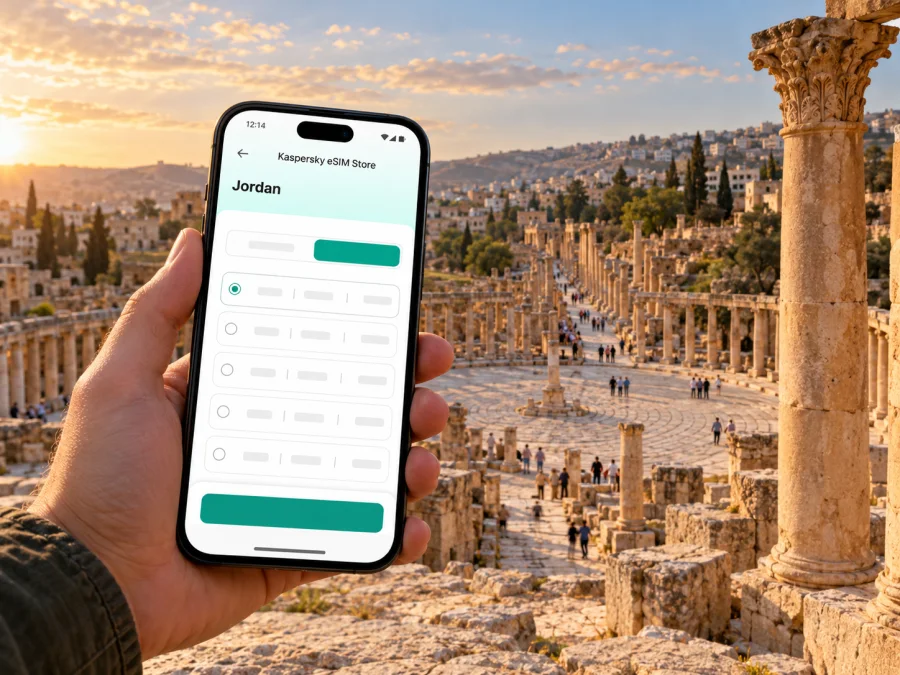
Jerash eSIM: Mobile Connection and Internet for Your Visit
Jerash is a compact city in northern Jordan best known to visitors for the extensive archaeological site of ancient Gerasa. It lies about 45 km north of Amman, making it a realistic day trip from the capital as well as a stop on a longer northern Jordan itinerary. A mobile connection can help you coordinate the drive, check directions, message a guide or host, and keep practical details at hand while you explore.
An eSIM is a digital SIM profile installed on a compatible device. For a trip to Jerash, it can be a convenient way to prepare mobile internet without swapping out your regular physical SIM. The exact service, network access, supported device variants and plan conditions depend on the eSIM plan selected and the local operator arrangements behind it. Check those details before purchase; a city name on a travel plan does not guarantee signal at every point in or around the archaeological site.
Jerash at a glance: city, site and setting
The name Jerash is used for both the modern city and its major archaeological attraction. The ruins are not the whole city: they form a substantial archaeological area beside the present-day urban community. The ancient settlement was known as Gerasa and was one of the cities of the Decapolis during the Roman period. Visitors encounter paved and colonnaded streets, public squares, temples, theatres, baths, fountains and sections of the city walls.
Jerash Archaeological City is included on UNESCO’s Tentative List. That is a different status from inscription on the World Heritage List, so it is more accurate to describe it as a major archaeological site on the Tentative List than to call it a UNESCO World Heritage Site.
The site is spread out, with open stone spaces and uneven surfaces. You may spend much of a visit walking between monuments rather than sitting near a shop or hotel. Downloading a map, saving your accommodation details and keeping your onward transport plan accessible before you enter can make the day easier, whether your mobile data is available throughout the grounds or not.
When mobile internet helps in Jerash
A connection is most useful for small travel tasks that come up at different points in the day:
- On arrival: confirm the meeting point with a driver, guide or accommodation host and keep the address available.
- On the road from Amman: check the route, traffic and revised pickup details. Do not rely on a single live map if the journey passes through areas with variable reception.
- At the archaeological site: look up saved notes, tickets or booking messages, and contact your group if you separate.
- Between the site and town: find a restaurant, accommodation or pickup point, then share your location when meeting a driver.
- For work: respond to messages, join a short call where conditions allow, or use cloud documents during a stop in town. A large file upload or video meeting is better planned around reliable Wi-Fi.
- For the next leg: confirm the route toward Amman, Ajloun or another destination and save the address before you leave a strong Wi-Fi connection.
A mobile-data eSIM is not necessarily a phone-number service. Unless plan terms say otherwise, do not expect ordinary calls or SMS; keep your primary line available if needed and use messaging apps over data.
Planning the journey from Amman
Queen Alia International Airport serves Amman and is the usual international arrival point for many visitors heading to Jerash. Jerash is north of Amman, around 45 km from the capital. The airport is south of the city, so a visitor arriving by air should plan the airport-to-Amman leg separately from the onward journey north.
A practical sequence is:
- Save the destination before landing. Keep the name and address of your hotel, guesthouse or meeting point in offline notes, in both English and any local-language form supplied by your host.
- Arrange the airport transfer. Check the airport’s current transport options and operating times. The airport’s Airport Express service is a connection toward Amman; it should not be assumed to take you directly to Jerash.
- Choose how to continue north. Depending on your schedule and luggage, you might arrange a private transfer, use a taxi for a direct journey, rent a car, or travel through Amman using current public transport connections. Confirm the exact pickup point and payment terms before setting off.
- Verify onward transport on the day. Routes, departure points and timetables can change. Check with the transport provider or accommodation rather than relying on an old screenshot or an unlabelled pin.
- Share the plan. Send your expected arrival time and the meeting point to your host or driver. If mobile data is not yet working, use airport Wi-Fi to send the essentials and keep them saved offline.
Public transport may suit a flexible traveler carrying light luggage, while a pre-arranged vehicle can simplify a late arrival, a tight schedule or a group trip. Do not assume that every service runs at the time you land, or that a route you find online still departs from the same station. If your plan depends on a connection, confirm it close to travel day and allow time for delays.
Exploring the archaeological site without depending on a live signal
The ancient city is large enough that a few simple preparations make a difference. Before arriving, save the site entrance and your intended meeting point on your map. If your companions split up, agree on a clear landmark and a time to regroup; a monument name can be less useful than a precise gate or plaza when people are moving through a busy site.
A basic offline-ready kit can include:
- an offline map of Jerash and the route back to your accommodation;
- a screenshot of your ticket or booking confirmation, if applicable;
- the telephone number or messaging contact for your driver or guide;
- your hotel address and a landmark near its entrance;
- a note with the next transport point and its planned departure time;
- a portable battery if you use navigation, translation or photography heavily.
Keep the route from the archaeological entrance to your pickup point clear before you start walking. The stone paths can be uneven, and checking a screen while moving is less convenient than stopping in a safe place. A downloaded map is also useful if your battery is low or data access becomes intermittent.
The visitor experience can vary with weather, daylight, events and site operating arrangements. Check current opening information and any event-specific guidance before leaving Amman. For a long site visit, carry water, use sun protection when appropriate and wear shoes suited to stone paths. These practical preparations matter more than keeping a navigation app open continuously.
Picking an eSIM plan for a Jerash itinerary
Jerash does not require a city-specific plan: the relevant destination is Jordan. Before you select anything, confirm that the plan is intended for use in Jordan and review the service conditions shown for that particular offer. Jordan’s licensed mobile market includes Zain, Orange Jordan and Umniah; that market context does not identify which network, if any, a travel eSIM plan uses. Kaspersky eSIM Store is an app and website where travelers can choose, arrange and activate an eSIM with a suitable plan for mobile internet abroad. Availability and terms can vary, so check the current details shown for the destination.
If you are comparing options, focus on the trip rather than the biggest data allowance:
| Travel pattern | What to consider |
|---|---|
| A day trip from Amman | You may mainly need maps, messages, booking details and occasional browsing. Keep tickets and directions available offline as a backup. |
| An overnight stay in Jerash | Consider the full period of use, including arrival and departure days, and whether your accommodation has Wi-Fi for heavier tasks. |
| A northern Jordan road trip | Check that the plan applies across the intended route, not only in a city. Coverage and performance can vary by location and network. |
| Remote work during the visit | Estimate data for calls, cloud files and tethering separately. Confirm that the plan allows hotspot use if you intend to share data with another device. |
| A short stop between destinations | Prioritize easy setup, enough validity for the travel window and offline copies of essential information. |
A plan’s listed validity, data allowance, activation rules, hotspot terms and supported network access are more useful than a broad claim that a plan “works everywhere.” Data use varies with navigation, video, photo backups and calls. Pause large background uploads until Wi-Fi is available.
To review the current destination options, you can check eSIM plans for Jordan. Treat the page as a place to review current Jordan options, not as a guarantee that a particular offer includes a specific local operator, network technology or coverage at every Jerash landmark. Read the plan details before completing an order.
What to check before you buy
Compatibility is specific to the device, its sales region and its software. A model family may include regional variants with different eSIM capability, and a phone locked to an operator may not accept another provider’s profile. Check the exact model and market version, confirm that the device is unlocked, and check whether your device supports eSIM before purchase.
Use this checklist for the plan itself:
- Destination: Jordan is included in the plan’s listed service area.
- Validity: the period covers the days you expect to use mobile data. Check when the validity period begins; installing a profile and starting data use may not be the same event.
- Data: the allowance matches your likely use. Navigation and messaging are usually lighter than streaming, video calls or photo synchronization.
- Network details: review any stated operator, technology or roaming limitations. If no specific local operator is named, do not assume one.
- Hotspot: confirm tethering rules if you want to connect a laptop or a second phone.
- Installation: make sure you will have a stable internet connection and access to the activation details when you install the profile.
- Primary SIM: decide which line will handle mobile data, calls and SMS. Keep any line needed for account verification enabled as appropriate.
- Support and refund terms: read the current conditions and keep your order information in an accessible place.
Do not delete an installed eSIM profile as a troubleshooting shortcut unless the plan’s instructions tell you to. Some activation codes or QR codes are single-use, and reinstalling may require help from the service provider. If anything about compatibility or activation is unclear, resolve it before leaving a reliable Wi-Fi connection.
Install before departure or after arrival?
If your device and plan instructions allow it, installing the eSIM before departure can reduce the number of tasks you need to complete after landing. It is still important to distinguish installation from use: follow the selected plan’s directions for when to enable the profile and mobile data, and check when its validity starts. If you prefer to install after arriving, keep the QR code or activation information accessible and connect to Wi-Fi first.
A simple setup sequence is:
- Confirm compatibility and unlock status. Check the precise device variant and make sure it is not restricted by a carrier lock.
- Review the plan instructions. Note the activation method, data start conditions, validity and whether data roaming must be enabled for that eSIM.
- Connect to Wi-Fi. Keep the device online while downloading the profile.
- Add the eSIM. Follow the prompts on the device or the supplied installation guide. Do not scan the same one-time code repeatedly if the first attempt appears to stall.
- Label the line. Give it a clear name such as “Jordan data” so you can identify it alongside your regular SIM.
- Select the data line at the right time. Choose the travel eSIM for mobile data according to the plan instructions; keep your home line configured for calls or messages if needed.
- Check the connection. Once in Jordan, allow time for registration and verify that the selected line is being used for data. If it does not connect, check the settings and plan instructions before deleting the profile.
For step-by-step help, use the Android eSIM installation guide or the iOS eSIM installation guide. Menu names differ by device and software version, so use the instructions for your operating system and follow the on-screen prompts.
Getting around town and coordinating a day trip
A Jerash visit can mean a long walk through the archaeological grounds followed by a timed pickup or onward drive. Before leaving Amman, save the site entrance, accommodation and agreed pickup point, then share the plan with your driver or host. If travelling as a group, share booking details with more than one person and agree on an offline meeting point in case a phone battery runs low.
For an independent road trip, download the regional map over Wi-Fi and check the route before departure. Mobile navigation is useful but should not distract the driver; stop safely before changing directions. Keep the address and map pin together, since transliterated street names can be difficult to search on arrival.
Short visits, overnight stays and work trips
A few hours: arrange transport in advance, save the entrance and pickup points, and keep the next-leg details in a screenshot. Overnight stay: confirm check-in hours and save the host’s location and contact information. Remote work: reserve video calls, cloud backups and hotspot use for a suitable connection, and check whether the plan permits tethering. Wider itinerary: confirm that the plan covers every country on your route; a Jordan plan may not work after a border crossing.
For a full day outdoors, download maps and tickets, reduce unnecessary background refresh, and carry a power bank if you expect heavy navigation or photography. Check data-line switching on a dual-SIM phone so the device does not unexpectedly use your home line for mobile data. Use Wi-Fi for large downloads, but keep offline directions and pickup details for moments when Wi-Fi or mobile service is unavailable.
If the eSIM does not connect
First check that the eSIM is enabled, selected for mobile data, and within its validity period. Confirm the plan’s instructions for roaming settings; some plans require data roaming on the travel line. Try airplane mode briefly or restart the phone if instructed, and allow time for the device to register. Move to a safe open area before checking the signal.
If service remains unavailable, use Wi-Fi to contact support with your order details. Do not delete the eSIM profile or reset network settings unless the plan instructions or support team recommends it; some activation codes can be single-use. Reception can vary inside buildings, across the archaeological grounds and along the road, so keep offline navigation and a clear pickup arrangement as backups.
Frequently asked questions
Is Jerash in Jordan or in a separate region?
Jerash is a city in northern Jordan, about 45 km north of Amman. The archaeological city of ancient Gerasa is a distinct site beside the modern city; it is not a separate country or eSIM destination.
Is Jerash Archaeological City a UNESCO World Heritage Site?
It is on UNESCO’s Tentative List. That status is not the same as inscription on the World Heritage List, so the precise description is “on the Tentative List.”
Will a Jordan eSIM work at every monument in Jerash?
No plan can be assumed to work at every location. Reception depends on the local network, the plan’s operator arrangements, device and conditions on the ground. Check any operator details provided with the plan and keep important information offline.
Can I use the eSIM for normal calls and text messages?
A data-focused travel eSIM is not necessarily a phone-number service. Check the individual plan terms; unless voice and SMS are specifically included, plan to use your regular line for calls and texts and internet apps for data-based communication.
Should I install the eSIM before I fly?
Often it is convenient to install before departure while you have dependable Wi-Fi, provided the plan instructions allow this. Check when validity begins and follow the instructions about when to enable mobile data so you do not start using the plan earlier than intended.
Prepare your connection for Jerash
Before leaving, check the exact eSIM plan terms, confirm device compatibility, install the profile over Wi-Fi if appropriate, and save your directions and meeting details offline. Kaspersky eSIM Store is an app and website that helps you choose, arrange and activate an eSIM with a suitable mobile-data plan for an international trip; the selected plan’s conditions determine where and how it can be used.
When you are ready, review the current eSIM options for Jordan and choose a plan whose destination, validity and data allowance fit your itinerary. Complete setup using the plan instructions, then keep an offline route ready for your visit to Jerash.


