Travel connectivity guide
Jerusalem eSIM: Mobile Internet for Your Trip
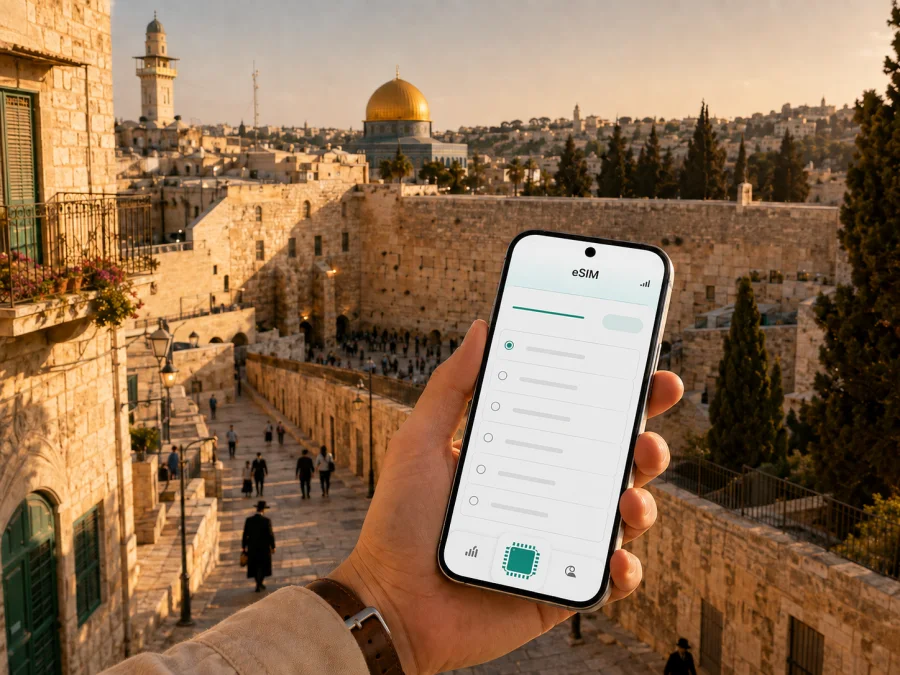
Jerusalem eSIM: mobile connection and internet for your trip
Jerusalem is a city where a single day can include an airport transfer, a meeting in the city centre, a walk through the Old City and dinner in a different neighbourhood. A dependable way to use maps, messages, bookings and work tools makes these transitions easier. An eSIM, or digital SIM, can provide mobile internet in Israel without requiring a physical SIM card.
Kaspersky eSIM Store is an app and website that helps you choose, arrange and activate an eSIM with a suitable data plan for an international trip. For Jerusalem, match the plan to your arrival, accommodation, sightseeing, work and any trips beyond the city.
Why mobile internet matters in Jerusalem
Jerusalem is compact in some places and spread across steep, busy areas in others. The Old City is best explored on foot, while a hotel near the Central Bus Station, a meeting in the technology district and an evening in the German Colony may require different modes of transport. A phone with mobile data helps you adapt as the day changes.
You may need to:
- check the route from the airport transfer or railway station to your hotel;
- confirm a reservation when you are between streets or outside your accommodation;
- compare a walking route with light rail, bus or taxi options;
- translate a short message or read opening information for a museum;
- share your location with a travelling companion;
- join a video call from a hotel, coworking space or café;
- order a ride after a late arrival or find the correct pickup point;
- check a connection before leaving Jerusalem for another Israeli city.
Public Wi‑Fi can be useful in a hotel or café, but it is not always available when you need a map or message. A travel eSIM gives you another way to go online.
Arriving in Jerusalem: prepare the first hour
Most international visitors who fly to Israel arrive at Ben Gurion Airport, outside Jerusalem. The final part of the journey is a separate transfer that may involve train and local transport, a taxi or a pre-arranged transfer. Details can vary on weekends, holidays and during service changes.
With a prepared data connection, you can read transfer details, contact your driver, check the hotel entrance and update the person expecting you. If the eSIM is ready before departure, you can focus on the route rather than finding a place to arrange connectivity after landing.
Arrival checklist
Before leaving home, save the following information in an accessible place:
- The full name and address of your accommodation.
- The transfer or train details you have selected.
- A contact number or message thread for your host, hotel or driver.
- Your booking confirmations for the first day.
- A backup offline map of the route from the airport to Jerusalem.
- The login details for your Kaspersky eSIM Store profile, if you plan to manage the eSIM in the app or on the website.
Save this information before boarding. A power bank and written accommodation address are useful backups.
Moving around the city
Jerusalem rewards a mixed approach to transport. In the Old City, walking is usually part of the experience and the narrow lanes do not behave like ordinary city streets. In newer districts, the light rail and buses can be practical for longer hops, while taxis may be useful when you are carrying luggage or travelling outside the main corridors.
The city’s Red Line light rail is an important part of the urban transport network. It can be useful for connecting central areas, but the most convenient route still depends on your exact starting point, destination, service status and walking distance to a stop. Use current route information on the day rather than relying on a saved itinerary from a previous visit.
Mobile internet supports the small decisions that make a journey smoother:
| Situation | What to check on your phone | Why it helps |
|---|---|---|
| Leaving the airport transfer | Hotel entrance and arrival instructions | Large buildings and one-way streets can make the final walk confusing. |
| Visiting the Old City | A walking route and a meeting point outside the walls | GPS can be harder to interpret in dense lanes. |
| Crossing between neighbourhoods | Current public transport options | A route may involve walking before and after the ride. |
| Carrying luggage | Pickup point and vehicle details | The nearest accessible street may not be the same as the map pin. |
| Travelling after a holiday or weekend change | Operating times and alternatives | Service patterns can differ from an ordinary weekday. |
If you are using a navigation app, keep the phone screen brightness moderate and download key areas for offline use when possible. Live data is still useful for changes, but offline information can be a backup in a crowded street, a building with weak reception or a low-battery situation.
Jerusalem areas and changing data needs
Different parts of Jerusalem create different connection routines. Near the Old City, walking routes, meeting pins, translation and messages are often more useful than a long drive: narrow, busy streets may leave you walking the last part to a hotel or site. In the city centre and around Jaffa Road, you may switch repeatedly between walking, light rail, buses and cafés, so live route checks become more frequent.
The German Colony and southern central districts suit travellers combining restaurants, accommodation and evening walks. Givat Ram and Mount Scopus can involve larger campuses or several business and academic addresses; save the building name and contact before leaving. Around Mahane Yehuda, a precise entrance pin helps when a crowded market makes landmarks difficult to describe.
Choose an allowance based on this routine. Maps, messages and bookings usually need less data than video meetings, photo backup or streaming. If you are working from a hotel or café, estimate work use separately and check whether the accommodation Wi‑Fi is suitable for large files.
How to choose an eSIM plan for Jerusalem
Choose the country or region where the eSIM will be used, then match the plan to the full itinerary. Jerusalem is in Israel, so a country plan for Israel is the relevant starting point. If your route also includes other countries, check whether a regional plan is more suitable; do not assume that a plan for one country automatically applies elsewhere.
The main factors are:
- Length of the trip. Select a validity period that covers your actual stay, including arrival and departure days where data may be needed. Check when validity begins: on installation, activation or first connection, depending on the plan terms.
- Expected data use. Maps and messaging usually consume less data than repeated video calls, photo backups or streaming. Think about your daily pattern instead of choosing by trip length alone.
- Route. A Jerusalem-only stay and a route through Jerusalem, Tel Aviv, the Dead Sea or Galilee may require different coverage terms. Confirm the countries or regions included in the selected plan.
- Phone setup. Your device must support eSIM and must not be locked to another operator. Some models differ by region of sale, so check the exact model rather than relying on a product family name.
- Data management. Review whether the plan is prepaid, how the balance is displayed, whether top-ups are available and what happens when the allowance is used. Conditions depend on the selected plan.
Once you know the itinerary and expected usage, you can choose an eSIM plan for a trip to Israel. Kaspersky eSIM Store helps you review the available direction and plan details so you can arrange the data connection before travelling or after you arrive.
Installing and activating eSIM
Set up the eSIM while you have a reliable internet connection, preferably before departure. The exact menu names vary between Android and iOS versions, but the general sequence is similar. For detailed device-specific steps, use the Android installation instructions and the iOS installation instructions.
Step-by-step setup
- Check compatibility. Confirm that your phone supports eSIM and is not operator-locked. If you are unsure, check your device compatibility before selecting a plan.
- Connect to the internet. Use Wi‑Fi or an existing data connection while adding the eSIM profile.
- Open mobile settings. Go to the mobile or cellular settings and choose the option to add an eSIM or mobile plan.
- Add the profile. Follow the on-screen process or scan the QR code available in your Kaspersky eSIM Store profile or purchase email.
- Label the line. Use a clear label such as “Israel trip” so you can distinguish the travel eSIM from your primary line.
- Choose the data line. Set the travel eSIM as the line for mobile data when you want to use it in Israel. Keep your primary line available for the functions you still need, while checking your home operator’s roaming settings.
- Review data roaming. Some devices require data roaming to be enabled for the travel eSIM. Follow the plan instructions and remember that roaming settings for your primary line may have different cost implications.
- Test deliberately. If the plan is intended to start on first connection, avoid switching it on early unless you want validity to begin. After arrival, enable the travel line and test a simple webpage or message.
Activation can take a few minutes and depends on the device and local network. Do not delete the eSIM profile if the first connection takes longer than expected. Check the plan instructions, restart the phone if appropriate and contact support if you still need help.
What to check before purchase
Compatibility is not the only preparation step. Use this short review before you confirm a plan:
- Device: eSIM support and the exact regional model; check your device compatibility if you are unsure.
- Operator lock: the phone should allow another mobile plan.
- Destination: Israel is included for the dates and route you need.
- Validity: understand the start point and expiration conditions.
- Allowance: match data to maps, work, media and any hotspot use.
- Primary SIM: decide whether to keep it active for calls or messages and review its roaming settings.
- Power: navigation and photography use battery, so carry a charger or power bank.
- Access: keep your purchase email or profile available while adding the eSIM.
- Support: know where to find help if installation or activation does not proceed as expected.
An eSIM plan for mobile data is not automatically a replacement for a regular phone number. Unless the selected plan states otherwise, it does not include ordinary voice calls or SMS. You can use messaging and calling apps over mobile data, while traditional calls and texts remain subject to your primary line and its operator terms.
Practical Jerusalem scenarios
A short stopover
If Jerusalem is one part of a brief Israel itinerary, prepare the eSIM before leaving home and keep the first route simple. Save your hotel address, choose one meeting point and use mobile data for navigation and messages. A smaller allowance may be enough if you avoid streaming and use Wi‑Fi for longer sessions, but allow for airport transfers and an unexpected change of plans.
A business trip
Separate work requirements from sightseeing. Confirm whether your hotel has suitable Wi‑Fi for large files and video calls, then choose a plan that leaves enough mobile data for meetings outside the hotel. Keep calendars, presentation files and contact details available offline. If you need to tether a laptop, verify that the selected plan and device support hotspot use.
Frequently asked questions
Can I use an Israel eSIM in other cities?
That depends on the selected plan’s destination terms. Jerusalem is in Israel, but a city name does not define the plan’s coverage. If you will continue to another Israeli city, check that the same country plan applies to the full itinerary.
Can I keep my usual SIM card in the phone?
Often, a compatible dual-line phone can retain the physical SIM while an eSIM is added, but the exact behaviour depends on the device. Select which line handles mobile data and review the roaming settings for your primary SIM.
Does the eSIM include a phone number?
Not unless the conditions of the particular plan say so. Travel eSIM plans in this context are intended for mobile internet. Ordinary calls and SMS usually remain with your primary line; internet-based calls and messages can use the data connection.
What if the eSIM does not connect after I arrive?
Check that the eSIM line is enabled, that it is selected for mobile data and that the required data-roaming setting is on for that line. Confirm the destination and validity of the plan, then restart the phone if necessary. If the issue continues, contact support and keep the purchase details available.
A calm connection plan for Jerusalem
The most useful preparation is simple: identify your arrival route, save your accommodation details, choose a plan for Israel that matches your dates and usage, and check the phone before you leave. In Jerusalem, a walking route through the Old City, a light-rail journey across central districts and a work call from a hotel can all happen on the same day. Your eSIM setup should be ready for that variety.
Kaspersky eSIM Store helps you choose, arrange and activate an eSIM with a suitable plan for mobile internet during an international trip. Review the device and plan conditions, keep your primary line settings under control, and choose an eSIM plan for your Jerusalem trip when you are ready.


