Travel connectivity guide
Motorola Edge 2023 256GB eSIM Compatibility
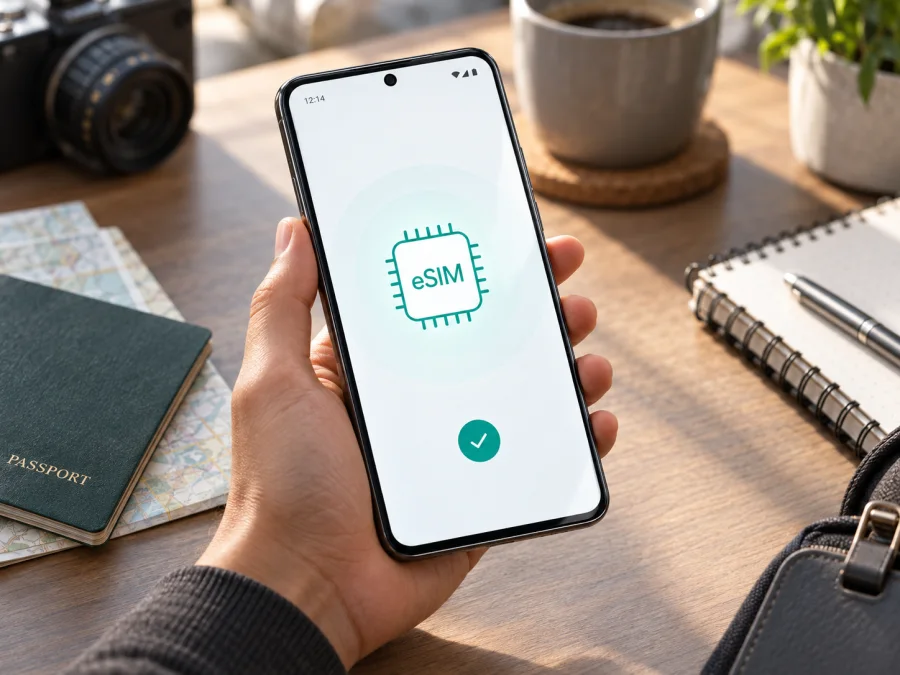
Motorola Edge 2023 256GB eSIM compatibility and setup guide
The Motorola Edge 2023 256GB can use eSIM on the US version documented by Motorola: the manufacturer's specifications list 256GB of storage, 8GB of RAM, and dual SIM with eSIM plus a physical SIM. This confirms eSIM support for the documented US version, but not every similarly named handset. Motorola notes that availability can vary by region; carrier restrictions may also apply. Before choosing a travel plan, check the handset for an EID and eSIM setup option, confirm that it is unlocked, and verify destination coverage.
This guide covers the exact Motorola Edge 2023 256GB variant. “256GB” is internal storage, not RAM or mobile data. Motorola lists 8GB RAM for the US version; specifications can vary by market. The Edge+ (2023) is a separate model.
At a glance
| Item | What to know |
|---|---|
| Device variant | Motorola Edge 2023 256GB |
| eSIM on the documented US version | Yes: Motorola lists dual SIM (eSIM + physical SIM) |
| Physical SIM | The US configuration supports a physical SIM alongside eSIM |
| Storage / RAM on Motorola's US listing | 256GB / 8GB |
| Main qualification | Region, carrier, firmware, and device lock status can affect availability |
| Best confirmation | Find the EID and an option to add or download an eSIM in Settings |
What the compatibility answer means
Motorola’s US specifications for the motorola edge (2023) list 256GB storage and “Dual SIM (eSIM+pSIM).” Its SIM support article gives eSIM setup steps but notes that availability can depend on the unit and carrier. The US listing reports 8GB RAM.
Treat the answer as supported on the documented US version, subject to checking the individual handset. Other 2023 Edge models and regional or operator versions can differ. A generic “Edge 2023” listing or the 256GB storage label alone does not establish eSIM support; check the specification, EID, and system menu for the actual phone.
The carrier matters too. A compatible handset may still be locked to its original network, restricted by a carrier, or unable to download a profile on a particular account. Conversely, a travel eSIM provider can require a supported band or destination network even when the phone has an EID. Check all three layers: the hardware and software, the seller or carrier restrictions, and the requirements of the specific eSIM plan.
<a id="kesim-device-compatibility"></a>
Check your exact phone before buying
Use the handset you plan to travel with whenever possible. For a second-hand or online purchase, ask the seller to check the EID and eSIM settings on that exact unit. Motorola's published specification confirms the US configuration, but the phone in your hand is the final check.
1. Look for the EID
An EID identifies the embedded SIM hardware. On many Android builds, check Settings → About phone → Device identifiers or Settings → About phone → SIM status. Labels vary, so search Settings for “EID” if these paths are not shown. A visible EID is useful evidence, but does not prove that eSIM downloads are enabled or that the phone is unlocked. If there is no EID, ask the seller or Motorola support to verify the exact model and market version before buying a plan.
2. Check for eSIM controls
Open Settings → Network & internet → SIMs & mobile network and look for Download a SIM, Add eSIM, or a similar option. This is the setup area in Motorola's support instructions. If the option is missing, check for software updates and restart, then ask whether eSIM is enabled for that regional or operator version. Do not erase an existing profile just to test setup: Motorola warns this removes its services and restoration may require the carrier.
3. Confirm the phone is unlocked
A device can have an EID and eSIM menu yet still be locked to its original carrier. Ask that carrier or seller to confirm that another provider's profile is allowed. Also check that the selected plan supports your destination and any relevant network requirements.
Compatibility checklist
- [ ] The handset is the Motorola Edge 2023 256GB, not the Edge+ or another generation.
- [ ] Settings or device status displays an EID and an eSIM setup option.
- [ ] The phone is unlocked, and the plan covers your destination.
- [ ] You know how to install the profile and when its validity starts.
If the phone is locked or the menu is absent, get confirmation from the seller or carrier before relying on a general product listing. Settings labels can change after software updates, so search the current Settings app if the listed path looks different.
Check your device against these points before choosing a plan. If you do not have the handset yet, request the EID and a view of its eSIM settings from the seller.
Install an eSIM on the Motorola Edge 2023 256GB
Prepare before opening the installation flow. Connect the phone to a reliable Wi-Fi network, update Android if an update is offered, and keep the device charged. Have the QR code or activation details from your eSIM purchase available on another screen or printed out. A QR code displayed on the phone cannot usually be scanned by that same phone's camera, so use the manual entry option if the provider supplies activation details and the setup screen offers it.
- Open Settings → Network & internet → SIMs & mobile network.
- Choose the option to download or add an eSIM. The wording can differ by region, Android version, and carrier.
- Follow the on-screen prompts. Scan the QR code supplied for your eSIM, or enter the activation information manually if that option is provided.
- Wait while Android downloads and installs the profile. Keep the phone connected to Wi-Fi and do not close the setup process or scan the same one-time QR code on another device.
- When asked, give the profile a clear label such as “Travel” or the destination name. This helps distinguish it from your home SIM.
- Choose which SIM should handle mobile data. You can usually keep the physical SIM active for your usual number and select the travel eSIM for data, if your carrier and configuration allow both to remain enabled.
- Review the provider's instructions for when to turn the line on and enable data roaming. Some plans start when installed; others start when first connected in the destination. Follow the plan terms rather than assuming all eSIMs begin at the same time.
Motorola's support instructions describe connecting to Wi-Fi if the phone has no network connection, then opening Settings → Network & internet → SIMs & mobile network and following the eSIM download prompts. For more detail, see Motorola's Android eSIM instructions. Kaspersky eSIM Store also provides an iOS installation guide for travelers setting up a different Apple device; the menus in that guide do not apply to this Motorola phone.
Activate it for a trip
Installation and activation are related but not always simultaneous. Installing downloads the profile to the phone. Activation can happen when you switch the line on, when the phone first registers on a supported network, or at another point defined by the plan. Before leaving, read the specific plan's activation and validity terms so you can install early without accidentally starting a limited validity window, if early installation is allowed.
When you are ready to use the travel eSIM:
- Open the SIM settings and make sure the travel profile is enabled.
- Set that profile as the SIM for mobile data. Keep your home line selected for calls and texts if you need it and your carrier permits dual SIM use.
- When you arrive, turn on mobile data for the travel line. Enable data roaming for that line only if the plan's instructions require it; some travel profiles need this setting to connect to partner networks.
- Allow the phone a few minutes to register. If the network does not appear, toggle airplane mode once or restart the phone, then check the plan's supported network and APN instructions.
- Confirm that a webpage or map loads over mobile data before relying on the connection away from Wi-Fi.
A travel data eSIM is not automatically a replacement for your regular phone service. Unless the selected plan explicitly includes them, it does not provide a standard phone number, cellular voice calls, or SMS. Internet calling and messaging apps can work over data, while your existing physical SIM may continue to receive calls or texts under its own carrier and roaming terms. Check possible home-carrier charges before leaving that line active abroad.
Practical travel scenarios
A short city break. Install the profile at home while connected to Wi-Fi, but leave it switched off if the plan's terms say validity starts on first network connection. At the destination, select it for data and confirm that maps, tickets, and messaging work before heading out. This avoids searching for an installation connection after landing.
A trip across several countries. Check whether the plan covers every country on the route or only one destination. A regional plan may be simpler for a multi-stop itinerary, but coverage and supported networks are plan-specific. Compare the listed destinations, data allowance, and validity rather than assuming that one profile works everywhere.
Keeping your usual number available. The Edge's documented US configuration supports eSIM alongside a physical SIM. You may be able to leave the home SIM available for calls or verification texts and use the travel profile for data. This depends on the carrier, local roaming conditions, and phone settings; it can also create charges on the home line. Verify the selected SIM for mobile data and review roaming rules before travel.
Work or remote access. A travel data profile can provide a connection for email, maps, and online meetings where the chosen plan has service. Check the plan's data limits and expected use, especially for video calls, cloud backups, and hotspot use. The phone's ability to create a hotspot does not guarantee that every plan permits tethering.
Kaspersky eSIM Store is an app and website where travelers can choose, arrange, and activate an eSIM with a plan for mobile internet abroad. Review the destination, data amount, validity period, and any usage conditions in the selected plan before checkout. The eSIM connects through supported local networks; coverage, speed, and availability depend on those networks and the location.
Troubleshooting
There is no eSIM option. Search Settings for “eSIM” or “SIM,” update Android, and restart. Confirm the exact model and market with the seller or Motorola support; some regional or operator versions may not expose the feature.
The QR code will not scan. Use good lighting and a clear display, and ensure the phone is connected to Wi-Fi. If the provider supplied manual activation details and Android offers manual entry, try that. A one-time code may already have been used, so do not repeatedly scan it across devices.
The profile installs but has no service. Confirm that the profile is enabled and selected for mobile data, and that you are in a covered destination. Check the plan's instructions for data roaming or APN settings, then toggle airplane mode or restart the phone.
The phone rejects the profile or data uses the wrong SIM. Check that the device is unlocked, that the correct line is selected for data, and that the activation code belongs to this plan. Do not delete a profile as a first step; contact the provider or carrier, since Motorola notes that restoring an erased eSIM may require carrier assistance.
The connection is intermittent. Move to an area with better signal and check that the plan covers the country and available network. Avoid changing APN values unless the provider supplies them. If you contact support, note the location, time, displayed network, and error message.
Frequently asked questions
Does the Motorola Edge 2023 256GB support eSIM?
Motorola lists eSIM plus physical SIM for the documented US version, along with 256GB storage and 8GB RAM. Availability can vary, so verify the EID, Settings option, and lock status on your exact phone.
Is it the same phone as the Edge+ (2023)?
No. They are distinct models. This guide covers the Motorola Edge 2023 256GB; do not substitute specifications from an Edge+ or another generation.
Can I keep the physical SIM active?
The documented US configuration supports eSIM and physical SIM. Whether both can be used as intended depends on the regional model, carrier, and software. Check the SIM settings and possible home-carrier roaming charges.
Does every travel eSIM work if there is an EID?
No. The phone must be unlocked, the plan must support the destination and network, and its installation requirements must be met. A travel data plan does not include a regular phone number, voice, or SMS unless its terms say otherwise.
Before you go
Use this final check for the Motorola Edge 2023 256GB: confirm the EID, find the eSIM download option in Settings, and verify that the phone is unlocked and its software is current. Then match the plan to every destination, review its data allowance and validity start, and save the activation instructions where you can reach them. Kaspersky eSIM Store's app and website help you choose, arrange, and activate an eSIM plan for mobile internet on a trip abroad. Checking the exact phone first makes it easier to prepare with confidence and avoid buying a plan the handset cannot use.


