Travel connectivity guide
Motorola Edge 2023 eSIM Compatibility Guide
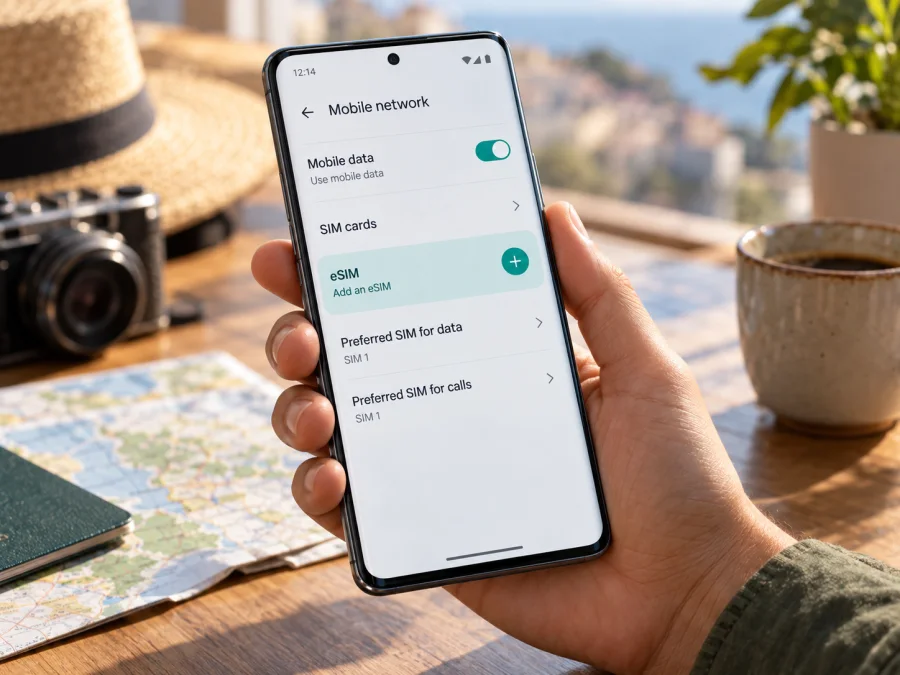
Motorola Edge 2023 eSIM: compatibility and setup guide
The Motorola Edge 2023 can use an eSIM in the US version documented by Motorola: its specifications list dual SIM with eSIM and a physical SIM. There is an important qualification: Motorola's support guidance says an eSIM may be available only on certain versions or in certain countries, and its SIM setup page tells owners to confirm availability with their carrier. So the useful answer is yes for the documented US configuration, but do not assume every Motorola Edge 2023 sold in every market has the same capability. Check the exact handset in your hands before choosing a travel plan.
This guide covers the standard Motorola Edge 2023, not the Edge+ (2023) or another generation. Similar names do not guarantee similar SIM hardware. Check the phone's settings and EID, then confirm it is unlocked and accepted for the destination plan.
Motorola Edge 2023 eSIM specifications at a glance
| Item | What applies to the model covered here |
|---|---|
| Device | Motorola Edge 2023, standard model |
| Official US specification | Dual SIM (eSIM + pSIM) |
| Physical SIM | Nano-SIM tray is present |
| eSIM certainty across all markets | Not universal; Motorola notes regional/version variation |
| Setup path in Motorola guidance | Settings > Network & internet > SIMs & mobile network, then download and set up eSIM |
| Internet for a trip | A compatible travel data plan can be installed as an additional mobile profile where the specific handset supports it |
| What to verify before purchase | EID/eSIM menu, regional model, carrier lock, destination and plan compatibility |
The table is a starting point, not a substitute for checking your individual phone. Motorola’s US specifications expressly list eSIM alongside a physical SIM for this model, while Motorola’s general setup instructions are qualified: the phone “might” support eSIM, and users should contact their carrier for details. Those statements are consistent when read by market: a supported regional configuration exists, but the model name alone does not prove that an individual unit has an available eSIM profile function.
Why the market and exact version matter
Manufacturers sometimes sell phones with the same retail name while varying radio bands, SIM configuration, software, or carrier certification between countries. Even when the core hardware is related, a particular market's firmware or a carrier's provisioning can determine whether the add-eSIM controls appear. A specification page for a US handset therefore does not certify a unit purchased in another country, and a retailer's broad “Edge 2023” listing may not describe the variant precisely.
Check three things independently: whether this handset shows an EID and add-eSIM menu, whether it is carrier-unlocked, and whether the plan supports the device and destination. Hardware compatibility alone does not answer the other two questions.
The Edge+ 2023 has separate specifications; do not use its support information for the Edge 2023. For an imported phone, note the original market and model/SKU in About phone and confirm that exact version with Motorola or the seller.
Motorola's menu path varies by software: look under SIMs & mobile network or SIM preferences. Search Settings for “eSIM” or “SIM” and for Download a SIM or Add eSIM. If the option remains absent after an update, treat compatibility as unverified.
How to check eSIM support on your Motorola Edge 2023
Use more than one check if you can. The presence of one SIM-related setting is useful evidence; an EID is a stronger indicator that the device has an eSIM identity. On Motorola devices and Android versions the exact labels can vary.
Check the Settings menu
- Connect to Wi-Fi and open Settings.
- Open Network & internet. Depending on software, tap SIMs & mobile network or SIM preferences.
- Look for an action to download a SIM, add an eSIM, or set up an eSIM. If it appears, open it only far enough to confirm that the setup flow is available; you do not need to scan or install a plan to perform this check.
- If there is no obvious action, use the Settings search field and search for eSIM, SIM, or download a SIM.
- Note the Android version and build shown under Settings > About phone. If the software is out of date, install the update offered by the phone and check again.
A carrier's process may affect the setup flow. Record any error and ask Motorola or the original carrier to confirm the SKU if the option is missing.
Look for the EID
An EID is the identifier associated with the embedded SIM component. On many Android phones it can be found under Settings > About phone > SIM status or in a status/details screen for the SIM. The menu structure can vary, so search Settings for “EID” as well. Some builds show the number only after opening Status information or SIM status.
You can also try the Android phone dialer code *#06#; supported devices may display device identifiers, including EID. This is a display check only. It does not activate service or register a plan. Avoid sharing the EID publicly: treat it as device information and provide it only through a trusted support or activation flow when requested.
Use this practical checklist before selecting an eSIM:
- [ ] The Settings menu contains an add/download eSIM action.
- [ ] The phone displays an EID in device or SIM status information.
- [ ] The device is the standard Motorola Edge 2023, not Edge+ or a different year.
- [ ] The original sales market and model/SKU are known.
- [ ] The phone is unlocked for use with another provider.
- [ ] The travel plan supports the destination and the installation method you can use.
If both the menu and EID are present, that is a strong indication that the handset can store an eSIM profile. Still verify carrier unlock and plan compatibility. If neither appears, do not buy a plan on the assumption that all phones with this name support eSIM. Check whether your device is compatible before you continue.
Installing an eSIM on Motorola Edge 2023
Set up the profile while you have reliable Wi-Fi, especially if you are preparing before departure. Keep the activation email, QR code, or manual installation details accessible on another screen if the provider supplies them. A QR code displayed on the same phone usually cannot be scanned by that phone's camera in the normal way, so use another device or enter details manually if that option is offered.
Before you start
- Confirm eSIM support using the checks above, and make sure the phone is unlocked.
- Read the plan's destination, data allowance, validity, activation trigger, and installation instructions. Some plans start their validity at installation, while others start when they first connect to a supported network; follow the terms for the plan you selected.
- Charge the phone, connect it to Wi-Fi, and keep the purchase confirmation available.
- Do not erase an existing eSIM to make room unless the provider or support team has told you to do so. Motorola warns that erasing an eSIM removes its phone capabilities and restoring it may require contacting the provider.
- Do not scan an activation code repeatedly if the first attempt stalls. Some activation codes are single-use or tied to one installation attempt; check the plan instructions or contact support first.
Add and activate the profile
- Open Settings > Network & internet > SIMs & mobile network. If that wording is not present, open SIM preferences.
- Choose Download a SIM, Add eSIM, or the equivalent on-screen option.
- Follow the phone's prompts. Scan the QR code provided for the eSIM or enter the activation details manually if that option is available.
- Allow the profile to download. Keep Wi-Fi connected until the phone confirms that setup is complete.
- Give the profile a clear label, such as “Travel data” or the destination name, so you can distinguish it from your regular line.
- In SIM settings, make sure the new profile is enabled. For mobile internet, select it as the mobile-data SIM when you want to use it. Keep your usual physical SIM selected for calls and texts if that suits your needs and the settings allow it.
- Follow the plan's own activation instructions. If it says to wait until arrival, leave the profile installed but avoid enabling data roaming until you reach the destination. If roaming is required for the plan to connect, switch it on for the travel eSIM after arrival.
- When connected, open a webpage or a map using mobile data with Wi-Fi turned off. Check that data is flowing through the travel profile and not through your home SIM.
For the standard Android installation flow, see the Android eSIM setup instructions. If you are helping someone who uses an iPhone instead, the iOS eSIM setup instructions cover that platform; they do not describe Motorola menus.
Installation puts the profile on the phone; plan activation may happen at installation, first connection abroad, or another point in its terms. Check the trigger so validity does not begin earlier than expected.
Using the Edge 2023 for mobile data on a trip
An eSIM can let you keep a physical SIM in the phone while using a separate profile for travel data, if your exact regional Edge 2023 supports the dual-SIM arrangement and the plan is compatible. Decide in advance which line handles data, calls, and messages. Android's dual-SIM controls let you select preferred SIMs, but options depend on the active profiles and software.
A straightforward travel setup
Before departure: Confirm the destination is included, check the plan's validity rules, install the eSIM over Wi-Fi if instructed, and label it clearly. Leave your home number available only if you need it. Review the home carrier's roaming terms so background data or calls do not create unexpected charges.
On arrival: Turn off airplane mode, enable the travel eSIM, and select it for mobile data. If the plan requires roaming on its profile, enable data roaming for that eSIM. Keep roaming disabled on the home SIM unless you deliberately intend to use your home carrier's roaming service. Wait briefly for network registration, then test a simple webpage with Wi-Fi off.
During the trip: Watch data use in the phone settings and in any plan-management screen available to you. Maps, photo backups, video, app updates, and hotspot use can consume data quickly. Download maps or tickets in advance when convenient. If the plan is data-only, ordinary cellular calls and SMS may continue through your physical SIM, but the travel eSIM itself should not be assumed to include a phone number or voice service. Internet calling and messaging apps can work over its data connection.
After the trip: Switch mobile data back to your preferred home SIM. Keep or remove the travel profile according to its provider's instructions. Removing a profile from the phone is not the same as cancelling an account or plan; check the terms before deleting it. Motorola specifically cautions that deleting an eSIM removes its capabilities from the handset and restoring it may require the provider's help.
Kaspersky eSIM Store is an app and website where travelers can choose, arrange, and activate an eSIM with a mobile-data plan for an international trip. Before choosing a plan there, confirm that your Motorola Edge 2023 has an EID or add-eSIM option and is unlocked; compare the destination and plan conditions with your itinerary. The phone's eSIM support does not by itself guarantee a particular network, coverage, speed, or service in every location.
Example: the eSIM option is missing
If you are already traveling and cannot find an add-eSIM option, do not assume that installing an app or scanning a code will bypass the limitation. Connect to Wi-Fi, check the EID and SIM settings, confirm the model and sales market, and contact the seller or Motorola support with the exact SKU. If the phone has no EID or add-eSIM menu, use a different compatible device or another connectivity option while you resolve the question. Confirm compatibility before buying a replacement plan, since an eSIM profile is not necessarily transferable once issued or installed.
Troubleshooting common setup problems
“Add eSIM” is missing
Search Settings for eSIM and SIM, check for an offered system update, then look for the EID under About phone or SIM status. Confirm the phone's exact SKU and original sales market. If the EID and add-eSIM option are both absent, ask Motorola or the original carrier to confirm that version; do not assume the US specification applies to an imported handset.
A QR code will not scan or download
Use stable Wi-Fi and keep the code visible on another screen. If scanning fails, check whether the provider offers manual activation details. An expired or already-used code may need to be reissued; do not share the code publicly or repeatedly retry a failed single-use activation.
The profile installed but there is no data
Make sure the eSIM is enabled and selected for mobile data, airplane mode is off, and you are in a destination included by the plan. Turn on data roaming for that profile if its instructions require it; keep roaming off for the home SIM unless you intend to use it. Restart, check plan validity/data and any supplied APN instructions, then test a webpage with Wi-Fi off. Network availability depends on the plan's local arrangements and location.
The phone uses the wrong SIM or activation reports an error
In SIM preferences, select the travel profile for data and check each line's roaming setting. If activation fails, record the message and confirm Wi-Fi and automatic date/time. Avoid erasing the profile or factory-resetting as a first response: Motorola says restoration after deletion may require provider assistance. Contact the plan provider privately with the error details. A data-only plan may not include a phone number, calls, or SMS; keep the home line for those only if its roaming terms are acceptable.
Frequently asked questions
Does every Motorola Edge 2023 support eSIM?
Do not infer universal support from the name. Motorola's US specification lists eSIM and physical SIM for the standard Motorola Edge 2023, while its setup guidance qualifies availability by version and country. Verify EID and the add-eSIM option on your handset.
Is Motorola Edge 2023 the same as Motorola Edge+ 2023?
No. They are different models with separate specifications. This guide covers the standard Motorola Edge 2023 only.
Can I use a physical SIM and an eSIM together?
Motorola lists dual SIM for its documented US configuration. Actual use depends on regional version, software, carrier setup, and SIM preferences. Check the phone before relying on both lines while traveling.
Does an EID guarantee that my travel plan will work?
No. Confirm the phone is unlocked and accepted by the provider, and that the plan covers your destination. Follow the plan's instructions for installation, activation, and roaming.
Should I install before departure, and can I move it later?
Installing over Wi-Fi before departure can be convenient if the provider permits it. Check when validity begins. Do not assume that an eSIM can be moved or reissued after deletion; ask the provider before removing it.
Final check before you travel
For the Motorola Edge 2023, eSIM support is verified for Motorola's documented US configuration, but regional availability can differ. Before you purchase a travel plan, check the phone's EID and add-eSIM menu, confirm its sales market and exact model, and make sure it is unlocked. Then check that the plan includes your destination and understand when it activates, whether roaming must be enabled, and what services it includes.
Once those checks are complete, install the profile over Wi-Fi as instructed, label it clearly, and select it for mobile data when appropriate. Kaspersky eSIM Store's app and website can help you choose, arrange, and activate an eSIM plan for mobile internet on an international trip. A few minutes spent checking the handset and plan before departure can prevent a failed installation or unexpected use of your home SIM while you are away.


