Travel connectivity guide
Motorola Edge 40 128GB eSIM: compatibility
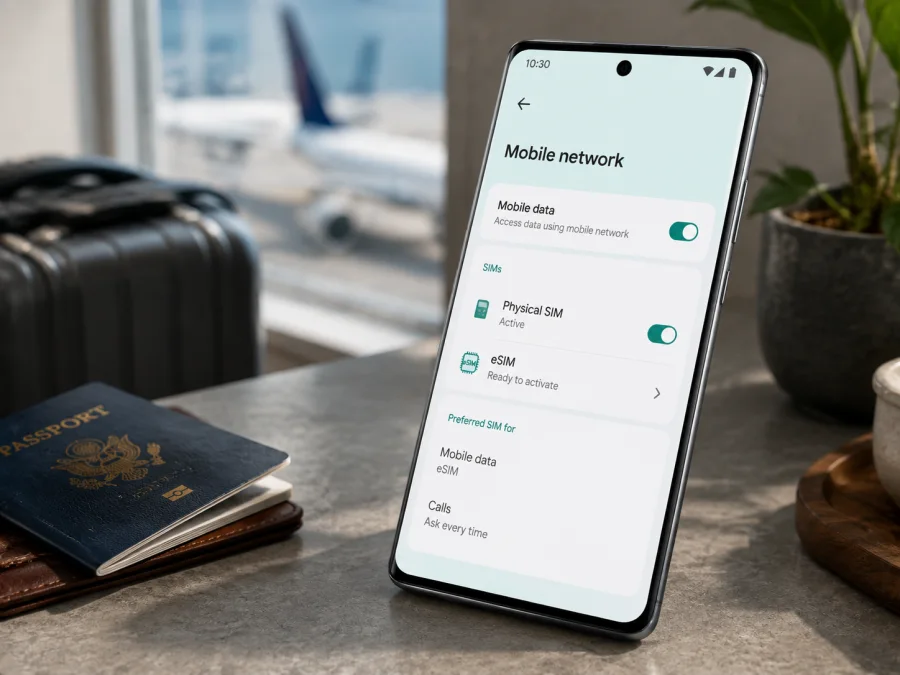
Motorola Edge 40 128GB eSIM: compatibility, setup and travel tips
The Motorola Edge 40 family can support eSIM, but the answer for the exact Motorola Edge 40 128GB should be checked on the phone before you choose a travel plan. Motorola’s official support material describes eSIM setup for the motorola edge 40 and lists nano-SIM/eSIM for some regional versions, while noting that availability can depend on the country. Official specification pages I found document a 256GB configuration, not one universal 128GB configuration. A shop listing therefore does not prove that this handset includes eSIM.
The safe answer is conditional: Motorola Edge 40 128GB is compatible with a travel eSIM only if its Settings app offers eSIM download or its SIM status shows an EID, and the carrier profile is accepted. If neither check is available, treat this exact handset as unconfirmed. This guide shows how to verify, install and use a profile abroad.
What official Motorola information means for this phone
Motorola’s device help for the Edge 40 includes an eSIM setup route: connect to Wi-Fi, open Settings > Network & internet > SIM preferences, choose the download option and follow the on-screen instructions. In newer Android builds it may be labelled Download new SIM. Motorola says to contact the carrier if the command is missing. Regional specification pages are not identical: some list one eSIM and one nano-SIM, while another points to carrier confirmation.
That verifies the Edge 40 platform’s capability, but it does not certify every “128GB” listing. Country, SKU, firmware and carrier customisation can change what is enabled. Do not infer eSIM support from 5G.
Quick specification and decision table
| Item | What to expect on Motorola Edge 40 128GB | Why it matters |
|---|---|---|
| Exact device | Motorola Edge 40 128GB | Keep it separate from Edge 40 Neo, Edge 40 Pro and 256GB listings. |
| Network generation | 5G may be listed for the Edge 40 family | 5G does not prove that an embedded SIM is present. |
| Physical SIM | A nano-SIM tray may be present | Some versions pair one physical SIM with one eSIM. |
| eSIM status | Conditional for this exact 128GB configuration | Confirm an EID or a visible eSIM download command. |
| Travel data | Possible if handset, plan and destination network match | Plan terms determine coverage and validity. |
How to verify eSIM support
Use the phone’s own menus before paying for a travel plan:
- Connect the phone to stable Wi-Fi.
- Open Settings > Network & internet > SIM preferences. Look for Download new SIM, Set up an eSIM, Add eSIM or similar wording.
- Open Settings > About phone, then SIM status, Status information or another page listing SIM details. Look for an EID. Menu names vary, so search Settings for “EID”, “eSIM” or “SIM”.
- If an EID and an eSIM command are visible, record the result privately. Do not post the EID or QR code publicly.
- If neither is present, restart, check for updates and search once more. If the controls are still absent, ask for the regional SKU instead of assuming another Edge 40 specification applies.
An EID is a strong sign that the handset has an enabled eSIM component, but it does not promise that every plan will activate. The phone can still be carrier-locked, country-restricted or unable to use the selected network. A QR code cannot create eSIM hardware or add a regional feature that the phone does not expose.
Compatibility checklist before choosing a plan
- [ ] The phone is an original Motorola Edge 40, not an Edge 40 Neo, Edge 40 Pro or another generation.
- [ ] The storage label is recorded as Motorola Edge 40 128GB, not silently replaced by a 256GB specification.
- [ ] Settings contains Download new SIM, Add eSIM or an equivalent command.
- [ ] An EID is visible in SIM or device status, or the phone starts the official eSIM setup flow.
- [ ] Android is updated and the phone has been restarted after the update.
- [ ] The handset is not carrier-locked or restricted to one operator’s profiles.
- [ ] The destination, validity, data allowance and supported network of the plan match the itinerary.
- [ ] Wi-Fi is available during installation and you know when the plan’s validity begins.
Regional and operator differences
Two phones with the same family name can expose different SIM options. The country of sale can determine whether the phone has one nano-SIM plus eSIM, two physical SIM options, or software that does not expose eSIM. A carrier restriction or operator lock can block a travel profile even when an EID exists.
The 128GB qualifier matters because the official Motorola pages do not provide one universal eSIM statement for every market. Do not change the device in your notes to 256GB because that may describe another market. Keep the exact name and ask for the regional SKU when the menu is absent.
<a id="kesim-device-compatibility"></a>
If you want the shortest safe decision, Check your device first: confirm the EID or eSIM menu, then compare the plan’s destination, validity and allowance.
Installing an eSIM on Motorola Edge 40 128GB
Install on reliable Wi-Fi with the activation QR code or manual details ready. Do not scan an unknown code or delete a working profile just to repeat an installation.
Android Settings steps
- Open Settings > Network & internet > SIM preferences.
- Tap Download new SIM, Set up an eSIM or Add eSIM. If the label differs, search Settings for eSIM.
- Choose QR-code activation and scan the code supplied with the selected plan. If scanning is not offered, choose manual entry and enter the activation details exactly as supplied.
- Keep Wi-Fi connected while Android downloads the profile. Do not change networks or close the setup screen while it is processing.
- Give the line a clear label such as Travel data so it is not confused with the home line.
- In SIM preferences, choose which line provides Mobile data. For a data-only plan, keep calls and SMS on the regular line when appropriate.
- Turn on the eSIM line. Turn on data roaming for the travel eSIM only when the plan’s instructions require it; do not enable it blindly on the home line.
- Wait for registration and test a simple web page or messaging app. Check the displayed line and data counter before using video or cloud backup.
For a visual walkthrough, use the Android eSIM installation instructions. The iOS eSIM installation instructions are a separate reference; this phone uses Android.
Activation timing and safe setup
Installing a profile and starting its validity are not always the same event. Validity may begin on installation, first connection or activation. Read the conditions before installing; leave the travel line off until the intended start when permitted.
Keep the home SIM available for account recovery and ordinary calls unless you have a reason to disable it. On a dual-SIM version, select the travel eSIM for mobile data and turn off automatic switching. A data-only travel eSIM normally does not provide a new phone number, voice calling or SMS; internet apps can use its data connection.
Using the travel eSIM abroad
Before departure, open the Kaspersky eSIM Store app or website to choose and arrange an eSIM plan for the country, region or route. Compare data allowance, validity, destination and start conditions with the itinerary. Kaspersky eSIM Store is the app and site for selecting, arranging and activating the eSIM plan; it is not the mobile operator, network owner or source of radio coverage. Actual service depends on the selected plan and the local network arrangements described in its terms.
Scenario 1: one country and light data use
For maps, transport, messages and browsing, choose an allowance for the trip, not the phone’s 128GB storage. Install on Wi-Fi, label the line and select it for mobile data after landing. Restrict updates until you know usage.
Scenario 2: a multi-country route
Check that the plan covers every country where you expect to use data, including a transit stop. A country-specific plan can stop registering after a border even though the profile remains installed. A restart may help it search for a permitted network, but cannot extend its destinations.
Scenario 3: home line plus travel data
Leave the physical home SIM enabled for calls and messages only after checking roaming charges. Set the travel eSIM as the data line, disable automatic switching and review the selected line before calling. Home-line use can still incur charges.
Scenario 4: hotspot
If the plan and local network allow tethering, the Motorola Edge 40 128GB can share data through a hotspot. Check the terms, set a strong password and monitor usage; turn it off after use.
After landing, connect to Wi-Fi if possible, turn on the travel eSIM, select it for data and enable roaming only if required. Wait for registration, check the signal and test a low-bandwidth page.
Troubleshooting eSIM and mobile data
The eSIM option is missing
Confirm that the phone is the exact Motorola Edge 40 128GB, search for EID and eSIM, check SIM status, install updates and restart. If there is still no EID or download command, regard support as unconfirmed for this regional version. Ask for the country-specific SIM configuration.
The QR code will not scan
Increase the code’s brightness, clean the camera lens and hold the phone steady. If it is displayed on the same phone, use manual activation or another screen. Confirm it has not already been used; some profiles are single-use.
The profile downloads but will not activate
Reconnect to Wi-Fi, set date and time automatically and confirm that the phone is unlocked. Check destination and activation requirements. If operator-side release is needed, contact support; never publish the QR code or EID.
The eSIM is active but there is no data
In SIM preferences, make sure the travel eSIM is the mobile-data line and is turned on. Check airplane mode, signal and data roaming. If an APN was supplied, compare it exactly and save it before restarting. Turn off the home line’s data and automatic switching, then toggle airplane mode and test again.
Data is slow or stops
Check allowance, validity and destination. Move to better signal and try automatic network selection after a restart. Backups, video, hotspot use and updates consume data quickly. If one app fails, check its mobile-data permission; if all data fails, record the network name and error instead of deleting the eSIM.
You want to remove or transfer the profile
Do not erase the eSIM as a routine troubleshooting step. Motorola’s help warns that erasing it removes calling, messaging and mobile-data capability and may require carrier restoration. Before a trade-in or transfer, check reinstallation terms; removal does not necessarily cancel service or create a refund.
Frequently asked questions
Does Motorola Edge 40 128GB support eSIM?
It may, but the exact 128GB configuration is not universally confirmed. Motorola documents eSIM setup for the Edge 40 family and lists eSIM on some regional versions. Treat this handset as compatible only after an EID or eSIM download command appears in Settings.
Is 5G proof of eSIM support?
No. 5G describes radio capability. eSIM requires compatible embedded-SIM hardware, firmware exposure and a supported activation path. Check the EID and SIM settings separately.
Can a physical SIM and travel eSIM work together?
On an Edge 40 version with eSIM enabled, Motorola’s dual-SIM guidance describes using a physical SIM and an eSIM and choosing which line handles data. The labels can vary, so test it at home.
Will a travel eSIM give me a local number?
Usually not when the plan is described as mobile data. Ordinary calls and SMS remain on another line unless the plan says otherwise; internet apps can use the connection.
Can I install before departure?
Often yes, but validity rules decide whether that is sensible. Some plans start on installation, others on first connection or activation. Check the terms and install on reliable Wi-Fi.
What if a seller says “eSIM supported” but there is no EID?
Ask for the regional model or SKU and confirmation of the SIM configuration. Check for updates and restart, but do not pay for a plan until an EID or official eSIM setup option appears. A generic Edge 40 description may refer to another market.
Does Kaspersky eSIM Store provide the mobile network?
No. Kaspersky eSIM Store is an app and website that helps you choose, arrange and activate an eSIM plan for mobile internet during an overseas trip. Coverage and validity depend on the selected plan and local network arrangements.
Final takeaway: check the device, then prepare the trip eSIM
For Motorola Edge 40 128GB, the responsible answer is “conditional until verified”. The Edge 40 platform has official eSIM documentation, but regional versions differ and the official material does not certify every 128GB listing. Before selecting a travel plan, open SIM settings, search for an EID, confirm the download command and check that the handset is unlocked. If the checks pass, install on Wi-Fi, select the travel eSIM for mobile data, follow the plan’s roaming instructions and test a small amount of data before relying on it abroad.
Once compatibility is confirmed, use the Kaspersky eSIM Store app or website to choose and arrange an eSIM plan matching your destination, route, data needs and dates. Keep the exact variant in your records, protect the QR code and EID, and check reinstallation terms before erasing a profile. This device check gives you a clear basis for choosing an eSIM for the trip.


