Travel connectivity guide
Motorola Edge 40 Pro 512GB eSIM Compatibility
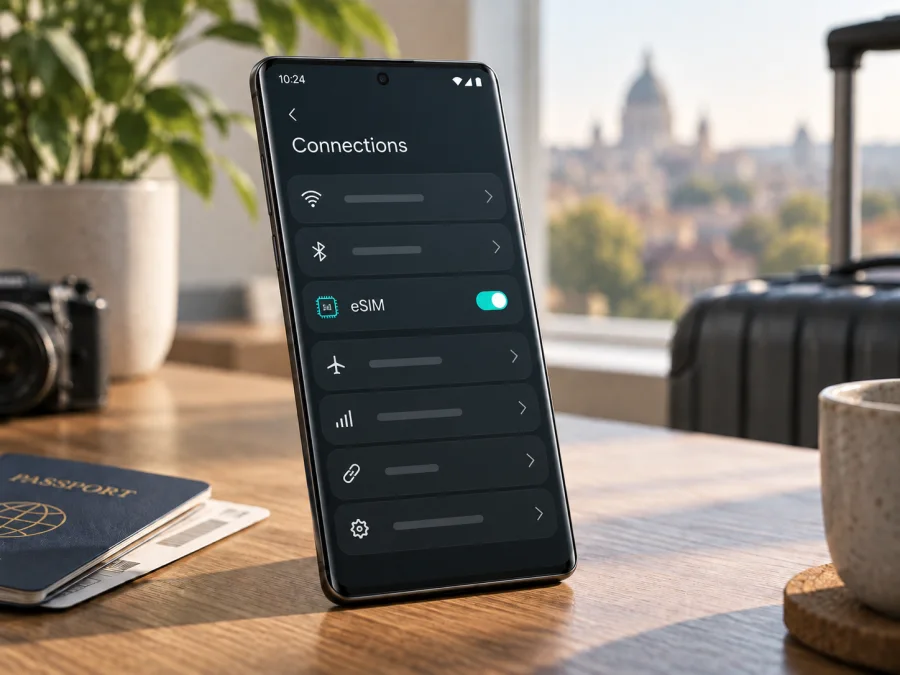
Motorola Edge 40 Pro 512GB eSIM: compatibility and setup
If you own the Motorola Edge 40 Pro 512GB, eSIM may be available, but the storage capacity alone does not confirm it. Motorola’s official materials describe eSIM setup for the Edge 40 Pro family and list an eSIM alongside a physical SIM in some regional specifications. The same manufacturer guide says that a particular phone might support eSIM and advises checking with the carrier. For your exact 512GB handset, treat the EID or an eSIM download option in Settings as the practical confirmation before choosing a plan.
That distinction matters because a product name can cover phones sold for different markets, with different SIM configurations, software builds, and carrier policies. A 512GB label describes internal storage; it does not identify the sales region or prove that the phone’s eSIM feature is enabled. Check the device itself, the model number, and the seller’s regional information rather than relying on a general product listing or a compatibility statement for a similarly named phone.
Quick specifications
| Item | What to know |
|---|---|
| Device variant | Motorola Edge 40 Pro 512GB |
| Operating system | Android; the exact version depends on updates and the device’s region |
| SIM setup | Some Edge 40 Pro configurations support one eSIM with one physical SIM; other configurations may differ |
| eSIM verdict for this 512GB unit | Possible, but confirm on the actual handset before buying an eSIM plan |
| Best first checks | Look for an EID and for an option such as “Download a SIM” or “Download new SIM” in Settings |
| Travel use | A compatible, unlocked unit can use a travel eSIM for mobile data where the selected plan has service |
What the 512GB name does and does not tell you
“Motorola Edge 40 Pro” identifies the product family; “512GB” identifies storage. Neither confirms the phone’s SIM configuration or country of sale. Motorola publishes specifications for individual markets, and retailer titles may omit the model number, regional SKU, or carrier status.
Motorola’s Edge 40 Pro help guide documents eSIM setup but says that a particular phone might support it and recommends checking with the carrier. Regional specification pages list an arrangement with one eSIM and one physical SIM. This confirms eSIM-capable Edge 40 Pro configurations, but not every 512GB unit worldwide. Model number, market, carrier customization, and firmware still matter.
Use the actual phone as your final check. An EID and an eSIM option in Settings are strong evidence. If either is missing, ask Motorola or the seller to verify the full model number and sales region. Storage size, 5G support, and the physical SIM tray do not prove eSIM support. Also confirm that the phone is not carrier-locked against other profiles.
How to check your exact phone before buying
Do these checks before paying for a travel plan. They take only a few minutes and help distinguish an eSIM-capable regional configuration from a similar-looking dual-physical-SIM version.
- Find the model information. Open Settings > About phone and note the model name, model number, and software build. Menu names can vary by Android version. Compare the full model number with the box, invoice, or seller listing; a name alone may not show the regional variant.
- Look for an EID. In Settings, search for “EID,” or open About phone > Device details or the SIM status area. An EID is the identifier associated with an embedded SIM. If an EID appears, record only that it is present; do not post the number publicly.
- Check the SIM settings. Open Settings > Network & internet > SIMs & mobile network (or the closest wording on your software). Look for Download new SIM, Add eSIM, Download a SIM, or a similar option. On some builds, the option appears after opening the SIM section or tapping an add icon.
- Check for a carrier lock. Ask the original carrier or seller whether the phone is unlocked for use with another provider. A device can contain eSIM hardware and still be restricted from activating a profile from a different carrier.
- Confirm plan support. Make sure the plan is intended for Android eSIM devices and that the provider can activate it on your model and destination. A phone menu confirms capability; it does not guarantee that every plan, network, or country will work.
If you cannot find an EID or eSIM option, restart the phone, install available Android updates, and search again. A QR code cannot make eSIM work if the feature is unavailable. Ask Motorola or the seller to verify the regional SKU using the model number; a missing menu may reflect configuration, software, or carrier restrictions.
Compatibility checklist
Before ordering, confirm each item:
- [ ] The exact Motorola Edge 40 Pro 512GB handset shows an EID or an eSIM setup option.
- [ ] The model number and country or market of sale match the information supplied by the seller.
- [ ] The phone is unlocked, or the original carrier confirms that another eSIM can be added.
- [ ] Android is current enough to show the SIM management controls described for the device.
- [ ] The chosen travel plan supports eSIM activation on Android and covers the destination or route.
- [ ] You have stable Wi‑Fi available for installation if mobile service is not yet active.
- [ ] You understand when the plan starts counting its validity and how much data it includes.
For a quick reminder, check eSIM compatibility on your device. Check the handset that will travel, especially if it is used or imported.
Does eSIM replace your regular SIM?
An eSIM is a digital profile stored in the phone’s built-in SIM hardware. It is added through a provider’s activation process, often by scanning a QR code. On a supported Edge 40 Pro configuration, it may work alongside a physical SIM, but the available combinations depend on the regional variant and software. Choose the travel eSIM for mobile data and keep the usual SIM for calls or messages only if your settings and roaming terms allow it.
Travel plans intended for mobile data usually do not include a conventional phone number, voice calls, or SMS unless the plan explicitly says so. Internet messaging and calling apps can work over data or Wi‑Fi. Check your home line’s roaming terms before leaving it enabled.
How to install and activate an eSIM
Use stable Wi‑Fi, keep the phone charged, and have the activation details ready. Motorola’s current Edge 40 Pro guide describes Settings > Network & internet > SIMs & mobile network > Download new SIM. Depending on Android version, the menu may instead say SIM preferences, Add eSIM, or similar.
- Prepare: confirm EID or eSIM setup is available, check that the phone is unlocked, and connect to Wi‑Fi. Display the QR code on another screen or print it.
- Open SIM settings: go to Settings > Network & internet > SIMs & mobile network. Settings search for “SIM” or “eSIM” can help locate the menu.
- Add the profile: choose Download new SIM or the matching option, then scan the provider’s QR code or follow its manual activation steps.
- Wait for download: keep Wi‑Fi connected until Android confirms the profile is installed. Avoid rescanning while the first attempt is pending; some codes are single-use.
- Enable and label it: turn on the profile when the plan instructions say to, and name it “Travel” to distinguish it from your regular SIM.
- Choose mobile data: select the travel profile as the data SIM if appropriate. Assign calls and texts as you prefer, then verify the choices after a restart.
- Set roaming as directed: some travel eSIMs require data roaming on that profile. Enable it only for the eSIM if required, and keep it off for the home SIM if you want to avoid roaming use.
- Test: where the plan should work, briefly turn Wi‑Fi off and open a webpage. If the plan activates on arrival, leave it installed and follow its timing instructions.
See the Android eSIM installation instructions or the iOS eSIM installation instructions. The Motorola Edge 40 Pro 512GB uses Android, so the Android guide applies to this phone.
Using the Motorola Edge 40 Pro 512GB on a trip
A travel eSIM is easier to manage when you decide in advance which line handles data. Install before departure over Wi‑Fi if convenient. If you wait until arrival, airport or hotel Wi‑Fi may be needed, so save maps and essential booking details offline.
Before departure: confirm the profile is installed, check destination coverage and validity, and choose the intended data SIM. Disable automatic data switching if you do not want the phone to fall back to the home line. Keep activation details private and accessible.
On arrival: turn on the travel profile, select it for mobile data, and enable its data roaming if the provider requires it. Allow a few minutes for network registration. If the phone does not connect, follow the provider’s guidance on manual network selection. Coverage depends on the plan and local network availability and can vary by location.
During the trip: monitor data use in Android settings or the provider’s account. Video and app updates can consume data quickly; use Wi‑Fi for large downloads. For cross-border travel, confirm each country is covered.
When you return: switch data back to your usual SIM and turn off the travel profile if it is no longer needed. Do not delete it just to stop data use; switching it off is usually enough. Check the plan terms before reuse, since some profiles cannot be reinstalled after deletion or expire after first use.
Kaspersky eSIM Store is an app and website where you can choose, arrange, and activate an eSIM with a mobile-data plan for an international trip. It helps you review plan details such as destination, data allowance, and validity. Availability and connection depend on the selected plan and local network; Kaspersky eSIM Store is not a mobile operator or network provider.
Common problems and what to check
No eSIM option appears. Search Settings for “EID” and “SIM,” restart, and install available Android updates. Check the full model number and sales region with Motorola or the seller. If the EID and menu remain absent, pause before purchasing: a QR code cannot add missing hardware or remove a carrier restriction.
The QR code will not scan. Increase the brightness of the display showing it, clean the Motorola camera lens, and make sure the full code is visible. If scanning fails, use manual activation only if the provider offers it. Do not repeatedly scan a code that may already have been used; ask the provider whether it can be reset.
Download fails or reports an error. Keep Wi‑Fi stable, confirm the profile was not already added, and check that automatic date and time are enabled. Retry according to the provider’s instructions. If the code is expired or marked used, contact the provider rather than deleting profiles at random.
Profile installed, but there is no service. Check that the profile is on, airplane mode is off, and the destination is covered. Select the eSIM for mobile data and enable its roaming if required. Restart and wait for registration; use manual network selection only as directed.
Connected, but data does not work. Confirm the eSIM is the selected data line and the plan has remaining allowance and validity. Enter an access point name (APN) only if the provider supplies one. Turn Wi‑Fi off for the test and try a webpage. Also disable automatic data switching if the phone is reverting to the home SIM.
Home SIM roaming is used, or a profile disappears. Check the preferred data SIM and disable roaming or automatic switching for your home line if you do not intend to use it. A factory reset or eSIM removal can erase a profile without cancelling a plan. Ask the provider how to reinstall it; do not erase an eSIM as a general troubleshooting step unless support recommends it.
Frequently asked questions
Is eSIM guaranteed on every Motorola Edge 40 Pro 512GB?
No. Motorola documents eSIM for the Edge 40 Pro family, but its guide is conditional and regional configurations can differ. Storage capacity does not confirm SIM type. Check EID or the setup option on your own phone and verify its model number and carrier status.
Can a physical SIM stay active with eSIM?
Some Edge 40 Pro variants specify one eSIM plus one physical SIM. Simultaneous use depends on the variant and software. Check SIM settings and select the intended data line.
Does 5G support prove eSIM compatibility?
No. Network generation and SIM type are separate features. Confirm eSIM directly in Settings.
Will a travel eSIM include calls or SMS?
Usually a travel data plan does not include a conventional number, calls, or SMS unless its terms explicitly say so. Internet messaging apps can work over data. Your usual SIM remains subject to its own roaming terms.
Final device check and trip eSIM
Before choosing a plan, check the Motorola Edge 40 Pro 512GB for an EID or eSIM download option, confirm its regional model number, and verify that it is not carrier-restricted. Match the plan to your destination, data needs, validity, and activation timing. Install over Wi‑Fi, select the eSIM for data, and enable roaming only for that profile if required.
Once those checks are complete, use Kaspersky eSIM Store as the app and website to choose, arrange, and activate an eSIM with a mobile-data plan for your trip. Review the plan conditions before confirming, keep your regular SIM settings in mind, and save the provider’s setup instructions for reference. A few minutes spent checking the exact device and plan can make it easier to get online after arrival.


