Travel connectivity guide
Motorola Edge 40 Pro 8GB RAM eSIM
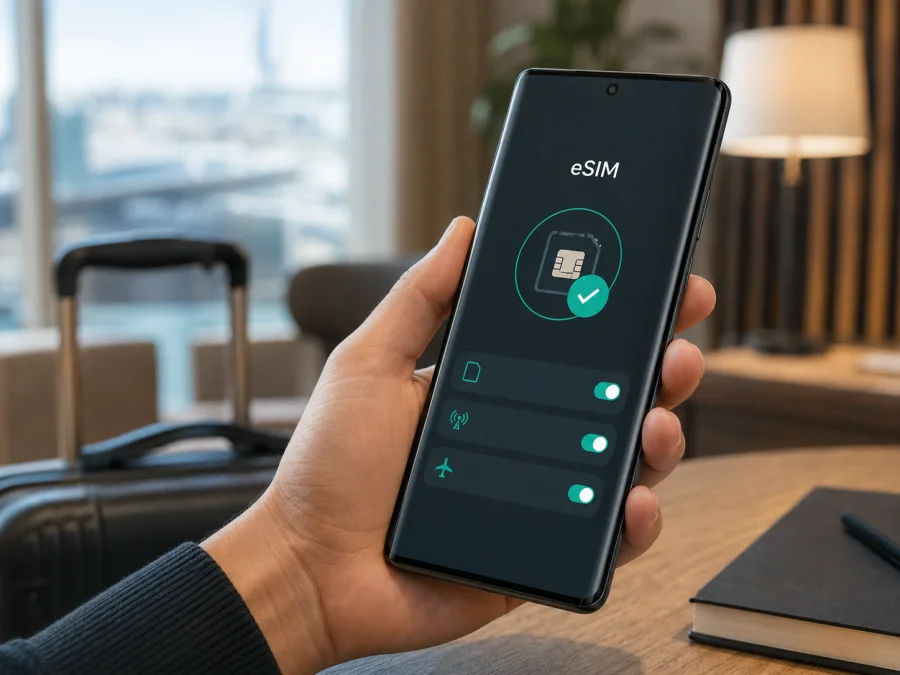
Motorola Edge 40 Pro 8GB RAM eSIM: compatibility and setup
If your phone is labelled Motorola Edge 40 Pro 8GB RAM, you may be able to use an eSIM for mobile internet on an overseas trip. Motorola's official support material documents eSIM setup, and applicable regional specifications describe Dual SIM with one eSIM and one physical nano-SIM. Motorola also tells users to check the individual phone and carrier conditions. A product-family name or RAM label is not enough to prove that every regional handset has the same SIM features.
The safest answer for this variant is potentially compatible, subject to model code, region, software and operator status. Before buying, look for an EID and Download new SIM or Add eSIM in Settings. If both are available and the phone is unlocked, the Android eSIM flow should be possible. If missing, ask the seller before ordering.
Quick answer: does Motorola Edge 40 Pro 8GB RAM support eSIM?
Motorola's support instructions for the Edge 40 Pro include a route to download and set up a new eSIM. Regional Motorola specifications also list one eSIM alongside one physical nano-SIM where that configuration is sold. This indicates the Edge 40 Pro platform can support eSIM, but does not remove regional uncertainty for every sales SKU.
The 8GB RAM detail remains part of the check. Some official regional pages show 12 GB for the Edge 40 Pro, while this phone is labelled 8GB RAM. Do not treat those listings as identical: a different memory label can point to another market version. Confirm the model number, EID and eSIM menu on your own phone.
Device summary
| Item | What it means for this page |
|---|---|
| Exact device variant | Motorola Edge 40 Pro 8GB RAM |
| eSIM conclusion | Potentially supported; verify the actual handset |
| SIM arrangement in applicable official specifications | One eSIM plus one physical nano-SIM |
| Software check | Settings > Network & internet > SIMs & mobile network; look for Download new SIM |
| Hardware check | An EID in device or SIM status information |
| Network check | 5G and available bands depend on the regional model and local network |
| Purchase check | Confirm destination, allowance, validity and activation terms for the chosen tariff |
Keep the full name Motorola Edge 40 Pro 8GB RAM when comparing the box and model code.
Why use eSIM during a trip?
An eSIM is a digital SIM profile stored inside a compatible phone. It can provide a separate mobile-data line without removing your everyday physical SIM, which is useful for maps, transport, translation, reservations, messaging and work access after arrival. It can also reduce dependence on public Wi-Fi.
Kaspersky eSIM Store is an app and website where you can choose, arrange and activate an eSIM with a tariff for mobile internet during an overseas trip. You can review the destination, allowance and validity before completing the order. It is not a mobile operator, network owner or provider of mobile internet; the service depends on the selected tariff and local network arrangements.
A travel eSIM is commonly intended for data. Do not assume it includes a new telephone number, ordinary voice calls or SMS unless the tariff conditions say so. Where permitted, keep the physical SIM for your usual number and select the travel profile only for mobile data. Internet calls and messages use data.
What to check before buying an eSIM tariff
Complete these checks while the phone is connected to a reliable network. They are more dependable than a retailer title or a general compatibility list.
- [ ] Open Settings > About phone and record the exact model number.
- [ ] Compare that model number with the box or purchase listing.
- [ ] Find an EID in device details, SIM status or network information.
- [ ] Look for Download new SIM, Add eSIM or equivalent wording in SIM settings.
- [ ] Confirm that the phone is not locked to an operator.
- [ ] Install available system updates and check the SIM menu again after restarting.
- [ ] Keep Wi-Fi available for downloading and activating the profile.
- [ ] Confirm that the tariff covers every country or region on your route.
- [ ] Review data volume, validity, activation conditions and top-up or refund rules.
- [ ] Decide which line will handle calls, SMS and mobile data.
How to find the EID and eSIM option
Open Settings > About phone and inspect device details or SIM status. The EID is a long identifier associated with the embedded SIM component. Its presence is a strong hardware indication, but open the setup screen as well. On the Edge 40 Pro support flow, the relevant route is Settings > Network & internet > SIMs & mobile network, followed by Download new SIM. Your Android version may use slightly different wording.
You do not need to install a profile just to check the menu. If there is no EID and no add/download option, treat the phone as unverified. The cause could be regional firmware, a carrier restriction, older software or missing eSIM hardware. Do not factory-reset the phone to solve this uncertainty; record the model code and ask the seller or operator.
Compatibility reminder: eSIM support belongs to the exact handset and its current configuration, not simply to the Edge 40 Pro name or the 8GB RAM label. Check your device before you select a tariff.
Install an eSIM on Motorola Edge 40 Pro 8GB RAM
Use Wi-Fi, keep the order details or QR code ready, and allow a few minutes for the download. Installing before departure is convenient, but activation timing depends on the tariff conditions.
For the general platform flow, read the Android eSIM installation instructions. The iOS eSIM installation instructions are useful when you are helping someone install a profile on an Apple device. The following steps are for this Motorola phone.
1. Prepare the phone
Connect the Motorola Edge 40 Pro 8GB RAM to Wi-Fi and charge it sufficiently. Keep the QR code visible on another screen, or prepare the supplied manual activation details. Do not share the code publicly.
2. Open mobile-network settings
Open Settings. Tap Network & internet. Select SIMs & mobile network or the closest wording on your software. Tap Download new SIM, Add eSIM or the option to download and set up a new SIM.
3. Download the profile
Follow the prompts and scan the QR code connected with the order. If manual entry is offered, type the details exactly as supplied. A completed download stores the profile but does not always activate data.
4. Label the line
Give the profile a clear name such as Travel data or the destination. Do not delete it just because it is not connected yet; registration may wait until arrival.
5. Select the data SIM
When Android asks which SIM should provide mobile data, select the travel eSIM when ready. You can leave it disabled until arrival if permitted. Review calls, SMS and data separately so the home SIM is not selected by mistake.
6. Activate at the destination
Enable the travel profile and mobile data. If its instructions require data roaming, enable roaming for that profile only. Keep roaming off on the everyday SIM if appropriate. Wait a few minutes and test a webpage or data message.
7. Confirm the connection
Check that the profile is on, selected for data and showing a signal. Change APN fields only when the tariff instructions say so. Monitor usage from the phone and the app or website where balance is shown.
Using the eSIM for mobile internet while travelling
Home number plus travel data
Keep the physical SIM enabled for calls or SMS if its roaming terms suit you. Select the travel eSIM for mobile data. If your Android version offers automatic data switching, turn it off while travelling so the phone does not unexpectedly move data to the home line. Internet messaging can help you communicate without using ordinary voice service, but it still consumes the selected data allowance.
Install before departure, activate after landing
You can often download the profile at home and keep it inactive until arrival, subject to the instructions. After landing, enable the eSIM, choose it for data and turn on required roaming. Installation, activation and registration are separate steps, so check when usage begins.
Crossing several countries
Check that a regional or global tariff covers every stop. A country-specific profile can remain installed but have no service after a border. Verify the destination before troubleshooting, and avoid deleting the profile during a short stop.
Navigation, work and hotspot use
Maps, translation, transport, reservations and messaging can use the travel line. Video calls, cloud backups and hotspot use may consume data quickly, so choose an allowance that matches the trip and restrict background updates.
Common eSIM problems and checks
No EID or no eSIM menu
Check the model code, software version and SIM-status page, then restart after an update. If the EID and menu remain absent, the regional SKU or carrier configuration may not support eSIM. Do not apply another memory or regional version to Motorola Edge 40 Pro 8GB RAM without confirmation.
QR code does not scan
Increase the screen brightness, clean the camera lens and keep the whole code visible. Ensure Wi-Fi is stable. Use manual details if offered, and ask support before reusing a code that may already have been consumed.
Profile will not download
Check Wi-Fi, storage and activation details. Reopen the setup flow or restart once. A carrier lock, an order that is not ready or a profile limit can interfere. Keep the exact error and contact support before deleting other eSIMs.
Profile is installed but there is no data
Confirm that the travel eSIM is enabled and selected for data. Check destination coverage and activation conditions. If required, turn on roaming for that eSIM, toggle airplane mode once and wait for registration. If signal is present but data fails, check only the supplied APN details.
Data uses the wrong line
Select the travel eSIM as the data SIM and disable automatic switching if available. Review background data and updates to protect the travel allowance and prevent unexpected use on the home line.
Phone is locked or network is unavailable
An eSIM cannot override an operator lock. Ask the original operator or seller about unlocking. If unlocked, verify destination coverage and local-band support. Correct installation does not guarantee signal in every location.
FAQ
Does Motorola Edge 40 Pro 8GB RAM support eSIM?
It may. Motorola's official Edge 40 Pro guidance documents eSIM setup, and applicable specifications list one eSIM plus one physical nano-SIM. For the exact Motorola Edge 40 Pro 8GB RAM, confirm the EID, eSIM menu, regional software and unlocked status before purchase.
Can the physical SIM and eSIM work together?
Yes, where the regional configuration and operators allow it. Assign mobile data to the travel profile and decide separately which line handles calls and SMS. The available combinations can vary, so follow the controls shown by the phone.
Should I install the eSIM before travelling?
Installing over reliable Wi-Fi before departure is convenient, but activation timing depends on the tariff. If permitted, install the profile and leave it disabled until arrival. Confirm the activation rule before travel.
Does a travel eSIM replace my regular number?
No. A data-focused travel eSIM normally provides mobile internet, not a new ordinary number, voice service or SMS. Keep the regular SIM if you need its number and use internet-based calling or messaging where suitable.
Why might data roaming be required?
A travel profile may connect through a partner network outside its home country. Enable roaming for the travel eSIM only when its instructions require it, and keep roaming off for the home SIM if appropriate.
Can I delete the profile after the trip?
Do not delete it automatically. Check whether it can be reused and what the service instructions say. Motorola warns that erasing an eSIM removes its calling, messaging and mobile-data capability from the phone, and restoring it may require provider assistance. Disabling a profile is safer when you are unsure.
What is Kaspersky eSIM Store?
It is an app and website where you can choose, arrange and activate an eSIM with a suitable tariff for mobile internet during an overseas trip. It helps with the selection and activation process; it is not a mobile operator, network owner or mobile-internet provider.
Key takeaways
For Motorola Edge 40 Pro 8GB RAM, compatibility is conditional. Official Motorola documentation supports the Edge 40 Pro eSIM workflow, but regional specifications, firmware and carrier restrictions can change an individual phone's options. Check the EID and Download new SIM or Add eSIM menu before purchase. Once verified, install over Wi-Fi, select the travel eSIM for mobile data, enable roaming only for that profile if required, and follow the tariff's destination, allowance, validity and activation terms.
Final device check and eSIM choice for your trip
Before paying, confirm that the phone is exactly Motorola Edge 40 Pro 8GB RAM, that an EID or eSIM-add menu is visible, that it is not operator-locked, and that the selected tariff covers your route. Choose an allowance and validity period for your expected use. Kaspersky eSIM Store can help you review directions and activate a suitable eSIM-tariff workflow for mobile internet abroad through its app or website. If anything is unclear, ask the seller or operator to confirm the model code and regional support before choosing the eSIM for your trip.


