Travel connectivity guide
Motorola Edge 50 Fusion 256GB eSIM Guide
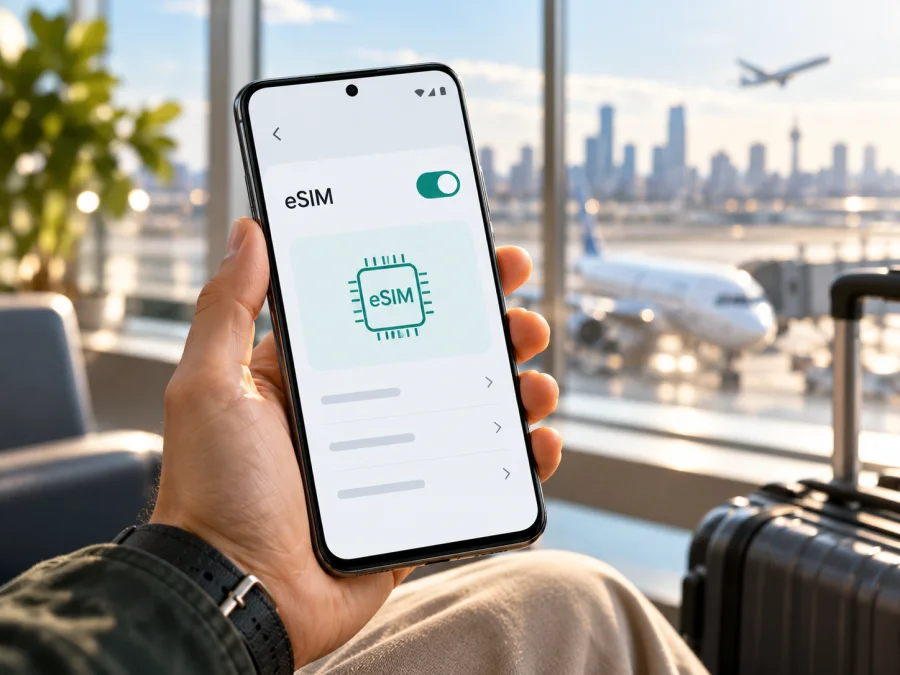
Motorola Edge 50 Fusion 256GB and eSIM: compatibility and setup
If you are preparing for a trip, an eSIM can save you from looking for a physical SIM card after landing. The important question for the Motorola Edge 50 Fusion 256GB is not its storage capacity: it is whether the exact regional and operator version in your hand includes eSIM hardware and software support. Motorola lists eSIM on some Edge 50 Fusion specifications, while also noting that specifications vary by market. Its documentation identifies an India-specific physical-SIM configuration, and regional Motorola pages do not always describe that market consistently. Check the phone itself before choosing a plan.
Does the Motorola Edge 50 Fusion 256GB support eSIM?
Sometimes. The 256GB name alone cannot confirm eSIM support. Motorola’s current specifications for the Edge 50 Fusion include 256GB storage and list a dual-SIM configuration with a physical SIM and eSIM in some markets. A separate Motorola specification page explicitly labels the India version as dual physical SIM (pSIM + pSIM), while its India support page currently lists pSIM + eSIM. Motorola also warns that specifications can vary by market. This public documentation does not establish that every retail unit sold in India, or every 256GB unit worldwide, has eSIM enabled.
Treat this as a variant-dependent model. An unlocked international unit with an EID and an eSIM download option is a much stronger indication than a shop listing that simply says “Edge 50 Fusion 256GB”. Before buying, ask the seller for the full model or SKU, original sales region, and confirmation that the specific unit can add an eSIM. If you already own it, use the checks below. Do not pay for a travel eSIM until the handset passes them.
| What to know | Practical answer |
|---|---|
| Exact device named here | Motorola Edge 50 Fusion 256GB |
| Is 256GB enough to identify the SIM setup? | No. Storage capacity does not identify the market variant. |
| Is eSIM available on the model family? | Yes, Motorola lists eSIM on supported Edge 50 Fusion variants. |
| Is it guaranteed on every regional 256GB unit? | No. Motorola says specifications vary by market and documents different SIM arrangements. |
| Best checks on the handset | Look for an EID and an option to download or add an eSIM in Settings. |
| What else must be true? | The phone must be carrier-unlocked, and the intended plan must support the device and destination. |
Why region and carrier details matter
Motorola’s US support specifications describe the SIM setup as physical SIM plus eSIM for the Edge 50 Fusion, with a parenthetical exception for India that lists two physical SIMs. Motorola’s India support specification page, however, lists a physical SIM plus eSIM. Its general phone instructions use cautious language: a phone might support eSIM, and they direct owners to check the phone and contact their carrier. The manufacturer itself therefore supports a careful, unit-level answer rather than a blanket yes for every market.
Check this exact phone before buying a plan
Run these checks while connected to Wi-Fi. Menu labels can vary slightly by Android version and region.
- Look for an EID. Open the Phone app and enter
*#06#. If the device supports eSIM, an EID (a long embedded-SIM identifier) may appear alongside the IMEI numbers. You can also check Settings → About phone → Device details or the SIM status area. Do not post the EID publicly; share it only with a provider or support team when they specifically need it. - Look for an eSIM menu. Open Settings → Network & internet → SIMs & mobile network. Look for wording such as Download a new SIM, Set up an eSIM, Add eSIM, or Download SIM. Motorola’s instructions for this phone describe the path through Network & internet and the SIM settings.
- Check both signals. An EID is useful evidence, and an add/download option is useful evidence. When available, confirm both. If neither appears, do not assume the phone is compatible just because another Edge 50 Fusion variant supports eSIM.
- Check the network lock. Insert a SIM from a different carrier if available, or ask the original operator to confirm that the phone is unlocked for use abroad. An eSIM profile may download but fail to register if the handset is restricted.
- Confirm the exact SKU. Compare the model code in Settings → About phone with the seller’s regional specifications or ask Motorola support. Record the country of sale and software build so support can identify the version.
If the menu is missing, restart the phone, install available system updates over Wi-Fi, and repeat the check. Then ask Motorola support about the exact model code. A missing menu alone can occasionally reflect software or carrier configuration; repeated absence of both an EID and eSIM option is a strong reason to treat the unit as unsupported until the manufacturer confirms otherwise. Do not erase a working eSIM profile to test compatibility: removal may require a new activation from the provider.
Use Check your device as a final compatibility reminder before choosing a travel plan. The check should be based on the exact handset, not just the product-family name or 256GB storage label.
What to prepare before installing an eSIM
Before you install, make sure you have:
- a confirmed eSIM-compatible, unlocked Motorola Edge 50 Fusion 256GB;
- a stable Wi-Fi connection, especially if you are still at home or in an airport;
- access to the eSIM profile in the app or website where you arranged it, or the provider’s QR code and instructions;
- the destination, data allowance, validity period, and activation conditions for the plan you selected;
- enough time to complete setup without closing the screen or deleting the profile.
Once you have checked compatibility and want to prepare for a trip, browse current travel eSIM options on the Kaspersky eSIM Store website. The app and website help you choose, arrange, and activate an eSIM with a suitable mobile-data plan for travel abroad. Coverage, plan availability, and terms depend on the destination and selected plan.
Install and activate the eSIM
The Motorola Edge 50 Fusion guide describes downloading a new SIM from the network and SIM settings. Exact wording can change with Android updates or a regional build. Follow the eSIM provider’s instructions if they differ from the general steps here.
- Connect to Wi-Fi. Keep the connection active until the profile downloads.
- Open SIM settings. Go to Settings → Network & internet → SIMs & mobile network.
- Choose the eSIM option. Tap Download a new SIM, Set up an eSIM, or the closest available option.
- Add the profile. Scan the QR code supplied for your eSIM, or use the provider’s manual activation details if offered. Some apps can install the profile directly; follow their prompts.
- Wait for installation to finish. Do not close the setup screen, switch phones, or scan the same one-time code repeatedly.
- Name the line. Use a clear label such as “Travel” so you can distinguish it from your home SIM.
- Choose the data line. Set the travel profile as the mobile-data SIM when you are ready to use it. Keep calls and texts assigned to the home line if that is your preference and your setup allows it.
- Review roaming and activation instructions. Turn on data roaming for the travel eSIM only if its provider requires it. Check the plan’s activation timing and avoid enabling data on the wrong SIM.
If you need a device-specific walkthrough, see Motorola’s Android eSIM installation instructions. The iOS guide is included for readers setting up a different Apple device: eSIM installation instructions for iPhone. The settings paths differ between Android and iOS, so follow the instructions for the phone where the profile will be installed.
After installation, check that the new line appears in SIM settings and is switched on. At your destination, select it for mobile data, enable roaming on that line if the plan requires it, and wait for it to register with a supported local network. The first connection may take several minutes. Activation does not guarantee signal in every location, and the data plan cannot work until the phone connects to a network included by that plan.
Using the phone for mobile data on a trip
When you arrive, open Settings → Network & internet → SIMs & mobile network, turn on the travel profile, and select it for mobile data. Enable roaming for that profile if required. Leave automatic network selection enabled initially; use a specific network or APN only if your provider instructs you to.
Troubleshooting: what to check first
There is no “Add eSIM” option. Recheck the EID, confirm the exact SKU and market, install pending updates, and ask Motorola support or the original carrier about the unit. A specification for a different regional version does not prove that yours supports eSIM. The QR code will not scan or the profile will not download. Confirm Wi-Fi access, screen brightness, and that the code is intended for this device and has not already been used. Try the provider’s manual installation option if available. If an error says the code is invalid or expired, contact the provider for a replacement; do not repeatedly delete and reinstall the profile.
The eSIM appears but will not connect. Confirm the profile is enabled and selected for mobile data, airplane mode is off, and roaming is enabled if required. Restart the phone and verify that the plan is active in an included country.
The phone shows signal but apps cannot reach the internet. Check the selected data SIM and APN. Enter a provider-supplied APN exactly, then reconnect. Also check data limits or app restrictions.
The home SIM is using data or roaming. Return to SIM settings and confirm which line is selected for mobile data. Turn off data roaming for the home SIM and, if needed, turn it on only for the travel eSIM. Confirm any dual-SIM prompt before accepting it. Review your home operator’s terms because calls, SMS, and voicemail may still incur charges even when data uses another line.
The profile disappeared after a reset or phone change. Contact the eSIM provider before attempting a reinstall. A QR code may only be usable once, and some eSIMs cannot be transferred after activation. Never erase a working profile as a troubleshooting shortcut unless the provider confirms that it can be restored.
FAQ
Does every Motorola Edge 50 Fusion 256GB support eSIM?
No universal guarantee can be made from the storage size. Motorola lists eSIM on supported Edge 50 Fusion versions and states that specifications vary by market. Its public pages show different SIM configurations. Check the EID and eSIM menu on the actual phone and confirm the exact model code before purchasing a plan.
Can I tell from the box or the seller’s title?
Not reliably. Listings can use the same family name for multiple market versions. Ask for the full model code and proof from the actual phone’s Settings screen. Confirm network unlock status as well.
Will a 256GB model have more eSIM support than a 128GB model?
Storage and eSIM capability are separate characteristics. The capacity in the product name does not confirm whether the embedded SIM is present or enabled.
Can I use my physical SIM and an eSIM together?
Some supported configurations allow a physical SIM plus an eSIM, but the available combinations depend on the exact variant and carrier. Check the phone’s SIM settings and confirm how it handles calls, messages, and mobile data before travel.
Do I need to activate data roaming?
It depends on the selected plan. Some travel eSIMs require roaming to connect to a partner network. If so, enable it for the travel eSIM line only, and check that your home SIM is not selected for mobile data.
Does a travel eSIM include calls and SMS?
Many travel plans are data-only. Check the plan terms rather than assuming that it includes a phone number or traditional voice and text service. Internet-based messaging and calls may work through apps over mobile data.
What if I cannot confirm eSIM support?
Pause before buying the plan. Ask Motorola or the seller to confirm the exact unit, or use a physical SIM if available. You can also use another unlocked phone whose eSIM compatibility is confirmed for its specific version.
Before you travel: compatibility and plan checklist
The Motorola Edge 50 Fusion 256GB can be a suitable travel eSIM phone when the particular regional unit has an EID, offers an eSIM download option, and is not carrier-locked. Motorola’s specifications confirm that eSIM exists on some versions, but they also document market differences and do not let storage capacity alone establish support. If the handset does not pass the on-device checks, treat its compatibility as unconfirmed.
Before choosing a plan, verify these points:
- the exact handset shows an EID and an eSIM setup option;
- the phone is unlocked and the profile can be installed on this unit;
- the plan covers every country on your itinerary;
- its data allowance, validity period, and activation conditions fit your trip;
- you know which SIM is used for mobile data and whether roaming is needed;
- your home operator’s roaming terms are understood.
Once those checks are complete, use the Kaspersky eSIM Store website to review current travel options for your destination. The app and website help you choose, arrange, and activate an eSIM with a mobile-data plan for travel abroad. Check the destination and terms shown for the plan before proceeding.


