Travel connectivity guide
Motorola Edge 50 Pro 128GB eSIM: Compatibility
Motorola Edge 50 Pro 128GB eSIM: compatibility and setup
Short answer: the Motorola Edge 50 Pro can support eSIM in some regional versions, but the name “Motorola Edge 50 Pro 128GB” does not establish that a particular handset has an eSIM-capable configuration. Motorola says that SIM and eSIM options vary by market. Check the phone itself before choosing or paying for a travel eSIM plan. If Settings shows an EID and an option to add or download an eSIM, and the phone is not carrier-locked, the device is a candidate for eSIM use. If those checks fail, do not assume that a software update or a travel plan can add eSIM hardware support.
This distinction matters because storage capacity is not a reliable identifier of the SIM configuration. Official Motorola regional pages describe different Edge 50 Pro configurations: some list eSIM alongside a physical nano-SIM, while another regional specification lists two physical SIMs. The available official material does not confirm a model-specific “128GB” eSIM variant. Therefore, this guide keeps the exact device name you searched for, but treats eSIM compatibility for that exact storage listing as unverified until you confirm the model code, market and settings on your own phone.
Does Motorola Edge 50 Pro 128GB support eSIM?
Possibly, depending on the regional version; it is not safe to answer “yes” for every Motorola Edge 50 Pro 128GB. Motorola’s support guide says the Edge 50 Pro might support eSIM in addition to physical SIM cards. The manufacturer also documents different regional configurations: some pages list a physical nano-SIM with eSIM, while another lists two physical SIMs. The official information reviewed does not confirm a model-specific “128GB” eSIM variant. Keep the exact device name in mind, but treat compatibility as unverified until you check the handset’s model code and settings.
| Item | What is known | What to verify |
|---|---|---|
| Exact listing | Motorola Edge 50 Pro 128GB | Full model/SKU and country of sale |
| eSIM | Available in some regional versions | EID and add/download eSIM control on this phone |
| SIM arrangement | Regional options differ | Physical slots and supported profiles |
| Storage | 128GB is part of the search name | Storage does not identify eSIM capability |
| Operator restriction | A carrier may restrict a device | Confirm the handset is unlocked |
| Travel data | Depends on the profile and plan | Destination, validity, bands and activation terms |
Motorola states that memory, storage, SIM slot and eSIM availability can vary by market. A handset sold under the same family name can therefore have another SIM arrangement, firmware or carrier configuration. A retailer title or 5G badge is not proof. If you have not bought the phone, ask the seller to confirm the EID and eSIM option for the exact SKU. If you already own it, check the phone directly.
Do not rely on the SIM tray alone: a second physical slot does not prove eSIM support, and a physical SIM plus eSIM arrangement may still look like a single-card tray. Also separate three questions: does the handset have eSIM, is it unlocked for a different provider, and does the chosen plan work in your destination? Each needs its own check.
Check compatibility before you buy a plan
Check the exact phone. Menu names vary by Android version, region and carrier software, so use Settings search if needed.
- Find the EID. Search Settings for “EID”; it may appear in About phone, Status or SIM status. An EID is a useful indication of eSIM hardware, but does not confirm carrier unlocking or plan compatibility.
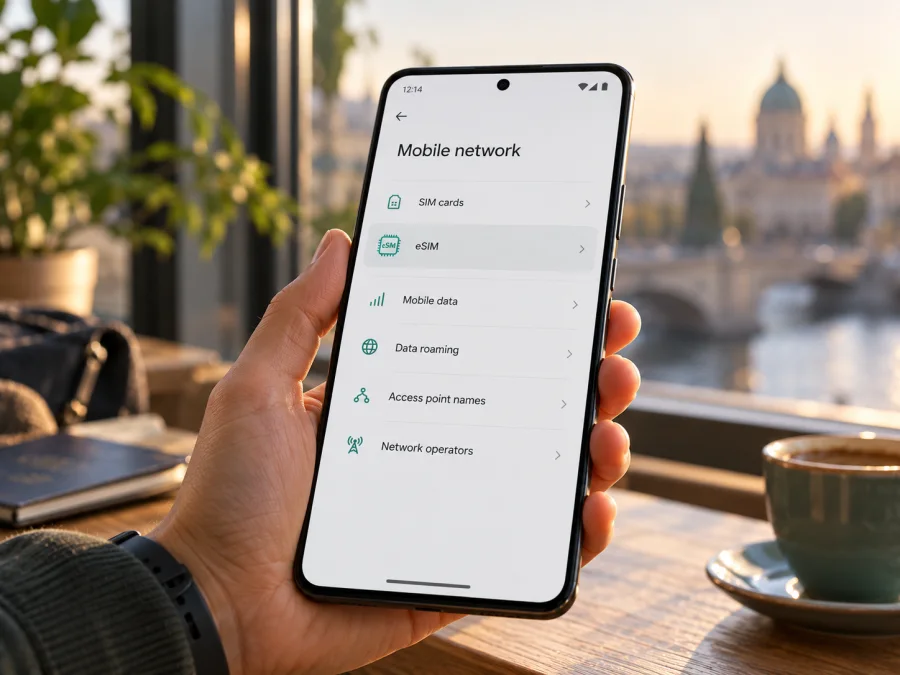
- Look for eSIM setup. Open Settings → Network & internet → SIMs & mobile network or the closest equivalent. Look for Add eSIM, Download a SIM or Set up an eSIM. Motorola’s instructions describe this download/setup control. If missing, update normally, restart and check again.
- Check existing profiles. An installed eSIM should appear as a separate line in SIM settings. Do not delete a profile just to test support; restoration may require its provider.
- Confirm unlocking. Ask the carrier or seller whether this exact handset can accept another provider’s eSIM. A SIM lock can prevent registration even when the setup menu exists.
- Review the plan. Confirm the destination, data allowance, validity and when validity starts. Installation and activation may be separate events.
A positive result on one check should not replace the others. The EID concerns the embedded SIM capability; the carrier lock concerns whether another provider can be used; the plan conditions concern where and when the profile can connect. A handset can pass the first check and still fail either of the next two. If the seller cannot confirm the regional SKU, ask for the model code and compare it with Motorola’s support information for the country where that phone was sold. Do this before paying for a plan, especially if the device was imported or refurbished. When possible, verify the physical handset in its own Settings app instead of relying on a product listing, since listings may reuse one description for several regional versions.
Use the Check your device compatibility section before purchase. For a second-hand phone, ask to see the EID and eSIM setup screen. If the EID or menu is absent, ask Motorola or the seller to verify the model code before buying; a plan cannot add missing eSIM hardware.
How to install an eSIM on Motorola Edge 50 Pro 128GB
Start with a confirmed compatible, unlocked handset and reliable internet. Use Wi-Fi where possible. Keep the QR code or installation flow on another screen if needed, and follow the plan’s activation instructions because Android menus and timing can vary.
- Prepare the phone. Install available system updates, connect to Wi-Fi and keep the phone charged. Decide whether your home SIM will remain active for calls or messages.
- Open SIM settings. Go to Settings → Network & internet → SIMs & mobile network. Search Settings for “SIM” or “eSIM” if the labels differ.
- Add the profile. Choose the download/add eSIM option. Scan the provider’s QR code or use its in-app flow. Enter activation details manually only when provided. If an error appears, first check whether the profile was already added; some codes are single-use.
- Name and enable it. Label the profile “Travel data” or similar. Enable it now or later according to the plan’s start rules. Installation does not necessarily start validity.
- Select the data line. Choose the travel eSIM for mobile data. If keeping your home SIM active, check the data-switching option to avoid unexpected use of the home line.
- Set roaming if required. Some travel plans require data roaming on the eSIM. Enable it for that line only when instructed; check the home SIM separately.
- Test service. In a covered destination, turn off Wi-Fi briefly and load a simple page. Registration may take several minutes.
See the Android eSIM setup instructions. The iOS eSIM instructions are for Apple devices, not this Motorola, and are included as the platform reference in the device setup guide. For an unavailable QR code or timing question, follow the instructions for your purchase or contact support.
An eSIM profile and a data plan are related but distinct: installing the profile puts it on the handset, while activation or validity may start on a date or first network connection, depending on the plan. Do not delete an inactive profile before checking its status and conditions.
Using the eSIM for mobile data while travelling
Before departure, install the profile if allowed, then leave it off if the plan says that enabling it or first connecting starts validity. Save the destination, data allowance, expiry and activation details somewhere accessible offline. On arrival, enable the eSIM, select it for mobile data and set data roaming as required by the plan. If two lines are active, choose voice, SMS and data defaults separately.
A travel data eSIM may not include a phone number, calls or SMS; check the selected plan. Internet messaging and calls may work in apps over data, subject to each app’s requirements. Keep your home SIM available only if useful and check its roaming charges. The home line’s call and text terms remain separate from the travel data plan.
Regional radios and SIM configurations differ. Even when an eSIM installs, connection quality depends on the exact phone variant, local network availability, supported bands and plan conditions. A 5G indicator does not guarantee 5G service at every destination. For a multi-country trip, check each country rather than assuming one destination’s coverage applies to the whole route.
Landing-day data: check compatibility at home, install over Wi-Fi and read the activation rule. After landing, enable the eSIM and select it for data. If service is absent, verify coverage, profile status, the data line and any required roaming setting before reinstalling.
Keeping your home number: you may be able to leave the home SIM active for calls or texts while the travel eSIM handles data. Review data switching and the home line’s roaming settings to avoid unexpected charges.
Kaspersky eSIM Store is an app and website where travellers can choose, arrange and activate an eSIM with a suitable mobile-data plan for an international trip. It is not a mobile operator or network owner. Availability and conditions depend on the selected offer and local arrangements.
Common problems and what to check
There is no EID or eSIM option
Search Settings, install normal system updates, restart and check again. If both the EID and setup control remain absent, the regional version may not support eSIM. Ask Motorola or the seller to check the exact model code; do not assume another region’s model or unofficial firmware will solve it.
The QR code cannot be scanned
Raise the brightness of the screen showing the code, clean the camera lens and use another display if the code is on the phone itself. Confirm the code is for eSIM setup and has not expired or already been used. Use manual details only if the provider supplies them.
The profile cannot be added
Check Wi-Fi, restart, and look in SIM settings to see whether the profile was already added. The activation method may be single-use or the phone may have reached its profile limit. Ask the provider to validate the code before erasing any profile.
The eSIM installs but has no service
Confirm it is enabled, the destination is covered, validity has started and the eSIM is selected for data. Enable roaming on that profile only if instructed. Toggle airplane mode, restart and allow time for registration. A carrier lock, regional variant or unsupported local band can also prevent service.
Data does not work or the home SIM is selected
Check mobile data, remaining plan data, default data SIM and automatic switching. Temporarily turn Wi-Fi off to test cellular data. Check the home SIM’s roaming setting and the plan’s usage status. If one app alone fails, its settings or service may be the cause.
The eSIM disappeared
Some activation codes cannot be reused. Check the purchase account and contact the plan provider for recovery steps. Motorola cautions that erasing an eSIM removes its associated calling, data and messaging capabilities on the device; deleting it does not itself cancel service. Do not erase a profile unless support instructs you.
Quick compatibility checklist
Before you choose or activate a travel eSIM on Motorola Edge 50 Pro 128GB, make sure you can answer yes to the relevant questions:
- Does this exact handset show an EID or an eSIM setup/download option?
- Has Motorola, the seller or carrier confirmed the device’s exact regional model code?
- Is the handset unlocked and permitted to add a profile from another provider?
- Does the plan cover every country or region on your itinerary?
- Have you checked its data allowance, validity and activation start conditions?
- Do you know which SIM will handle mobile data, calls and messages?
- Are you prepared to enable data roaming on the travel profile if the instructions require it?
- Can you access the installation details and support information while travelling?
If one of the first three answers is no or uncertain, resolve it before purchasing. If compatibility is confirmed, install the profile over a reliable connection and keep the activation information available. This simple sequence helps prevent a last-minute problem at the airport.
Frequently asked questions
Is the 128GB version definitely eSIM-compatible?
No confirmation for that exact 128GB listing was found in the Motorola regional specifications reviewed. The manufacturer says SIM and eSIM options vary by market. Check the handset’s EID, eSIM menu and model code.
Does every Motorola Edge 50 Pro support eSIM?
A blanket claim is not supported by Motorola’s documentation. Regional specification pages list different arrangements, including physical SIM plus eSIM and two physical SIMs.
Is an EID enough to guarantee a travel plan will work?
No. The phone must also be unlocked, accept the profile, and work with the destination and network conditions of the selected plan.
Can I install the eSIM before travelling?
Often, but follow plan instructions. Installation, activation and the start of validity can be different events; check what triggers the plan.
Does a travel eSIM replace my normal SIM or include a phone number?
Not necessarily. Some compatible versions can use a physical SIM and eSIM together, but the configuration depends on the region. A data-only plan does not include a number, calls or SMS unless its terms say so.
What if my phone has no eSIM option?
Ask the seller or Motorola to verify the exact SKU. You can consider a compatible physical SIM, home-carrier roaming, Wi-Fi or another compatible device. Do not buy a travel eSIM for a phone that cannot add a profile.
Check the phone, then choose a plan for the trip
For Motorola Edge 50 Pro 128GB, the safe conclusion is conditional: eSIM exists on some Edge 50 Pro regional versions, but the exact 128GB unit must be checked. Find the EID, look for the add-eSIM control, and confirm that the handset is unlocked. If the phone passes those checks, choose a plan for the destinations on your itinerary, compare its data allowance and validity with your needs, and follow its activation guidance.
Kaspersky eSIM Store’s English site lets you browse current travel eSIM options and review the available plan details for your destination. The homepage is a general starting point, not a country-specific tariff. Check the selected offer’s coverage, data allowance, validity, activation conditions and any device requirements before you proceed. If compatibility is not confirmed, resolve that first; if it is, install the profile on Wi-Fi and select it for mobile data when you are ready to use it abroad.


