Travel connectivity guide
Motorola Edge 50 Pro 512GB eSIM Guide
Motorola Edge 50 Pro 512GB and eSIM: compatibility, setup and travel use
Quick answer
Can Motorola Edge 50 Pro 512GB use eSIM? Motorola’s official Edge 50 Pro help guide describes downloading and setting up an eSIM on the phone. Motorola’s regional specifications also show that the Edge 50 Pro is sold in a 512 GB configuration and, on a Latin American support page, list Nano SIM / eSIM. That is good evidence that eSIM is supported by at least some versions of this phone. It does not prove that every device sold as Motorola Edge 50 Pro 512GB has eSIM enabled.
The storage figure alone does not identify a handset’s sales region, model number, SIM hardware, firmware or carrier restrictions. Motorola’s published specifications differ by market: the Latin American listing includes 512 GB and eSIM, while the Japanese listing shows a different memory configuration and pSIM + eSIM. The global help guide uses conditional wording (“might support”) and directs users to check with their carrier. In other words, the Edge 50 Pro family has eSIM-capable variants, but check the specific unit in your hand before buying a travel plan.
The practical verdict is potentially compatible; confirm the exact regional unit. Look for an EID and an add/download eSIM option in Android settings. Then make sure the phone is carrier-unlocked and that the eSIM provider supports the model and destination. If those checks pass, the phone can keep a physical SIM for your usual number while using a travel eSIM for mobile data, subject to the installed firmware and active SIM profile.
At a glance
| Item | What can be confirmed | What to verify on your unit |
|---|---|---|
| Device name | Motorola Edge 50 Pro 512GB | Match the model number and sales region on the box, invoice or About phone screen. |
| eSIM in the Edge 50 Pro family | Motorola’s support guide provides an eSIM setup flow. Official regional specifications include eSIM. | Confirm that this particular phone exposes EID and eSIM controls. |
| Storage variant | Motorola lists 512 GB on at least one regional specification page. | Storage does not tell you whether eSIM is enabled in your country’s version. |
| SIM arrangement | Official market details can list physical SIM plus eSIM; physical tray configurations can vary. | Inspect SIM preferences and the tray. Do not infer eSIM from the number of tray slots. |
| Operating system | Motorola’s regional specification pages list Android 14 for the launch configuration; installed software can change. | Menu names and availability may differ after software updates or by region. |
| Travel data | A travel eSIM can provide mobile data where its package and partner network apply. | Confirm destination coverage, validity, data allowance, activation timing and device compatibility before checkout. |
Why the regional version matters
A product name and storage figure do not identify a phone’s full hardware and carrier configuration. Regional SKUs can differ in SIM hardware, supported network bands, software and carrier restrictions. Motorola’s Latin American specifications list 256 GB / 512 GB storage and Nano SIM / eSIM; its Japanese page describes pSIM + eSIM but gives a different storage configuration. Motorola’s global guide also phrases eSIM support conditionally and recommends checking with the carrier. These sources show eSIM-capable Edge 50 Pro variants, not a guarantee for every 512 GB unit.
Ask the seller for the full model code and original country of sale. Check the actual phone’s About phone and SIM settings instead of relying on a stock listing image. Carrier lock is a separate question: eSIM hardware may be present while a lock prevents another provider’s profile from connecting. Network-band support is also specific to the model and destination; a 5G label alone does not promise 5G access on every network abroad.
Check the phone before you buy a plan
Perform these checks on the phone itself. Menu wording varies slightly across Android versions, so use Settings search if a label differs.
- Find the EID. Open Settings → About phone → Device details or Settings → About phone → SIM status and look for an EID (Embedded Identity Document). Some Android builds also show it under Settings → Network & internet → SIMs. The EID is a strong sign that the phone has an eSIM component. If it is absent, try Settings search for “EID” and “SIM status” before drawing a conclusion.
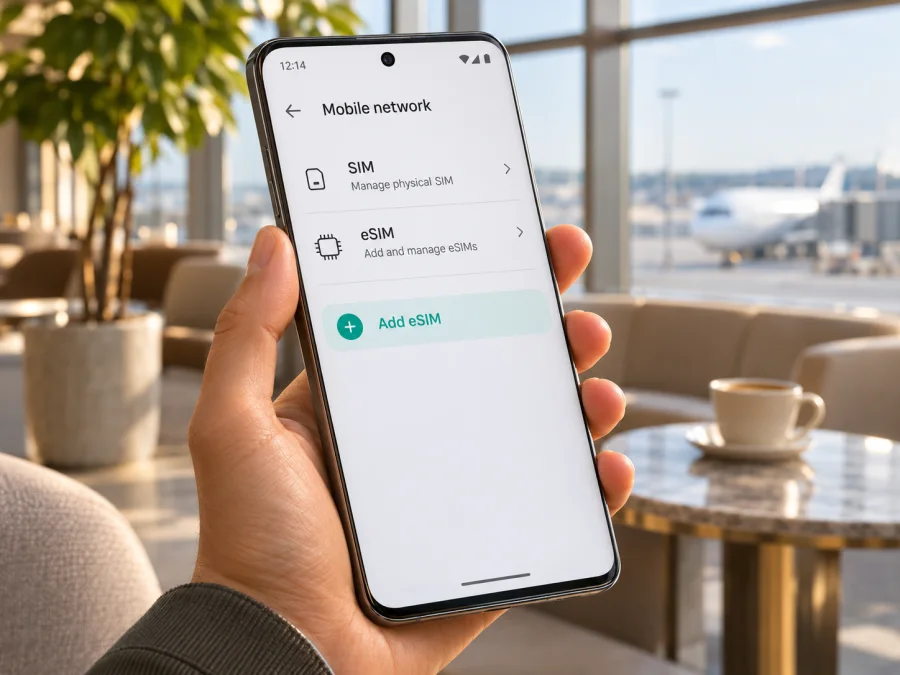
- Look for eSIM enrollment. Open Settings → Network & internet → SIM preferences (or SIMs & mobile network) and look for an option such as Download a SIM, Add eSIM, or Set up an eSIM. Motorola’s guide describes this as the option to download and set up an eSIM. If present, open the flow only far enough to confirm it is available; you do not need to scan or install a plan while checking.
- Check the exact model and software. In Settings → About phone, record the model number, Android version and software build. Compare the model number with the regional Motorola support page or ask Motorola support about that exact variant. A generic device name is not always enough to distinguish regional SKUs.
- Check for an operator lock. Ask the original carrier or seller whether the handset is unlocked for other networks. If the phone is already active, test with a SIM from another provider or use the carrier’s official unlock check. Do not treat a functioning physical SIM as proof that an eSIM from another provider will work.
- Confirm with the travel eSIM provider. Share the exact model number and confirm support, eligible countries, data-only terms, installation method and any roaming setting required. Check that your destination and travel dates match the package conditions.
- Keep a fallback. Until your checks are complete, keep access to Wi-Fi and your usual SIM. If eSIM is not available on your regional version, use a compatible unlocked phone or ask your home operator about roaming or a local physical SIM option.
Check whether your device is compatible before selecting a package. Compatibility should be confirmed before purchase, because an eSIM profile generally cannot be installed if the phone lacks an enabled eSIM feature or is locked.
What if the EID or add-eSIM option is missing?
Restart the phone, connect to Wi-Fi, install any pending official system update and check both About phone and SIM preferences again. Search Settings for “EID,” “eSIM,” and “SIM.” The EID can be hidden in a different submenu, so a missing item on the first screen is not conclusive. If both the EID and add-eSIM option remain absent, contact Motorola support with the model number and build information. Ask whether the device’s regional version includes eSIM and whether the installed software supports it. The carrier can also confirm whether it has disabled the feature for its branded edition.
Avoid unofficial firmware changes or factory resets as a first diagnostic step. A reset can remove profiles and settings, and it will not add eSIM hardware to a version that does not have it. If a refurbished phone has been modified or its provenance is unclear, get confirmation from Motorola or the seller before relying on it for travel.
Install and activate a travel eSIM
Proceed after confirming eSIM is available on this exact handset and it is unlocked. Have reliable Wi-Fi and the provider’s QR code or installation instructions ready. Android menu names can vary by software version.
- Choose a destination and package. In the Kaspersky eSIM Store app or website, select the country or region and compare data allowance, validity, included destinations, price and activation rules. Kaspersky eSIM Store is an app and website for choosing, ordering and activating an eSIM data plan for travel; the plan’s service depends on its terms and partner network.
- Check activation timing. Validity may begin at purchase, installation or first connection, depending on the package. Follow the displayed terms; do not assume installing the profile and starting data use are the same event.
- Get the installation details. Use the provider’s direct install flow, QR code or manual activation details as instructed. If the QR is displayed on this same phone, use direct install or show it on another screen.
- Connect to Wi-Fi and add the profile. Open Settings → Network & internet → SIM preferences (some builds say SIMs & mobile network), choose the option to download/add an eSIM, then follow Android’s prompts. Keep the connection stable while the profile installs.
- Label and select the line. Give it a name such as “Travel data.” When ready to use it, select the travel eSIM for mobile data. You can keep your home line for calls or texts if the phone’s SIM settings allow it; a data-only plan does not itself supply a regular number, voice service or SMS.
- Set roaming only when instructed. Some travel profiles require data roaming on that line. Enable it for the travel eSIM only when the provider’s directions say so, and check your home SIM’s roaming settings separately.
- Test at the destination. With Wi-Fi briefly off, verify that the travel eSIM is enabled and selected for data. Wait for registration on a supported local network, then test a webpage. If it fails, use the checks below before deleting the profile.
See the Android eSIM setup guide for Android instructions. The iOS eSIM setup guide is available if you are helping an Apple-device user. Follow the provider’s instructions for the specific profile.
Using Motorola Edge 50 Pro 512GB while travelling
Keep your home number and use the travel line for data
A typical arrangement is to leave the home SIM available for calls or messages and select the travel eSIM for mobile data. Check home-operator roaming charges first: keeping a line active may still incur charges under its terms. Turn off data roaming on the home SIM if you want to avoid it, while enabling it on the travel line only if the package requires it. Android’s dual-SIM features and simultaneous services depend on the regional version and software.
Plan for multiple destinations and data use
For a multi-country route, compare a regional package with separate country plans and read its destination list. A package name alone does not confirm that every territory or stopover is included. Estimate usage from maps, transport apps, translation, messaging, calls and backups; download maps and tickets over Wi-Fi and monitor Android’s data usage. Check top-up and tethering terms before relying on them, since hotspot use can consume data quickly.
Travel eSIM packages are commonly data-only. Unless a specific plan says otherwise, do not expect a new phone number, standard voice service or SMS. Messaging and calling apps can use the data connection if already configured. Keep essential travel information available offline in case coverage drops.
Troubleshooting: work through the basics
- The profile will not install: Check Wi-Fi, confirm the add-eSIM control is available, and make sure the activation code has not already been used. Note the exact error and contact the provider before repeatedly retrying or deleting anything.
- Installed but no service: Confirm you are in an included destination, the eSIM is enabled and selected for data, and airplane mode is off. Follow the provider’s instruction on data roaming. Restart or briefly toggle airplane mode, then try automatic network selection; use manual selection only as directed.
- Signal but no internet: Check the plan’s validity and remaining data, verify the data-SIM setting and use any APN value only if the provider supplies one. A signal icon alone does not prove that data is active.
- Home SIM is roaming: Check the mobile-data default and disable roaming on the home line if appropriate. The travel plan does not change your home operator’s terms.
- Slow or intermittent connection: Move to an area with better reception and check the supported partner network. Congestion, buildings and local coverage affect service; 5G may not be available on every supported network. Try 4G/LTE if available.
- Settings look different: Search Settings for “SIM,” “eSIM” or “EID.” Updates and regional software can rename menus. If the EID and enrollment option remain absent, ask Motorola about the exact model number rather than resetting the phone.
- Considering deleting the profile: Avoid removing a working eSIM to troubleshoot ordinary signal problems. Motorola notes that erasing removes the eSIM from the phone; restoration may require the provider, and an activation code may not work twice. Contact support first.
Practical scenarios
Before purchase: Ask for the full model code, country of sale, EID screen and add-eSIM screen from the actual handset. Confirm it is unlocked. Keep the exact name Motorola Edge 50 Pro 512GB in your inquiry, but do not use storage as a proxy for SIM compatibility. Prefer a return option if the seller cannot verify the feature.
Before a trip: Check EID and eSIM enrollment while you still have time and Wi-Fi. Verify the destination and package timing, install as directed, and decide which line will handle mobile data. Keep the home SIM’s roaming terms in mind.
If eSIM is absent: Do not buy a plan on the assumption that another Edge 50 Pro variant’s support applies. Ask Motorola or the seller to verify the model and firmware. If the regional unit lacks eSIM, consider a compatible unlocked phone, a local physical SIM where available, or your home operator’s roaming option.
If travelling with a second device: Install the profile on the device that will use it unless the provider explicitly permits another arrangement. Activation codes are often device-bound; confirm transfer and hotspot rules before relying on them.
Frequently asked questions
Does Motorola Edge 50 Pro 512GB support eSIM?
Some Edge 50 Pro variants do. Motorola’s support guide explains eSIM setup, and a regional specification lists a 512 GB version with Nano SIM / eSIM. Motorola’s market specifications differ and its global help guide is conditional, so verify EID and the add-eSIM setting on your exact handset and confirm it is unlocked.
Is every 512 GB version compatible?
The official information reviewed does not establish that every 512 GB unit has eSIM. Storage does not identify the region or carrier configuration. Check the model code and phone settings.
Where do I find the EID?
Look under Settings → About phone → Device details or SIM status, or search Settings for “EID.” The path varies. Also look for an add/download eSIM control in SIM preferences.
Can I use a physical SIM and eSIM together?
Some regional specifications describe pSIM + eSIM. The available combination and dual-SIM features depend on variant, software and operator; verify the settings on your phone.
Does a travel eSIM replace my number? Should I enable roaming?
A travel plan is usually data-only, so your home number remains on its home SIM. Enable data roaming on the travel line only if its instructions require it, and review roaming settings for the home line separately.
Can I install before leaving?
Often yes, over Wi-Fi, but check when the package validity begins. Installation and first data use may be treated differently.
Final checklist before your trip
- Confirm the phone is the exact Motorola Edge 50 Pro 512GB unit you intend to use; record its model number and original market.
- Find its EID and confirm Android offers an add/download eSIM option.
- Verify the handset is unlocked and that the specific model is accepted by the provider.
- Check each destination, allowance, validity period, activation timing and tethering terms for your selected package.
- Install the profile over Wi-Fi, label the line clearly, and know how to select it for mobile data.
- Decide whether to keep your home SIM on for calls or texts and check its roaming charges.
- Keep provider activation instructions and an offline fallback available during travel.
Before choosing a travel eSIM, verify compatibility on the phone you will carry. If the EID and eSIM setup option are present, the handset is unlocked and the provider confirms the model, you can browse the Kaspersky eSIM Store app or website for a package matching your destination and travel dates. If any check is uncertain, confirm it with Motorola, the seller or the eSIM provider before purchase; if this regional unit lacks eSIM, consider a compatible unlocked phone, local physical SIM or your home operator’s roaming option.


