Travel connectivity guide
Motorola Edge 50 Ultra 1TB eSIM Compatibility
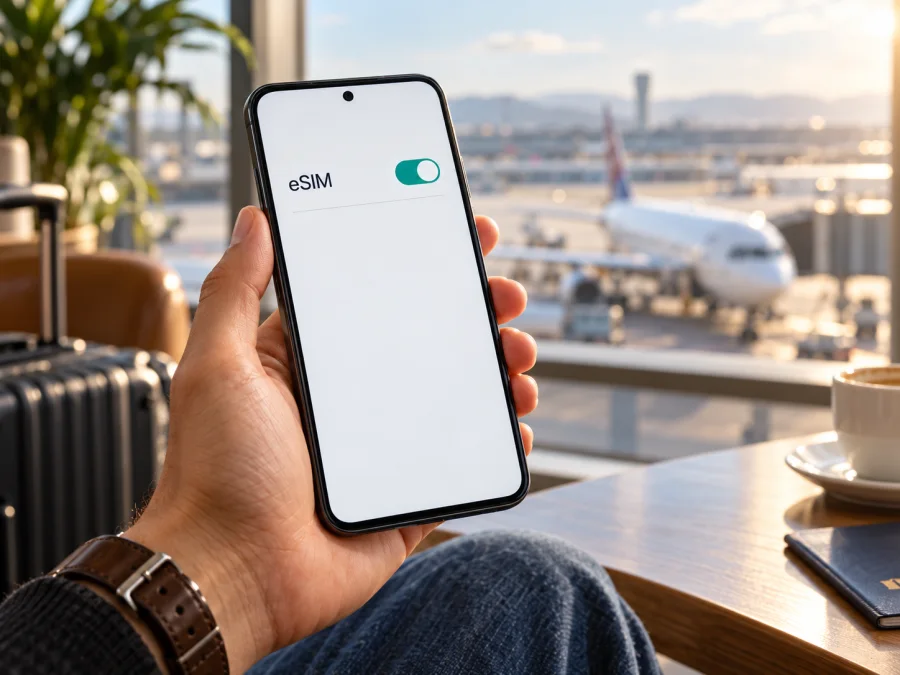
Motorola Edge 50 Ultra 1TB eSIM: compatibility and setup guide
Short answer: Motorola’s official US specification for the 1 TB version lists dual SIM as physical SIM plus eSIM. That is strong confirmation for that market’s configuration. It does not establish that every phone sold as Motorola Edge 50 Ultra 1TB in every country has the same SIM hardware or firmware. Before buying a travel plan, check the individual handset for an EID and an option to add an eSIM, and confirm that it is unlocked.
This distinction matters because storage size is not a universal model code. Motorola’s US page lists a 1 TB/16 GB RAM version with pSIM + eSIM, while its Latin America page lists a 512 GB/12 GB RAM version. Motorola says specifications can vary by market, so the exact sales region, model number and software build matter alongside the “1TB” label.
Does Motorola Edge 50 Ultra 1TB support eSIM?
For the US-market 1 TB configuration documented by Motorola Support, yes: the official specification lists 1 TB of internal storage and a dual-SIM arrangement of pSIM + eSIM. Motorola’s support guide for the Edge 50 Ultra also describes downloading and setting up an eSIM from the phone’s network settings. The model family therefore includes eSIM-capable versions, and the documented US 1 TB specification is one of them.
| Item | What can be confirmed | What to check on your own phone |
|---|---|---|
| Exact name in this guide | Motorola Edge 50 Ultra 1TB | Keep the storage variant in the seller’s model details and receipt |
| 1 TB version in Motorola US specifications | 1 TB storage, 16 GB RAM, dual SIM (pSIM + eSIM) | Confirm the phone’s market and model number match the intended configuration |
| Other regional versions | Official Motorola pages list other storage/RAM combinations; SIM details may differ | Do not infer eSIM support from another region’s listing |
| Network setup | Motorola’s guide gives an eSIM download flow in Settings | Menu wording, carrier provisioning and availability can vary by software and operator |
| Travel eSIM readiness | Depends on the phone’s eSIM hardware, software and lock status | Verify EID or add-eSIM menu, unlock status and destination plan requirements |
The specific operator market also matters. A compatible phone may still be unable to add a profile if its carrier or seller has locked it, if the operator has not provisioned eSIM on that variant, or if the activation flow is restricted by local policy. A travel data eSIM is a separate profile from your home operator’s line; the handset must permit adding it, and the selected plan must cover the country or region you will visit. If you are buying a used, imported or carrier-branded Motorola Edge 50 Ultra 1TB, ask the seller to show the eSIM menu on the device itself and give you the full model number before payment.
Check compatibility before you choose a plan
Use the phone itself as the final check. Menu labels may differ slightly across Android versions, regions and carrier firmware, so try both the EID route and the add-eSIM route.
- Find the model details. Open Settings → About phone → Device details (or the similarly named model/SIM information page). Record the complete model number and the country where the phone was originally sold.
- Look for an EID. In Settings → About phone → Device details, look for EID or eSIM ID. Motorola’s setup material identifies the device details area as a place to check an EID on supported phones. You can also open the dial pad and enter
*#06#; if the handset exposes an EID, it may appear alongside the IMEI numbers. Do not share an EID or IMEI publicly. - Check the eSIM control. Go to Settings → Network & internet → SIMs & mobile network and look for Download a SIM, Download new SIM, Add eSIM or a similar option. On some versions, the label appears only after tapping the add-SIM control.
- Confirm the phone is unlocked. Ask the original carrier or seller whether the device is network-unlocked. If possible, check that a SIM from a different operator can register. An EID does not remove a carrier lock.
- Ask for a device-specific answer. If the EID or menu is absent, send the exact model number and market of purchase to Motorola Support or the selling operator. Ask directly whether that SKU can add a third-party travel eSIM, not merely whether the Edge 50 Ultra family supports eSIM in general.
- Check the destination and plan conditions. Confirm that the plan covers every country on your itinerary, when its data allowance begins, how long it remains valid and whether manual APN settings or data roaming are required.
Quick compatibility checklist
- [ ] The phone is the intended Motorola Edge 50 Ultra 1TB, and its full model number and sales market are known.
- [ ] An EID is visible, or the eSIM download/add option appears in Settings.
- [ ] The phone is unlocked and can accept a profile from the intended provider.
- [ ] Android is up to date, and the phone has a reliable Wi-Fi connection for installation.
- [ ] The plan covers the destination and suits the length and data needs of the trip.
- [ ] You understand whether the plan is data-only and whether roaming must be enabled for that eSIM.
Each check answers a different question. An eSIM check is a sequence of evidence, not a single yes-or-no label. The EID points to eSIM capability, the Settings menu shows that Android exposes profile setup on this build, and a successful download confirms that the activation flow can reach the device. The unlock check answers a different question: whether the phone will accept a profile from a provider other than the original operator. Plan coverage and local network access are separate again. Confirming each part avoids confusing a compatible handset with a guaranteed connection in every destination.
For a second check, compare the handset’s model number with Motorola’s support page for the same sales region and ask the seller to confirm the eSIM feature on the actual unit. A product-family name or storage figure can cover more than one regional configuration. If the seller cannot demonstrate the menu, treat compatibility as unresolved until Motorola or the original operator confirms that exact SKU.
Check your device before paying for an eSIM plan. It is worth checking the physical phone rather than relying on a retailer’s generic compatibility table, especially for an imported Motorola Edge 50 Ultra 1TB.
If these checks pass, you can compare plans for the destination in the Kaspersky eSIM Store. The site and app help you choose, arrange and activate an eSIM with a mobile-data plan for an international trip. Check the current plan’s destination, data amount, validity, activation conditions and any setup notes before choosing; the homepage is a place to browse available options, not a guarantee that a particular country plan will suit every itinerary.
Install and activate an eSIM on Motorola Edge 50 Ultra 1TB
- Connect to Wi-Fi. Keep the phone online while it downloads the eSIM profile. Do not rely on the travel profile itself for this first connection.
- Open the SIM settings. On Motorola’s guide, the route is Settings → Network & internet → SIMs & mobile network. Tap Download new SIM, Add eSIM or the closest equivalent. If the menu is missing, stop and recheck compatibility rather than repeatedly scanning a code.
- Choose an installation method. Scan the supplied QR code, or use the provider’s in-app/manual installation flow if offered. If the provider gives an activation code, enter it exactly as shown. A QR code intended for one-time use may not install twice.
- Approve the profile download. Review the plan label and confirm the download. Wait for Android to finish adding the profile. The profile may appear in the SIM list before it is ready to connect to a local network.
- Name the profile. Give it a clear label such as “Travel data” so you can distinguish it from your primary SIM. Labels are for your convenience and do not affect the operator or plan.
- Choose when to use it. If you are setting up before departure, leave the travel profile off or keep your home SIM selected for mobile data until you want to start using the travel plan. Follow the plan’s activation terms: installing a profile and starting its data validity are not always the same event.
- Select mobile data. Open the SIM settings and set the travel eSIM as the preferred SIM for mobile data when you are ready. Keep your home line available for calls or texts if you need it, but check its roaming terms to avoid unexpected charges.
- Enable data roaming for the travel profile if required. Some travel eSIMs connect only when roaming is enabled on that profile. Apply the setting to the travel eSIM itself and check the provider’s instructions; do not assume that roaming on your home SIM should also be enabled.
- Wait for registration. After arrival in a covered destination, allow a few minutes for the profile to register. If service does not appear, use the troubleshooting steps below before deleting the profile.
For an Android overview, see Kaspersky eSIM Store’s Android installation instructions. That page notes that its screenshots and labels can be specific to certain Android brands, so use the Motorola menu names above where they differ. If you are installing an eSIM on an iPhone used for a different trip, the iOS installation instructions cover that separate device flow; the iOS steps do not apply to this Motorola phone.
Use the eSIM for mobile data while travelling
After landing, the Motorola Edge 50 Ultra 1TB can use the travel eSIM for data only if that particular unit supports eSIM and the plan has service for that location. In Settings → Network & internet → SIMs & mobile network, turn on the travel profile, select it under SIM for mobile data, and enable data roaming for that profile if the provider requires it. Exact wording can change with the Android build.
If you keep a home SIM active, set it as the default for calls and messages only if that matches your needs. Data routing is a separate choice. Check that mobile data points to the travel eSIM and that automatic switching to the home SIM is disabled if you want to prevent data from falling back to your home line. Review your home operator’s roaming terms before departure; a travel eSIM does not cancel or replace your home subscription.
A travel data plan is useful for maps, bookings, messaging apps, email and other internet tasks. It usually does not provide a conventional phone number, voice minutes or SMS unless its terms explicitly say otherwise. Keep using your usual number for ordinary calls and texts where your primary SIM and operator allow it; internet calls in messaging apps use data and depend on those apps and accounts.
Kaspersky eSIM Store is an app and site for choosing, arranging and activating travel data eSIMs; it does not establish phone compatibility or guarantee local network service. Coverage depends on the selected plan and local conditions.
Common problems and what to check
There is no EID or add-eSIM menu
Check Settings → About phone → Device details and Network & internet → SIMs & mobile network after restarting and installing available system updates. Compare the complete model number with the official Motorola page for the country where the phone was sold. If the menu remains absent, ask Motorola or the original operator whether that SKU supports eSIM; a different region’s 1 TB specification does not settle it.
The QR code cannot be scanned
Increase screen brightness on the device showing the code, clean the Motorola camera lens, and make sure the full code is visible and not blurred. If the QR code is displayed on the same phone, open it on another screen or use the provider’s supported manual installation method. If Android says the code is invalid or already used, do not keep retrying; contact the plan provider to check its status.
The profile downloads but shows no service
Confirm you are in a destination included in the plan and that its start condition has been met. Turn the travel profile on, choose it for mobile data and enable roaming for that profile if instructed. Switch airplane mode on briefly and off, then restart if needed. If service still does not register, check whether the plan requires a particular network selection or APN and use only the details provided for that plan.
The phone connects, but apps have no internet
Confirm that mobile data is enabled and assigned to the travel eSIM. Review the APN instructions in the app or plan details, then reselect the saved APN if one was required. Temporarily disable a VPN or data-saving rule only as a diagnostic step if it is interfering with the connection, and restore your preferred settings afterwards. Check that the plan has remaining data and is still valid.
Data is using the wrong SIM
Open the SIM settings and check the current default for mobile data. Turn off automatic data switching if Android offers it. A home SIM can remain enabled for calls while the travel eSIM handles data, but the home operator may charge for roaming voice or data according to its own terms.
The eSIM option appears, but installation fails
Check Wi-Fi stability, Android updates, date and time settings, and whether another eSIM profile has reached a device or provider limit. Confirm that the phone is not carrier-locked. If there is an error message, record its exact wording and contact the provider that issued the activation code. Do not reset network settings or erase an eSIM unless support recommends it; either action may remove settings or make recovery harder.
Practical travel scenarios
You want to prepare at home. First verify the EID/menu and unlock status, choose a plan for the full itinerary, and read its activation rules. Install over reliable Wi-Fi if the provider allows advance installation. Keep your home SIM as the data line until you are ready to switch, and save the provider’s instructions where you can access them offline.
You need your usual number and travel data together. Keep the home profile enabled for calls or messages, set the travel profile as the data SIM, and disable automatic data fallback if appropriate. Review charges from your home operator and be aware that some devices or operators limit which SIM can handle particular services at the same time.
Frequently asked questions
Does every Motorola Edge 50 Ultra 1TB support eSIM?
No universal claim is safe. Motorola’s official US specification for the 1 TB variant lists pSIM + eSIM, but Motorola says specifications may vary by market. Check the exact handset’s EID or add-eSIM menu and its full model number.
Does an EID guarantee that a travel eSIM will work?
No. An EID indicates eSIM identity support, but the device must also allow profile installation, be unlocked, run compatible software and meet the plan’s conditions. Check all of these before purchase.
Can I use a physical SIM and an eSIM at the same time?
The US 1 TB specification lists a physical SIM plus eSIM as a dual-SIM configuration. Actual active-line behavior can depend on the specific variant and software. Check the SIM management screen and the documentation for your unit.
Does a travel eSIM replace my normal phone number?
Usually not. A travel data eSIM is commonly for mobile internet and does not include a regular phone number, voice service or SMS unless the selected plan explicitly includes them. You can use internet messaging and calling apps over data.
Should I turn on data roaming?
Only for the travel eSIM if the plan’s setup instructions require it. Confirm that the travel profile is selected for mobile data. Your home SIM’s roaming setting is separate and may lead to charges from your home operator.
Can I install the eSIM before the trip?
Often you can install a profile in advance, but the plan’s activation and validity rules differ. Check whether data use begins at purchase, on a scheduled date or when it first connects at the destination. Keep the profile installed if you are unsure; deleting it may make reuse of its QR code impossible.
What if the menu is missing on my imported phone?
Check the full model number and country of sale, then contact Motorola Support or the original operator. Ask them to confirm eSIM support for that exact SKU and whether it can accept a third-party travel profile. Do not rely on an answer about another Edge 50 Ultra variant.
Final check: verify the phone, then choose a travel eSIM
The documented US-market Motorola Edge 50 Ultra 1TB supports eSIM alongside a physical SIM. Because Motorola’s specifications can vary by market, treat that confirmation as specific to the listed configuration. On your own phone, look for an EID and the eSIM download option, verify that the handset is unlocked, and confirm the exact model with the seller or operator if either check is missing.
Once compatibility is established, choose an eSIM plan for the countries on your itinerary and compare its data allowance, validity and activation conditions with your needs. The Kaspersky eSIM Store website and app help you browse, choose, arrange and activate an eSIM for mobile internet during an international trip. Check current options on the Kaspersky eSIM Store homepage and review the plan details before proceeding. This is a general store homepage for browsing current travel plans, not a country-specific tariff page.


