Travel connectivity guide
Motorola Edge 50 Ultra 8GB RAM eSIM
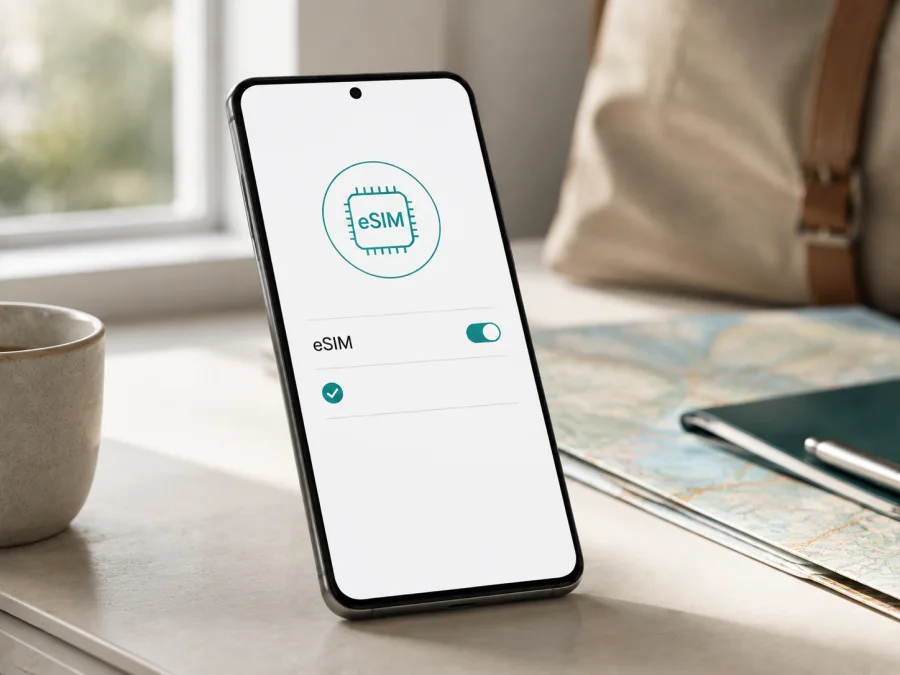
Motorola Edge 50 Ultra 8GB RAM eSIM
If you are preparing a trip and want mobile internet without replacing your physical SIM, the important question is whether your exact Motorola Edge 50 Ultra 8GB RAM can add an eSIM profile. The short answer is: compatible regional versions of the Motorola Edge 50 Ultra support eSIM, but a particular 8GB RAM retail unit must be checked because the market, model code, firmware and carrier configuration can change the result.
Motorola's official Edge 50 Ultra specifications in several markets list Dual SIM as physical SIM plus eSIM. Its own support guidance is more cautious: it says that a phone might support eSIM, advises checking with the carrier and warns that specifications can vary by market. Therefore, a shop listing or the words “8GB RAM” are not proof by themselves. Check the handset's EID and eSIM menu before buying a travel tariff.
An eSIM is a digital SIM profile downloaded into the phone. It can keep your regular physical SIM for calls or messages while the travel profile handles mobile data. Travel eSIMs are usually data-only unless the tariff explicitly includes a number, calls or SMS.
Quick answer
For a Motorola Edge 50 Ultra 8GB RAM sold in a region where the matching SKU includes eSIM, you should be able to add a digital SIM and select it for mobile data. The strongest practical confirmation is an EID in the device information plus a visible command such as “Download a new eSIM” or “Set up an eSIM” in Android settings.
If both are present, the phone shows the essential signs of eSIM readiness. If neither appears, treat this unit as not ready, even if another Edge 50 Ultra supports eSIM. If only one appears, ask the seller or carrier to confirm the exact model code and firmware.
Motorola Edge 50 Ultra 8GB RAM: what is being checked
The name in this article is one exact long-tail variant. Do not use it to assume that every Motorola Edge 50, Edge 50 Pro, Edge 50 Fusion or another Edge 50 Ultra memory configuration has identical SIM features. Two phones with the same commercial name can differ in tray layout, firmware, supported bands or carrier policy.
| Item | What to confirm |
|---|---|
| Exact device | Motorola Edge 50 Ultra 8GB RAM |
| Software | Android with available system updates installed |
| SIM arrangement | Physical SIM plus an available eSIM option, if supported by the SKU |
| Identifier | An EID in device or SIM information |
| Settings | An add, download or set-up eSIM command |
| Network status | The phone is not carrier-locked |
| Travel use | The chosen tariff covers the destination and mobile data |
RAM and 5G are not shortcuts for eSIM compatibility. RAM describes working memory and 5G describes network capability; eSIM depends on an embedded SIM component, regional certification, software and provisioning. A phone may have 5G and still lack an eSIM menu in a particular market.
Does Motorola Edge 50 Ultra 8GB RAM support eSIM?
The careful answer is “yes for compatible regional versions, but verify the exact handset.” Official Motorola specification pages for the Edge 50 Ultra in different regions describe the SIM arrangement as pSIM + eSIM or Nano SIM + eSIM. This confirms that the model family was designed with eSIM capability. It does not guarantee that an imported, operator-branded, refurbished or marketplace-supplied phone labelled Motorola Edge 50 Ultra 8GB RAM has the same configuration.
Motorola's official setup instructions say eSIM availability may depend on country and provider, and direct users to the mobile-network settings. If the handset has no EID or setup command, resolve that discrepancy before paying for a tariff.
Regional pages show different storage and RAM combinations, so “8GB RAM” may describe a local or refurbished SKU. Preserve it, but decide compatibility from the handset's model details and SIM settings.
What to check before buying an eSIM tariff
Use this checklist on the actual Motorola Edge 50 Ultra 8GB RAM. If buying remotely, request relevant settings, the exact model code and regional sales information.
- Confirm the model name in Settings > About phone and compare it with the listing or invoice.
- Note the model or regulatory identifier without shortening the commercial device name.
- Find an EID in About phone, SIM status or device details.
- Open the mobile-network section and look for an eSIM download or add-plan command.
- Confirm that the phone is not carrier-locked.
- Install pending Android and Google Play system updates.
- Keep Wi-Fi or another reliable connection available for profile download.
- Check the tariff's destination, data allowance, validity, activation event and top-up conditions.
- Confirm whether the plan is data-only and keep your primary number on the physical SIM if needed.
If the EID is visible and the eSIM command opens, the phone is likely ready for an eSIM profile. If only one appears, stop and get clarification. Do not delete an existing profile or reset the phone to make a missing menu appear.
Check your device before choosing a travel tariff. This matters for imported, second-hand and operator editions.
How to verify the EID and eSIM menu
Android wording can change after an update. To check the EID, open Settings > About phone > Device details, SIM status or the screen listing identifiers. Look for the long number labelled EID; it is different from the IMEI and should not be published in a screenshot. Then open Settings > Network & internet > SIMs or SIMs & mobile network and look for Download a new eSIM, Set up an eSIM or Add SIM.
Two physical SIM slots are not evidence of eSIM support: regional versions may use different trays. If the command is missing, enable Wi-Fi, update Android and restart once. If it remains absent, ask whether this exact SKU has an EID and eSIM-enabled firmware.
How to install an eSIM on Motorola Edge 50 Ultra 8GB RAM
Before starting, charge the phone, connect to Wi-Fi and keep the QR code or activation details ready. Use a verifiable code; a profile assigned to another phone may need a new activation method.
For Android steps, see the Android eSIM installation instructions. The iOS eSIM installation instructions are useful if you are helping another traveler. The device in this article uses Android, so follow the Motorola menu names first.
1. Prepare the connection
Connect Motorola Edge 50 Ultra 8GB RAM to Wi-Fi. Internet access may be needed to download the profile even if the plan will provide data later.
2. Open the SIM manager
Go to Settings > Network & internet > SIMs or SIMs & mobile network. Choose the command to download or add an eSIM. If it is absent, stop and complete the EID and regional checks.
3. Scan or enter activation details
Choose the QR-code option and display the code on another screen. If manual activation is provided, enter each character carefully. Do not repeatedly retry a one-time code after an error without checking its status.
4. Download the profile
Confirm the profile name and allow Android to download it. Keep Wi-Fi connected and leave Settings open; installation may take several minutes. A downloaded profile is not automatically the selected data line.
5. Name the line
Use a clear label such as Travel data or the destination so you can distinguish it from the physical SIM.
6. Select the data SIM
In the SIM manager, select the new eSIM for mobile data. Keep the physical SIM for calls and SMS if needed, and read any prompt about switching the default data line.
7. Configure roaming
Check the travel line's settings to see whether data roaming is required. Enable roaming for the travel eSIM only when the tariff instructions require it; do not change the primary SIM by mistake.
8. Test the connection
Turn Wi-Fi off briefly and check whether a permitted web service loads. Confirm the travel line and its data counter. Before departure, follow the tariff's activation rule because validity may begin on installation or first network use.
To install now and use the profile later, leave the travel line disabled or follow the tariff's instructions. The start rule depends on the selected plan.
Using eSIM for mobile internet while travelling
For many travelers, the practical arrangement is dual SIM: the regular physical SIM remains available for calls or messages and the travel eSIM becomes the data line. On Motorola Edge 50 Ultra 8GB RAM, label both lines and check the data selection before departure to reduce unexpected roaming data.
Scenario 1: install before departure
Use stable Wi-Fi to install and label the profile, then select it for data when you land. Check the activation rule first, because some plans begin validity at installation.
Scenario 2: install after arrival
If the plan starts when it registers on a supported network, install it after arrival using airport or hotel Wi-Fi. This may preserve validity but leaves setup dependent on a connection, so save the activation details securely.
Scenario 3: cross a border
Check whether the plan covers every country on your route or only one. After a border crossing, allow time for the eSIM to register with a supported partner network. Coverage and performance depend on local networks and plan conditions.
Scenario 4: manage data and validity
Monitor data use and the balance or allowance in the app or profile area where available. Use Wi-Fi for large downloads and review top-up or replacement conditions before the plan expires.
Kaspersky eSIM Store is an app and website that helps you choose, arrange and activate an eSIM with a suitable mobile-data tariff for a foreign trip. It is not a mobile operator, network owner or provider of mobile internet. Calls and SMS remain subject to your primary carrier unless the tariff says otherwise.
Common problems and checks
The QR code will not scan
Increase the screen brightness, clean the camera and avoid glare. Keep the complete code in view and compare every character during manual entry. If the code was used or expired, ask support for the next step.
There is no eSIM option
Check About phone for an EID and inspect Network & internet > SIMs. Install updates and restart once. If the option remains absent, the regional SKU, carrier firmware or provider policy may not support eSIM; confirm the model code before buying a plan.
The profile downloads but there is no signal
Check that the eSIM is on, selected for data and allowed to roam if required. Confirm destination coverage and plan status, then wait or restart when the provider recommends it. Do not change many settings at once.
Data works only on Wi-Fi
Turn Wi-Fi off and check the travel line's data toggle. Confirm that the APN was supplied automatically or matches the provider's instructions; do not invent one. Check remaining data and validity, then contact support with the destination and steps tried.
Activation stops midway
Reconnect to Wi-Fi and look in SIM settings before a second attempt. The profile may have downloaded even if the final screen was interrupted. Ask whether the code can be reused; never erase a working profile first.
FAQ
Is Motorola Edge 50 Ultra 8GB RAM eSIM-compatible?
Compatible regional versions are documented by Motorola with physical SIM plus eSIM. For the exact Motorola Edge 50 Ultra 8GB RAM, confirm an EID and add-eSIM command; if either is missing, regional or carrier differences may make it incompatible.
Does 8GB RAM change eSIM support?
No. The relevant factors are the embedded SIM component, software build, region and carrier provisioning. Keep the 8GB RAM label, but use the EID and SIM settings to decide.
Can I keep my normal number active?
Usually, dual SIM lets you keep the physical SIM for calls and SMS while using the eSIM for data. Check your carrier's roaming rules and the selected data SIM.
Do I need Wi-Fi to install an eSIM?
You need an internet connection; Wi-Fi is the safest method. Another data line may work, but consider its roaming charges.
Should data roaming be enabled?
Some travel profiles require roaming through a partner network. Check the tariff and enable it on the travel eSIM, not the primary SIM, when required.
Can I move the eSIM to another phone?
Do not assume that you can transfer it. Some codes are single-use or bind the profile to the first device; contact support before deleting or moving it.
Does Kaspersky eSIM Store provide a phone number?
Kaspersky eSIM Store is an app and website that helps you choose, arrange and activate an eSIM with a mobile-data tariff for a foreign trip. It is generally for mobile internet, not a regular number, voice calls or SMS unless the tariff says otherwise; it is not a mobile operator or network owner.
Final device check and travel eSIM choice
Before the trip, complete this final sequence:
- Verify that the phone is exactly Motorola Edge 50 Ultra 8GB RAM and note its regional model code.
- Confirm that Settings shows an EID and a command to add or download an eSIM.
- Confirm that the handset is not carrier-locked and that Android is up to date.
- Choose a destination tariff whose coverage, data allowance, validity and activation rules fit the itinerary.
- Install the profile over Wi-Fi and give it a clear travel label.
- Select the eSIM for mobile data and keep the physical SIM for calls or SMS only if desired.
- Test the line, then recheck the data SIM when you arrive.
Once those checks are positive, use Kaspersky eSIM Store as the app and website where you can choose, arrange and activate an eSIM with a suitable mobile-data tariff for your foreign trip. Verify the device first, then choose by destination and expected data use.


