Travel connectivity guide
Motorola Edge 60 128GB eSIM Compatibility & Setup
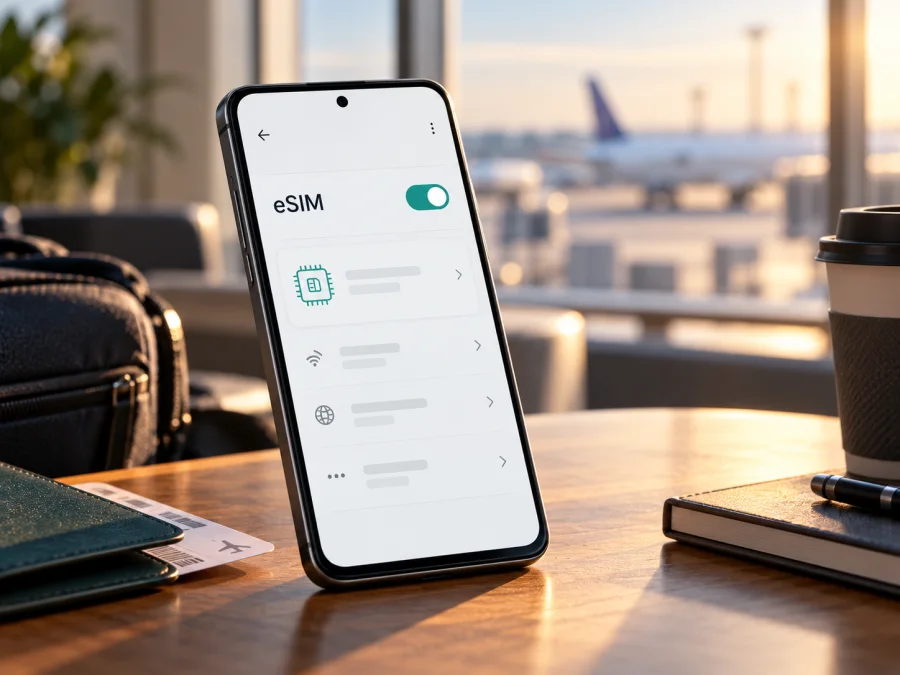
Motorola Edge 60 128GB and eSIM: compatibility, setup, and travel use
The short answer is yes for a documented Motorola Edge 60 128GB configuration: Motorola lists eSIM alongside a nano-SIM. The specification appears on Motorola’s Japanese-language support page; it confirms that configuration, not the market or carrier status of every phone sold with this name. Verify your own handset before buying a travel plan, because regional hardware and carrier restrictions can differ.
Quick specifications relevant to eSIM
| Item | What to know |
|---|---|
| Device name in this guide | Motorola Edge 60 128GB |
| Official 128 GB configuration located | Motorola lists a 128 GB internal-storage configuration with 8 GB RAM in one regional specification entry. |
| SIM arrangement listed for that configuration | One nano-SIM slot plus eSIM. |
| Regional caveat | Motorola says specifications vary by market; storage alone does not identify the handset’s sales region. |
| What must be checked on your unit | An EID or an eSIM download/add option in Settings, plus confirmation that the phone is not carrier-locked. |
| Typical installation path | Settings → Network & internet → SIMs & mobile network; wording can differ by Android version and region. |
| Travel eSIM role | Usually mobile data for a covered destination, subject to the plan terms and local network availability. |
Does the Motorola Edge 60 128GB support eSIM?
For the official 128 GB configuration documented by Motorola, the answer is yes: its specification identifies a nano-SIM and eSIM combination. That confirms at least one documented 128 GB configuration supports eSIM. The specification is on Motorola’s Japanese-language support page; this identifies the page’s regional context, but not the sales country or operator of your own phone. The input “Motorola Edge 60 128GB” does not include a model number, SKU, or carrier, so it cannot identify your unit.
Motorola’s support pages for other markets also list eSIM for the Edge 60, while noting that specifications may vary by market. The regional pages are not interchangeable product records: memory, storage, network bands, NFC, finishes, and SIM configurations can differ. In addition, Android menu availability can depend on the firmware installed for the sales region. A seller’s listing that says “dual SIM” may mean two physical SIM cards, one physical SIM plus eSIM, or a combination that changes with the market. Ask what the phrase means for the exact unit.
A carrier lock is separate from hardware support. The Motorola specification does not certify acceptance by every operator in a particular market. A phone can show an EID yet reject another provider’s profile because of a carrier restriction; confirm the handset is unlocked and that your chosen provider accepts it.
If you are shopping, request the full model or SKU code printed on the box or shown under Settings → About phone. Ask the seller to show the eSIM section on the actual device, not a photo from a different listing. If the seller cannot confirm the regional variant, make the purchase conditional on a return policy that gives you time to verify the SIM settings.
## Regional versions: what can change
“128GB” describes storage, not the complete configuration. Motorola’s support catalogue lists different Edge 60 memory and storage combinations by market and says specifications may vary. Radio bands, SIM arrangements, firmware, and carrier provisioning can differ too. A listing that says “dual SIM” may mean two physical SIMs or one physical SIM plus eSIM; ask the seller which applies to the exact SKU.
Check the evidence in this order:
- Look for an EID or an eSIM download option on the phone itself.
- Match the model number in Settings → About phone to Motorola’s support page for its sales region.
- Confirm the device is factory unlocked and not restricted by carrier firmware.
- Confirm the eSIM provider accepts the device and that the plan covers your destination.
A specification from one country does not prove that an imported unit is identical. If eSIM is absent from Settings, install available system updates and restart once, then check again. If it remains missing, ask Motorola or the seller about the full model code. Do not assume a future update can add eSIM to hardware or a regional build that lacks it. If your handset cannot be verified, consider a destination physical SIM, your home carrier’s roaming option, or another unlocked phone confirmed to support eSIM; availability and terms vary.
## Check the phone before you buy a plan
Use this short checklist before checkout, especially for an imported or second-hand phone:
- [ ] Record the model number and software build under Settings → About phone.
- [ ] Search Settings for EID, eSIM, or Download a SIM.
- [ ] Check Settings → Network & internet → SIMs & mobile network for Add eSIM or similar.
- [ ] Ask the seller or carrier whether the phone is unlocked for another provider’s eSIM.
- [ ] Check whether device management or a work profile restricts SIM changes.
- [ ] Verify destination, data allowance, validity, and activation timing for the plan.
- [ ] Keep Wi-Fi available during profile installation.
An EID indicates an eSIM identity is present; it does not prove that the phone is unlocked or that a particular provider will accept it. Menu names vary, and some software builds expose the download flow without showing the EID where expected. If neither appears, treat support as unconfirmed and ask Motorola about the exact model code. A physical SIM tray does not confirm or rule out eSIM.
Check whether your phone is compatible with eSIM before choosing a plan. Settings on the actual unit are more useful than its storage size or a generic “dual SIM” description.
## What EID and the eSIM menu tell you
An EID identifies an embedded SIM capability. Search Settings for “EID,” then check About phone, Device details, or SIM status. An Add eSIM or Download a SIM entry is another useful sign. You can open the setup flow only far enough to confirm it exists; you do not need to scan a purchase code to check the menu.
A missing entry can mean that the variant does not support eSIM, that carrier firmware or an administrator restricts it, or that the software is out of date. A visible menu still does not guarantee service: the provider must accept the device, the phone must be unlocked where required, and the plan must cover the destination. Keep activation QR codes private because they can contain a one-time credential.
## Install and activate an eSIM
Connect to stable Wi-Fi, charge the phone, and keep the activation details accessible on another screen. Read the plan’s rules first: installation and the start of validity may be separate events. Do not delete a profile to troubleshoot unless the provider instructs you; an activation code may not be reusable.
- Confirm compatibility and unlock status. Check the EID or eSIM menu and resolve carrier restrictions before buying.
- Open SIM settings. Go to Settings → Network & internet → SIMs & mobile network. If labels differ, search Settings for “SIM” or “eSIM.”
- Add the profile. Choose Download a SIM, Add eSIM, or the closest option and follow the prompt.
- Scan or enter details. Display the provider’s QR code on another device, or enter manual activation information exactly as supplied.
- Wait for download. Keep Wi-Fi connected. A completed download does not always mean the plan has started.
- Name and select the line. Label it “Travel data,” then choose it for mobile data when you are ready to use it.
- Check roaming and APN. Enable data roaming for this eSIM only if the provider requires it. Enter an APN only when plan instructions specify one.
- Test at the right time. If use begins on arrival, wait until you reach the covered destination, then check for service and open a simple webpage.
See the Android eSIM installation instructions and iOS eSIM installation instructions. The iOS guide is for an iPhone-using travel companion. Kaspersky eSIM Store notes that its pictured Android steps are specific to Samsung, so use Motorola’s labels if they differ.
Keep your home SIM available without accidental data use
You can leave your home line on for calls or messages while selecting the travel eSIM for mobile data, if your phone and carrier allow it. First check home-carrier roaming charges. Turn off data or roaming on the home line if you do not want it to use data abroad, and disable automatic data switching if available. Recheck the active data line after restarting.
Kaspersky eSIM Store is an app and website where you can choose, arrange, and activate an eSIM with a mobile-data plan for an international trip. Do not assume a travel plan includes a conventional number, cellular voice, or SMS unless its terms say so. Messaging and voice apps can use data but still depend on your accounts and local availability.
## Using the Motorola Edge 60 128GB on a trip
A travel eSIM can often be installed over Wi-Fi before departure, then selected for mobile data when you are ready. It can reduce the need to find a physical SIM counter after landing, but the phone still needs an accepted profile, an active plan, and a supported local network. Coverage and speed vary with location, network conditions, and plan terms.
Choose based on the full itinerary. Maps, messaging, and occasional browsing use less data than frequent video calls, hotspot sharing, or cloud uploads. For a multi-country trip, confirm that every country is covered. Check the allowance, validity, and whether the plan clock starts at purchase, installation, or first connection.
After arrival, enable the travel eSIM, select it for mobile data, and enable roaming for that line if instructed. Keep home-SIM data disabled if you want to avoid using its roaming allowance. Allow a few minutes for registration; if needed, briefly toggle airplane mode. Check remaining data and validity in your account during the trip.
No country was specified for this guide, so use the Kaspersky eSIM Store destination and plan browser to check current options for your itinerary. This is the general store page, not a country-specific tariff. Review coverage, data, validity, activation timing, and device requirements before choosing.
## Troubleshooting: if installation or data does not work
No “Add eSIM” option: Search Settings for “eSIM,” “SIM,” or “Download a SIM”; install available updates and restart. If still absent, ask Motorola or the seller to verify the full model code. Do not infer capability from 128GB alone.
QR code will not scan: Increase the brightness of the screen displaying it, clean the camera lens, and hold steady. Use another screen or manual details if supplied. Check whether the one-time code has already been used.
Profile installed but no service: Confirm the destination and validity, enable the eSIM, select it for data, and turn on roaming for that line if required. Wait a few minutes, then toggle airplane mode or restart. Do not delete the profile during troubleshooting.
Apps have no internet: Check that mobile data is assigned to the travel line, airplane mode is off, and the plan has data remaining. Follow any APN or network-selection instructions from the provider; otherwise leave automatic settings unchanged.
Home SIM is using data: Select the travel eSIM explicitly for mobile data, turn off automatic switching if present, and disable data or roaming on the home line. Recheck after restarting.
The profile is rejected or service varies by location: Confirm EID, model code, and unlock status with the provider. Coverage may vary by place. Contact support with the error text, but never post an activation QR code publicly.
## Common questions
Can every Motorola Edge 60 128GB use eSIM?
Motorola documents a 128 GB configuration with one nano-SIM and eSIM. The name alone does not identify your unit’s market or carrier status, so check its EID or eSIM menu and unlock status.
Is 128GB the eSIM version?
Not universally. The official 128 GB specification supports eSIM for a documented configuration, but storage capacity is not a complete model code. Check the phone itself.
Can I use a physical SIM and eSIM together?
The documented configuration combines one nano-SIM with eSIM. Whether both lines can be active together and which handles data depends on the software and carrier configuration; verify SIM Manager on your unit.
Does a travel eSIM include a phone number?
Do not assume it does. Kaspersky eSIM Store travel plans are for mobile data; voice and SMS are included only if the specific terms state that. Internet calling apps can use data.
Can I transfer the profile to another phone?
Do not assume so. Some profiles and activation codes are single-use or tied to one device. Check transfer rules before installing, and ask the provider before erasing a profile.
Final check before your trip
Motorola documents eSIM with nano-SIM for a 128 GB Motorola Edge 60 configuration, but your storage label does not identify its region or carrier status. Before paying, confirm the EID or add-eSIM option, exact model code, and unlocked status. Then choose a plan for every country on your route and check its data, validity, and activation rules. Install over Wi-Fi and follow the provider’s roaming and APN instructions.


