Travel connectivity guide
Motorola Edge 60 Pro 128GB eSIM Guide
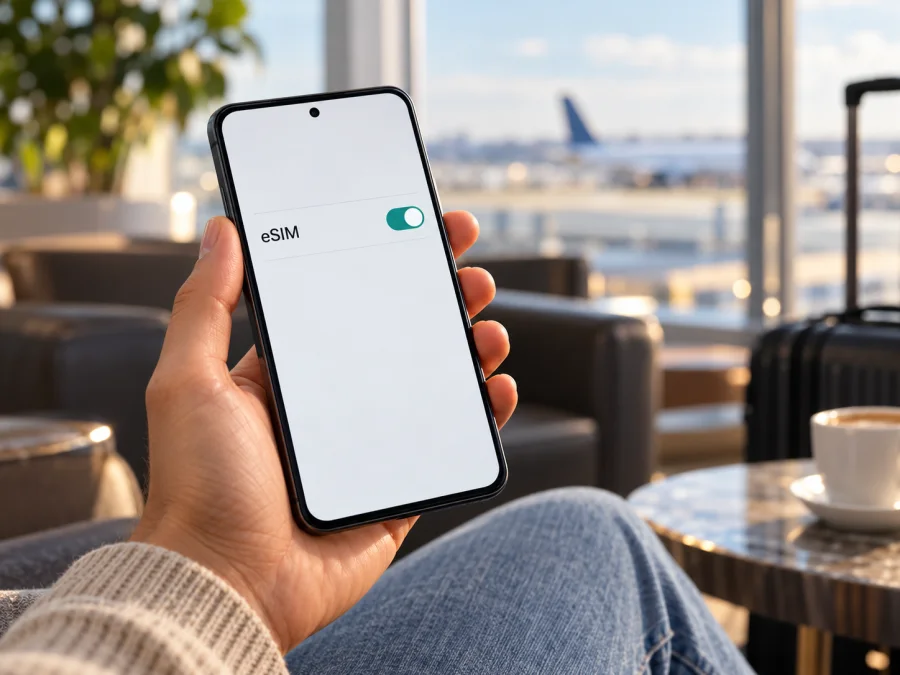
Motorola Edge 60 Pro 128GB eSIM: compatibility and setup guide
Does Motorola Edge 60 Pro 128GB support eSIM?
The answer depends on the exact regional hardware and software version. Motorola’s current regional specification pages do not describe one universal SIM configuration for every Motorola Edge 60 Pro. The EMEA specifications list dual SIM as one physical SIM plus eSIM. Motorola’s India specifications, by contrast, list dual SIM as two physical SIMs. Motorola also notes that specifications can vary by market. Those official details confirm that eSIM is available on some versions of the phone, but they do not confirm it on every unit sold under the same family name.
The “128GB” part of the name identifies a storage capacity, not an eSIM configuration. Motorola’s public documentation does not establish that storage capacity alone determines whether an individual handset has an eSIM. So the practical answer for a phone labelled Motorola Edge 60 Pro 128GB is: it may support eSIM, but the exact unit cannot be confirmed from the model name and storage figure alone. Check its regional model number, software, and settings before buying an eSIM plan. If Settings offers “Download new SIM” and the phone has an EID, those are strong signs that eSIM is present; a carrier lock or service restriction can still prevent activation.
This distinction matters when buying a phone imported from another country. A seller may use one retail name for units with different SIM trays, modem configurations, firmware, or carrier policies. A product page that says “dual SIM” is not enough: that can mean two physical cards, a physical SIM plus eSIM, or a combination that depends on the market. Ask the seller for the precise regional variant or model code and request a live check of the phone’s settings. If the phone is already in your hands, use the checks below.
| Check | What is known |
|---|---|
| Exact requested device | Motorola Edge 60 Pro 128GB |
| eSIM availability across the phone family | Present on some market variants; not universal |
| EMEA regional SIM specification | One physical SIM plus eSIM |
| India regional SIM specification | Two physical SIMs listed; do not assume eSIM |
| Does 128GB prove eSIM support? | No. Storage capacity alone does not identify the SIM configuration |
| What settles the question for your unit? | EID, the add/download eSIM setting, regional model details, and confirmation from the seller or carrier |
Why regional and carrier versions can differ
A phone’s eSIM capability depends on more than its product family name. Manufacturers can sell hardware variants for different markets. Local regulations, supported frequency bands, carrier certification, firmware, and the physical SIM tray can all differ. Operators may also restrict activation on devices they have not approved, or require an account, an unlocked phone, or a particular activation method. The exact conditions depend on the operator and the country where the plan will be used.
For this model there is direct regional evidence of different configurations: Motorola’s EMEA page lists pSIM + eSIM, while the India page lists pSIM + pSIM. That does not establish which configuration belongs to every 128GB handset, nor does it prove that every carrier in EMEA will activate every eSIM-capable device. It does show why country of purchase and the specific model code matter. A listing that combines details from several regions should not be treated as proof for the particular phone being offered.
Before purchase, ask for the full model or regulatory code from Settings > About phone, not just the marketing name. Ask which country the handset was originally sold in, whether it is carrier-unlocked, and whether the seller can show the eSIM menu on that unit. If buying online, check the return terms before relying on eSIM support. An imported phone may work perfectly with physical SIM cards while lacking the embedded SIM feature in its regional configuration.
Keep two separate questions in mind. First, does this phone have eSIM hardware and a working eSIM menu? Second, will the selected service activate on this unit in the destination? The first is a device check; the second depends on the plan, destination, and any carrier restrictions. A positive answer to one does not guarantee the other. A carrier can confirm whether it accepts the handset’s model code and whether it has a device lock.
Check the phone before choosing a plan
Run these checks on the actual phone, preferably before a return period expires. Menu wording can vary with Android version, language, and firmware, so use Settings search if a label is not exactly the same.
- Look for an EID. Open Settings and search for “EID”, or check About phone / Device details / SIM status. On some Android builds, dialling
*#06#displays device identifiers, including an EID when eSIM is supported. Do not share the EID publicly; it is a device identifier. - Look for the eSIM setup control. Motorola’s guide for eSIM-capable Edge 60 Pro units gives the route Settings > Network & internet > SIMs & mobile network, then “Download new SIM.” Depending on the software, the action may be named “Add eSIM” or “Download a SIM.” The presence of that option is a useful positive check.
- Inspect SIM status. Motorola says that Settings > About phone > Device details can show separate SIM status entries for physical SIM slots. This can help identify a dual-physical-SIM configuration. It is not, by itself, proof that eSIM is available; check for EID and the download/add option as well.
- Confirm the model code and purchase region. Compare the About phone details with the box, invoice, or seller information. Keep the full code when asking Motorola or a carrier; do not rely on “Edge 60 Pro” alone.
- Check for a carrier lock. Ask the original operator or seller whether the phone is unlocked for other networks. A phone can have eSIM hardware and still reject an activation because of a lock or carrier policy.
- Confirm service eligibility. Before purchase, ask the provider of the plan whether that exact regional model and its current software are accepted. A visible eSIM menu confirms phone capability, not network coverage or plan eligibility in every destination.
A missing menu does not always mean the phone is broken. It can mean the regional version has no eSIM, the software is outdated, the setting is hidden by a carrier build, or the device is managed or restricted. Restart the phone, install available system updates over Wi-Fi, and check again. If the EID and menu are still absent, ask Motorola support or the seller to confirm the configuration from the model code. Do not buy a plan on the assumption that a software update will add eSIM to a variant that lacks the necessary hardware.
Check your device’s compatibility before selecting a plan. If a compatibility result is inconclusive, use the EID and eSIM-menu checks on the phone itself and confirm the regional version with the retailer or operator.
Install and activate an eSIM
For an eSIM-capable and unlocked Motorola Edge 60 Pro 128GB, follow the instructions supplied with the plan. Keep a Wi-Fi connection available during installation. Many activation profiles are downloaded from a provider’s app, while some providers supply a QR code or manual activation details. The profile and the service plan are related but separate: installing a profile does not necessarily mean that data use has started. Read the plan’s activation and validity terms before proceeding.
Before you start
- Confirm that this exact phone has an EID and an eSIM add/download setting.
- Check that the phone is unlocked and that the plan is accepted in your destination.
- Connect to reliable Wi-Fi and keep the phone charged.
- Have the provider’s app, installation link, or QR code ready on a second screen if you will scan it with the phone.
- Check whether installation, first connection, or arrival in the destination starts the validity period. Follow the plan’s terms rather than assuming all plans start in the same way.
- Do not delete an installed eSIM while troubleshooting unless the provider tells you to. A one-time activation code may not be reusable.
Android setup steps
- Open Settings and go to Network & internet > SIMs & mobile network. If the wording differs, search Settings for “SIM” or “eSIM.”
- Tap Download new SIM, Add eSIM, or the equivalent option. Motorola’s guide for supported units describes downloading a new SIM from this menu.
- Follow the screen prompts. If you receive a QR code, select the scan option and point the camera at the code. If the provider app offers direct installation, return to that app and approve the request.
- Wait for the profile to download and finish setup. Keep Wi-Fi connected and do not close the setup process midway.
- Give the new line a clear label, such as “Travel data,” so it is easy to distinguish from your home SIM.
- When you are ready to use it, set the travel eSIM as the mobile-data SIM. Keep your home line enabled only if you need it and understand its roaming charges.
- If the plan requires data roaming for the travel eSIM, turn roaming on for that line only. Check the plan instructions; do not switch roaming on for your home SIM by mistake.
- At the destination, select the eSIM for mobile data, disable airplane mode, and allow it a few minutes to register. Check the provider’s activation guidance for the correct timing.
For a detailed Android walkthrough, use the Android eSIM installation instructions. The iOS eSIM instructions apply to Apple devices and are included as a reference for travellers helping someone with an iPhone; they are not steps for this Motorola phone.
Use the eSIM for mobile data while travelling
A travel eSIM can keep the Motorola connected to mobile data without replacing a physical card. Before the trip, check that the plan covers every country on your itinerary, not only the first stop. Regional plans can include multiple destinations, but coverage, data limits, validity, and network selection depend on the individual plan. Read the plan details for the countries and dates you need.
Choose the data allowance based on how you use your phone. Messaging, maps, email, and occasional browsing typically need less data than video calls, cloud backups, streaming, or uploading photos. If you expect to use a laptop hotspot, confirm both that the phone supports tethering and that the plan allows it. Turn off automatic app updates, photo backups, or video autoplay over mobile data if you want to conserve the allowance. Track consumption in Android’s data-usage settings and, where available, in the plan account.
A travel data eSIM usually does not provide a regular phone number for voice calls or SMS unless the specific plan explicitly says otherwise. You can keep your home SIM available for calls or verification messages, but confirm roaming costs with your home operator. Internet-based calls and messaging apps can use the travel data connection. Set the travel eSIM as the preferred data line and verify that the home SIM is not selected for mobile data.
Kaspersky eSIM Store is an app and website where travellers can choose, arrange, and activate an eSIM with a data plan for a trip abroad. The plan information should be checked for destination, data allowance, validity, and activation conditions before purchase. Browse the current destination and plan options after confirming that the Motorola variant can install eSIM. Availability and terms can change, so use the details shown for the destination and plan you choose.
Troubleshooting common issues
“Download new SIM” is missing
Search Settings for EID and inspect About phone > Device details. Install any available system updates, restart, and check again. If both EID and the add/download option are absent, the handset may be a regional configuration without eSIM, or the carrier firmware may restrict the feature. Ask Motorola or the seller to verify the model code. Do not treat an empty SIM tray as evidence of eSIM: a phone with two physical SIM slots may still have no eSIM.
The QR code will not scan or the profile will not download
Make sure Wi-Fi works, the QR image is not cropped or blurred, and the phone’s camera can focus. Use the manual installation details if the plan provider supplied them. Confirm the code has not already been used and that the provider allows it to be installed on this handset. If the provider app performs installation, update that app and reopen the installation flow. Do not post the QR code or activation data in a public forum.
The profile is installed but there is no data
Open SIM settings and confirm that the travel eSIM is switched on and selected for mobile data. Check that the plan is valid and includes the country you are in. Follow the plan instructions for roaming, then toggle airplane mode on and off or restart the phone. If the provider specifies an APN, enter it exactly as given; do not guess an APN. Automatic network selection is usually a good first setting. Only try manual network selection if the provider recommends it for that destination.
The phone uses the wrong SIM or home roaming charges appear
Review the preferred SIM for mobile data and turn off data roaming for the home SIM. Keep the home line active for calls or SMS only if needed. Disable automatic data switching if the software offers it, because some phones can change lines when one connection is weak. Check the home operator’s usage record if you suspect roaming data was used.
Activation works at home but not after arrival
Check the destination and activation window in the plan details, make sure the plan has not expired, and confirm the eSIM is selected for data. Some plans require roaming to be enabled on the travel line. Turn off Wi-Fi briefly to test mobile data after the phone has registered, but only when the plan should be active. If the line continues to show no service, contact the plan provider with the phone’s model code, Android version, destination, and a description of the error. Share identifiers only through the provider’s secure support channel when requested.
Should I delete the eSIM and try again?
Not as a first troubleshooting step. Removing the profile can make a one-time code unusable and may require a new activation from the provider. First check the selected data line, plan status, destination, roaming setting, and network registration. Ask the provider before deleting, resetting the phone, or moving the profile to another device.
Frequently asked questions
Is Motorola Edge 60 Pro 128GB definitely eSIM compatible?
The exact 128GB unit cannot be confirmed from its name alone. Motorola lists pSIM + eSIM for the EMEA configuration and pSIM + pSIM for India, and notes that specifications may vary by market. Check the EID, eSIM menu, regional model code, and carrier lock on the phone you will use.
Does the storage capacity affect eSIM?
The 128GB label describes storage. Motorola’s regional SIM specifications show that configurations differ by market; the capacity label alone does not prove which SIM hardware is present. Confirm the specific handset rather than extrapolating from another storage tier or region.
Can I keep a physical SIM and use an eSIM at the same time?
The EMEA specification lists a physical SIM plus eSIM for that configuration. Whether both lines can be active together, and which one can handle calls or data, depends on the handset firmware and operator settings. Verify the SIM controls on your unit and check the plan instructions.
Will an eSIM work if the phone is carrier-locked?
Not necessarily. An eSIM-capable phone can still be locked to its original operator or restricted by activation policy. Ask the seller or original carrier to confirm the unlock status before choosing a travel plan.
Can I install the eSIM before leaving?
Often, yes, if Wi-Fi is available and the provider permits advance installation. The plan’s validity may start at purchase, installation, scheduled activation, or first connection. Read the plan terms so that setup does not begin the data period earlier than intended.
Does a travel eSIM replace my phone number?
A data-only plan generally provides mobile data rather than a regular number for calls and SMS. Keep your ordinary SIM for those services if you need it, and check home-network roaming costs. Messaging and calling apps can work over the data connection.
Will eSIM provide service in every country and location?
No plan should be assumed to work everywhere. Check the selected plan’s named destinations and conditions. Reception and speed depend on supported local networks and conditions where you are using the phone.
Before you travel: verify, then choose
For Motorola Edge 60 Pro 128GB, treat eSIM support as regional rather than universal. Motorola’s official regional specifications demonstrate both a physical-SIM-plus-eSIM configuration and a dual-physical-SIM configuration. The 128GB label does not identify which one you have. Use the phone’s EID and “Download new SIM” setting, verify its model code and unlock status, and ask the seller or service provider if any check is unclear.
Once compatibility is confirmed, choose a plan that names all the destinations you need and suits your data use and travel dates. Review validity, activation, roaming, and hotspot conditions before purchase. Install over Wi-Fi, keep the profile intact while travelling, and set the travel eSIM as the mobile-data line when appropriate. Check before departure so you can get online after arrival.


