Travel connectivity guide
Motorola Edge 60 Pro 12GB RAM eSIM Guide
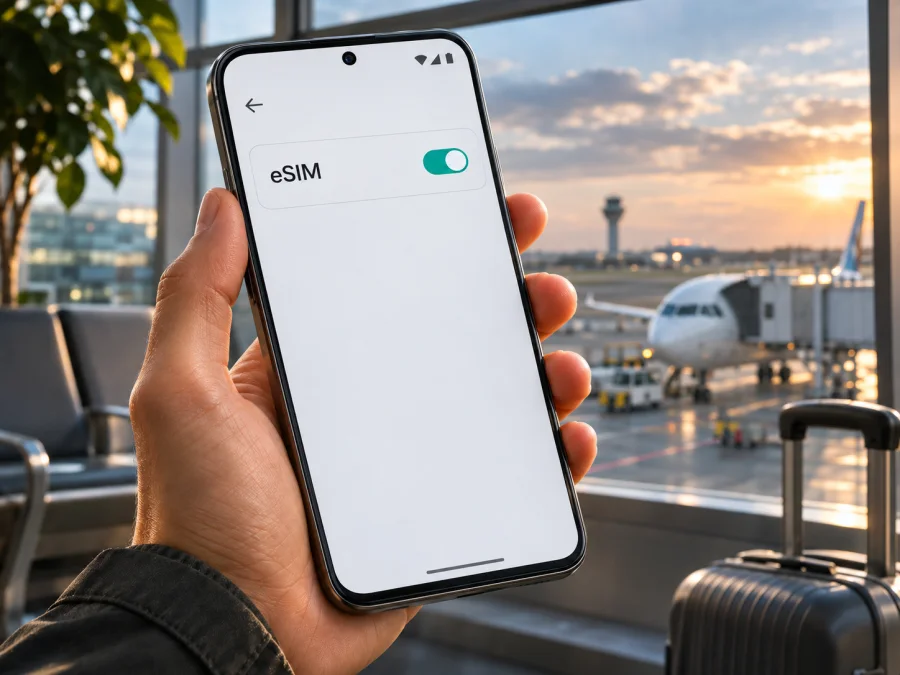
Motorola Edge 60 Pro 12GB RAM and eSIM: compatibility and setup guide
The short answer is conditional: Motorola’s official US specifications list a 12 GB RAM motorola edge 60 pro with dual SIM (physical SIM + eSIM). Motorola also says specifications can vary by market, and its setup guidance says the phone might support eSIM and asks users to confirm with their carrier. The name “Motorola Edge 60 Pro 12GB RAM” alone does not identify the country version, storage capacity, or software variant, so it cannot confirm that every phone sold under that name has eSIM.
Before buying a travel data plan, check the actual handset. Look for an EID or an option to add/download an eSIM in Settings. If neither appears, ask the seller or Motorola support to confirm eSIM for the exact model/region code and software channel. Do not rely only on the RAM figure, the Edge 60 Pro family name, or the presence of 5G.
Compatibility at a glance
| Item | What can be confirmed | What you should verify on your handset |
|---|---|---|
| Device named in this guide | Motorola Edge 60 Pro 12GB RAM | Exact model number, country of sale, and software channel |
| eSIM capability | Motorola’s US support specifications list a 12 GB RAM configuration and pSIM + eSIM | Whether your specific regional and carrier version includes an enabled eSIM |
| SIM arrangement | A supported configuration can combine one physical SIM and an eSIM | The tray and Settings menu differ between versions |
| Android setup route | Motorola’s guide gives Settings > Network & internet > SIMs & mobile network | Labels may vary with Android version, region, carrier, or update |
| Travel data use | Possible if the handset supports eSIM, is unlocked, and the travel profile works in the destination | Plan destination, network availability, activation terms, and data roaming setting |
“12GB RAM” is a memory specification, not an eSIM variant code. A phone can share the same retail name and RAM amount while differing in storage, radio configuration, SIM tray, firmware, or local certification. The US support sheet lists 12 GB RAM with 512 GB storage and pSIM + eSIM, but says specifications may vary by market. That is useful confirmation for that published configuration, not a promise about every 12 GB phone worldwide.
Does Motorola Edge 60 Pro 12GB RAM support eSIM?
Motorola’s current US specifications page confirms one 12 GB RAM Edge 60 Pro configuration with a physical SIM plus eSIM. Motorola’s support instructions for the moto edge 60 pro explain how to download and set up an eSIM, while still qualifying that the phone “might” support it and directing customers to confirm with their carrier. Taken together, these official pages confirm that eSIM is supported on some Edge 60 Pro versions, but the exact device in your hand must still be checked.
This distinction matters most for imported phones and devices bought through marketplaces. A manufacturer may release regional variants with different SIM hardware or software. A local carrier can also restrict eSIM activation, or a handset can be locked to one network. Retail listings sometimes omit the precise model code or reuse the family product name across versions. A matching amount of RAM does not resolve those questions.
If the seller identifies the phone as a 12 GB / 512 GB version corresponding to Motorola’s US specification, that document is positive evidence for eSIM capability. If your phone came from another market, request written confirmation for its exact model number and country variant. The evidence for one market should not be generalized to another. Also check that the phone is carrier-unlocked before planning to use a separate travel eSIM.
Regional and carrier versions
Check compatibility against the country where the phone was originally sold. Compare the product code on the box and in Settings > About phone with that market’s Motorola support page. Ask the retailer or carrier whether the exact SKU has eSIM enabled and is network-unlocked. A carrier-branded version may also have a different activation policy or require the carrier to approve the profile.
Do not infer eSIM availability from 5G coverage, the dual-SIM label, or the fact that a different Motorola model supports eSIM. These describe separate capabilities. A two-sided physical SIM tray, for example, is not proof that eSIM is present; conversely, an eSIM-capable device may still use a physical SIM tray for its primary line.
Check your exact phone before purchase
Run these checks on the handset itself. Menu wording varies, so look for equivalent items if the labels are not identical.
- Look for an EID. Open Settings > About phone and check device details or status information. Some Android builds show an EID (Embedded Identity Document) when eSIM hardware is available. You can also try searching Settings for “EID”. If it is listed, note it privately; it is a device identifier and should not be posted publicly.
- Look for an eSIM menu. Open Settings > Network & internet > SIMs & mobile network. Look for “Download new SIM”, “Add eSIM”, “Add mobile plan”, or a similar option. Motorola gives this general path for the Edge 60 Pro. Availability and exact wording can vary.
- Check the SIM status page. In About phone > Device details or SIM status, see whether an eSIM status or digital SIM appears. Do not confuse SIM slot 1/slot 2 entries with eSIM confirmation; those can refer to physical slots.
- Check the model code and software channel. Record the model number, country/region of purchase, and software channel from About phone. Compare those with the official Motorola support page for that market or provide them to Motorola or the seller.
- Confirm the lock status. Ask the carrier that sold the phone whether it is unlocked for another operator’s eSIM. A visible Add eSIM menu does not guarantee that the phone is unlocked or accepted by a particular service.
- Check the intended plan requirements. Make sure the eSIM profile is supported in your destination, and that the plan is for mobile data if data is all you need. Confirm the phone supports the required network bands for the destination and operator where possible.
A visible EID and eSIM-download option are strong signs that the handset can store a profile. If both are missing, request confirmation using the full model code before checkout. An update can change menus but cannot add eSIM hardware. If the phone is new, ask the seller to demonstrate the menu while a return is still possible.
For a second check, use the device compatibility checker before choosing a travel plan. The checker is a useful screening step; your phone’s regional SKU, Settings menu, and network lock status still matter.
What eSIM does for a trip
An eSIM is a digital SIM profile stored in compatible hardware. A travel data eSIM can provide mobile data through a supported destination network without replacing the physical SIM. You may keep the usual SIM for calls or messages and assign data to the eSIM, subject to device settings and your home carrier’s roaming terms.
Kaspersky eSIM Store is an app and website where you can select, arrange, and activate an eSIM plan for mobile data on an international trip. Connectivity depends on the plan, local network, compatible device, and destination conditions. Check destination, data allowance, validity, activation timing, and restrictions. A data-only plan does not include a regular number, calls, or SMS unless its terms say otherwise.
After you have confirmed compatibility, you can use the Kaspersky eSIM Store site to browse currently listed travel options for your destination. The homepage is a general place to browse and check current plans; it is not a country-specific tariff page. Review the terms shown for the destination you select rather than assuming a plan or network is available.
Choose when to install and activate
Install over Wi-Fi before departure if the plan allows it, then leave the profile off until needed if its instructions recommend that. Installation, first connection, activation, and the start of validity can be different events, so check the plan’s terms. If installing after arrival, connect to Wi-Fi and keep the QR code on another screen. Many codes are one-time use; do not erase a profile or scan it on another phone without provider instructions.
Install an eSIM on Motorola Edge 60 Pro 12GB RAM
Before installation, confirm compatibility and unlock status, have the plan’s activation details ready, and connect the phone to Wi-Fi. Keep the eSIM QR code on another screen. Do not share the QR code or EID publicly. The Motorola menu path below comes from the manufacturer’s Edge 60 Pro support guidance; a carrier or Android update may use slightly different wording.
- Open Settings > Network & internet > SIMs & mobile network. Search Settings for “SIM” if labels differ.
- Tap Download new SIM, Add eSIM, or the equivalent, then choose QR scan or manual entry if offered.
- Scan the plan’s QR code from another screen, or enter the supplied activation details. Do not use a code issued for another device or already used.
- Follow the prompts to download the profile and label it “Travel data” or another recognizable name.
- Turn on the eSIM and select it for Mobile data when ready. Keep calls and texts on your regular line if desired and supported.
- At the destination, enable Data roaming for the eSIM if the plan requires it. Start with automatic network selection.
- Test a web page. If it fails, check the selected data SIM, signal, plan status, roaming setting, and any supplied APN; then restart.
Motorola’s general instructions say to connect to Wi-Fi if necessary, go to Settings > Network & internet > SIMs & mobile network, and select the eSIM download/setup option. If that option is absent, the support page recommends confirming eSIM availability and activation instructions with the carrier. A missing option on your particular handset should be treated as a reason to verify the regional variant, not as proof that a QR code will work anyway.
For broader setup guidance, see the Android eSIM installation instructions. Those instructions are written around Samsung menu labels, so use Motorola’s own Settings path above when names differ. The iOS eSIM installation instructions apply to iPhone and are included for readers comparing setup across devices; they are not steps for this Motorola phone.
Use the travel eSIM for mobile data
After installation, open SIM settings and set the eSIM as the mobile-data line when you intend to use it. Calls, texts, and data may have separate defaults. If your home SIM remains enabled, check data roaming and automatic data switching for that line; controls vary by software version.
At the destination, allow time to register. If required, enable roaming on the eSIM and verify it remains the selected data line; the home SIM has a separate roaming setting. Disable data use on that line if you want to avoid its roaming data.
For a multi-country itinerary, check that the plan includes every destination and compare its data allowance and validity with your expected use. Maps, messages, browsing, and video consume different amounts. Use Wi-Fi for large downloads when convenient and monitor usage in the phone or plan account.
An eSIM plan does not guarantee uninterrupted service. Reception, congestion, local network availability, and supported bands can affect performance. Save essential travel details offline and keep activation instructions accessible.
Common problems and checks
“Add eSIM” or “Download new SIM” is missing
Search Settings for “eSIM” or “EID”; check About phone for an EID and model code. After an official update and restart, if both the option and EID remain absent, ask Motorola or the seller about the exact country variant before checkout.
QR code will not scan or profile download fails
Confirm Wi-Fi works and the current QR code is clear and displayed on another screen. A scanned code may be consumed; ask plan support before deleting the profile or retrying it. If manual activation is supported, enter the supplied details carefully.
eSIM installs but shows no service
Check whether the plan is meant to work yet and whether the destination is included. Turn on the eSIM, select it for mobile data, and enable its data roaming if required. Check unlock status and signal, try automatic network selection, then restart. Compare any supplied APN with the saved setting.
Data does not work, although signal bars appear
Signal bars do not confirm that the right data profile is selected. Check the travel eSIM is selected for data, review its APN and plan status, turn off data switching if needed, and test with Wi-Fi off. Use manual network selection only if the plan says to.
Home SIM incurs roaming data
Check the selected data line and disable automatic switching if needed. Turn off roaming data on the home SIM or disable its data use. Calls, voicemail, and texts may still follow your home operator’s roaming terms.
The phone is locked or the carrier rejects the profile
An eSIM menu does not guarantee that every profile will be accepted. Confirm unlock status with the original operator. Avoid a factory reset or erasing the profile as an early step: restoring it may require the provider to issue a replacement.
Settings look different after an update
Use Settings search and Motorola support material for your software version; instructions for other brands may use different labels.
Compatibility checklist before checkout
- [ ] The phone is exactly the Motorola Edge 60 Pro 12GB RAM configuration you own, with its model code and market known.
- [ ] An EID or an Add/Download eSIM control is visible, or Motorola/the seller has confirmed eSIM for the exact SKU.
- [ ] The phone is unlocked for use with the intended travel eSIM.
- [ ] The selected plan includes the destination and suits the trip’s data needs and validity dates.
- [ ] You know whether installation, arrival, or another action starts plan validity.
- [ ] You have Wi-Fi and the activation code/QR code available for installation.
- [ ] You know which line will carry mobile data and whether eSIM data roaming or an APN is required.
- [ ] You understand that a data plan may not include a regular phone number, voice calls, or SMS.
FAQ
Does every Motorola Edge 60 Pro 12GB RAM support eSIM?
No universal claim can be made from the RAM label alone. Motorola’s US specification lists a 12 GB RAM configuration with pSIM + eSIM, and its Edge 60 Pro setup guide documents eSIM installation. Motorola also says specifications can vary by market and that the handset might support eSIM. Check the EID or eSIM menu and confirm the exact regional model before purchase.
Can I use a physical SIM and an eSIM together?
Motorola describes the confirmed US configuration as dual SIM (physical SIM + eSIM). Simultaneous use and line options can depend on software and carrier support; check the phone’s SIM settings.
Is 12 GB RAM enough to identify the eSIM model?
No. RAM describes memory capacity. It does not identify the market, model code, SIM hardware, or carrier lock status. Use the model number, country of sale, EID, and eSIM menu for a meaningful check.
Can I install the profile at home and use it later?
Often yes, but check the plan’s terms: installation and the start of validity may be separate events.
Does a travel eSIM replace my normal phone number?
A data-only travel eSIM usually provides mobile internet rather than a regular voice number or SMS service. You can often keep your physical SIM for your usual number, subject to its roaming terms, and use internet-based calling or messaging over data.
What should I do if my device has no EID?
Check the correct Settings pages and model code, then ask Motorola or the seller to verify the country version. If they cannot confirm support, plan around a compatible device or another connection option.
Final check: verify the phone, then choose a plan
For Motorola Edge 60 Pro 12GB RAM, official evidence confirms eSIM in at least one regional specification, but the device name and RAM amount do not prove that every market version has the feature. Check for the EID or eSIM download option, confirm the exact model and unlock status, and ask Motorola or the seller if the on-device evidence is unclear. Only after that, compare plans for your destination, data needs, validity, and activation terms. Kaspersky eSIM Store can help you browse and activate an eSIM plan for mobile data on an eligible phone; compatibility and local network conditions still determine whether it will work on your trip.


