Travel connectivity guide
Motorola Edge 60 Pro 512GB eSIM
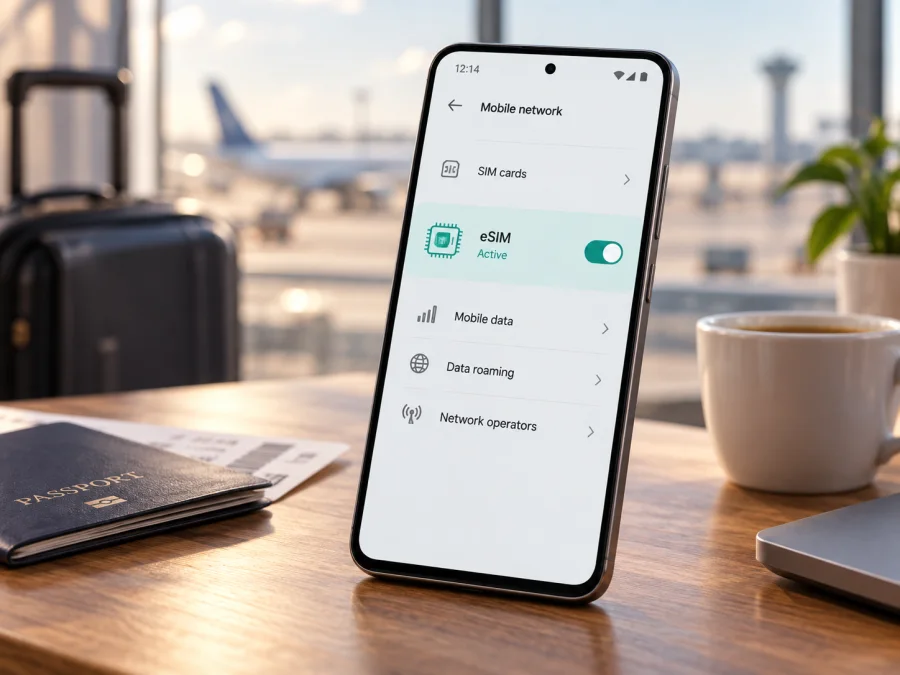
Motorola Edge 60 Pro 512GB eSIM compatibility: what to check
The Motorola Edge 60 Pro 512GB supports eSIM in the EMEA specification, which lists one physical SIM plus eSIM. Other regional Motorola specifications list two physical SIMs and warn that configurations vary by market. So the 512 GB EMEA variant supports eSIM, but the same model name in another region needs an individual check.
Motorola Edge 60 Pro 512GB at a glance
| Item | What to know |
|---|---|
| Device covered | Motorola Edge 60 Pro 512GB |
| Storage and memory on Motorola’s EMEA specification | 512 GB storage and 12 GB RAM; availability can vary by market |
| eSIM answer | Listed as supported in the EMEA specification with one physical SIM; other regional variants may differ |
| Physical SIM arrangement | EMEA: pSIM + eSIM. Some regional specifications: pSIM + pSIM |
| Operating system | Android; menu labels can differ by software version and market |
| 5G | The handset supports 5G, but 5G does not establish eSIM support or guarantee a particular network band will work abroad |
| Best proof on your own phone | EID in device information and an option to add or download an eSIM in SIM settings |
| Before purchase | Confirm exact model/region, eSIM availability, carrier unlock, destination coverage, data allowance and validity period |
Motorola’s EMEA support specification associates the 512 GB configuration with 12 GB RAM and lists “pSIM + eSIM.” Its US specification lists pSIM + pSIM and notes that specs may vary by market. The device name does not identify its country SKU, firmware or carrier configuration, so check those details before relying on eSIM.
Does the Motorola Edge 60 Pro 512GB support eSIM?
Yes for Motorola’s EMEA 512 GB configuration; not necessarily for every regional Motorola Edge 60 Pro 512GB. Motorola lists 512 GB storage, 12 GB RAM and pSIM + eSIM for EMEA, but a US specification lists two physical SIMs. Its support page also says eSIM availability may depend on the phone and carrier. These official details were checked on 25 September 2026.
A listing that only says “dual SIM” is inconclusive: it may mean two physical cards or a physical card plus eSIM. Ask for the full model or SKU and market. Carrier support is separate from device capability: the phone must be unlocked and accepted by the eSIM provider, and the plan must cover your destination.
Check compatibility on your own phone {#kesim-device-compatibility}
Use this checklist before selecting or paying for a plan:
- [ ] The handset is the Motorola Edge 60 Pro 512GB variant you intend to use, and you know which country or region it was made for.
- [ ] Android displays an EID, which identifies the embedded SIM hardware, or SIM settings offer an action such as “Download a SIM,” “Set up an eSIM” or “Add eSIM.”
- [ ] The phone is unlocked and your current carrier confirms that it can accept another provider’s eSIM.
- [ ] The intended plan covers every country where you expect to use mobile data and is valid for your dates.
- [ ] You can connect to reliable Wi-Fi during installation and keep the QR code or activation details available on another screen.
Find the EID
On many Android versions, open Settings > About phone > Device details or Status and look for EID; Settings search can also find it. Menu paths vary by software. An EID is a useful sign, but check that an eSIM setup option is present too. If neither appears, update Android, restart, search again and confirm the exact SKU with Motorola or the seller. Do not post your EID publicly.
Look for the add-eSIM control
Open Settings > Network & internet > SIMs & mobile network. Motorola’s support instructions for the Edge 60 Pro say that, when an eSIM is available, users can select an option to download and set up an eSIM. The exact label may vary: look for “Download and set up an eSIM,” “Add eSIM,” “Download a SIM” or a plus sign next to SIMs. If these options do not appear, that can point to a regional or carrier limitation; it is not a reason to reset the phone or erase an existing SIM profile.
If you are buying the phone second-hand or importing it, ask for a screenshot of the EID and eSIM setup menu, then verify the model code against Motorola’s specification for its original market. Storage and RAM do not activate eSIM hardware; ask the seller to confirm the country SKU and carrier-unlock status. A carrier unlock check is also useful: an EID can be present even when network restrictions prevent adding a travel profile. For a quick compatibility check, use check your device and compare the result with what your phone shows. Complete this step before purchasing a plan, especially if the phone was imported, refurbished, purchased through a carrier, or sold in a market different from the one where you will travel.
Install and activate an eSIM
Install the profile while you have stable Wi-Fi, enough battery, and access to the QR code or activation instructions. A QR code is usually scanned once, so keep it visible on a second device or print it before starting. Do not scan a code that was issued for another phone or plan. If the provider offers manual activation details, follow its instructions exactly.
- Check the plan and timing. Confirm the supported destination, data amount, validity period, activation conditions and whether the validity clock starts on installation, first connection or another event. Keep your primary number’s SIM active if you still need calls or texts on it.
- Connect to Wi-Fi. Make sure the Motorola Edge 60 Pro 512GB is online and not in battery-saver mode. Keep the provider’s email, app or QR code available on a separate screen.
- Open SIM settings. Go to Settings > Network & internet > SIMs & mobile network, then choose the eSIM download or setup option if it appears. Confirm that you are adding a new profile.
- Scan or enter the activation details. Center the provider’s QR code in the scanner, or enter the supplied details manually if this method is offered. Wait for the phone to download and save the profile. Do not close setup or remove power while it is being added.
- Name the profile. Choose a clear label such as “Travel data” so you can tell it apart from your home SIM. Leave the profile switched off until you are ready if the plan’s terms recommend that.
- Choose how each SIM is used. In SIM settings, select which profile handles mobile data. Keep calls and SMS assigned to your regular number if required. The travel eSIM may be data-only and may not include a standard phone number, voice calls or SMS.
- Activate at the right time. Some plans begin when the eSIM first connects in the destination; others have different start rules. Follow the plan details rather than assuming that installation and activation are the same event. If instructed, enable data roaming for the travel eSIM after you arrive.
- Confirm service. Turn Wi-Fi off briefly when appropriate, check that the travel profile is selected for mobile data and wait for the local network to register. Test a web page or map. If the plan does not connect, use the troubleshooting checks below before deleting anything.
For Motorola-specific menus, use the manufacturer’s setup guidance and the Android eSIM installation instructions. The iOS installation instructions are available for people preparing an eSIM on an Apple device; iOS steps do not apply to this Motorola phone. Menu names may shift after an Android update, but the key tasks remain adding the profile, choosing the data SIM and enabling roaming when the plan requires it.
Installation versus activation
Installation saves the profile; activation and the start of plan validity follow the provider’s terms. Read them before scanning. If a QR code reports that it was already used, do not delete the profile; contact its issuing provider.
Use the eSIM for mobile data while travelling
Before departure, check whether the plan covers one country, a region or your full route. Match data allowance and validity to expected use: maps and messaging need less data than video calls, streaming or cloud backups. Download maps in advance and use Wi-Fi for large updates where practical.
At arrival, enable the travel eSIM and select it for mobile data. Turn on data roaming for that profile only if the plan requires it. Check your home SIM’s data roaming and the selected data line to avoid unintended usage.
Your home SIM may remain available for calls or messages while the travel eSIM handles data, depending on the device and providers. A data-only plan usually has no regular number, voice or SMS; internet calling apps use its data connection.
For a city break, maps and messaging use less data than video calls or hotspot sessions; check tethering conditions if you need it. On a multi-country itinerary, verify every destination. Coverage, speed and 5G access depend on local networks, supported bands, signal and plan terms, so 5G capability does not guarantee 5G service abroad.
Kaspersky eSIM Store is an app and website where you can choose, arrange and activate an eSIM with a mobile-data plan for an overseas trip. Review the destination, data allowance, validity and activation terms shown for the plan, then install it on a compatible, unlocked phone. The app and website help you prepare travel data; service and coverage depend on the plan and local networks. The eSIM is for mobile internet unless the plan explicitly says otherwise.
Troubleshooting: when the eSIM will not connect
There is no “Add eSIM” option. Check for an EID, update Android, restart and confirm the regional SKU. If EID and setup controls are absent, ask Motorola to verify that version before buying a plan.
The QR code cannot be scanned. Increase its screen brightness, clean the camera lens and frame the whole code. If needed, display it on another device or use the provider’s manual entry option.
The profile installs but has no service. Confirm the line is enabled and selected for data. Toggle airplane mode, then check destination, validity, balance and activation terms. Enable roaming if required and allow time for network registration.
The phone connects but data does not load. Confirm the travel eSIM is selected and roaming is enabled if required. Enter APN details only when given for this plan. Check another site, VPN, private DNS and data limits.
The home SIM is using data. Reopen SIM settings and confirm that the travel eSIM is selected for mobile data. Review the home line’s data roaming setting, and disable its mobile data if you do not want it used abroad. Be careful not to disable a line needed to receive calls or one-time verification messages.
The plan appears active but is slow. Check signal strength, network mode, local coverage and congestion. A 5G handset can use LTE where 5G is unavailable or incompatible with local bands. Move to an open area, toggle airplane mode once, and review the plan’s speed or fair-use terms. A weak signal or a busy cell can affect performance even when the phone is compatible.
The eSIM stopped working after a reset or profile removal. Do not erase the profile as a first troubleshooting step. Motorola warns that restoring an erased eSIM may require the issuing carrier or provider. Contact the provider that issued the profile and ask whether it can be reissued. Save the order details and device model, but do not send your EID in a public post.
If the problem persists, note the destination, network, selected data SIM and error message. Contact the eSIM provider for plan issues, your carrier for lock or account restrictions, and Motorola for device or firmware questions.
Frequently asked questions
Is eSIM guaranteed on every Motorola Edge 60 Pro 512GB?
No. Motorola’s EMEA specifications list 512 GB storage and pSIM + eSIM, while regional specifications can list a different SIM arrangement and the manufacturer says specifications may vary by market. Confirm the exact SKU and inspect EID and SIM settings on the handset.
Can I install the eSIM before leaving?
Often yes, if Wi-Fi is available and the plan permits early installation. The plan’s data validity may begin at installation, activation or first use, depending on its terms. Check this before scanning the code and follow the provider’s timing instructions.
Will the travel eSIM replace my normal number?
Usually a data-only travel plan does not replace your home number. You can keep a home SIM for calls or SMS while selecting the travel eSIM for data if your phone and carrier configuration allow it. Confirm which line is set for each service.
Before your trip: verify the phone, then choose a plan
For the Motorola Edge 60 Pro 512GB, the published EMEA 512 GB specification supports one physical SIM plus eSIM, while other regional versions may use two physical SIMs. Check the exact sales region, find the EID, and confirm that Android offers an eSIM setup option. Make sure the phone is unlocked and the selected plan covers every destination and the dates you need.
Once compatibility is confirmed, compare data allowance, validity and activation timing with your itinerary. In Kaspersky eSIM Store’s app or website, you can choose, arrange and activate an eSIM plan for mobile data during an overseas trip. Install it over Wi-Fi, select the travel profile for data when needed, and follow its roaming instructions after arrival. A few checks before purchase can prevent a plan from being unusable on a regional variant that lacks eSIM support.


