Travel connectivity guide
Motorola Edge 60 Pro eSIM: Compatibility & Setup
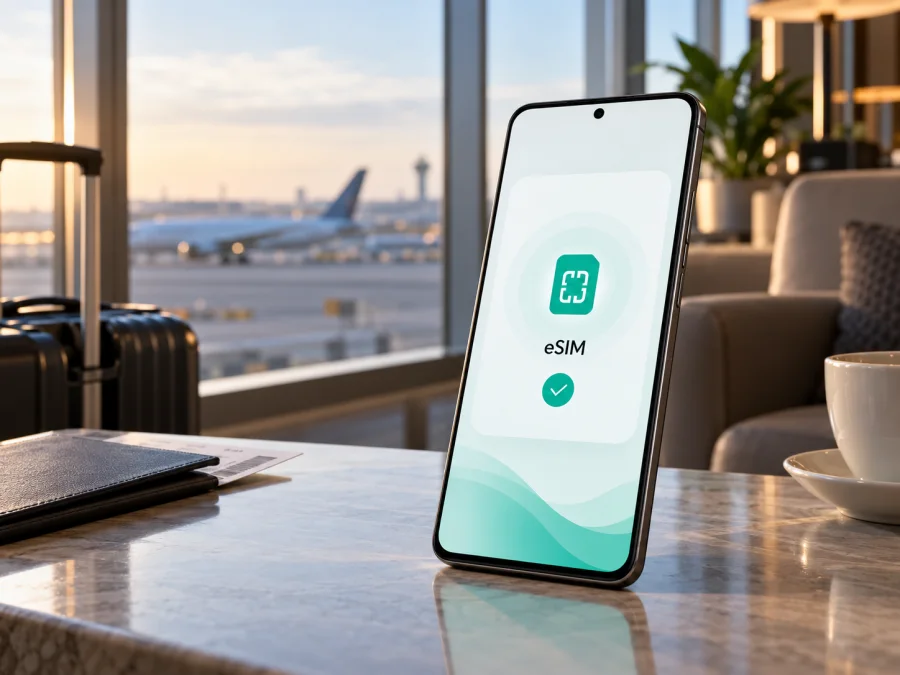
Motorola Edge 60 Pro eSIM: compatibility and setup guide
Short answer: the Motorola Edge 60 Pro can support eSIM, but the name alone does not identify every SIM configuration sold worldwide. Motorola’s UK specification lists a physical SIM plus eSIM, and its Japan specification lists one nano-SIM slot plus eSIM. Motorola India lists two physical SIMs (pSIM + pSIM) for its model. If you have not confirmed which market version you own, check the phone itself before buying an eSIM plan. Regional hardware, software, and carrier provisioning can affect what is available.
This guide explains how to check your specific Motorola Edge 60 Pro, install a travel eSIM if supported, and use it for mobile data abroad. A product listing, 5G capability, or the phone’s general model name is not enough to confirm eSIM support for an individual unit.
Motorola Edge 60 Pro eSIM support at a glance
| Question | What to know |
|---|---|
| Does the model family support eSIM? | Yes. Official Motorola specifications for some markets list eSIM alongside a physical SIM. |
| Does every Motorola Edge 60 Pro support it? | No such universal claim can be made. Motorola India lists pSIM + pSIM, while UK and Japan specifications show pSIM + eSIM. |
| What is the configuration in the UK specification? | Dual SIM: one physical SIM and one eSIM. Motorola notes that specifications may vary by market. |
| What is listed for India? | Dual physical SIM (pSIM + pSIM); eSIM is not listed in that configuration. |
| What is listed for Japan? | One nano-SIM slot and eSIM. |
| What should I check before purchase? | The exact regional model/SKU, an EID or an eSIM download/add option in Settings, and whether the phone is carrier-unlocked. |
| Is an eSIM travel plan the same as a phone line? | Usually not. Travel plans commonly provide mobile data only; check the plan terms for calling, SMS, supported countries, validity, and data limits. |
“Motorola Edge 60 Pro” is the exact device name covered here. SIM options may differ between the market where a phone was sold and the country where it is being used. For instance, an imported phone can retain its original regional hardware and software even if it is later used with a different country’s carrier. The local mobile network also needs to support the eSIM activation method and compatible service for that device. Keep the box label, order record, or model/SKU details when checking with Motorola or the seller.
Why regional versions matter
A phone may look identical in photos and share the same retail name while having a different SIM arrangement. Motorola’s UK specification for the Motorola Edge 60 Pro states “Dual SIM (pSIM + eSIM)” and explicitly warns that some specifications vary by market. The India listing identifies a “Dual SIM (pSIM + pSIM)” setup. Motorola’s Japan support specification lists “nanoSIM (1 slot)/eSIM.” These are meaningful differences: the India configuration should not be assumed to accept a downloadable eSIM just because another market’s version does.
The carrier market matters too. A device can contain eSIM hardware yet lack a usable add-eSIM feature because of carrier restrictions, local firmware, a carrier lock, or the provider’s activation policy. Conversely, seeing an eSIM option is a useful sign, but it does not guarantee that every plan or network will activate. Check the exact variant and your intended service before paying.
The installation menu can also differ by Android version, carrier software, and language. Motorola’s help instructions describe the route as Settings → Network & internet → SIMs & mobile network, followed by Download new SIM or a similar eSIM setup option. If the menu is missing, do not assume a QR code or repeated reset will enable the feature. Verify the product’s regional specification and ask the seller or carrier to confirm the device’s eSIM capability for its exact model number.
Check your exact phone before buying a plan
Use more than one check where possible. Settings provide evidence from the handset in front of you; the model/SKU and regional specification help explain why an option may be missing.
- Look for an EID. Open Settings → About phone and inspect device details, SIM status, or status information. Menu labels vary. If the phone displays an EID (an identifier for its embedded SIM), note that it is present. Some Android phones also show identifiers from the device information screen opened with
*#06#; use this only if it works on your phone and do not share the number publicly. An IMEI by itself is not an EID. - Look for the eSIM setup control. Open Settings → Network & internet → SIMs & mobile network. Check for Download new SIM, Add eSIM, Add mobile plan, or a similar option. Motorola documentation says the wording can vary, and advises contacting the carrier to confirm support if the option is absent.
- Check SIM status and the model identifier. In Settings → About phone → Device details, note the model or SKU and software build. Compare it with the official Motorola specification for the country where the phone was originally sold. Do not rely only on a marketplace title or a generic “dual SIM” label.
- Ask the seller or carrier a precise question. Ask whether this exact model/SKU supports downloading an eSIM profile, and whether it is unlocked for another provider. “Is it dual SIM?” is not specific enough: dual SIM can mean two physical cards, one physical card plus eSIM, or a configuration that depends on the market.
- Confirm the plan works for your trip. Check the destination, coverage description, data amount, validity period, activation rules, and supported device requirements. Make sure your phone can connect to Wi-Fi during installation.
A simple compatibility checklist
Before choosing a plan, confirm each item:
- [ ] The phone’s Settings show an EID or a control to add/download an eSIM.
- [ ] The exact regional model is not the dual-physical-SIM variant without eSIM.
- [ ] The device is unlocked, or the carrier confirms that another provider’s eSIM can be used.
- [ ] The travel plan covers every country or region on your route.
- [ ] You understand when the plan validity begins and whether it starts at installation, first network connection, or another event.
- [ ] You have Wi-Fi and the provider’s activation details available during setup.
- [ ] You know which SIM will be selected for mobile data when you arrive.
If you want a quick compatibility check for your device, use the device compatibility control on this page as an additional check. It does not replace checking the regional SKU or carrier lock. Before purchase, confirm that the exact Motorola Edge 60 Pro in your hand can add an eSIM and that the plan’s conditions suit your destination.
Choosing a travel eSIM for the Motorola Edge 60 Pro
A travel eSIM lets you use mobile data abroad without removing your main physical SIM. It can support maps, messaging, bookings, and other online tasks. Many travel plans are data-only and do not add a phone number or replace your usual calls and SMS; check the specific plan terms. Internet-based calls and messages can use the data connection.
Kaspersky eSIM Store is an app and website where you can choose, arrange, and activate an eSIM plan for mobile data during an overseas trip. After confirming that your Motorola Edge 60 Pro variant is compatible, you can check travel eSIM options for a destination and compare the displayed data allowance, duration, and other terms. Use the destination selector to check whether a suitable option is listed for your route, and confirm its terms before choosing it.
Estimate your data needs: maps and messaging use less than video calls, backups, or streaming. For a multi-country trip, confirm that every destination is included; a regional name does not guarantee this. Check the data limit, validity, activation timing, and current terms before selection.
Keep your home SIM for calls or verification messages if needed, and check its roaming fees with your carrier. Select the travel eSIM for data only when ready. Confirm the active data line; this does not change the home carrier’s billing terms.
How to install an eSIM on Motorola Edge 60 Pro
Install the profile while connected to reliable Wi-Fi, preferably before departure. Follow the instructions supplied with your selected plan, because QR-code installation, in-app installation, and manual activation can differ. The steps below follow Motorola’s Android menu path; exact labels may vary by software version and region.
- Confirm compatibility first. Verify the EID or add-eSIM option and ensure that the phone is unlocked. If the Motorola Edge 60 Pro has two physical SIMs and no eSIM option, stop and confirm the exact SKU with Motorola or the seller before buying a plan.
- Prepare the activation details. Open the plan’s installation instructions or confirmation. Keep a QR code on another screen or printed page if you need to scan it; a phone cannot normally scan a QR code displayed on its own screen using its camera. Some providers offer direct installation or manual details instead.
- Connect to Wi-Fi. Ensure the connection is stable and that the phone has enough battery. Do not delete an existing profile or reset network settings as a first troubleshooting step.
- Open the SIM settings. On the Motorola Edge 60 Pro, go to Settings → Network & internet → SIMs & mobile network. Tap Download new SIM, Add eSIM, or the matching option shown on your device.
- Add the plan. Scan the provider’s QR code or follow the on-screen installation flow. For manual setup, enter only the activation information supplied by the plan provider. Wait for the phone to download and add the profile; keep Wi-Fi connected until the process completes.
- Name the profile. Give it a clear label such as “Travel” or the destination name. This makes it easier to distinguish from your home SIM when choosing mobile data.
- Choose when to use it. The eSIM can remain installed while inactive until you are ready, if the plan’s conditions allow. Check the activation rules: some plans start their validity when installed, while others start on first use or network connection. Avoid installing too early if the terms say installation starts the clock.
- Set the data line at your destination. Open the SIM settings and select the travel eSIM under SIM for mobile data or the equivalent. Turn on mobile data. Enable data roaming for that eSIM only if the plan’s instructions require it; many travel plans require roaming even though the plan is prepaid. Leave your home SIM’s roaming setting as appropriate for your carrier and usage.
- Allow time to connect. After arriving in a covered location, wait several minutes, then check signal and data. The phone may select a supported network automatically. If the provider gives network-selection or APN details, follow those exact instructions.
See the Android eSIM installation instructions for general setup guidance. The iOS eSIM installation instructions apply to iPhone, not the Motorola menu. Android labels vary by model and software.
Using the eSIM for mobile data while travelling
Once the profile is installed, the main task is to make sure the correct line is selected for data. Keep the travel eSIM labelled clearly and check the active data line after changing SIM settings or restarting the phone.
- At home, before the trip: use Wi-Fi to install only when the plan’s activation terms allow. Leave the home SIM as the data line if you do not want the travel plan to start or connect yet.
- On arrival: turn on the travel eSIM, choose it for mobile data, and enable data roaming for that profile if its instructions say to do so. Wait for network registration before testing a website or map.
- For calls and messages: select the line that should handle normal calls and SMS, if the phone and plan support those services. A data-only travel plan generally relies on internet calling and messaging apps rather than a new phone number.
- To reduce unexpected use: turn off automatic mobile-data switching if your phone offers that setting, and review which SIM can use data. Also check your home carrier’s roaming terms; toggling the travel profile does not change the home plan’s billing rules.
- When the trip ends: switch mobile data back to your preferred line. Keep or remove the travel profile according to the plan provider’s guidance, especially if you may need it again or need support to investigate a problem.
The plan’s supported networks and local conditions determine coverage. A compatible phone can still have weak or no signal in a building or rural area. Check included countries and the phone’s regional configuration, especially when crossing borders.
Common problems and what to check
There is no “Download new SIM” or “Add eSIM” option
Check the exact model/SKU and the country-specific Motorola specification. The unit may be a two-physical-SIM configuration, the feature may be unavailable in its regional software, or carrier policy may affect the menu. Check for an EID in Settings and ask Motorola or the seller to confirm eSIM support for that exact unit. Updating software may change menus, but do not assume that an update can add missing eSIM hardware.
The QR code will not scan or the profile will not download
Use stable Wi-Fi, increase the QR display brightness, and ensure the code is for this plan and unused. If it still fails, ask the provider about manual or in-app setup. Check whether a profile was created before retrying.
The eSIM appears but shows no service
Confirm the plan covers your location and the eSIM is on. Select it for mobile data, enable data and, if required, roaming for that profile. Wait or restart. Follow the provider’s network-selection guidance.
Signal bars appear, but the internet does not work
Check the selected data SIM, plan balance, validity, and activation status. Verify APN details only against the provider’s instructions. Briefly turn off Wi-Fi to test mobile data.
The home SIM is using data or roaming charges appear
Confirm the active data profile, disable automatic SIM switching if available, and review home-SIM roaming settings. Ask your home carrier about charges; travel eSIM settings do not change its terms.
The eSIM installed, then stopped connecting
Check validity, balance, destination coverage, and that the profile is enabled. Verify any provider-specified APN or network. Do not erase the profile as a test: restoring it may require the provider. Contact the provider if its activation status needs checking.
Frequently asked questions
Does every Motorola Edge 60 Pro support eSIM?
No universal answer applies to every regional version. Official Motorola information lists eSIM for some markets, including the UK specification and Japan model, while Motorola India lists a dual-physical-SIM configuration. Check the phone’s EID or add-eSIM control and its exact SKU.
Can I use a physical SIM and an eSIM at the same time?
Some markets list this configuration, but availability depends on variant, software, and carrier. Confirm your phone’s settings before relying on two lines.
Does seeing “5G” on the box mean eSIM will work?
No. 5G describes network capability; it does not prove that a particular regional model has eSIM enabled. Check the SIM configuration separately.
Will the eSIM work if the phone is carrier-locked?
A carrier lock may restrict other providers’ profiles. Ask the original carrier whether the phone can be unlocked and whether your intended eSIM is allowed.
Do I need to turn on data roaming?
Some travel eSIM plans require roaming to connect to a partner network. Follow the plan’s instructions and enable roaming for the travel profile as directed. Keep in mind which SIM is selected for data, and check the separate roaming terms for your home line.
Can I move the eSIM to another phone later?
Transfer rules depend on the plan. Ask the provider before deleting it; some activation codes cannot be reused.
Will a travel eSIM include calls and text messages?
Many travel plans are data-only and do not include a regular phone number, voice calls, or SMS. Check the exact plan description. Internet calling and messaging apps can use the data connection, subject to their own requirements.
Final check before your trip
The Motorola Edge 60 Pro supports eSIM in some regional configurations, but its model name alone does not prove that your specific phone can add one. Motorola’s published specifications show why the distinction matters: the UK version is listed with a physical SIM and eSIM, Japan lists one nano-SIM slot plus eSIM, and India lists two physical SIMs. Confirm your EID or the eSIM setup option, match the SKU to its regional specification, and check that the phone is unlocked before selecting a plan.
Once compatibility is confirmed, choose a travel eSIM for the countries on your route and review its data allowance, validity, activation timing, and roaming instructions. Install it over Wi-Fi, label the profile, and select it for mobile data when you are ready to use it. If any regional or carrier detail remains uncertain, ask the seller or provider to confirm it for the exact handset before purchase. You can then browse current travel eSIM options and compare the terms for your destination.


