Travel connectivity guide
Motorola Edge 60 Stylus 128GB eSIM
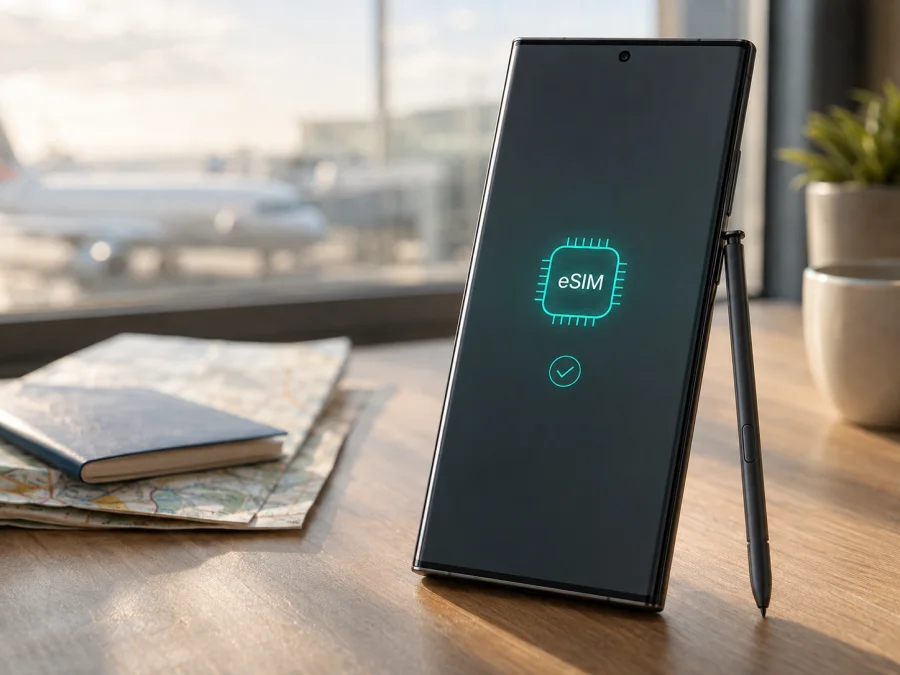
Motorola Edge 60 Stylus 128GB eSIM: compatibility and setup
If you own a Motorola Edge 60 Stylus 128GB and are preparing to travel, you may be able to use an eSIM for mobile data without removing your physical SIM. Motorola’s current support information documents eSIM for eligible Edge 60 Stylus versions, but it also says that specifications can vary by market and that not every carrier supports eSIM.
An eligible version can use a physical SIM and an eSIM, but the 128GB storage label does not prove eSIM is enabled. Before choosing a travel plan, check for an EID and an option to add or download an eSIM. If both are missing, ask the seller or carrier to confirm the regional model.
Does Motorola Edge 60 Stylus 128GB support eSIM?
Yes, the Edge 60 Stylus family has official eSIM documentation. Motorola’s model information identifies a Dual SIM configuration of physical SIM plus eSIM on eligible versions. Its user guide explains how to find the EID and how to begin eSIM setup. The manufacturer also qualifies this information: some specifications vary by market, and eSIM activation depends on carrier eligibility.
That qualification is important for the exact device in this article: Motorola Edge 60 Stylus 128GB. Storage is a memory configuration, not a guarantee about SIM hardware or software. A 128GB phone sold in one country can have a different tray, firmware, model code, or carrier configuration from a phone with the same commercial name sold elsewhere.
The safest conclusion is: Motorola Edge 60 Stylus 128GB is potentially eSIM-compatible, but verify the handset before purchase. An EID and Android’s eSIM setup control show device-side capability; your carrier or plan must still be eligible.
What Motorola’s information means in practice
Motorola describes eSIM as an embedded SIM that can work in addition to a physical SIM on supported phones. Its Edge 60 Stylus support material lists physical SIM plus eSIM and provides an Android setup path, while warning that configurations vary by market. This is why a model answer and a device check are both needed.
| Check | What it tells you | What it cannot guarantee |
|---|---|---|
| Motorola Edge 60 Stylus 128GB name | Identifies the requested storage variant | It does not prove every regional unit has eSIM |
| EID in Device details | Shows an eSIM identity is available | It does not guarantee carrier activation |
| Add eSIM or Download new SIM | Shows that Android exposes eSIM setup | It does not confirm destination coverage |
| Physical SIM tray | Shows how to install a physical SIM | It does not reveal eSIM configuration |
Check your exact phone before buying
Start with the EID. It is the identifier associated with the embedded SIM component. On an eligible Motorola Edge 60 Stylus, open the app list, tap Settings, choose About phone, and open Device details. Look for EID, eSIM, or an entry that combines those terms. Menu wording can vary slightly after an update, but the presence of an EID is the useful signal.
Next, open Settings > Network & internet > SIMs & mobile network. Look for Download a new SIM, Download and set up an eSIM, Add eSIM, or a plus sign beside the SIM section. Open the control only to confirm that it exists; you do not need to install a plan at this stage.
If neither option appears, restart the phone and install available system updates. Check again. If EID and eSIM setup are still absent, treat the device as unconfirmed and ask the seller or carrier for the regional model code, SIM arrangement, and activation eligibility.
Compatibility checklist
- [ ] The phone is labelled Motorola Edge 60 Stylus 128GB, including the 128GB modifier.
- [ ] An EID or eSIM entry is visible under Settings > About phone > Device details.
- [ ] An eSIM download or add option is visible under Network & internet > SIMs & mobile network.
- [ ] The phone is not locked to a carrier that restricts another eSIM plan.
- [ ] Android is updated and the phone has a working Wi‑Fi connection for setup.
- [ ] The plan covers every country or region on your itinerary.
- [ ] You have checked the plan’s data allowance, validity, activation timing, and usage rules.
- [ ] You know which line should handle mobile data, calls, and messages.
Because the eSIM profile is downloaded to this phone, compatibility is not determined only by a plan or QR code. If EID and the setup control are absent, pause the purchase and verify the unit’s regional configuration. A positive handset check is the best starting point, but carrier eligibility still applies.
Recheck. For a quick next step, check your device compatibility before arranging a plan. If the phone was imported, make this check even when the seller advertises eSIM support.
Choose an eSIM plan for a trip
After the device check is positive, use the Kaspersky eSIM Store app or website to choose, arrange, and activate an eSIM with a plan for mobile data during an overseas trip. Begin with the destination: a country plan may suit one place, while a regional plan can suit a multi-country route. Availability and conditions depend on the selected plan.
Compare the allowance and validity with your usage. Maps, tickets, translation, messaging, and email usually require less data than video meetings, streaming, cloud backups, or hotspot use. Check whether tethering is allowed. Before confirming, note when installation is allowed, when validity begins, when data use begins, and when the plan expires; these events are not necessarily identical.
Kaspersky eSIM Store is an app and website where you can choose, arrange, and activate an eSIM with a plan for mobile data on an overseas trip. It is not a mobile operator, network owner, or mobile-internet provider. Service and coverage depend on the selected plan, local operator networks, your phone’s regional eligibility, and the destination.
How to install and activate eSIM on Motorola
Before installation, confirm the EID, connect to Wi‑Fi, and keep the correct QR code or activation details on another screen. Do not share the code or scan one belonging to another device.
For platform guidance, see the Android eSIM installation instructions and the iOS eSIM installation instructions. Motorola Edge 60 Stylus 128GB uses Android, so follow the Android route on this phone; the iOS page is useful only as general reference when comparing setup on another device.
1. Confirm compatibility
Open Settings > About phone > Device details and find the EID. Confirm an eSIM control under Network & internet > SIMs & mobile network.
2. Connect to Wi‑Fi
Join reliable Wi‑Fi. The profile must download before the new line can provide data.
3. Open eSIM setup
In the SIMs menu, tap Download a new SIM, Download and set up an eSIM, Add eSIM, or equivalent wording.
4. Scan the QR code
Choose the QR-code option and scan the code on another screen. If manual details are supplied, enter them exactly as shown.
5. Download the profile
Approve the download and wait for installation; it can take several minutes. Keep Wi‑Fi connected and do not delete a pending profile.
6. Name the line
Label the profile Travel or with the destination so it is easy to distinguish from the primary SIM.
7. Select mobile data
When Android asks which SIM should use mobile data, select the travel eSIM when needed. Keep the primary line for calls and messages if appropriate, and disable automatic data switching.
8. Activate at the right time
If permitted by the plan, leave the travel profile off until departure. After arrival, turn it on and select it for data. Enable roaming on the travel eSIM only when the plan instructions require it; keep roaming off on the home line when appropriate.
9. Test the connection
Turn off Wi‑Fi briefly and open a simple web page or messaging app. Check the selected data SIM and plan usage; connection may take several minutes.
Using the eSIM while travelling
A common arrangement is dual-line use: keep physical SIM for important calls or account messages, and use the travel eSIM for data. This does not mean the eSIM includes a phone number, voice calls, or SMS. Kaspersky eSIM Store plans are intended for mobile internet unless the individual plan says otherwise.
Short holiday
Choose validity and data for maps, boarding passes, translation, and messaging. If allowed, install over Wi‑Fi at home and enable the travel line after landing.
Work trip
Allow for email, collaboration tools, navigation, and video meetings. Confirm hotspot conditions and review usage. Do not delete the eSIM simply because data is low.
Multi-country route
Check that a regional plan covers every country. A country-specific plan may stop working after a border crossing. Confirm the travel eSIM remains selected for data; registration can take several minutes.
Troubleshooting common problems
No EID or eSIM option
Restart the phone, update Android, and check Device details and SIMs & mobile network again. If both signals remain absent, the unit may be a regional or carrier-specific version without eSIM enabled. Confirm the model code and eligibility before purchasing.
QR code will not scan
Raise the brightness on the other screen, clean the lens, and use another screen rather than the same phone. Confirm the order and that the code has not already been used.
Profile will not download
Reconnect to Wi‑Fi and avoid a network that requires browser sign-in. Enable automatic date and time and check for a pending earlier installation. Contact support before erasing a profile.
eSIM is installed but there is no data
Confirm that the profile is on and selected for data. Check the destination, validity, and roaming requirement, then turn off Wi‑Fi, disable automatic switching, and restart. “No service” can reflect registration, coverage, an expired plan, or a device restriction.
Data uses the wrong line
Select the travel eSIM as the default data line and disable automatic switching. Verify that the home SIM is not selected for mobile internet.
Calls or SMS do not work on the travel eSIM
That may be expected. Travel eSIM plans are generally for data and do not automatically include a number, voice, or SMS. Use internet apps or keep the primary line for those services when permitted.
You want to erase the profile
Do not erase it first. Motorola warns that erasing an eSIM removes its calling, messaging, and data capability and may require provider restoration. Delete it only when support or plan instructions say so.
FAQ
Is Motorola Edge 60 Stylus 128GB definitely eSIM-compatible?
Not from the storage label alone. Motorola documents eSIM for eligible Edge 60 Stylus versions and lists physical SIM plus eSIM, while warning that specifications vary by market and carrier. Confirm the EID and eSIM menu on your phone.
Does 128GB change eSIM support?
Storage capacity does not determine eSIM capability. A 128GB unit may be a different regional or carrier package, so check the model code, EID, and eSIM menu.
Can I use physical SIM and eSIM together?
Yes, an eligible version is documented as supporting physical SIM plus eSIM. Simultaneous-use rules can depend on software and carrier conditions. Select one data line before travelling.
Do I need Wi‑Fi to install eSIM?
Usually, yes. Motorola’s setup guidance says to connect to Wi‑Fi when there is no network connection. Wait for the profile to finish downloading.
Should I turn on data roaming?
Sometimes. Many travel plans require roaming on the travel profile. Follow the selected plan’s instructions and keep roaming disabled on the home line when appropriate.
Is the eSIM a replacement for my phone number?
Not automatically. A travel eSIM is intended for mobile internet unless the plan says otherwise; it does not automatically replace your number or include voice and SMS.
What if the phone was bought abroad?
Treat the region as a compatibility detail. Compare the model code with seller documentation, check the EID and eSIM menu, and ask the carrier about eligibility.
Short conclusion
The Edge 60 Stylus family has official eSIM documentation, including physical SIM plus eSIM on eligible versions. For Motorola Edge 60 Stylus 128GB, find the EID and setup control, confirm the phone is unlocked, and match the plan to your destination and dates.
#kesim-device-compatibility: final device and trip check
Before choosing an eSIM for your trip, run this final check on the exact Motorola Edge 60 Stylus 128GB:
- Open Settings > About phone > Device details and confirm that an EID or eSIM entry is visible.
- Open Settings > Network & internet > SIMs & mobile network and confirm that you can add or download an eSIM.
- Confirm with the seller or carrier that your regional and carrier version is eligible for eSIM activation.
- Check that the device is unlocked and that the selected plan covers every country or region on your route.
- Compare data allowance, validity, activation timing, roaming requirements, and top-up conditions with your itinerary.
- Install over Wi‑Fi, label the profile, and decide which line will handle mobile data, calls, and messages.
- After arrival, turn off Wi‑Fi briefly and verify that the travel eSIM is the selected data line.
When these checks are complete, use the Kaspersky eSIM Store app or website to choose, arrange, and activate an eSIM plan for mobile internet during your overseas trip. The app and website help organize selection and activation; the phone’s regional support, selected plan, and underlying local operator networks determine whether the connection can be used at your destination.


