Travel connectivity guide
Motorola Edge 60 Stylus 256GB eSIM: compatibility
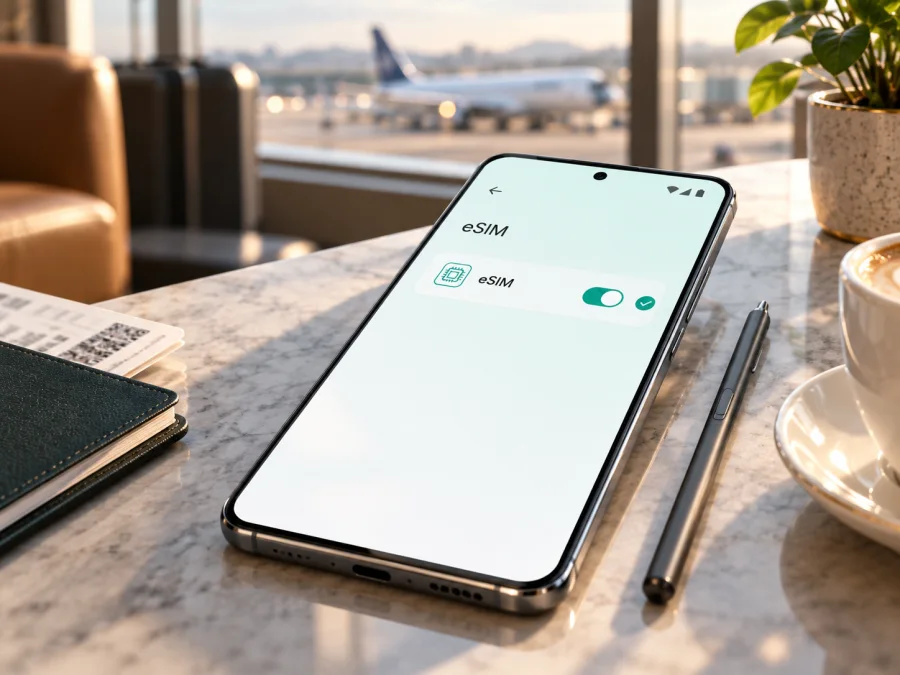
Motorola Edge 60 Stylus 256GB eSIM: compatibility and setup
The India-market Motorola Edge 60 Stylus 256GB supports eSIM, according to Motorola’s specifications for this model: its SIM configuration is listed as one physical SIM plus eSIM. That is a positive answer for the version documented by Motorola India, but it should not be treated as a guarantee for every handset sold under a similar name. Motorola notes that specifications may vary by market, and eSIM availability can also depend on the exact device software and the mobile operator. If your phone was imported or bought in another region, confirm eSIM support on that handset before choosing a travel plan.
This guide explains how to check the EID and eSIM menu, add a profile, select it for mobile data, and troubleshoot common problems. The exact product name in this guide is Motorola Edge 60 Stylus 256GB; the memory figure is part of the variant being checked. A storage option alone does not identify the sales region, however, so use the model number and the phone’s own settings when confirming a particular unit.
Does Motorola Edge 60 Stylus 256GB support eSIM?
Yes, for the India-market configuration documented by Motorola. Motorola’s support specifications for motorola edge 60 stylus list “Dual SIM (pSIM + eSIM)” and identify 256GB built-in storage. The model-specific India user guide also explains how to find the EID and says that not all carriers support eSIM. These are the most relevant official references for the named device variant.
The practical qualification is the market. A phone’s retail name can be reused across regional releases, while its SIM hardware, supported bands, firmware, and carrier provisioning can differ. A US-market handset or another regional model with a similar Edge or Stylus name should not be assumed to share the India model’s eSIM configuration. Likewise, the phrase “256GB” identifies storage capacity, not an eSIM guarantee for an import. Check the model number shown in Settings and compare it with the seller’s regional listing and Motorola support information for that market.
| Item | What can be confirmed for the documented India version |
|---|---|
| Exact device variant | Motorola Edge 60 Stylus 256GB |
| Storage | 256GB built-in storage is listed by Motorola India |
| SIM arrangement | One physical SIM plus eSIM (pSIM + eSIM) |
| Software in Motorola’s listed specifications | Android 15 |
| EID check | Settings > About phone > Device details |
| Carrier condition | The mobile operator must support eSIM and permit activation |
| Regional caveat | Motorola says some specifications may vary by market |
This is an eSIM-capable configuration, not a promise that every carrier, plan, or country will accept it. The device must be unlocked for the service you intend to use, and the provider supplying the eSIM profile must support the handset and destination. An eSIM profile for mobile data also does not automatically add a regular phone number, voice service, or SMS; check the chosen plan’s terms.
Regional versions, operator restrictions, and the 256GB label
Identify the phone you own before relying on the specification. Open Settings > About phone and note the model number; compare it with the invoice, box, or seller’s regional listing. If the handset was imported, ask Motorola support or the seller to confirm eSIM for that exact model number. A similar Edge 60 family name does not establish identical SIM hardware or firmware.
A carrier-branded phone may also be network-locked, or its original operator may limit which eSIM profiles it accepts. Ask whether the handset is unlocked and can install a third-party travel profile. Network unlocking and eSIM capability are separate checks. Motorola’s India specification confirms eSIM for its 256GB version, but storage size alone is not a compatibility code: another market’s 256GB listing may differ.
A quick compatibility checklist
Before selecting a travel eSIM plan, confirm each point:
- [ ] The model number and market of your Motorola Edge 60 Stylus 256GB are known.
- [ ] EID appears in the phone’s device details, or a working eSIM-add option is visible in mobile-network settings.
- [ ] The handset is not carrier-locked in a way that blocks the profile you want to use.
- [ ] Your operator or eSIM provider supports this phone and the destination.
- [ ] The plan is valid in the country or region on your itinerary, and its data amount and validity period fit your trip.
- [ ] You have reliable Wi-Fi or another internet connection for installation and access to the QR code or in-app installation flow.
A useful way to resolve a mismatch is to compare three independent details: the model number in Settings, the EID shown by Android, and Motorola’s specification for the sales market. A retailer may describe a phone by its family name and storage size while omitting the market code. If one source says eSIM is supported but the phone has no EID or setup option, pause before checkout and ask Motorola or the seller to explain the discrepancy. If the handset does show an EID, still check carrier unlocking and whether your chosen provider accepts that exact model. These checks answer different questions: EID is evidence of eSIM hardware, the settings menu shows that Android exposes setup, and the provider confirms the profile can be activated under its terms. Keep a screenshot or note of the model number when contacting support, but do not share the full EID publicly. A compatibility result should describe the phone you will use, not merely another product with a matching name. Record whether the handset was sold locally or imported; this detail can explain conflicting product listings and helps support identify the correct specification.
For an additional step before purchase, check your device and verify that the specific unit is supported. The settings check below is still essential because it tests the handset in your hands, not just the model family on a shop page.
How to check EID and eSIM availability
Motorola’s model-specific India user guide gives a direct EID route: open Settings > About phone > Device details and look for EID. EID is the identifier associated with the phone’s embedded SIM capability. On this model, seeing an EID is a strong sign that the handset contains eSIM functionality; if the EID is absent, do not infer support from the retail name alone. Menu wording can change slightly with software updates or regional firmware.
You can also check whether Android offers an eSIM setup action. On Motorola’s support page for the Edge 60 Stylus, the documented route is Settings > Network & internet > SIMs & mobile network, then the option to download and set up an eSIM. Depending on software version, the label may be shorter, such as Add eSIM, or it may appear only after opening the SIM settings. The phone may require an internet connection and a supported carrier profile before the next step becomes available.
Use both checks where possible:
- Open Settings and tap About phone.
- Open Device details and look for EID.
- Return to Settings and open Network & internet.
- Tap SIMs & mobile network and look for an option to download, add, or set up an eSIM.
- If the labels are missing, check for a pending system update and restart the phone once.
- If they remain absent, confirm the model number and market with Motorola or the seller before buying a plan.
The EID check and the add-eSIM menu are useful, but neither replaces confirmation that the handset is unlocked and that the provider supports it. A seller’s broad “eSIM compatible” label is not enough if your phone is a regional import or has operator software.
Before installing an eSIM for travel
Check the destination, data allowance, validity period, activation timing, and tethering rules shown for the plan. If you will cross borders, confirm that it covers every stop. Travel eSIM plans are often data-only, so do not expect a phone number, ordinary cellular calls, or SMS unless the plan explicitly includes them. Messaging and voice apps can use the data connection when already set up.
Kaspersky eSIM Store is an app and website where you can choose, purchase, and activate an eSIM with a mobile-data plan for an overseas trip. It is not a mobile operator and does not own the networks used by a plan. Read the selected plan’s rules before installation: validity may begin at purchase, activation, or first connection, depending on the offer. Some profiles use one-time activation codes, so do not delete a working eSIM as a way to pause it.
Once you have checked the device, browse current plans for your destination. This is a general starting point for reviewing destinations and plan terms, not a country-specific tariff page.
How to install and activate eSIM on Motorola Edge 60 Stylus 256GB
Motorola’s support instructions for the Edge 60 Stylus use the Network & internet SIM menu. The exact prompts depend on the carrier, Android version, and activation method. Keep the phone connected to Wi-Fi, have your order details ready, and do not share the QR code: it may contain a one-time activation credential.
- Check compatibility first. Confirm that EID or the eSIM setup option is present and that the phone is unlocked for your intended provider.
- Connect to Wi-Fi. Keep a stable connection available while the profile is downloaded. If you received a QR code by email, open it on another screen or print it so the phone can scan it.
- Open the SIM settings. Go to Settings > Network & internet > SIMs & mobile network.
- Choose the eSIM setup option. Tap the option to download or set up an eSIM, or Add eSIM if that is the label on your software.
- Follow the activation flow. Scan the provider’s QR code when prompted, or use the provider’s supported in-app installation method. Confirm the plan and continue through Android’s prompts.
- Wait for the profile to download. Keep the settings screen open until Android confirms the eSIM has been added. The network registration may take several minutes and can depend on the destination network.
- Name the profile clearly. If Android offers a label, use a recognizable name such as “Travel” or the destination. This helps you distinguish it from your regular SIM.
- Choose the mobile-data SIM. In SIM settings, enable the new eSIM and select it for mobile data when you are ready to use the plan.
- Check the provider’s instructions for data roaming. Some travel profiles require roaming to be enabled on that eSIM. Turn it on only for the correct profile and follow the plan instructions; this does not mean roaming should be enabled for your home SIM.
- Test after arrival. When the plan is meant to be used, switch on mobile data for the eSIM and allow time for it to register. If required by the plan, check the stated APN settings before troubleshooting further.
For the broader Android walkthrough, see Kaspersky eSIM Store’s Android installation instructions. The page’s screenshots are written for Samsung devices, so use Motorola’s menu path above where the labels differ. The iOS installation instructions are for Apple devices and are included for readers helping someone else with an iPhone; they are not the setup route for this Motorola phone.
Install before departure or at the destination?
Installing at home gives you time to confirm that the profile downloads and the QR code is accepted. You can leave the eSIM switched off until the plan’s stated start time, if its terms allow this. If you wait until arrival, arrange Wi-Fi first. Do not delete the profile during testing: a used activation code may not work again.
Using the eSIM for mobile data while travelling
After arrival, open Settings > Network & internet > SIMs & mobile network, enable the travel profile, and select it for mobile data. Keep the home SIM active only if needed and review its roaming conditions; disabling mobile data or data roaming on that line can help avoid using its data allowance. Calls and SMS may still follow your home operator’s terms.
If the travel profile’s instructions require data roaming, enable it for that eSIM only. Check that mobile data is on, airplane mode is off, and the phone has registered on a local network. Service depends on the destination, participating network, signal, device bands, and plan terms; eSIM hardware does not guarantee reception in every location.
For a short trip, install beforehand and enable the eSIM as the data line on arrival. For a multi-country itinerary, verify that every stop is included and check when validity starts. If you plan to share data with a laptop, confirm tethering is allowed and that the allowance fits your expected use. Download offline maps and essential booking details as a practical fallback.
Common eSIM problems and what to check
EID or the add-eSIM option is missing
Check the exact model number, market, and software version. Restart, then look again under Settings > About phone > Device details and Settings > Network & internet > SIMs & mobile network. Install available system updates. If the options remain absent, ask Motorola or the seller about that exact unit rather than buying a plan based only on its retail name.
The QR code will not scan or the profile will not download
Make the QR code bright and steady, clean the camera lens, and confirm it is the activation code for the correct order. If you are viewing it on the same phone, use the provider’s in-app or manual installation method if offered. For download errors, check Wi-Fi and follow the provider’s exact prompts. Do not repeatedly retry an expired or used code; ask the provider to check its status.
The eSIM is installed, but there is no service
Confirm that the profile is enabled and selected for mobile data, airplane mode is off, and you are in a destination covered by the plan. Check that its start time has arrived and wait several minutes for network registration. Enable roaming only if the travel profile’s instructions require it. If needed, check provider guidance for manual network selection or APN settings.
Connected, but apps have no internet or data is on the wrong SIM
Confirm mobile data is assigned to the travel eSIM and the plan has started and has data remaining. Compare APN settings with the provider’s instructions. Temporarily turn Wi-Fi off to test cellular data. If Android offers automatic data switching between SIMs, disable it if you want the travel eSIM to remain the only data line; review roaming on the home SIM separately.
The phone says it is locked
Contact the original carrier or seller about unlocking. An eSIM-capable phone may still be unable to install another provider’s profile while locked. Do not delete a working eSIM or reset network settings as a first step; a one-time code may not be reusable. If support asks you to remove the profile, first confirm how it can be restored.
Frequently asked questions
Does Motorola Edge 60 Stylus 256GB have eSIM?
The India-market Motorola Edge 60 Stylus 256GB is listed by Motorola with one physical SIM plus eSIM. Specifications may vary by market, so check EID and the setup menu on an imported handset.
How do I find the EID?
Open Settings > About phone > Device details and look for EID, as described in Motorola’s model-specific guide. Wording can differ slightly by software version.
Can I use a travel eSIM and physical SIM together?
Motorola lists the India configuration as physical SIM plus eSIM. Android lets you select the line for mobile data; active-line behavior can depend on software and carrier settings.
Does a travel eSIM include calls and text messages?
Not necessarily. Many travel plans are data-only. Check the chosen plan for calls, SMS, and tethering; internet messaging apps can use mobile data.
Should I enable data roaming?
Only if the selected eSIM’s plan or installation instructions require it. Verify that you enable it on the travel profile, not the home SIM.
Can I move the installed eSIM to another phone?
Do not assume so. Transfer and reinstallation depend on the profile provider; check its instructions before deleting a profile or changing devices.
Final check before your trip
For the India version documented by Motorola, the answer is yes: Motorola Edge 60 Stylus 256GB supports a physical SIM plus eSIM. For an imported handset or an unverified regional version, treat support as unconfirmed until the phone shows an EID or a setup option and Motorola or the seller confirms the exact model number. Then check the carrier lock, plan destination, data allowance, validity period, activation timing, and any profile-specific roaming or APN instructions.
When those checks are complete, use Kaspersky eSIM Store’s app or website to choose, purchase, and activate an eSIM with a mobile-data plan for your overseas trip. Compare the current plan details for your destination and keep a copy of the installation instructions available. A few minutes spent checking the handset and plan before departure can prevent confusion when you need mobile data on arrival.


