Travel connectivity guide
Motorola Edge 70 5G eSIM Compatibility & Setup
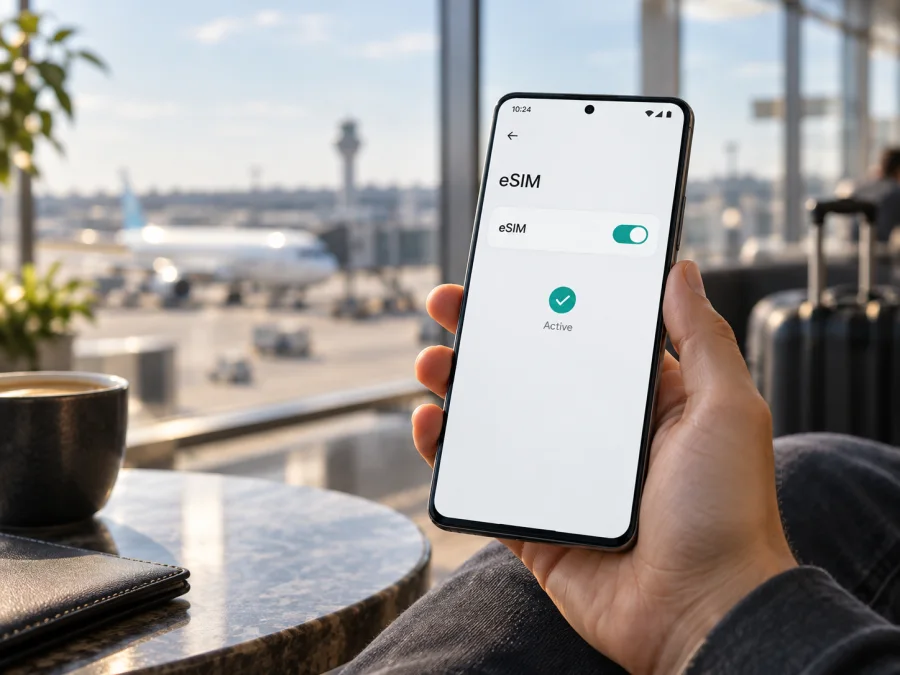
Motorola Edge 70 5G eSIM: compatibility and setup guide
Motorola’s current specifications for the Motorola Edge 70 5G list support for one physical nano-SIM and one eSIM. That can let you keep a home SIM available while using a travel data plan. Regional model, software, and carrier differences still matter, so check your own handset for an EID and an eSIM setup option before choosing a plan.
Motorola Edge 70 5G at a glance
| Item | What to know |
|---|---|
| Device name | Motorola Edge 70 5G |
| eSIM configuration | Motorola lists one nano-SIM + one eSIM |
| Network | 5G and 4G; bands and access vary by market and network |
| Verify | Look for an EID and an eSIM setup option |
| Before purchase | Confirm model, unlock status, coverage, allowance, validity, and activation rules |
Motorola’s specifications and support instructions describe eSIM for the documented Motorola Edge 70 5G version. That does not guarantee the same configuration for an imported or carrier-specific model. “5G” describes cellular capability, not eSIM by itself; a physical SIM tray is also compatible with eSIM. Check the handset’s settings and model code rather than its appearance or another owner’s result.
Is eSIM supported on this exact phone?
The answer is yes for the Motorola Edge 70 5G version documented as 1 nano-SIM + 1 eSIM. Support for your exact handset still depends on its regional model, firmware, and carrier. The retail name alone is not a complete model identifier, and operators may require their own activation method. If the EID or setup menu is missing, confirm the exact SKU with Motorola or the seller instead of repeatedly scanning a QR code.
Even a compatible, unlocked phone needs a plan that covers the destination and supports its activation method. Hardware compatibility does not guarantee service on every local network.
Check eSIM support on your Motorola Edge 70 5G
Use at least two checks before buying. Menu names vary by Android version and language.
- Find the EID. Search Settings for “EID,” check About phone or enter
*#06#in the dial pad. On many Android phones, an EID appears when eSIM hardware is present. Do not share it publicly; a provider may request it for activation. - Look for eSIM controls. Open Settings > Network & internet > SIMs & mobile network (the wording may vary). Check for an option such as Download a SIM, Add eSIM, or Set up eSIM. Motorola’s instructions for the Motorola Edge 70 5G use the SIM and mobile network area to download and configure an eSIM.
- Check the line list. An installed eSIM may appear beside the physical SIM. A line can be switched off without being erased.
- Confirm the exact model. In Settings > About phone, note the model number and software version. Compare these with the box, invoice, or seller’s regional listing. If the EID and menu are both absent, ask Motorola support or the seller to confirm eSIM capability for that exact model code and market.
- Check the carrier lock. Ask the seller or original provider whether a third-party travel plan can be added.
A visible EID is evidence of eSIM hardware, but not a promise that every provider will activate service. Menus can also be hidden by regional or carrier software. If results conflict, confirm the precise model and plan before purchase.
Also check whether the phone is managed by an employer or restricted by an enterprise profile. Device policies can limit adding mobile plans even when the hardware supports eSIM. Ask the administrator or carrier whether a second line is allowed. Avoid factory resetting as a first step: it can erase personal data without changing a regional hardware configuration.
Compatibility checklist:
- [ ] This is the Motorola Edge 70 5G variant I own, and I have recorded its model code.
- [ ] I can find an EID or the phone displays an option to add or download an eSIM.
- [ ] The handset is unlocked and the software is current enough for the provider’s setup method.
- [ ] The plan supports this device and covers every country where I need data.
- [ ] I understand when validity begins and whether installation requires Wi-Fi.
- [ ] I know which line will be used for mobile data and how to avoid unwanted roaming charges.
For a quick reminder of what to check before selecting a plan, check your device.
What an eSIM does—and what it does not do
An eSIM is a digital SIM profile downloaded through a QR code, provider app, or manual activation details. It appears as a mobile line that can be enabled, disabled, named, or selected for data. QR codes may be single-use, so transfer a profile only if its provider allows it.
Many travel eSIMs are data-only; voice calls, a local number, SMS, and tethering depend on the plan. Internet calling and messaging apps work over data. Your usual SIM may remain available, but its roaming charges are controlled by your home carrier. An eSIM also does not create coverage: signal, speeds, and 4G or 5G access depend on the destination network, bands, and plan.
Dual-SIM phones can behave differently when both lines are active. One line may handle mobile data while the other remains available for calls or messages, depending on software and carrier features. Decide which line is the data default and whether you need call forwarding, voicemail, or text verification. Enabling both lines does not merge their allowances or make the travel plan replace your usual number.
Install an eSIM on Motorola Edge 70 5G
Install with reliable Wi-Fi. See the Android eSIM installation instructions or iOS eSIM installation instructions. Motorola Edge 70 5G runs Android.
- Check the terms. Confirm countries, data allowance, validity, tethering, supported networks, and when the plan starts.
- Prepare. Connect to Wi-Fi, charge the phone, update Android if needed, and confirm it is unlocked. Keep the QR or activation details on another screen if possible.
- Open SIM settings. Go to Settings > Network & internet > SIMs & mobile network and choose add, download, or set up eSIM.
- Download. Scan the provider’s QR code or enter its activation details, then follow the prompts while online.
- Choose line settings. Name and enable the profile. Select the travel eSIM for mobile data and decide which SIM handles calls and texts.
- Set roaming. Enable data roaming on the travel line only if the provider requires it; keep it off for the home SIM unless you intend to roam.
- Activate and test. Follow the plan’s timing rules. At the destination, turn off airplane mode, select the eSIM for data, wait for registration, and open a webpage.
Keep the purchase confirmation and activation instructions accessible offline. If installation succeeds but the plan has not started, follow its timing rules rather than buying another profile. Allow the phone time to register after arrival. If the provider names a preferred local network, check network selection and use that network; return selection to automatic afterward unless instructed otherwise.
Do not delete a profile as a troubleshooting shortcut. QR codes may not be reusable, and removing a profile does not cancel its plan. Ask the provider for a reset or replacement if needed.
Using the phone on a trip
Keep your home number available. Install the travel profile over Wi-Fi if permitted. At the destination, select it for data and keep home-SIM data roaming off. Check home-carrier fees for calls and texts.
Move between countries. Verify that all destinations and transit stops are covered; regional names do not guarantee every territory is included. Confirm whether partner networks connect automatically or need manual selection.
Use everyday travel apps. Estimate data for maps, ride-hailing, email, and uploads. Download offline maps and use Wi-Fi for backups. Check Android’s data counter; video and background sync can use data quickly.
Share a connection. Confirm hotspot use is allowed. Laptops can consume data quickly through updates and video calls.
For a longer stay, compare the allowance with expected daily use instead of choosing by validity alone. Background photo backup and app updates can exhaust data early. Pause large uploads away from Wi-Fi and reserve some allowance for maps, booking changes, and contacting your accommodation.
Kaspersky eSIM Store is an app and website where travelers can choose, arrange, and activate an eSIM with a mobile data plan for an overseas trip. Compare destination coverage, data allowance, validity, and price in the plan details, then use the provider’s setup instructions on a compatible, unlocked phone. Kaspersky eSIM Store is not the mobile operator or network; service and coverage depend on the local network and the terms of the selected plan.
Troubleshooting: if the eSIM will not connect
There is no “Add eSIM” option. Search Settings and check About phone for an EID. Restart and update the phone. If both are missing, confirm the regional variant with Motorola or the seller before purchase.
The QR code cannot be scanned. Use the eSIM setup flow. Show the code on another screen or request manual details. Check expiry and whether it was already used; ask the provider about reissue.
The profile downloads but does not activate. Check Wi-Fi, destination coverage, and activation timing; some profiles register only after arrival. Enable the correct line and confirm any requested EID or IMEI matches this phone.
Signal appears but data does not work. Select the eSIM for data, turn on mobile data, and enable its roaming only if instructed. Turn off airplane mode, restart, and check plan status. Enter an APN only when the provider supplies one.
The phone stays on 4G. 5G depends on local coverage, supported bands, plan, and network conditions. A working 4G connection can be expected in some places.
The home SIM incurs roaming charges. Check the data line and roaming switch for each SIM. Disable automatic data switching if needed. Call, voicemail, and SMS charges come from the home carrier.
You are asked to erase the eSIM. Record the error and contact the provider first. Deletion can interrupt service or make the QR unusable.
Frequently asked questions
Can I use a physical SIM and an eSIM at the same time?
Motorola lists the Motorola Edge 70 5G as one nano-SIM plus one eSIM. The phone’s SIM manager lets you select how the available lines are used, though the exact dual-SIM behavior depends on software and carrier support. Check the settings on your specific Motorola Edge 70 5G before travel.
Does the eSIM give me a second phone number?
Not necessarily. Many travel eSIM plans are data-only and do not include a phone number, ordinary calls, or SMS. Check the individual plan terms. Apps that call or message over the internet can use the data connection.
Can I install the eSIM before I leave?
Usually, if the plan’s terms allow it and you have Wi-Fi. The key issue is when validity starts. Review whether the countdown begins at installation, at activation, or when the eSIM first connects in the destination. If unclear, ask before installing.
Does eSIM mean the phone is unlocked?
No. eSIM is a SIM technology, while network unlocking is a separate device restriction. Ask the seller or original carrier to confirm the phone accepts another provider’s plan.
Should I erase the eSIM after a trip?
Only if you no longer need it and the provider confirms that removing it is appropriate. Some profiles can be reused or topped up; others cannot be restored after deletion. Turning the line off is safer when you are unsure.
Final check before your next trip
Before buying a travel plan, verify that your Motorola Edge 70 5G has an EID or an eSIM setup option, confirm its exact regional model and unlocked status, and compare the plan’s coverage and activation rules with your itinerary. Install over Wi-Fi when the terms allow, select the correct line for mobile data, and keep roaming disabled on your home SIM unless you choose to use it.
Once the phone and plan match, use Kaspersky eSIM Store’s app or website to choose, arrange, and activate an eSIM plan for mobile data during your overseas trip. Check your device first, then choose an eSIM that covers the places you are visiting and the amount of data you expect to use. Keep the provider’s activation details available until the Motorola Edge 70 5G connects successfully.


