Travel connectivity guide
Motorola Edge 70 eSIM: Compatibility & Setup
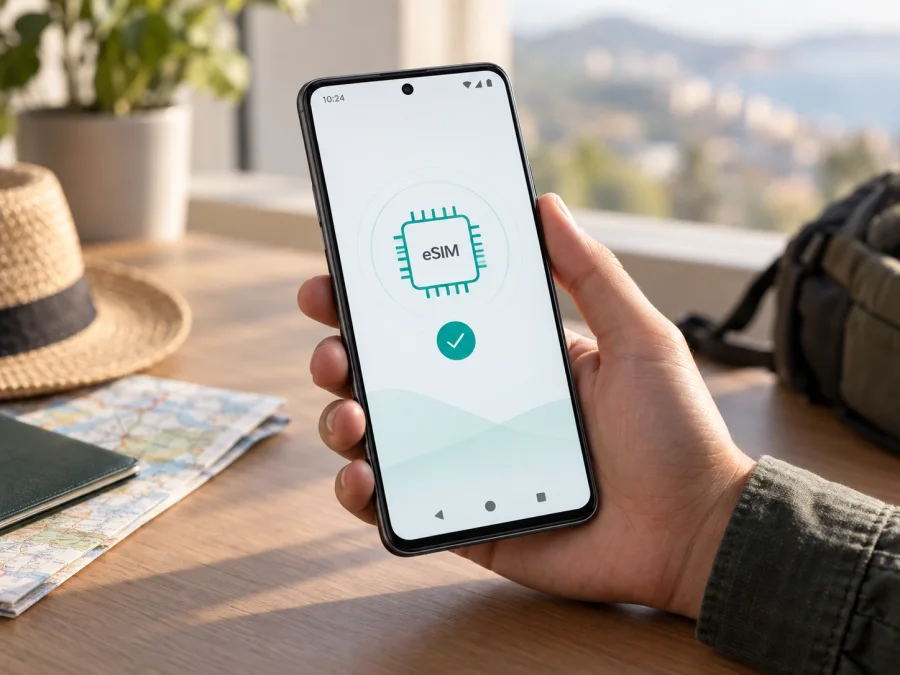
Motorola Edge 70 eSIM: compatibility, setup, and travel use
Updated 26 September 2026. Motorola and motorola edge 70 are trademarks of their respective owner. Kaspersky eSIM Store is not affiliated with Motorola and is not its official partner or distributor.
Yes. Motorola’s official specifications list the motorola edge 70 as dual SIM with one nano SIM and one eSIM. That confirms eSIM support for the model described in those specifications. Motorola also notes that some specifications vary by market, and carrier rules or firmware can affect the eSIM options shown on an individual phone. Before paying for a travel plan, check the exact handset in Settings and confirm that it is not carrier-locked.
An eSIM is a SIM profile stored in the phone rather than on a removable plastic card. On a compatible Motorola Edge 70, you can keep a physical nano SIM and add an eSIM profile, then choose which line handles mobile data. The eSIM profile and a travel data plan are separate: a compatible phone is necessary, but the selected plan must also cover your destination and be installed and activated according to its terms.
Motorola Edge 70 eSIM compatibility at a glance
| Item | What to know |
|---|---|
| Device covered here | Motorola Edge 70, without an extra storage or regional suffix in the supplied model name |
| eSIM support | Listed by Motorola as Dual SIM (1 Nano SIM + eSIM) |
| Physical SIM | One nano SIM is listed alongside eSIM |
| Typical use | Keep a home line available and use a travel eSIM for mobile data, subject to plan and network conditions |
| Regional caveat | Motorola says specifications may vary by market; check the specific SKU, software, and carrier status |
| Best confirmation on your phone | Look for an EID or an option to add/download an eSIM in Settings |
Motorola’s support specification for motorola edge 70 identifies the SIM arrangement as one nano SIM plus eSIM. The manufacturer’s product guidance also warns that specifications can vary by market. The general support instructions describe eSIM as a feature that a phone might support, so the decisive check is the specification for your market and the menus on the handset you own. Do not assume that a retailer’s broad “Edge 70” listing proves every regional SKU has identical capabilities.
What “dual SIM” means in practice
Dual SIM describes the available SIM setup; it does not mean that both lines will behave identically in every country or on every carrier. You may be able to keep your usual number on the physical SIM for calls and messages and select the travel eSIM for data. The exact standby behavior, simultaneous use, supported bands, and carrier services depend on the software build, local network, and plan. Check the labels and options shown by your phone instead of relying on a generic promise about two lines working at once.
A data-only travel eSIM normally does not provide a regular phone number, voice service, or SMS unless the plan explicitly says otherwise. You can continue to use internet calling and messaging apps over mobile data. If you need bank verification texts or calls to your usual number, decide in advance whether to leave that line enabled and review its roaming charges with your home carrier.
Check your exact phone before purchase
The model name is only the first compatibility check. A regional SKU, carrier restriction, or software configuration can affect eSIM setup, and a supported phone still needs a plan that works in your destination.
<a id="kesim-device-compatibility"></a>
Compatibility checklist
- [ ] Open Settings → About phone and note the model code, country of sale, and software version.
- [ ] Search Settings for EID. It is an identifier for the embedded SIM component, not an IMEI or phone number.
- [ ] Open Settings → Network & internet → SIMs & mobile network and look for Add eSIM, Download a SIM, or a similar option. Labels can vary by Android version.
- [ ] Ask the seller or carrier whether the exact phone is unlocked and whether eSIM is enabled for its market variant.
- [ ] Check that the plan covers your destination and dates, and review data, validity, activation, roaming, and device restrictions.
- [ ] Keep Wi-Fi available for profile download.
Check your device using these steps before selecting a plan. Motorola lists eSIM for this model, but an EID does not guarantee that the phone is unlocked or that every plan will work. If no EID or setup option appears, search Settings again, restart and update the phone, then confirm the model code with Motorola or the seller. Do not infer eSIM support from the fact that a physical SIM works.
Avoid posting an EID, IMEI, QR code, or activation code publicly. Share them only through a trusted support channel when requested.
Installing and activating an eSIM
Motorola’s setup path is Settings → Network & internet → SIMs & mobile network, then the option to download and set up an eSIM. Menu labels can differ by region and Android version. Use stable Wi-Fi and follow the plan’s instructions: downloading a profile, enabling it, activation, and the start of the validity period may be separate events.
Before you start
- Confirm an EID or eSIM setup option and check that the phone is unlocked.
- Read the plan’s destination, data allowance, validity, activation window, and restrictions.
- Connect to Wi-Fi and keep the QR code or manual activation details ready. Some codes are single-use.
- Note your current SIM settings if you need your home number for calls or verification messages.
Steps on Motorola Edge 70
- Open Settings → Network & internet → SIMs & mobile network. Search Settings for “eSIM” or “SIM” if needed.
- Tap the option to add, download, or set up an eSIM.
- Scan the provider’s QR code, or enter manual details exactly as supplied. Wait for the profile to download and follow the prompts.
- Give the line a clear name, such as Travel data. Choose whether to enable it now or on arrival according to the plan’s activation rules.
- In SIM settings, select which line handles Mobile data. If supported, you can keep your home SIM for calls and messages while using the eSIM for data.
- At your destination, enable the travel line. Turn on data roaming for that eSIM only if the provider requires it, then confirm it has registered on a supported network.
See the Android eSIM installation instructions for this phone, or the iOS eSIM installation instructions when helping an iPhone user. Follow the labels on your own software if they differ from the guide.
Installing adds the profile; activation and the start of validity depend on the plan. Validity may begin at purchase, installation, first network connection, or another event stated in the terms. Check this before installing early. Do not delete a profile just because data has not started: some profiles cannot be reinstalled with the same QR code. Contact the provider before removing it.
Using a travel eSIM on a trip
A travel eSIM can provide mobile data without removing the physical SIM. Prepare the profile over Wi-Fi, then select it for maps, messaging, tickets, translation, and other data use after arrival. Service depends on the plan, available local networks, signal, and the phone’s supported bands.
Estimate how you will use data. Maps, email, and messages generally need less than video calls, streaming, cloud backups, or hotspot use. Match the allowance and validity period to the length of the trip, and check that a multi-country plan explicitly includes every stop. Keep offline maps for places where coverage may be weak.
Kaspersky eSIM Store is an app and website where you can choose, arrange, and activate an eSIM with a mobile data plan for an international trip. Review the destination, allowance, validity, price, and terms shown for your dates. It helps prepare travel data access; it is not an operator, network owner, or provider of mobile internet. Explore travel eSIM options in Kaspersky eSIM Store after confirming compatibility.
<a id="trip-esim"></a>
Practical setups
- Short visit: install before departure if the plan permits it; enable the eSIM and select it for data on arrival. Keep the home SIM for calls only if its roaming costs are acceptable.
- Several countries: verify that each destination is included. Do not assume a regional plan covers every territory on your route.
- Work trip: check data needs for meetings and files, plus whether tethering is allowed. Keep access to your usual authentication method.
- Two lines: assign data to the travel eSIM and calls or messages to the preferred line where supported. Disable roaming on the home line if you do not intend to use it.
Travel plans described here are for data unless their terms explicitly include calls or SMS. Internet calling apps can use data, while standard calls and texts follow the selected mobile line and may incur separate charges. Data roaming can be required for a travel eSIM even when you keep it disabled on your home SIM.
Troubleshooting: eSIM installed but no data
Check one setting at a time and avoid deleting the profile as a first step.
| Symptom | What to check |
|---|---|
| No eSIM option | Search Settings for EID/eSIM; confirm model code, region, updates, and carrier restrictions |
| QR code fails | Use Wi-Fi, check for expiry or prior use, and follow the provider’s instructions |
| Profile installed, no data | Enable the correct line, select it for mobile data, and confirm the plan covers your location and dates |
| Signal but no internet | Check data roaming for the travel line if required, the provider’s APN instructions, remaining allowance, and network selection |
| Home SIM uses data | Recheck the default data line and disable home-line data roaming if appropriate |
| Connection drops | Toggle airplane mode briefly, restart, move to a stronger signal area, and retry automatic network selection |
| Profile was removed | Contact the provider before reinstalling; the original QR code may be single-use |
If there is still no service, verify in this order: the plan is active in the current country; the eSIM is switched on and selected for data; roaming and APN settings match the provider’s instructions; the allowance remains valid; and the phone has current software. Use manual network selection only when instructed. A carrier lock can also block an otherwise valid profile.
Save the exact error message and contact the plan provider through its official support channel. Motorola or the seller can help verify the regional model and menu options. Do not share a QR code or activation details in a public forum.
Frequently asked questions
Does Motorola Edge 70 support eSIM?
Yes. Motorola’s official specification lists motorola edge 70 as Dual SIM (1 Nano SIM + eSIM). As the manufacturer notes that specifications may vary by market, verify the model code and EID on your own phone, especially if it was imported or carrier-supplied.
Can I use a physical SIM and eSIM together?
The listed configuration includes one nano SIM plus eSIM. Which lines can stay active and which handles data depends on the software and carriers. Check the controls under SIMs & mobile network.
Does an EID guarantee that a plan will work?
No. It indicates eSIM capability, but the phone must also be unlocked and accepted by the plan. Destination coverage, activation conditions, validity, and network requirements still apply.
Does a travel eSIM include calls and texts?
Usually it is for data unless the plan says otherwise. Internet calling apps can use that data; ordinary calls and SMS use a mobile line and may have separate charges.
Can I transfer the profile to another phone?
Do not assume so. Transfer or reinstallation depends on the provider, and a one-time QR code may not work again. Check the terms before installing and contact the provider if you replace or reset the phone.
Before you go: check the phone, then choose a plan
Motorola’s official specifications support a clear starting point: Motorola Edge 70 is listed with one nano SIM and eSIM. The manufacturer also cautions that specifications can vary by market, so confirm the exact handset rather than assuming that every regional or carrier version is identical.
- Find the EID or eSIM setup control on your own phone.
- Confirm that the Motorola Edge 70 is unlocked and that its software is current.
- Match the plan’s destination, data allowance, validity, and activation conditions to your itinerary.
- Install the profile over Wi-Fi as instructed, then select the eSIM for mobile data when you are ready to use it.
- Keep your home line’s roaming and call settings in mind, and avoid deleting the eSIM if a connection problem occurs.
Once those checks are complete, use Kaspersky eSIM Store, the app and website, to choose, arrange, and activate an eSIM with a mobile data plan for your trip. Read the plan conditions and confirm the destination before purchase. Compatibility is the first step; the plan’s terms and local network availability determine the experience after arrival.
Information checked 26 September 2026 against Motorola Support’s “Specifications — motorola edge 70” and “Insert or remove the SIM card — motorola edge 70” pages. Device specifications, software menus, carrier restrictions, plan conditions, and network availability can change. Recheck current manufacturer and provider information before purchase.


