Travel connectivity guide
Motorola Edge 70 Fusion 128GB 5G eSIM Guide
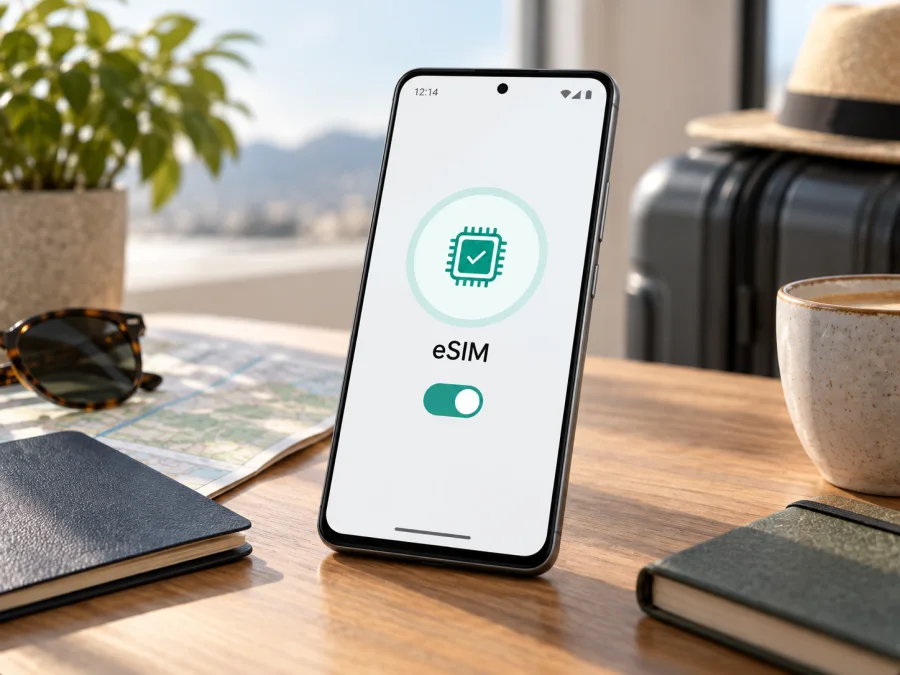
Motorola Edge 70 Fusion 128GB 5G eSIM: compatibility and setup
Short answer: eSIM is supported by the Motorola Edge 70 Fusion family, and Motorola’s Latin American specifications list the 128 GB storage option together with a nano-SIM and eSIM configuration. However, Motorola says some specifications vary by market. The exact phone in your hand is the final check: confirm that it has an EID or an option to download/add a SIM, and that it is not locked to a carrier. Do this before choosing or paying for a travel eSIM plan.
Motorola Edge 70 Fusion 128GB 5G at a glance
| Item | What to know |
|---|---|
| Device variant covered | Motorola Edge 70 Fusion 128GB 5G |
| Storage named in the variant | 128 GB; this is the phone’s storage capacity, not its RAM |
| Mobile network generation | 5G; the supported bands and local network availability depend on the regional model and destination |
| SIM arrangement | Motorola’s LATAM specifications list one physical nano-SIM plus eSIM for Edge 70 Fusion configurations that include 128 GB |
| eSIM conclusion | Supported on the documented configuration, subject to market, firmware, carrier and handset checks |
| Best check before purchase | Find the EID or the add/download eSIM option in the phone’s own settings |
Motorola’s Latin American specifications list Edge 70 Fusion in 128 GB, 256 GB and 512 GB configurations and show one nano-SIM plus eSIM. Its US listing also names nano-SIM plus eSIM and notes that specifications may vary by market. This supports eSIM on the documented 128 GB configuration, not necessarily every similar handset.
“128GB” identifies storage, not RAM or region. Retail listings can combine the same storage tier with different memory, firmware, radio bands or SIM arrangements. When buying online or imported, compare the model code and settings with the seller’s exact regional description.
Does the Motorola Edge 70 Fusion 128GB 5G support eSIM?
Yes, according to Motorola’s current official specifications for the Edge 70 Fusion configuration that includes 128 GB. The LATAM specification page lists 128 GB storage and states “Dual SIM (1 nano pSIM + eSIM).” Motorola’s US and other regional support pages also show a nano-SIM plus eSIM arrangement for Edge 70 Fusion, while the manufacturer’s general warning says specifications can vary by market.
Check the individual unit because a carrier-branded or imported phone may have different provisioning. It can also be SIM-locked even when it contains eSIM hardware, preventing activation with another provider.
An eSIM is a digital SIM profile stored in the phone rather than a removable card. A travel eSIM can provide mobile data abroad. Unless plan terms say otherwise, it does not include a regular number, voice minutes or SMS; internet messaging apps can use its data connection.
Market and carrier differences
Motorola’s regional pages differ in listed memory and connectivity details. A carrier-branded unit may also have different provisioning, and imported units can follow local sales configurations. Ask for the full model code and carrier-unlocked status; if possible, ask the seller to show EID and SIM settings on the actual phone. “Dual SIM” on a generic listing or a screenshot of another unit does not verify eSIM on yours.
An update may change menu wording or carrier support, but cannot make every regional hardware SKU identical. Keep Android current and restart after updates. If settings still lack EID or an eSIM option, contact Motorola or the seller with the model number before purchasing a plan.
How to check compatibility before buying
Use the phone itself as the final confirmation. Menu labels vary with Android, language and carrier software. Look for “SIMs,” “Mobile network,” “Download a SIM,” or “Add eSIM.” A “dual SIM” label alone is not enough because some phones use two physical cards.
Compatibility checklist
- [ ] Confirm the full model number in Settings → About phone and compare it with the seller’s regional SKU.
- [ ] Open Settings → Network & internet → SIMs & mobile network (the exact wording may vary) and look for Download new SIM, Add eSIM, or a similar option.
- [ ] Open Settings → About phone → Device details / SIM status and check for an EID. Depending on the software version, the EID may also appear under the SIM status page.
- [ ] Verify that the phone is carrier-unlocked, or ask the original carrier whether another provider’s eSIM may be added.
- [ ] Confirm that the phone’s software is up to date and that Wi-Fi is available for initial profile download.
- [ ] Check that the plan covers your destination, offers the data amount and validity period you need, and supports your travel dates.
If you do not find an EID or an eSIM download option, do not conclude immediately that the whole Edge 70 Fusion range lacks eSIM. First confirm the market variant and install available system updates. Then ask Motorola support or the retailer to verify the exact model number. Until you have that confirmation, do not purchase a plan on the assumption that the phone can install it.
Check whether your device is compatible before choosing a travel plan. Compatibility includes both eSIM hardware and an unlocked device that can accept the plan profile. The destination’s network bands and the plan’s own restrictions also matter.
How to install and activate an eSIM
Use stable Wi-Fi for setup. Keep the QR code or activation details on another screen or printed page so this phone can scan it. Check whether the plan starts on installation or first network connection: some can be installed before departure, others begin their validity immediately.
Android steps for Motorola Edge 70 Fusion 128GB 5G
- Check eligibility first. Confirm EID or the eSIM option in settings, verify the phone is unlocked, and review the plan’s destination, data limit, validity and activation rules.
- Connect to Wi-Fi. Keep the connection active while adding the profile. If this is your only phone, make sure you can still access the purchase or activation details during setup.
- Open SIM settings. On Motorola’s Edge 70 Fusion guide, the path is Settings → Network & internet → SIMs & mobile network. Android updates or regional software may use slightly different names.
- Start adding the profile. Tap Download new SIM or the closest equivalent, then follow the on-screen steps. If the provider gives you a QR code, scan it when prompted. If it supplies manual activation details, use the manual entry option only as directed.
- Name the line. Choose a label such as “Travel” so you can distinguish the eSIM from your everyday physical SIM. Labels are for your convenience and do not change the plan.
- Choose what the line will do. For a data-only travel plan, select the new eSIM for mobile data when you want to use it. Keep your normal SIM selected for calls or SMS if that is your preference and its roaming costs are understood.
- Set activation timing. Follow the plan’s instructions. You can often install before departure and leave the line switched off until arrival, but not all plans work this way. Check when the plan’s validity begins.
- At your destination, enable the travel line. Turn on the eSIM and mobile data for that line. Enable data roaming for the travel eSIM only if the plan instructions require it. Confirm that the phone registers on a supported local network.
- Test connection. Turn Wi-Fi off briefly, open a lightweight webpage or messaging app, and check that mobile data is using the intended eSIM. Then review your data balance or usage in the plan’s account interface, if available.
Motorola’s setup guide describes adding an eSIM from the SIM settings and advises contacting the carrier if the download option is missing. For more general platform steps, see the Android eSIM installation instructions. The iOS eSIM installation instructions are for an iPhone you may be using to compare or prepare a second device; they do not apply to installing a profile on this Motorola phone.
Avoid deleting a working profile as a first troubleshooting step: some plans restrict reinstallation or use a one-time QR code. If setup fails, note the error and contact support before erasing the profile. A reset may require new activation details.
Using the eSIM for mobile data while travelling
Install over Wi-Fi before travel if the plan allows it, then enable the eSIM and choose it for mobile data after landing. Keep your regular SIM for calls or messages only if needed, and check its roaming terms. A data-only eSIM does not replace your usual number. Motorola lists nano-SIM plus eSIM on the documented version, but dual-SIM behavior can vary; test your preferred settings before departure.
Three practical travel examples
- City break: If allowed, install in advance and enable on arrival. Use the data line for maps, transit, bookings and messaging; use Wi-Fi for large downloads.
- Several countries: Check every destination, including transit stops, and compare data allowance, validity and fair-use conditions. A “regional” label alone does not confirm coverage everywhere on your route.
- Keep your number reachable: Leave your physical SIM available for calls or verification texts if needed, but assign mobile data to the travel eSIM. Review roaming terms for your home line before departure.
Kaspersky eSIM Store is an app and website where you can choose, arrange and activate an eSIM with a mobile-data plan for an international trip. It can help you review a destination and plan conditions before travel. Check that the exact Motorola variant is compatible first, then compare coverage destinations, data allowance and validity against your itinerary. Kaspersky eSIM Store is not the mobile network operator, does not own the networks and does not itself provide mobile internet access.
Troubleshooting common eSIM problems
There is no eSIM option
Check the full model code, install Android updates and restart. Look for EID in About phone or SIM status. If EID and the add/download option are absent, ask Motorola or the seller to verify this exact unit; regional hardware or carrier software can differ.
The QR code will not scan or download
Use stable Wi-Fi, brighten the screen displaying the code and keep it fully in view. Show the code on another device, or use manual activation only if supplied by the plan. Check whether a single-use code has expired or already been used before retrying.
The profile installs but there is no signal
Make sure the eSIM is switched on and selected for data, airplane mode is off, and you are in a country covered by the plan. Restart and wait for network registration. Enable data roaming for that eSIM only if the plan instructions require it.
There is signal but no mobile data
Set the travel profile as the data line, check the plan’s start date and remaining allowance, and confirm its APN if instructions specify one. Turn Wi-Fi off for the test. Do not enable roaming on your regular SIM without checking its charges.
Activation is rejected or the phone says it is locked
An eSIM-capable phone may still be carrier-locked. Ask the original carrier or seller to verify unlock status. Also confirm that the plan is valid in your destination and that the activation code was not used on another handset.
The profile disappeared after a reset
Check the SIM list and contact the plan provider with your purchase details. Do not repeatedly scan an old code or erase other profiles; reinstallation may require new activation details.
Frequently asked questions
Is eSIM confirmed on the 128 GB version?
Yes on Motorola’s documented LATAM configuration; still verify EID and settings on the individual phone because variants can differ.
Does 5G guarantee 5G service with a travel eSIM?
No. The phone, plan and destination network all need compatible bands and coverage; 4G may be used where 5G is unavailable.
Can I use the physical SIM and eSIM together?
The documented configuration lists one nano-SIM plus eSIM. Choose the data line in settings; behavior can vary by market and carrier.
Does a travel eSIM include a phone number?
Many are data-only; check plan terms for voice, SMS or a number. Apps can use the data connection.
Should I install before departure?
Check when validity begins and whether advance installation is allowed. Keep activation details until setup finishes.
What if there is no EID?
After updating, check About phone, SIM status and network settings. If EID and eSIM remain absent, ask Motorola or the seller to verify the regional model code.
Final device check before your trip
For the Motorola Edge 70 Fusion 128GB 5G, Motorola’s published specifications support eSIM on the Edge 70 Fusion configuration that includes 128 GB. Regional and carrier variations still matter, so use the individual handset to confirm an EID or eSIM download option, verify that it is unlocked, and check that the profile can be added over Wi-Fi. Select a plan only after confirming its countries, data allowance, validity and activation timing.
Once those checks are complete, choose the eSIM that fits your trip and install it according to its instructions. In Kaspersky eSIM Store, you can use the app or website to choose, arrange and activate an eSIM plan for mobile data during an international journey. Set the travel profile as your data line when appropriate, keep your regular SIM settings intentional, and test the connection before relying on it for navigation or travel arrangements.


