Travel connectivity guide
Motorola Edge 70 Fusion 256GB 5G eSIM
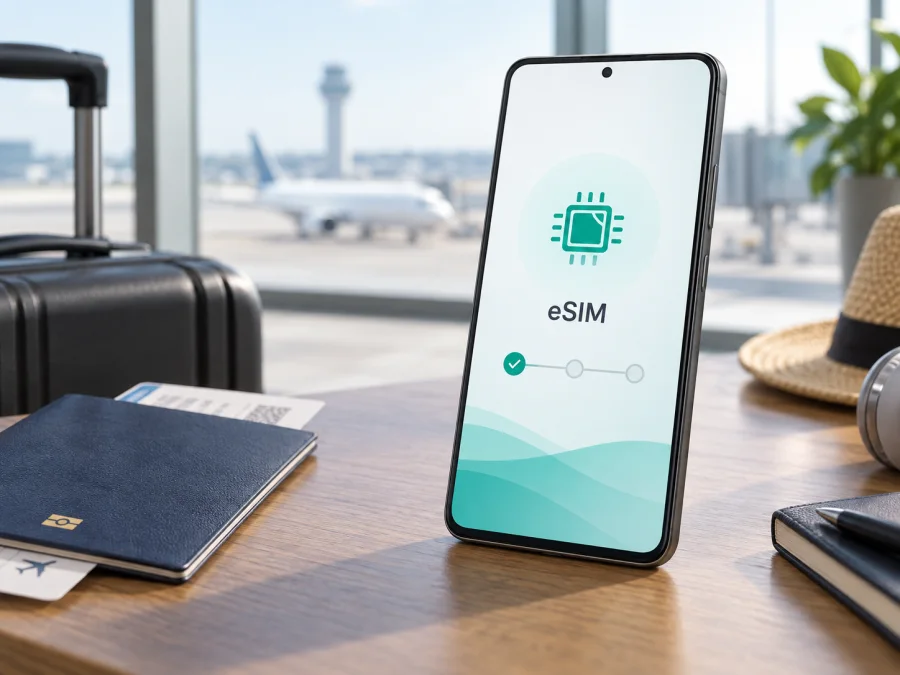
Motorola Edge 70 Fusion 256GB 5G eSIM: compatibility, setup and travel use
If you want mobile data abroad without removing your everyday SIM, the exact phone variant matters. For the Motorola Edge 70 Fusion 256GB 5G, Motorola’s current specification lists dual-SIM operation with one nano SIM and one eSIM. Motorola’s user guide also describes downloading a new SIM from Android settings, while warning that eSIM availability can depend on the phone and carrier.
The practical answer is therefore yes for the documented Motorola Edge 70 Fusion 256GB 5G configuration, with a final check required on the individual handset. Regional SKUs, operator-supplied phones and different firmware can expose different SIM options. Look for an EID or an eSIM add/download command before you buy a travel plan.
Quick answer
The exact device name here is Motorola Edge 70 Fusion 256GB 5G. It is a 5G Android smartphone with 256GB of storage, and the documented configuration combines one physical nano SIM with one eSIM. An eSIM is a downloadable digital SIM profile, so it can be used for travel data while your regular physical SIM remains available, subject to the phone, tariff and local network supporting the required service.
Specifications relevant to eSIM
| Item | Relevance to travel eSIM use |
|---|---|
| Device | Motorola Edge 70 Fusion 256GB 5G |
| Platform | Android; menu names can change after updates |
| Networks | 4G LTE and 5G sub-6 are listed; destination bands and plan coverage still apply |
| Physical SIM | One nano SIM in the documented dual-SIM configuration |
| Digital SIM | One eSIM is listed alongside the nano SIM |
| Storage | 256GB; storage does not determine eSIM availability by itself |
| Activation | Motorola describes Wi-Fi, “Download new SIM” and on-screen setup |
| Limitations | Market, firmware, carrier and operator-lock differences may change availability |
Does Motorola Edge 70 Fusion 256GB 5G support eSIM?
For the exact 256GB 5G variant documented by Motorola, yes. The manufacturer’s specification lists “Dual SIM (1 Nano SIM + eSIM).” Motorola’s support guide describes the same general flow: connect to Wi-Fi if needed, open the SIM and mobile-network settings, choose the option to download a new SIM and follow the prompts.
That evidence should not be extended automatically to every phone sold under a similar name. A regional model may use a different SIM arrangement, a carrier build may restrict activation, and an imported or refurbished phone may have a different software configuration. Motorola’s conditional wording is a reason to verify the handset, not a contradiction of the specification for the documented variant.
Three conditions must be satisfied:
- Hardware and firmware: an eSIM function must be present and exposed in Android. An EID and an add/download-eSIM command are useful signs.
- Carrier or plan support: the provider must issue a profile for this device and destination. Some carriers limit combinations of physical SIM and eSIM.
- Network and lock status: the phone must be unlocked or permitted to use the selected profile, and the tariff must work on a compatible local network.
Regional and carrier differences
Motorola notes that specifications can vary by market. The words “256GB 5G” preserve the requested device variant, but they do not replace the model and software details on the phone.
Before purchase, check:
- Sales market: an imported handset may not match the support information for your region.
- SIM software: a one-SIM tray does not prove eSIM support, and a two-SIM tray does not prove that an eSIM is available.
- Operator lock: a phone with the right hardware may reject a profile if it is locked.
- Firmware: install stable updates and check again if a menu is absent; carrier software can hide or rename controls.
- Plan rules: confirm the destination, validity, data allowance, network type and hotspot policy.
- Dual-SIM behavior: Android normally uses one selected line for mobile data, even when both profiles are enabled.
Check the EID and eSIM menu
Run this check before paying for a plan:
- Open Settings on the Motorola Edge 70 Fusion 256GB 5G.
- Open About phone and look in device details or SIM status for an EID. It is an eSIM identifier, not an IMEI.
- Return to Settings > Network & internet, then open SIMs or SIMs & mobile network.
- Look for Download new SIM, Add SIM, Set up an eSIM or similar wording.
- Open the command far enough to confirm that Android offers eSIM setup, without completing an installation.
- If there is no EID and no eSIM command, check for an update, confirm the market variant and ask the carrier or seller to verify the device.
Compatibility checklist before purchase
For a compact pre-purchase check, Check your device.
- [ ] The settings show an EID or an option to add/download an eSIM.
- [ ] The phone is not locked in a way that blocks another profile.
- [ ] Android is updated and the mobile-network menu is accessible.
- [ ] The tariff covers every country, region or route on the trip.
- [ ] Its data allowance and validity match the planned use.
- [ ] Hotspot or tethering rules are acceptable.
- [ ] Wi-Fi is available for installation.
- [ ] The activation QR code or profile instructions are saved securely.
- [ ] You have a backup way to contact support.
How to install an eSIM on Motorola Edge 70 Fusion 256GB 5G
1. Prepare the phone and plan
Connect to reliable Wi-Fi, confirm that the selected plan is for mobile data in your destination, and keep its QR code or manual details on another screen. If the profile is in the Kaspersky eSIM Store app or website, open its order and activation instructions first.
2. Open the eSIM settings
Go to Settings > Network & internet > SIMs & mobile network. Depending on Android version, the final label may be SIMs or Mobile network. Choose Download new SIM, Add SIM or the nearest eSIM command. Settings search can help you find “SIM” or “eSIM”.
The Android eSIM installation guide gives a general reference for this sequence. The exact labels remain controlled by the Motorola software.
3. Scan or enter the activation details
Choose QR-code activation if the provider supplied a code. Display it on a computer or another phone and scan it from the Motorola camera view. Enter manual activation details only as provided. Do not photograph or share the code after use.
4. Download and label the profile
Accept the prompts and wait for the eSIM to download. Keep Wi-Fi connected and do not restart unless Android asks. When the profile appears, label it Travel data or another clear name so it is not confused with the primary line.
5. Select mobile data
In SIM settings, select the travel eSIM for Mobile data when you are ready to use it. Keep your regular number as the preferred line for calls and messages if needed. Turn off automatic data switching if you do not want Android to fall back to the primary SIM.
6. Configure roaming and network selection
Follow the plan’s instructions for Data roaming. A travel eSIM may need it enabled because it uses a partner network abroad. This is separate from roaming on the primary SIM, so review the primary line’s data and roaming controls to avoid unexpected charges.
Leave network selection automatic at first. If the plan names a supported partner and the phone does not register, try that network manually. Do not force 5G when LTE is more stable or when the plan does not include 5G access.
7. Test the connection
Turn off Wi-Fi briefly, open a lightweight webpage and confirm that the mobile-data indicator uses the travel line. Check the plan’s usage view. For iPhone users in the same household, the iOS eSIM installation guide covers the different Apple menus; it is not the procedure for this Motorola device.
Using eSIM on a trip
Keep the regular nano SIM for your number and make the travel eSIM the mobile-data line. Before departure, download maps and tickets over Wi-Fi, and check whether validity begins at installation or at first network connection.
When you arrive:
- Open Settings > Network & internet > SIMs.
- Enable the travel eSIM.
- Select it for mobile data.
- Apply the plan’s data-roaming instruction.
- Keep primary-SIM data roaming off unless you deliberately need it.
- Turn Wi-Fi off briefly and verify the data indicator.
Choose the allowance around your use: navigation and messages usually need less data than video calls, cloud sync or hotspot work. A multi-country route needs a regional plan that lists every stop; a country-only tariff may stop at the border.
This travel eSIM is normally for mobile internet, not a separate ordinary phone number, voice service or SMS. Use the primary line or internet messengers according to your needs and the applicable charges. Kaspersky eSIM Store is an app and website that helps you choose, arrange and activate an eSIM with a suitable travel-data tariff; it is not a mobile operator, network owner or provider of mobile coverage.
Scenario: keeping your home number
Set the travel eSIM as data, keep the physical SIM for calls and SMS, disable automatic data switching, and review roaming charges on the home line.
Scenario: crossing a border
Check the country list before crossing: a regional plan may move to a partner network, while a single-country plan may not. 5G cannot extend the tariff’s geographical scope.
Troubleshooting
The eSIM option is missing
Look for an EID, install a stable system update and confirm the sales market. If both EID and eSIM menu are absent, ask the seller or carrier to verify support for this exact device and region. Do not buy another plan until that check is complete.
The QR code is rejected
Reconnect to Wi-Fi, brighten the code display and scan again. Confirm that the code belongs to the order and has not expired or been used. If manual details are supplied, enter them exactly. Stop repeating attempts if the provider says that each attempt consumes the profile.
The profile installs but does not connect
Confirm that it is enabled and selected for mobile data. Apply data roaming if required, restart mobile data and check network selection. Try a listed partner manually. Change the APN only when the provider supplies exact values; do not invent one.
The phone uses the wrong SIM
Set the travel profile under SIM for mobile data and disable automatic data switching. Calls and messages can stay on the physical SIM while data uses eSIM. Review primary-line roaming as soon as you see an unexpected data charge.
5G is unavailable
5G is not required for eSIM. Check the destination, plan and local bands, then try LTE for a stable test. Coverage, congestion, indoor reception and partner policy can make LTE active even when the handset supports 5G.
Data is slow or stops
Check remaining data, validity and the destination list. Test outdoors or in a stronger-signal area with one simple app. If the plan is valid and the phone registers but data still fails, contact provider support with the order and device status. Do not publish the full EID.
You want to remove the profile
Do not erase a working travel profile just to troubleshoot. Motorola warns that deleting an eSIM removes its calling, messaging and data capability from the device but does not cancel the underlying service. Follow provider instructions first because the profile may not be downloadable again.
FAQ
Is eSIM support different on other storage versions?
Storage does not determine the radio configuration. Motorola lists eSIM for the documented 256GB configuration, but regional and carrier variants can differ, so check the actual phone.
Can I use nano SIM and eSIM together?
Yes. Both may be enabled, while one selected line handles mobile data and call or message preferences can be separate.
Does eSIM prove the phone is unlocked?
No. A carrier-locked phone may show an EID and still reject a travel profile. Confirm unlock status before purchase.
Does a travel eSIM include a phone number?
Usually not for a data-focused tariff. Ordinary calls and SMS are excluded unless the selected plan says otherwise. Internet messengers can work over the eSIM data connection.
Is Kaspersky eSIM Store the operator?
No. It is an app and website where you can choose, arrange and activate an eSIM with a suitable tariff for mobile internet during a foreign trip. Connectivity and coverage depend on the selected tariff and its local operator arrangements.
Final device check before your trip
For Motorola Edge 70 Fusion 256GB 5G, Motorola’s current specification supports one nano SIM plus one eSIM, and its setup guidance describes downloading a new SIM. Because Motorola also warns that availability can depend on the particular phone and carrier, confirm the EID, find the add/download-eSIM command and check that the handset is unlocked before choosing a tariff.
Then match the plan’s destination list, data allowance, validity and hotspot rules to your trip. Kaspersky eSIM Store can help you use its app or website to choose, arrange and activate a suitable eSIM travel-data tariff. The final connection still depends on the compatible handset, chosen plan, local partner network and destination.
Label the profile clearly, select it for mobile data only when needed, and keep the primary SIM’s roaming settings under control. This final device check leaves you with a realistic travel setup: a supported Motorola Edge 70 Fusion 256GB 5G, an eSIM that matches the route and a clear troubleshooting path before you rely on mobile internet abroad.


