Travel connectivity guide
Motorola Edge 70 Fusion 256GB eSIM Guide
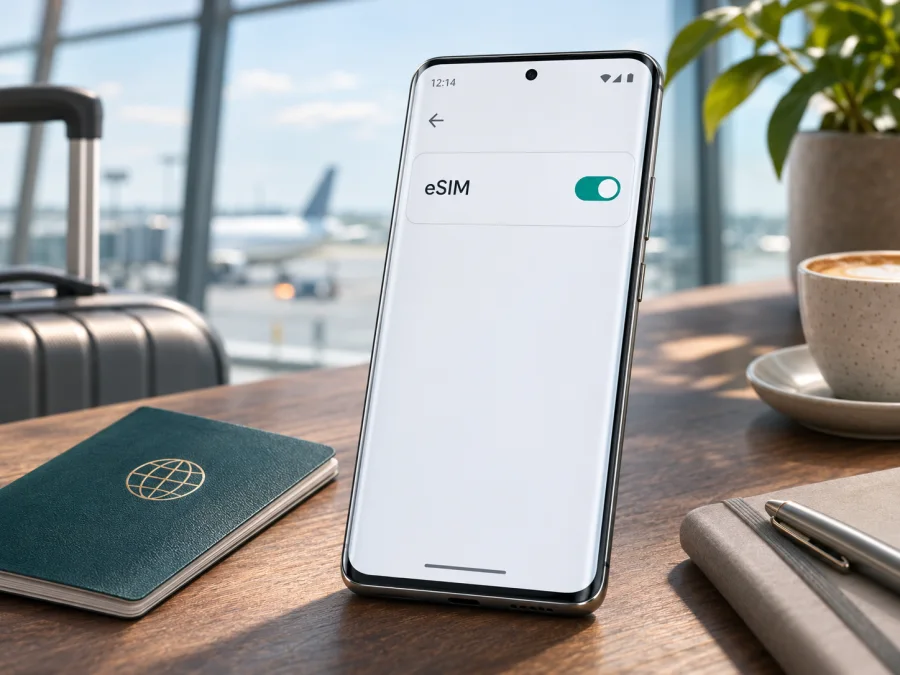
Motorola Edge 70 Fusion 256GB eSIM: compatibility and setup
Short answer: the Motorola Edge 70 Fusion 256GB can support eSIM, but the storage size alone does not identify the phone’s regional hardware configuration. Motorola’s official Brazil product page lists the 256GB version with one physical SIM and eSIM. Motorola’s US specification page describes a two-physical-nano-SIM configuration, while its support guide says eSIM availability may depend on the phone and carrier. Treat eSIM as supported on your handset only after confirming the EID or an eSIM download option in its settings and checking the exact regional SKU with the seller.
That distinction matters if you are buying the phone for a trip. “256GB” describes storage, not the SIM arrangement, sales market, carrier lock, or firmware configuration. A name shown in a shop listing may cover several regional versions. Before choosing a travel data plan, check the phone in your hand or ask the seller to verify the model code and eSIM menu on the actual unit.
Does the Motorola Edge 70 Fusion 256GB support eSIM?
Sometimes; the 256GB label alone is not enough to confirm it. Motorola’s official Brazil product page for the 256GB Edge 70 Fusion lists one physical SIM plus eSIM, and Motorola’s Spanish support specifications also list a nano physical SIM plus eSIM. Motorola’s US specification page instead describes two physical nano-SIMs and notes that specifications may vary by market. Its general support guide says eSIM availability depends on the phone and carrier.
These official listings demonstrate a regional difference. They do not establish the configuration of every handset with this name or guarantee activation with every provider. Storage describes capacity, not sales market, SIM hardware, carrier lock, or firmware. The final check is the eSIM menu or EID on your unit, together with its full model code and unlock status.
| Check | Officially published information | Practical meaning |
|---|---|---|
| Brazil 256GB product listing | One physical SIM plus eSIM | eSIM is supported on this market configuration. |
| Spain support specifications | One nano pSIM plus eSIM | Another market lists eSIM. |
| US support specifications | Two physical nano-SIMs; specs can vary by market | Do not assume all regional units use eSIM. |
| Motorola setup guide | Look for “Download new SIM”; ask the carrier if absent | Verify on the handset in hand. |
| Your final check | EID or eSIM add/download option, plus unlocked status | Confirm before selecting a travel plan. |
Motorola’s official pages were checked on 4 November 2026. If you cannot confirm the handset’s market or find its eSIM option, consider compatibility unconfirmed. Do not use another country’s listing, the Edge 70 name generally, or another owner’s experience as proof for your unit.
Regional and carrier versions
Regional models can differ in SIM tray, supported bands, firmware, or carrier approval. Imported stock may therefore have different settings from a local retail phone even when the name and storage match. Ask for the exact model code and country of sale, and request that the seller demonstrate eSIM settings on the actual unit.
Carrier lock is separate from eSIM hardware. A phone can support eSIM yet be restricted to its original carrier. Check that the device is unlocked and ask the travel plan provider whether it supports the precise regional version. Do not confuse Motorola Edge 70 Fusion with Edge 70 or Edge 70 Fusion+: their specifications do not establish compatibility for this model.
Check compatibility before buying a plan
Use the phone itself as the final check. On a compatible Android device, settings should expose a control to download or add an eSIM. Some Android versions also expose an EID, the identifier for the phone’s embedded SIM hardware. An EID is not the QR code used to install a plan, and you should not post it publicly. Menu names differ across software versions and markets, so a missing menu is a reason to investigate rather than proof on its own that the hardware lacks eSIM.
On the Motorola Edge 70 Fusion, start here: open Settings → Network & internet → SIMs & mobile network and look for Download new SIM or an equivalent eSIM option. Motorola’s support instructions give this path for setting up an eSIM. If your system language differs, the labels may be translated. If you do not see the item, install available official system updates, restart the phone, then check again. Also review Settings → About phone or Device details for an EID or SIM information. Depending on software version, EID may instead appear in a status or SIM menu.
An absent eSIM option can have several explanations: that regional model may not include eSIM; the carrier firmware may hide or restrict the feature; a work or family profile may limit access; or your current software may use a different menu. Do not attempt to change hidden engineering settings or install unofficial firmware to force support. Ask Motorola support or the seller to confirm using the full model number and country of sale. If you are still shopping, request a demonstration of the eSIM menu on the exact device rather than a similar display model.
Compatibility checklist
Before placing an order for a travel eSIM, confirm each point:
- [ ] The phone is Motorola Edge 70 Fusion 256GB, not another Edge 70 model.
- [ ] You checked the full model code, seller, and original sales market for the handset.
- [ ] Settings show an EID or an Add eSIM / Download new SIM control.
- [ ] The phone is unlocked for use with another network or travel data plan.
- [ ] The eSIM provider confirms support for this regional version and the destination.
- [ ] You have reliable Wi-Fi or another internet connection for downloading the profile.
- [ ] You understand when the plan activates, how long it remains valid, its data allowance, and whether roaming must be enabled.
- [ ] You know which line should handle mobile data and how to avoid unintended data use on your primary SIM.
Check your device before choosing a plan. If the EID and eSIM settings are not available, pause and verify the phone with Motorola or the seller. The storage marking cannot settle the question.
What eSIM does for a trip
An eSIM is a digital SIM profile stored on a compatible phone. You download it using the provider’s supplied method, often a QR code or app flow, instead of inserting another plastic SIM. A travel profile can provide mobile data in the destinations listed by its plan while a physical SIM remains installed, if the phone and plan allow it.
Kaspersky eSIM Store is an app and website where travellers can choose, arrange, and activate an eSIM plan for mobile data during an overseas trip. Service and coverage depend on the plan and participating networks. Many travel eSIMs are data-only and do not include a standard phone number, voice calls, or SMS. Check destination, data allowance, validity, supported networks, tethering rules, and activation timing. The phone’s 5G capability does not guarantee 5G access on every plan.
After confirming the handset is compatible and unlocked, browse the Kaspersky eSIM Store website to check current destinations and plan details. This is the general Store homepage, not a country-specific tariff. Choose a plan only when its coverage and dates match your itinerary.
A common setup is to leave the usual physical SIM available for calls or verification messages and select the travel eSIM for mobile data. Keep roaming off on the home SIM to avoid charges, and enable it for the travel eSIM only if its instructions require it. Dual-SIM behaviour varies by device and carrier.
How to install and activate an eSIM
Install over reliable Wi-Fi and read the plan’s activation terms first. Downloading a profile and starting validity may be separate events, but the rule differs by plan. Some activation codes are single-use; deleting a profile can make reinstallation difficult.
Motorola’s Edge 70 Fusion guide gives this menu path: Settings → Network & internet → SIMs & mobile network → Download new SIM. Follow the prompts and plan-specific instructions; menu names can vary by firmware and region.
Step-by-step setup on this Android phone
- Confirm compatibility. Check EID or eSIM settings, the full regional model, and unlocked status.
- Review the plan. Verify destination, data allowance, validity, activation conditions, and supported network.
- Connect to Wi-Fi. Charge the phone and keep the QR code on another screen or printed page.
- Open SIM settings. Go to Settings → Network & internet → SIMs & mobile network; tap Download new SIM, Add eSIM, or the available equivalent.
- Install the profile. Scan the provider’s QR code or use its app/manual method. If an error appears, check whether the profile was already added before retrying.
- Enable and label the line. Use a clear name such as “Travel” and switch it on when ready.
- Choose data. Select the travel eSIM for mobile data when the plan should be used; keep the preferred line for calls and messages.
- Set roaming and APN. Enable roaming only for the eSIM if instructed. Enter an APN only when the provider supplies one.
- Test. Turn Wi-Fi off briefly and load a page. Network registration may take a few minutes.
See the Android eSIM installation instructions for a visual walkthrough. Its illustrated menu sequence is Samsung-specific, so use Motorola’s menu path above where they differ. The iOS eSIM installation instructions apply to iPhone and are included only as a separate platform reference, not as steps for this Android phone.
Before departure or after arrival?
Installing before departure can leave time to resolve QR-code or account problems. You may leave the travel line off or keep your usual SIM selected for data until the trip, if the plan’s activation terms allow it. Some plans start validity upon installation; others use first connection or another stated event. If installing after arrival, use Wi-Fi and keep the code available on a second screen. For multi-country trips, confirm every stop is covered.
Using the eSIM for mobile data while travelling
After installation, check that the eSIM line is on, selected for mobile data, and configured for roaming and APN as instructed. A signal icon does not prove data is working: turn Wi-Fi off and try a webpage. If the phone offers automatic data switching, disable it if you want to avoid the home SIM being used unexpectedly.
Maps, email, and messaging use data; video, photo backups, and app updates can use it quickly. Download maps over Wi-Fi, limit background data if necessary, and monitor usage. Data-only plans generally do not provide ordinary voice calls, SMS, or a local number; internet calling apps need data and their own accounts.
When you return, select your primary SIM for data and review its roaming setting. Do not erase the travel profile just to troubleshoot: a single-use activation code may not install it again.
Common problems and checks
No “Download new SIM” option. Check About phone or SIM details for an EID, install official updates, and restart. If the option is still missing, ask Motorola or the seller to verify the exact regional model; a different market’s Edge 70 Fusion does not prove yours supports eSIM.
The QR code will not scan. Brighten the screen displaying it, clean the camera lens, and hold steady. Confirm the code belongs to the plan. If it may have been used, check the installed SIM list and contact the provider rather than repeatedly scanning. Keep QR codes private.
The profile installs but has no service. Check that the plan covers your current country and is valid; some connect only at the destination. Confirm the line is on, try automatic network selection, then toggle airplane mode or restart and wait a few minutes.
Signal appears but apps have no internet. Choose the travel eSIM for mobile data, turn Wi-Fi off for a test, and check mobile data, plan validity, and remaining allowance. Enable roaming for that eSIM if required. Add an APN only if the provider supplies the exact value.
Data uses the wrong SIM. Recheck the selected data line and disable automatic switching if available. Turn off data roaming on the home SIM if you want to avoid its charges. Review these settings after updates or SIM changes.
The phone reports “locked” or “unsupported.” Ask the original carrier about unlock status and Motorola about the model code and market. Give the plan provider the precise regional version and error text. Do not assume every Edge 70 Fusion has identical carrier approval.
If basic checks fail, contact the plan provider about the profile or network and Motorola about device capability. Share an error message or model code, never a password, one-time code, or QR activation code.
Frequently asked questions
Does every Motorola Edge 70 Fusion 256GB have eSIM?
No. Motorola’s Brazil 256GB listing and Spanish support specifications include eSIM; its US specifications describe two physical nano-SIMs. Check your phone’s region, EID, and eSIM menu.
Is 256GB the eSIM model number?
No. It is storage capacity. Ask for the full model code and country of sale, then check settings on the actual phone.
Where can I find the EID?
Look in Settings → About phone, SIM details, or device details. The menu varies. EID is an identifier, not an activation QR code; keep it private.
Can I use a physical SIM and eSIM together?
The Brazilian configuration lists one physical SIM plus eSIM. Simultaneous use and available functions depend on the regional device and carrier settings.
Should roaming be enabled?
Follow plan instructions. Some travel eSIMs require data roaming on that eSIM. This does not mean roaming must be enabled on your usual SIM.
Can I move the profile to another phone?
Do not assume so. Transfer and reinstallation rules depend on the plan, and some QR codes are single-use. Check with the provider before deleting or resetting a profile.
Will a travel eSIM use 5G?
Not necessarily. Access depends on handset bands, plan, local network, and availability. Check plan details for the destination.
Final checklist: verify, then choose
For the Motorola Edge 70 Fusion 256GB, eSIM compatibility is documented for some markets, including Motorola’s Brazil 256GB listing. It is not safe to assume the same SIM configuration for every phone carrying this name. Check the EID or Download new SIM option on your own handset, confirm the full regional model and that it is unlocked, and ask Motorola or the seller if the evidence is unclear.
Once compatibility is confirmed, compare the current eSIM plan’s destination, data allowance, validity, network and activation conditions with your travel plans. In Kaspersky eSIM Store’s app or website, travellers can review available options and arrange an eSIM plan for mobile data abroad. Install it over reliable Wi-Fi, select it deliberately for mobile data, and enable roaming only as the plan requires. A few checks before purchase can prevent a last-minute surprise after you arrive.


