Travel connectivity guide
Motorola Edge 70 Fusion+ 256GB eSIM Guide
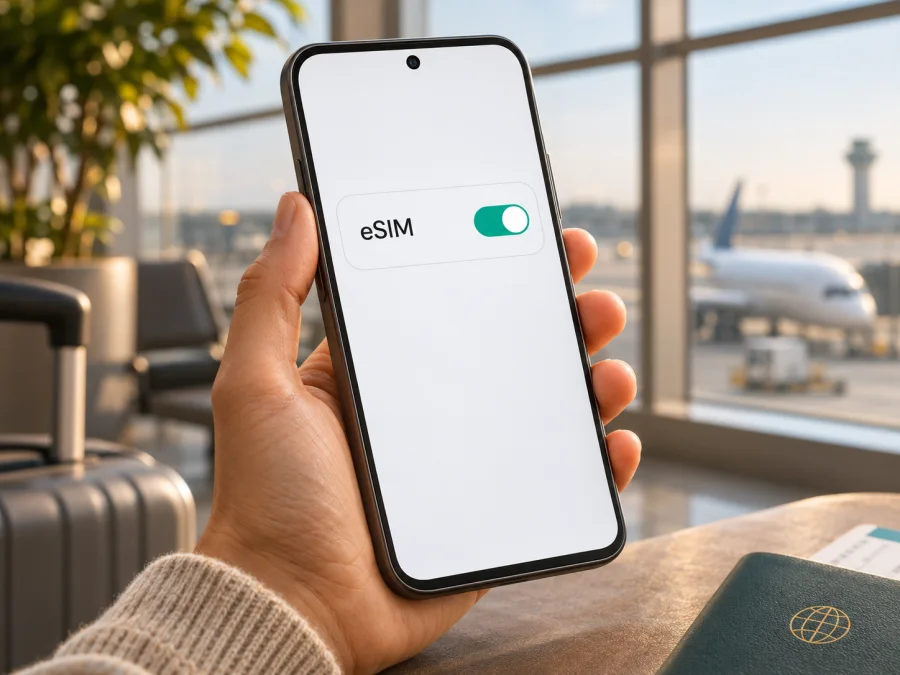
Motorola Edge 70 Fusion+ 256GB eSIM: compatibility and setup
The Motorola Edge 70 Fusion+ 256GB supports eSIM according to Motorola’s official Brazil product page, which lists a Nano SIM and eSIM combination for this storage variant. That is a useful confirmation, but it does not guarantee that every phone sold under a similar name in every country has the same SIM hardware or software. Motorola’s global support instructions also phrase eSIM support conditionally and advise checking the individual phone. Before buying a travel plan, verify the exact regional model and the settings on your own handset.
In short: the 256GB model listed by Motorola Brazil is eSIM-capable. If your phone was bought in another market, is carrier-branded, or has different firmware, confirm that it has an EID or an option to add/download an eSIM. The storage capacity by itself does not establish eSIM compatibility.
Motorola Edge 70 Fusion+ 256GB eSIM specifications at a glance
| Item | What to know |
|---|---|
| Exact device variant | Motorola Edge 70 Fusion+ 256GB |
| eSIM status | Listed as supported on Motorola’s official Brazil product page |
| SIM configuration on that listing | Nano SIM + eSIM |
| Physical SIM | Nano SIM; the exact tray configuration can differ by market |
| Storage | 256GB; storage is not a compatibility test |
| Software guidance | Motorola’s Edge 70 Fusion+ help page includes an eSIM setup route, while noting that support may depend on the phone version |
| Main check before purchase | Confirm EID or “Download new SIM” on the actual device, then confirm it is carrier-unlocked |
Why the country and exact unit matter
A phone name on a shop listing is not always enough to identify the mobile-radio configuration. Manufacturers may sell versions with different SIM trays or disable eSIM features for a market or carrier. Retailers may also shorten names, combine specifications from multiple variants, or list virtual RAM and storage in a way that makes a listing look like a distinct hardware version. Do not assume that “256GB” guarantees the same SIM setup worldwide.
Motorola’s Brazil store explicitly advertises the Motorola Edge 70 Fusion+ 256GB as compatible with eSIM and a physical Nano SIM. The manufacturer’s general support material for this phone family uses conditional language and instructs users to contact their carrier if the eSIM menu is missing. Neither statement should be stretched into a claim that all international or operator versions are identical. Check the regional product page or ask the seller for the full model number and whether that exact unit has an EID.
A carrier-branded device raises a separate question: network unlocking. eSIM hardware can be present while the phone remains locked to the original mobile operator. A lock can prevent activation of a travel profile from another provider. Ask the carrier that sold the phone to confirm its unlock status; installing updates or resetting network settings does not remove a contractual SIM lock.
Check eSIM compatibility on your Motorola
Do these checks before purchasing a data plan. Menu names may vary slightly with Android version, language and carrier software.
1. Look for an EID
An EID is the identifier associated with a device’s embedded SIM hardware. On the Motorola Edge 70 Fusion+ 256GB, try:
- Open Settings.
- Tap About phone.
- Open Device details or Status and look for EID. On some versions, the number appears under SIM status or in the device information screen.
- If Settings has a search bar, search for EID as well.
2. Look for the add-eSIM control
Motorola’s Edge 70 Fusion+ support instructions give this route: Settings → Network & internet → SIMs & mobile network → Download new SIM. Depending on the software build, the section may be labelled Mobile network, SIMs, Add eSIM, or similar. Open the mobile network settings and look for a way to download or add a SIM profile. You do not need to begin activation just to check whether the control exists.
If Download new SIM is present, the device’s software exposes an eSIM setup function. If it is absent, update the phone using the official system update screen, restart it, and check again. A missing control can mean the regional version does not support eSIM, the carrier has restricted it, the menu differs, or the phone needs carrier guidance. Contact Motorola or the seller with the model number before making a purchase decision.
3. Check the model and lock status
Find the model number in Settings → About phone and compare it with the number on the box, invoice or manufacturer’s regional product page. Ask the seller to confirm that the actual unit is the Motorola Edge 70 Fusion+ 256GB version being sold and that it is not SIM-locked. If you bought it through a carrier, ask that carrier whether another provider’s eSIM can be added.
Use this checklist:
- [ ] The model number matches the unit and regional listing you intend to use.
- [ ] The phone shows an EID or an eSIM download/add option.
- [ ] The device is not locked to a carrier that blocks other profiles.
- [ ] Android is up to date and the phone can connect to Wi-Fi for setup.
- [ ] The chosen travel eSIM plan covers your destination and is compatible with your device.
For another device or if you are still comparing models, check whether your device supports eSIM. This check is worth doing before paying for any plan: an eSIM profile cannot be installed on a phone that lacks the required hardware or software support.
Install and activate an eSIM on Android
The exact labels can vary on Motorola phones, and the QR flow may be different from the one shown in a general Android guide. Motorola’s own support page is the authority for the phone’s menu path. Keep a stable Wi-Fi connection available because the handset may need internet access to download the profile.
- Confirm compatibility first. Check the EID or the Download new SIM option, and make sure the phone is unlocked.
- Choose the destination and plan. Review the supported country or region, data allowance, validity period, activation timing, and any fair-use or hotspot conditions before checkout.
- Open the eSIM details after purchase. Use the installation instructions and activation method supplied with the plan. If a QR code is provided, display it on another screen or use the provider’s supported in-app installation flow; a phone generally cannot scan a QR code displayed on its own screen with its camera.
- Start adding the profile. On the Motorola, go to Settings → Network & internet → SIMs & mobile network → Download new SIM, then follow the on-screen prompts. If the provider directs you to scan a QR code, use that option when offered.
- Wait for installation to finish. Keep Wi-Fi connected and do not close the setup screen while the profile downloads. Name the profile something clear, such as “Travel data” or the destination, so you can distinguish it from your home SIM.
- Choose the data line at the right time. You can usually leave your home SIM selected for calls and texts and select the travel eSIM for mobile data. Follow the plan’s instructions about when its validity begins; installing and using the plan may have different timing rules.
- At your destination, enable the travel profile. Turn on the eSIM, select it for mobile data and, if the plan requires it, enable data roaming for that eSIM. Check the provider’s supplied APN settings only if the plan instructions require them.
- Test with Wi-Fi off. Open a webpage or messaging app over mobile data. If it does not connect, check the troubleshooting steps below before deleting the eSIM.
Motorola says to connect to Wi-Fi if needed, then use Download new SIM and follow the displayed steps. Its help page notes that if the option is missing, users should confirm eSIM support and activation instructions with their carrier. The Kaspersky eSIM Store Android installation guide provides general instructions; its screens can differ from Motorola’s. The iOS installation guide is included for reference if you are helping an iPhone user, but it does not apply to this Android phone.
Use the Motorola Edge 70 Fusion+ 256GB for travel data
Before departure, check the plan’s destination, coverage description, data amount, expiry rules and activation start condition. A country plan is for the country named; a regional plan may fit an itinerary that crosses borders. Verify every stop on a multi-country trip instead of assuming the same plan works everywhere. Mobile service still depends on the available local networks, location, device bands and conditions at the destination.
Once the plan is installed, set the travel eSIM as the mobile-data SIM when you are ready to use it. If you keep your regular SIM active for calls or one-time passcodes, check its roaming settings and your home operator’s charges. Disable mobile data on the home SIM or set the travel profile as the data line to reduce the risk of unintended roaming data use. Calls and SMS on your regular line remain governed by your home carrier. A travel data eSIM does not necessarily include a phone number, ordinary voice calls or SMS; check the specific plan terms.
- At home: verify compatibility and unlock status, choose a plan for the itinerary, and install the eSIM over Wi-Fi if the plan allows early installation.
- Before boarding: note which profile is the home SIM and which is the travel eSIM. Keep the plan’s setup instructions accessible offline.
- After landing: turn on the travel profile, select it for mobile data, enable data roaming for that profile if instructed, and allow a few minutes for network registration.
- During the trip: monitor remaining data and validity, use Wi-Fi for large downloads, and add a top-up only if the plan supports it and you need more data.
- When you return: switch mobile data back to your usual SIM and review the eSIM provider’s instructions before removing the travel profile.
Kaspersky eSIM Store is an app and website where travellers can choose, arrange and activate an eSIM with a mobile data plan for an overseas trip. It does not determine whether a particular Motorola variant has eSIM hardware; that needs to be confirmed on the phone. After checking your device, you can browse current travel eSIM options and review the destination and plan conditions shown there. Availability and terms can change, so confirm them for your route before checkout.
Common problems and what to check
“Download new SIM” is missing
Search Settings for SIM, eSIM or mobile network and check the phone’s model number. Install available system updates and restart the device. If the control remains unavailable, ask Motorola or the seller whether the exact regional variant supports eSIM. The official global help page says support may depend on the individual phone. Do not buy a plan based only on a product-family name.
The QR code will not scan or activation does not start
Confirm that the code is still valid, belongs to the plan you purchased and has not already been used. Increase screen brightness on the second device, clean the camera lens and position the code within the frame. If the provider offers manual activation details or an in-app installation route, use only the method in its instructions. Avoid repeatedly scanning or deleting profiles if the provider says the code is single-use.
The eSIM installed but there is no data
Check that the eSIM profile is enabled and selected as the mobile-data line. Turn Wi-Fi off for the test. Confirm that your destination is included and that the plan has started, has remaining data and has not expired. If required, turn on data roaming for the travel profile. Compare APN values with the plan instructions; do not invent an APN. Restart the phone or toggle airplane mode briefly, then allow time for the device to register.
The phone shows a network but webpages do not load
Check mobile data is on for the correct SIM and that a VPN, private DNS or data limit is not interrupting the connection. Check the APN only against the provider’s instructions. Try a different location, since indoor signal and local network availability can vary. If the profile still fails, contact the eSIM provider with the device model, Android version, destination and a description of the settings you checked. Do not share passwords or full EID in a public post.
The travel eSIM works, but the home SIM is roaming
Review which SIM is selected for mobile data and whether automatic data switching is enabled. Keep the home line for calls only if you need it, and disable its data roaming if you do not want it to use mobile data. Charges and call behavior depend on your home operator. Check its terms before travel, especially if you leave both lines enabled.
Activation works at home but the plan is not yet usable
Some plans permit installation before travel but begin their validity only after connecting to a supported network; others may start at purchase or installation. Read the plan’s activation rule before setup. On arrival, enable the profile and connect to the included destination network. If the rule is unclear, confirm it with the plan provider before installing.
Can I move the eSIM to another phone?
Do not assume that you can transfer it. Transfer and reissue rules depend on the eSIM provider and plan. Check those rules before changing or resetting the device. Motorola’s instructions also warn users not to erase an eSIM unless instructed, since a deleted profile may need provider assistance to restore.
Frequently asked questions
Does Motorola Edge 70 Fusion+ 256GB support eSIM?
Motorola’s official Brazil product listing says the 256GB Motorola Edge 70 Fusion+ supports Nano SIM + eSIM. That confirms the Brazilian listing, not every regional or carrier version. Check the EID or eSIM download menu on your own unit before purchase.
No. Storage capacity does not confirm the SIM configuration. Check the full model number, country of sale, EID and add-eSIM menu. Ask the seller or carrier about the exact handset if any of these checks are unclear.
Where is the eSIM setting on this Motorola?
Motorola’s support instructions show Settings → Network & internet → SIMs & mobile network → Download new SIM. The words can vary by Android build and region. Use Settings search if the menu labels differ.
Motorola’s Brazil listing gives a Nano SIM plus eSIM configuration for this 256GB version. Whether both can be active in a particular way depends on the regional model, software and carrier. The phone’s SIM settings show which profiles are enabled and which line is selected for data.
Will a travel eSIM give me a second phone number?
Not necessarily. Travel eSIM plans commonly provide mobile data only. A plan includes voice or SMS only when its terms explicitly say so. Internet messaging and voice apps can work over data, subject to the app and account requirements.
You may be able to install it in advance over Wi-Fi, but check when the plan’s validity starts. If activation begins at installation or purchase, installing too early could use part of the validity period. Follow the instructions supplied with the specific plan.
Do I need to turn on data roaming?
Some travel eSIMs require data roaming to connect to a partner network. Enable it only for the travel eSIM when the plan instructions say to do so, and check that the travel profile is selected for mobile data. Avoid enabling roaming on your home SIM unless you understand its charges.
Final check before choosing a travel eSIM
For the Motorola Edge 70 Fusion+ 256GB, eSIM support is confirmed on Motorola’s official Brazil listing, where the configuration is Nano SIM + eSIM. For a handset purchased elsewhere, treat that confirmation as regional: check its model number, EID or Download new SIM setting, and carrier-unlock status. If the eSIM control is missing, get confirmation for that unit from Motorola or the seller before paying for a plan.
Once compatibility is clear, choose an eSIM plan that covers every destination on your route and matches your expected data use and travel dates. Review its activation timing and any data roaming or APN instructions. Kaspersky eSIM Store’s app and website let you choose, arrange and activate an eSIM with a mobile data plan for an overseas trip; check current destinations and conditions before checkout.
Information checked on 3 November 2026. Device specifications, regional versions, software menus, plan availability and plan conditions may change. Confirm the details for your exact phone and chosen destination before purchase.


