Travel connectivity guide
Motorola Edge 70 Fusion 512GB 5G eSIM
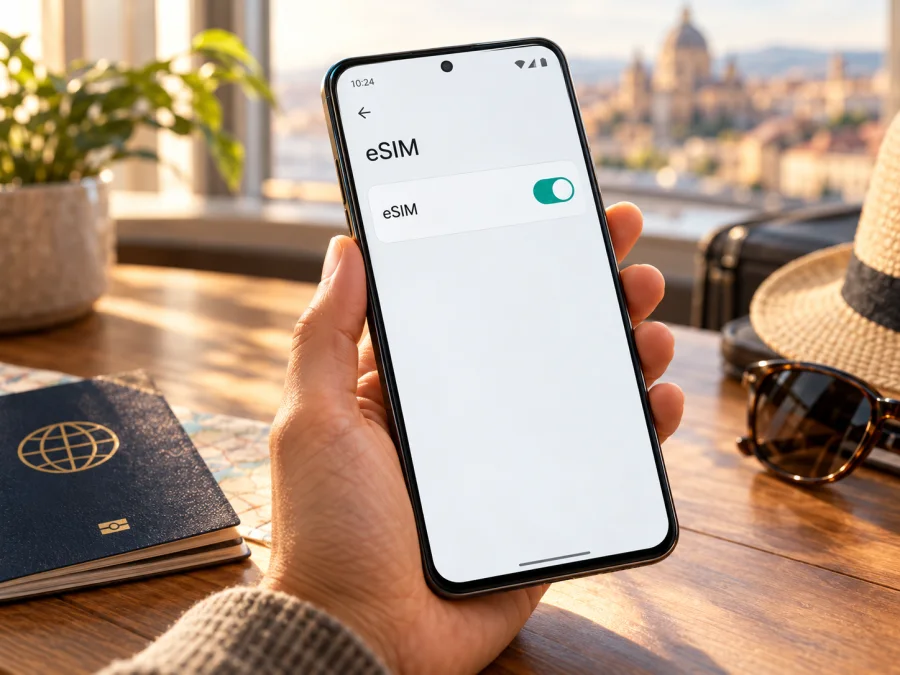
Motorola Edge 70 Fusion 512GB 5G eSIM: compatibility and setup
The Motorola Edge 70 Fusion 512GB 5G can use eSIM in documented regional configurations, but the name alone does not identify the exact hardware and software version in your hand. Motorola’s published specifications for a 512GB Edge 70 Fusion configuration list one nano-SIM and eSIM. Motorola also publishes different SIM arrangements for other markets: for example, the India specification lists two physical nano-SIMs and says specifications may vary by market. That means eSIM is supported by a confirmed 512GB configuration, but you should verify the country-specific version before buying a plan or relying on it for a trip.
The practical answer is: check the exact model code, the phone’s eSIM menu, and its EID or eSIM identifier. If the menu is present and the phone is unlocked, you can normally add a travel eSIM using the QR code or activation method provided with the plan. If the menu is missing, do not assume that a 5G label or 512GB capacity is proof of eSIM support; ask the seller or Motorola to confirm the variant.
Quick compatibility summary
| Item | What to know |
|---|---|
| Exact device in this guide | Motorola Edge 70 Fusion 512GB 5G |
| eSIM answer | Yes for an officially documented 512GB regional configuration; verify the exact unit because regional SIM hardware differs. |
| Physical SIM | The documented eSIM configuration uses a nano-SIM alongside eSIM. Other regional versions can have a different SIM arrangement. |
| Mobile network | 5G capability and eSIM capability are separate. A 5G mark does not confirm eSIM. |
| Best confirmation | Find an EID or eSIM entry and an option such as “Download new SIM” in Settings; confirm the model code with the seller. |
| Before a travel plan | Check eSIM support, carrier lock status, destination coverage, plan validity, data allowance, and activation conditions. |
Does Motorola Edge 70 Fusion 512GB 5G support eSIM?
Motorola’s official regional specification for a 512GB motorola edge 70 fusion lists a nano-SIM and eSIM. This supports a clear yes for that specific documented configuration.
The distinction matters because phones sold under the same family name may have different SIM trays, firmware, and supported carrier features. Motorola’s India specification for the Edge 70 Fusion, for instance, lists two nano-SIM cards and a 128GB or 256GB storage configuration rather than the 512GB variant. This is evidence of a different regional configuration, not evidence that every Edge 70 Fusion has the same SIM hardware. Do not transfer the SIM details of one country’s model to another simply because the retail name is similar.
A carrier can also affect whether an otherwise capable phone accepts a new profile. A device sold with a network restriction may not accept an eSIM from another provider until it is unlocked. And availability of a suitable eSIM plan depends on the plan’s destination and conditions, not only on the handset.
What the model name does—and does not confirm
The exact wording “Motorola Edge 70 Fusion 512GB 5G” does not identify the country of sale, hardware code, firmware, or carrier lock. Match the model code on the box, invoice, or Settings with Motorola’s specifications for the market where it was sold. A 5G label is not evidence of eSIM; a SIM tray does not rule it out; and “dual SIM” can describe two physical cards or a physical SIM plus eSIM. Ask the seller to confirm eSIM for the exact unit.
Check your exact phone before purchase
Use the phone itself when possible, and ask the seller to demonstrate the relevant screen on the exact unit rather than another display phone. Menu names can change slightly with Android updates, but Motorola’s support instructions for this model use Settings → Network & internet → SIMs & mobile network and an option called Download new SIM.
- Open Settings. Go to Network & internet, then SIMs & mobile network. Look for “Download new SIM,” “Add eSIM,” or a similar option. If it appears, the system is exposing eSIM setup on that phone.
- Check device details. Open Settings → About phone → Device details or SIM status. Look for an EID, an eSIM label, or a separate IMEI identified as belonging to eSIM. Motorola’s guides use the device details screen to identify the SIM IMEIs; exact labels may differ by software version.
- Try the dial code. On many Android phones, entering
*#06#in the Phone app displays device identifiers. Check whether an EID appears. If it does not, that alone is not definitive: dial-code screens and displayed identifiers can vary by model and software. - Match the model code. Compare the model code and region on the retail box, invoice, Settings, or the seller’s product page with Motorola’s official specifications for that country. Ask the seller to confirm that the exact 512GB unit supports eSIM, not simply that the Edge 70 Fusion family does.
- Confirm the lock status. Ask whether the device is carrier-unlocked and can install a profile from another provider. If it was purchased through an operator, request written confirmation before relying on it abroad.
If the eSIM menu is absent, Motorola’s model guidance recommends confirming support with the carrier. Also check for a system update and restart once, but do not treat a software update as a way to add hardware capability that the regional unit does not have. If you cannot establish support before purchase, choose a different confirmed eSIM-capable device or use a physical SIM option available for your trip.
Compatibility checklist
Before paying for a travel eSIM, check each item:
- [ ] The exact phone shows an EID, an eSIM identifier, or an eSIM setup option.
- [ ] You know the model code and sales market, especially if the phone is imported.
- [ ] The handset is unlocked for the eSIM you plan to use.
- [ ] Wi-Fi or another working connection is available for installation.
- [ ] The plan covers every destination and its validity fits your itinerary.
- [ ] Its data allowance, start condition, roaming rules, and profile limit suit your trip.
Check your device before choosing a plan. Compatibility belongs to the exact hardware and carrier status, not only to the product family name.
Choosing a travel eSIM for the Motorola Edge 70 Fusion 512GB 5G
A travel eSIM is a digital SIM profile that can provide mobile data without replacing your home SIM. Kaspersky eSIM Store is an app and website where you can choose, order, and activate an eSIM with a mobile-data plan for international travel. Destinations, data amounts, validity, and other terms depend on the specific plan.
List the countries on your route and confirm that a single-country or regional plan covers each stop. Compare the allowance with your expected use: maps, messages, ride bookings, and email use less data than video, hotspot sharing, or cloud uploads. Read the validity period and activation rule. Installation and activation can be separate events, but the selected plan’s terms determine when its validity starts.
A travel data plan may not include a regular number, voice calls, or SMS unless its terms say so. Keep your home SIM for calls or verification texts if needed, and check its roaming settings and charges. If you are ready to compare destinations, you can browse current eSIM plans for travel, the general English store page, then review the exact plan terms.
How to install and activate an eSIM
First confirm compatibility and unlock status. You will need Wi-Fi or another working internet connection and the plan’s QR code or manual activation details. Keep the QR code on another screen or in print so this phone can scan it. Motorola’s guide for this model uses Settings → Network & internet → SIMs & mobile network → Download new SIM; menu labels can differ slightly by software version.
- Connect to Wi-Fi. Keep the connection available until the profile finishes downloading.
- Open SIM settings. Tap Download new SIM or the equivalent eSIM control.
- Add the profile. Scan the plan QR code or enter activation details if provided, then follow the prompts.
- Name the eSIM. Use a clear label such as “Travel data” to distinguish it from your home SIM.
- Choose the data line. Select the travel eSIM when you want it to provide mobile data. If you install before departure, keep your usual line selected until you are ready to use the plan, subject to its activation terms.
- Set roaming only as instructed. Some travel profiles require data roaming. Enable it for the travel eSIM, and check the home SIM’s roaming setting to avoid unintended charges.
- Test the connection. At the destination, turn on the eSIM, select it for mobile data, and allow time for network registration.
See the Android eSIM installation instructions. The iOS eSIM instructions apply to Apple devices, not this Motorola phone.
Use the eSIM during a trip
Before departure, save the plan details and setup instructions somewhere accessible offline. Install at home if the plan allows it, but check when validity starts before scanning or activating. At your destination, switch on the travel profile, choose it for mobile data, and verify airplane mode is off. If required, enable data roaming on that profile only. Test a simple webpage before relying on maps or transport apps.
On a multi-country trip, confirm that each next destination is covered. Monitor data in phone settings or your account if usage tracking is available. Hotspot use, video, and photo backups can consume an allowance quickly; use Wi-Fi for large transfers when convenient.
Troubleshooting common problems
“Download new SIM” is missing
Check the model code and regional variant, restart the phone, and install any available system update. If the option remains absent, ask Motorola or the selling carrier whether the exact unit supports eSIM. Do not buy a plan until you have a clear answer.
The QR code will not scan or download
Increase the code’s screen brightness, clean the camera lens, and move the code until it comes into focus. Confirm that the code has not expired or already been used. For a download error, check Wi-Fi and use manual details only if supplied. Avoid repeated installation attempts if the profile may be restricted to one download.
The profile is installed but there is no service
Check that the travel profile is enabled and selected for data, airplane mode is off, and you are in a destination covered by the plan. Confirm that the plan is active and within its validity period. Enable roaming for the travel eSIM if its instructions require it, then restart the phone. If the issue continues, contact support with the error and model code; hide personal identifiers in screenshots.
Data uses the wrong SIM, is slow, or stops
In SIM settings, check which line handles mobile data and review roaming on your home SIM. Check the plan’s remaining allowance, validity, listed destination, and signal strength. Move to a place with better reception and retry. If manual network selection is available, follow the plan’s support guidance rather than assuming every listed network is included.
I cannot receive a verification text
A data-only plan may not include a number or SMS. Keep your home SIM active if you need texts sent to that number, and check roaming charges with your home carrier. Messaging apps can use mobile data but do not replace carrier SMS for every service.
Frequently asked questions
Is eSIM available on every Motorola Edge 70 Fusion 512GB 5G?
No. Motorola documents a 512GB configuration with eSIM, but regional versions can differ. Check the exact model code, an EID or eSIM identifier, and the eSIM setup option.
Does 5G confirm eSIM support?
No. 5G and eSIM are separate capabilities; the regional phone must support both.
Can I keep my physical SIM installed?
The documented eSIM configuration combines one nano-SIM with eSIM. Supported active combinations can depend on the model and carrier. Usually you can keep your home SIM installed and choose the line for mobile data in Settings.
When should I install the travel eSIM?
You may prepare before departure if the plan allows it and Wi-Fi is available. Read the activation rule first: the profile download and the start of plan validity may not be the same event.
Can I move or delete the profile later?
Do not assume it can be transferred or reinstalled. Some profiles are limited to the first device or one download. Check the plan conditions and contact support before removing it.
Final check before choosing a plan
For the Motorola Edge 70 Fusion 512GB 5G, a documented 512GB regional configuration supports nano-SIM plus eSIM, while other market variants can differ. Confirm the model code and region, look for EID or an eSIM setup option, and verify that the phone is unlocked before you commit to a travel plan. Then choose a plan for the countries on your route and read its data allowance, validity, activation timing, and roaming instructions.
Once compatibility is clear, you can browse current eSIM plans for your trip and compare the destination and terms that fit your itinerary. Kaspersky eSIM Store is an app and website for choosing, ordering, and activating an eSIM with a mobile-data plan for international travel; the selected plan’s conditions determine where and how it works. If the phone does not show an eSIM option, resolve that with Motorola or the seller first, or use a compatible device or physical SIM alternative for the trip.


