Travel connectivity guide
Motorola Edge 70 Fusion 5G eSIM Compatibility
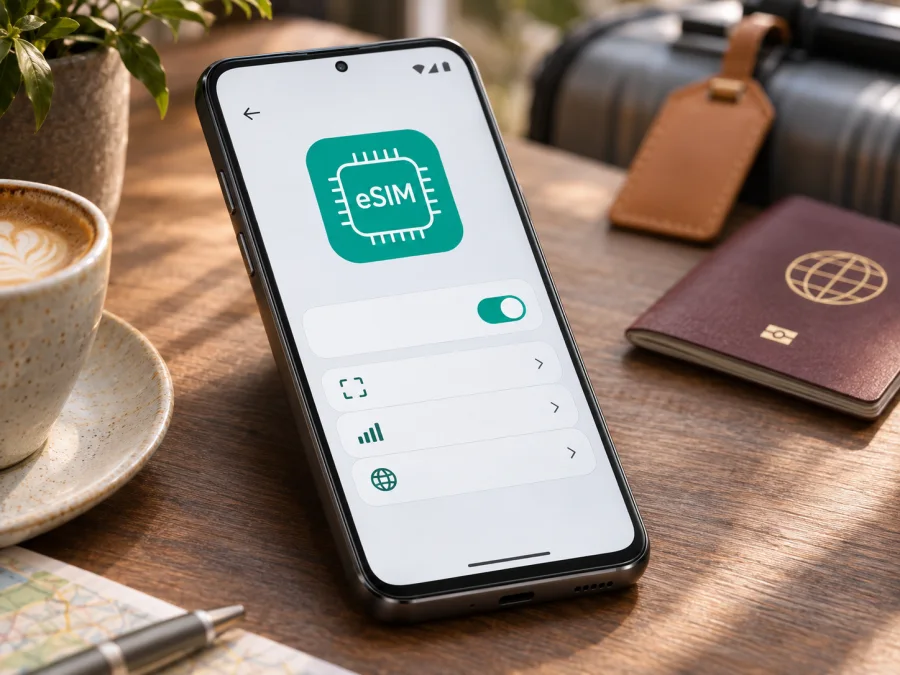
Motorola Edge 70 Fusion 5G eSIM: compatibility and setup guide
Short answer: the Motorola Edge 70 Fusion family includes eSIM-capable versions, but eSIM is not confirmed for every regional configuration. Motorola’s current specifications list one physical nano-SIM plus eSIM for some markets, while its India product specification lists two physical nano-SIMs. Since the name “Motorola Edge 70 Fusion 5G” alone does not identify the sales region or hardware configuration, check the exact phone before choosing a travel plan. If the phone is the India-market two-nano-SIM version, do not expect it to add an eSIM. A 5G label does not by itself confirm eSIM support.
Does the Motorola Edge 70 Fusion 5G support eSIM?
It depends on the regional variant. Motorola’s UK and Spanish support specifications identify a dual-SIM configuration with one nano-SIM and eSIM. Motorola’s Japanese product listing also specifies nano-SIM/eSIM. By contrast, Motorola’s India product page describes the Edge 70 Fusion as dual SIM with two nano-SIM cards. Motorola also notes that some specifications can vary by market, and its general setup guide says that eSIM availability depends on the phone and carrier.
That gives a practical answer for this exact name: the Motorola Edge 70 Fusion 5G can support eSIM in some markets, but the model name does not guarantee support in your individual unit. The physical-SIM-only India configuration is an important exception. This is a regional hardware or sales configuration difference, not something that can be inferred from 5G capability, storage capacity, Android version, or the appearance of the SIM tray. Do not rely on an online listing that combines specifications from several countries.
| Check | What to know |
|---|---|
| Device name in this guide | Motorola Edge 70 Fusion 5G |
| eSIM status | Market-dependent; supported configurations exist, but not every regional version supports it |
| Confirmed eSIM example | Motorola UK and Spain specifications list one nano-SIM plus eSIM; Japan also lists nano-SIM/eSIM |
| Confirmed physical-SIM-only example | Motorola India lists two nano-SIM cards |
| 5G | 5G support does not prove that the phone has an eSIM profile capability |
| Best check before purchase | Look for an EID or an add/download eSIM option on the exact phone, then confirm its model/region with the seller |
| Before buying a travel plan | Check device eSIM support, carrier lock status, destination coverage, and plan conditions |
The reference to a market is about the published device configuration, not a guarantee that every phone bought in that country has identical firmware or network eligibility. Imported phones, refurbished units, carrier-supplied devices and units with replaced software may differ. If the seller cannot confirm the precise SKU or region, treat eSIM support as unverified until you inspect the handset itself.
Check your exact phone before you buy
Start with the handset in front of you where possible. Settings menus can change slightly with Android updates or regional software, so use the search field in Settings if a label differs. Motorola’s guide for the Edge 70 Fusion describes the path as Settings > Network & internet > SIMs & mobile network, where an eSIM-capable model may show Download new SIM. If the menu is absent, Motorola advises checking with the carrier whether that phone supports eSIM and how it is provisioned.
Use this checklist:
- Look for an EID. Open Settings > About phone > Device details or search Settings for “EID.” An EID is the identifier associated with the embedded SIM hardware. It is a strong sign that the handset has eSIM capability, although you should still confirm that the specific carrier or travel plan can activate it.
- Look for the eSIM control. Open Settings > Network & internet > SIMs & mobile network and check for Download new SIM, Add eSIM, or similar wording. The exact label can vary with software. A visible option is useful evidence; if the setup fails, the carrier may still need to approve or provision the phone.
- Ask the seller for the regional model code. Request a photo of the About phone screen and the retail box label, and ask the seller to confirm whether the exact SKU has one nano-SIM plus eSIM or two physical SIMs. Avoid relying only on a generic product title.
- Check for a carrier lock. A phone can have eSIM hardware but be restricted to a specific mobile provider. Ask the original carrier or seller whether the device is unlocked for another provider’s profile.
- Confirm the plan and country. Compatibility with an eSIM does not mean every plan works in every destination. Read the plan’s coverage, supported device and activation conditions before purchase.
A SIM tray with one or two physical card positions does not settle the eSIM question. Some dual-SIM phones use one physical card together with an eSIM, and another regional variant may use two physical cards. Likewise, the appearance of a menu alone cannot establish whether the phone is unlocked or whether a particular travel plan can connect where you are going.
When comparing listings, match the model code on the handset with the code in the seller’s specification sheet; a product family name can cover different SIM configurations. If the code is unavailable, ask the seller to show the SIM settings on the actual unit and confirm whether an EID is present. A carrier’s compatibility checker can provide another confirmation, but check that it refers to this exact model and the intended eSIM service. A statement that the phone supports dual SIM or 5G is not sufficient evidence by itself. Also confirm that the activation method accepts your phone’s software region and that the line is not locked by an existing carrier contract. These checks answer different questions: hardware capability, network eligibility and plan coverage must all align.
For a quick pre-purchase review, check whether your device is compatible. If the exact regional version still cannot be confirmed, ask the retailer or carrier to verify the SKU and eSIM support in writing before paying for a plan.
What eSIM means for a trip
An eSIM is a digital SIM profile installed on a compatible phone. For a trip, it can provide mobile data without removing your everyday physical SIM. A travel eSIM plan is generally intended for mobile internet; it may not include a regular phone number, voice calls or SMS unless the plan terms say otherwise. You can usually continue to use messaging and calling apps over data, subject to their requirements and local availability.
Before you travel, compare the plan’s destination, data allowance, validity period, price, activation timing and any fair-use or hotspot terms. Think about how you use your phone: navigation, messaging, email, maps and occasional browsing can use less data than frequent video streaming or tethering a laptop. No single data amount suits every trip, so estimate from your own routine and leave room for unexpected use.
If your trip crosses borders, check whether the chosen plan covers each country on the route. A plan shown for one destination should not be assumed to work in a neighboring country. When a country-specific destination page is unavailable, use the Kaspersky eSIM Store website to browse destinations and check current plan details; the homepage is a general destination selector, not a specific country tariff.
Kaspersky eSIM Store is an app and website where travelers can choose, arrange and activate an eSIM plan for mobile data abroad. The phone still connects through the network associated with the selected plan; Kaspersky eSIM Store is not the mobile operator or the network owner. Check the terms shown for your selected plan, including what is and is not included.
How to install an eSIM on the Motorola Edge 70 Fusion 5G
Install the profile while you have reliable Wi-Fi, ideally before leaving home. Keep the QR code or manual activation details available on another screen or printed page if you intend to scan it with the Motorola phone. Follow the instructions supplied with the plan: some providers use a QR code, while others provide an activation flow or manual details. A QR code is normally for one installation, so do not share it or delete the profile unless the plan instructions explain how to recover it.
- Confirm support and unlock status. Check for the EID and the eSIM download option using the steps above. Confirm that the phone is not carrier-locked and that the plan is valid for your destination.
- Connect to Wi-Fi. Keep the phone charged and connect to a stable internet connection. The eSIM profile must be downloaded before the phone can use it.
- Open SIM settings. On the Edge 70 Fusion software guide, go to Settings > Network & internet > SIMs & mobile network. On another software version, search Settings for “SIM” or “eSIM.”
- Add the profile. Tap Download new SIM or the equivalent option, then follow the on-screen steps. If prompted, scan the QR code supplied for your plan or enter the activation details exactly as provided.
- Wait for installation to finish. Keep the Settings screen open and do not scan the same code repeatedly while the profile is downloading. When the phone asks, give the profile a clear name such as “Travel” or the destination name.
- Choose how the profile will be used. Enable the new eSIM line. Select it for mobile data when you want to use the travel plan. Keep your home SIM enabled for calls or messages only if you want those services and understand possible roaming charges.
- Set data roaming only as instructed. Some travel eSIM profiles require data roaming to be enabled on that line. Check the plan’s activation instructions and enable roaming for the travel eSIM only if they tell you to. Roaming on your home SIM may lead to separate charges.
- Check activation timing. Installing a profile and starting the plan’s validity are not always the same event. Read whether validity begins at installation, first connection to a supported network, or a date selected at purchase.
- Test the connection. Turn Wi-Fi off briefly and confirm that the travel profile is selected for mobile data and that a web page loads. Restore Wi-Fi after the check if you prefer.
For a visual walkthrough, use the Android eSIM installation instructions. The iOS installation instructions are for iPhone and are not the setup path for this Motorola, but they may help if another traveler in your group uses an iPhone.
Avoid deleting an installed profile as a first troubleshooting step. Motorola notes that erasing an eSIM removes its profile from the phone; restoring it may require contacting the provider. Before resetting or removing anything, consult the plan instructions or support and make sure you can obtain a replacement installation method.
Use the eSIM for mobile data while traveling
Once the profile is installed, choose which SIM provides mobile data. In Motorola’s guide, the relevant controls are under Settings > Network & internet > SIMs & mobile network. Select the travel eSIM under the mobile-data setting. Leave calls and text messages assigned to your preferred line. The available choices depend on which profiles are installed and enabled.
A common setup is to use the travel eSIM for mobile data and keep the home line for calls or messages if desired. Check roaming charges, disable data roaming on the home SIM if needed, and confirm the travel eSIM is selected for data after landing. If the travel plan requires data roaming, enable it for that profile only. After the trip, switch data back to your usual line and follow provider guidance before removing the profile.
Travel scenarios to plan for
Install before departure. If permitted by the plan, add the profile over Wi-Fi and read when validity begins. Avoid selecting it for data before the intended start if the instructions say so.
Install after arrival. You will need reliable Wi-Fi and access to the QR code or activation details. Airport Wi-Fi can be crowded, so advance installation may be simpler when allowed.
Use both lines. Set the travel eSIM for data and decide whether to keep the home SIM active for calls or messages. The travel plan does not replace your home plan.
Cross borders. Confirm every country is included and check whether another destination requires a separate plan or profile.
Use maps and messaging. Download offline maps before departure, then use mobile data for live directions and updates. Choose an allowance that still fits your routine.
Common problems and checks
There is no “Download new SIM” option. Recheck the EID and search Settings for “SIM” or “eSIM.” Make sure you are looking at the exact Edge 70 Fusion unit, not a listing for another model or a different regional variant. If the EID is absent and the menu does not appear, contact the seller or carrier with the model code. The India two-nano-SIM configuration is a clear example of why the model name alone is insufficient.
The QR code cannot be scanned. Increase screen brightness on the device displaying the QR code, clean the Motorola camera lens, and make sure the full code is visible and not cropped. If the code is on the Motorola itself, use a second screen or the provider’s manual activation method if available. Avoid repeatedly scanning a code that the provider says is single-use.
The phone shows signal but there is no internet. Verify the selected data SIM and any APN or network settings specified by the plan provider. Turn Wi-Fi off during the test so the result reflects cellular data. Check the plan’s remaining data and validity in its management app or account, and make sure the plan has actually started under its stated activation rules.
The eSIM option exists, but installation is rejected. Check whether the profile has already been installed, whether the phone is carrier-locked, and whether the provider supports this exact regional model. Ensure the phone is connected to the internet and that the activation code has not expired or been used. If the message persists, record the error and contact the provider before resetting the phone.
Mobile data uses the wrong SIM. Return to Settings > Network & internet > SIMs & mobile network and select the travel eSIM for mobile data. Review automatic data switching if present, because a fallback to the home line could create roaming charges. Check the setting again after a restart or a software update.
You are considering deleting and reinstalling the profile. Pause first. Some providers do not allow a profile to be installed a second time using the same code. Ask the provider whether removal is safe and whether a replacement code can be issued. A factory reset or eSIM erase can remove profiles, so do not use either as an early troubleshooting shortcut.
Frequently asked questions
Is every Motorola Edge 70 Fusion 5G eSIM-compatible?
No. Motorola publishes eSIM support for some regional configurations, including a one-nano-SIM-plus-eSIM variant, while the India product specification lists two physical nano-SIMs. Confirm the exact unit using its EID, Settings menu and model code.
Does 5G mean the phone supports eSIM?
No. 5G describes a mobile network capability. eSIM support depends on the phone’s regional hardware configuration, firmware and carrier eligibility. Check those separately.
Can I keep my physical SIM active while using a travel eSIM?
Supported dual-SIM configurations can use both, with a preferred line for data. Check home-line roaming charges before leaving it enabled.
Will a travel eSIM give me a regular phone number?
Not necessarily. Many travel eSIM plans are designed for mobile data and do not include ordinary voice calls, SMS or a local phone number unless the terms explicitly say so. Internet calling and messaging apps may work over data.
Should I install the eSIM before travelling?
If the plan permits it, installing over a trusted Wi-Fi connection before departure can make setup easier. Read the activation rules first: installation may not be the moment when the validity period begins. Some plans activate only after connection to a supported network or on a scheduled date.
Can I move the eSIM to another phone later?
Transfer rules depend on the provider and plan. Check before deleting the profile or changing phones.
What if I cannot confirm my regional variant?
Ask the seller or original carrier to confirm the exact model code and whether it has an EID and eSIM activation menu. If you cannot verify this before purchase, choose a handset whose exact regional configuration is explicitly documented as eSIM-capable or keep a physical-SIM travel option available.
Before your next trip
The Motorola Edge 70 Fusion 5G supports eSIM only in configurations that include the required capability; the name and 5G branding are not enough to confirm it. Verify the EID, the eSIM option in Settings and the regional model code. Then check that the phone is unlocked and that your chosen plan covers every destination and matches your data needs.
When compatibility is confirmed, choose when to install the profile, set the travel eSIM as the mobile-data line, and follow the plan’s instructions for roaming and activation timing. To prepare for a trip, use Kaspersky eSIM Store to browse destinations and review current mobile-data plan details. Check your phone first, then choose an eSIM that fits the route.


