Travel connectivity guide
Motorola Edge 70 Fusion+ 128GB eSIM Guide
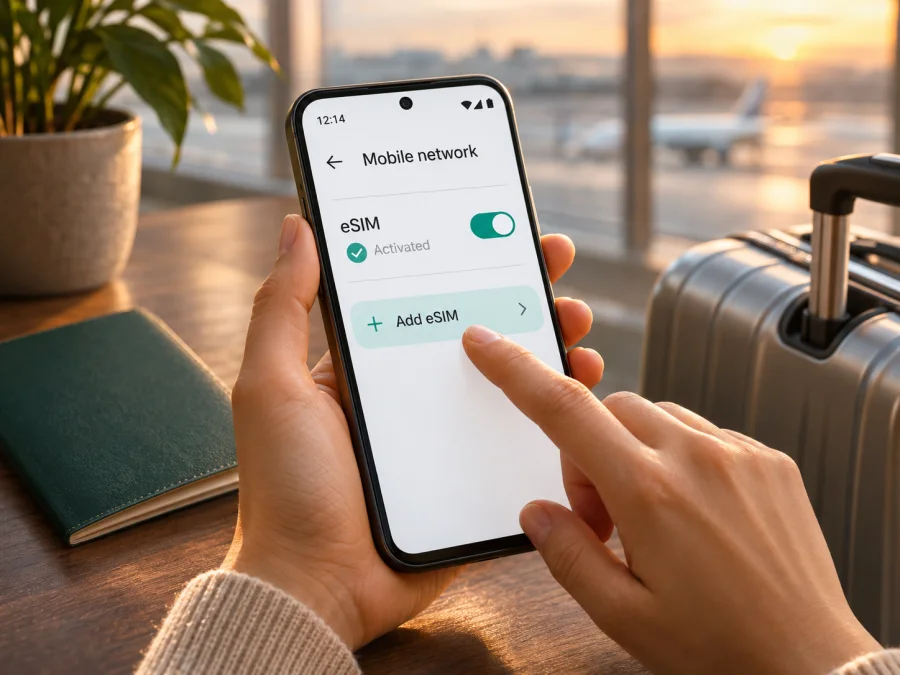
Motorola Edge 70 Fusion+ 128GB eSIM: compatibility and setup
Short answer: Motorola’s official help guide for the motorola edge 70 fusion plus describes how to download and set up an eSIM, but it also says eSIM availability may depend on the phone and asks users to confirm with their carrier. That means the name “Motorola Edge 70 Fusion+ 128GB” by itself is not enough to guarantee eSIM support. Check the individual handset for an EID and an option such as Download new SIM before choosing a travel plan. If neither appears, ask the seller or Motorola support to confirm the exact regional model and software configuration.
This guide keeps the requested name intact. It does not assume that every 128GB unit has the same SIM hardware: Motorola’s support information distinguishes single-SIM and dual-SIM versions, and the company warns in its product specifications that features can vary by market. Your own phone’s identifiers and settings are more useful than a retailer’s shortened listing.
Does Motorola Edge 70 Fusion+ 128GB support eSIM?
It can, but support is not confirmed for every phone sold under this name and capacity. Motorola’s user guide for the motorola edge 70 fusion plus includes an eSIM setup procedure. The guide describes a route through Settings > Network & internet > SIMs & mobile network, then an option to download and set up an eSIM. In the same section, Motorola qualifies that the phone “might” support eSIM and instructs users to check with their carrier. So the guide documents an eSIM setup flow for the product line, but it does not establish support on the individual handset or prove that every regional or operator-supplied 128GB unit has the necessary hardware and software enabled.
The storage amount is not the deciding specification. Two phones with 128GB of storage can have different model numbers, SIM trays, firmware, or market configurations. Listings may also use “Fusion+” inconsistently, while Motorola’s guide styles the model as “motorola edge 70 fusion plus.” Do not infer SIM capability from the product title, the presence of 5G, or the fact that a physical SIM tray is present. A physical SIM slot does not rule out eSIM, and a guide for an eSIM-capable version does not establish that every version includes it.
| Check | What it tells you | What it does not prove |
|---|---|---|
| EID appears in the phone’s settings or device information | The handset has an eSIM identity; this is a strong device-level sign that eSIM is available | That a particular carrier or travel plan will work, or that the phone is unlocked |
| “Download new SIM” or a similar eSIM option appears in SIM settings | The software exposes an eSIM setup path on this handset | That every network supports it or that activation will succeed without the plan’s requirements |
| Motorola’s user guide shows eSIM setup | Motorola documents an eSIM-capable configuration for the model family | That every regional, operator, or single-SIM version has eSIM enabled |
| A seller says “dual SIM” | The phone may support two SIM profiles or slots in some arrangement | Whether the second SIM is physical or embedded; verify the exact variant |
| The listing says “128GB” or “5G” | Storage or cellular-network capability | eSIM hardware, regional compatibility, or carrier unlock status |
The cautious conclusion is practical: regard this model name as conditionally eSIM-compatible until you verify your actual unit. If it passes the EID and settings checks below, continue by confirming that it is carrier-unlocked and that the provider supports the phone’s regional model. If you cannot find eSIM controls, pause before purchase and request written confirmation using the full model or SKU printed in the phone’s About phone screen or on its box.
Regional versions and the 128GB label
A phone model can be sold in multiple countries with different radio bands, SIM arrangements, and software builds. Motorola’s official help materials distinguish single-SIM and dual-SIM Fusion+ versions, and Motorola notes that specifications may vary by market. The 128GB label does not identify which configuration you have. A page for a similarly named Motorola Edge 70 Fusion, or a Fusion+ sold in another country, cannot confirm the SIM hardware in your unit.
Check three separate things: whether the handset has an eSIM (EID and setup menu), whether it is unlocked for another provider, and whether the plan’s partner network and radio bands work in your destination. A physical SIM tray does not rule out eSIM, while “dual SIM” does not tell you whether the second SIM is physical or embedded. Imported or operator-supplied devices deserve extra scrutiny; ask for the full model code and country of sale.
An EID identifies the embedded SIM hardware. It is different from an IMEI, which identifies the handset, and an ICCID, which identifies a SIM profile. Do not post full identifiers publicly. Share them only with a trusted seller, manufacturer, or provider if needed.
Check eSIM compatibility before buying a plan
Run these checks on the Motorola Edge 70 Fusion+ 128GB you will actually use; a retailer listing or another person’s phone cannot confirm your unit.
- [ ] In Settings > About phone, note the model number and Android version.
- [ ] Open Settings > Network & internet > SIMs & mobile network. Look for Download new SIM, Add eSIM, or similar wording.
- [ ] Search Settings for EID or eSIM. EID may also appear in device details or SIM status. You can try
*#06#; some software builds show EID beside IMEI, but not all do. - [ ] Install available system updates, restart, and search again if the option is missing. Do not factory-reset as a first check.
- [ ] Ask the seller or Motorola to verify eSIM support for the exact model code and sales market. Confirm that the handset is not operator-locked.
- [ ] Review the travel plan’s destinations, activation timing, data roaming, and installation requirements.
An EID and eSIM download option are strong signs that the handset is equipped and enabled. They do not guarantee that it is unlocked or that a particular network will work. If neither appears, treat support as unverified until Motorola or the seller confirms the SKU. For a second check, check your device and compare the result with the exact-market information.
If no EID or eSIM option appears
Search the SIM settings, update Android, restart once, and check again. If the EID and setup control remain absent, do not assume an update will add the required hardware. Ask the seller or Motorola support whether that specific model code and regional build include eSIM. If they cannot confirm it, use Wi-Fi or a physical SIM for the trip, or choose a handset with confirmed eSIM support.
Prepare the phone and plan
- Verify the phone. Confirm the EID, eSIM setup option, and unlocked status on the handset you will travel with.
- Use Wi-Fi and update Android. An internet connection is usually needed to download a profile; update before departure while Wi-Fi is available.
- Choose the destination and data allowance. In Kaspersky eSIM Store, review current options for your country or route and the displayed data amount, validity, activation conditions, and restrictions. Terms can change, so check them before confirming.
- Keep installation details accessible. You may install through the app, a QR code, or manual details, depending on the plan. If the QR code is on the Motorola’s screen, use another display or an offered manual method.
- Avoid deleting a profile. Some QR codes are single-use. Ask the provider before removing or resetting a profile after an error.
Kaspersky eSIM Store is an app and website where you can choose a plan and activate an eSIM for mobile data on an international trip; it is not the operator or network. No destination was specified, so use the current destination and plan listings to browse options. This general page is not a country-specific tariff.
How to install an eSIM on Motorola Edge 70 Fusion+ 128GB
Motorola’s official guide gives this general route: Settings > Network & internet > SIMs & mobile network, then download and set up an eSIM. Menu names and QR or manual flows can vary by software build and provider, so follow the instructions supplied with your plan. See the Kaspersky eSIM Store Android installation guide for its process; the iOS guide is for readers using an Apple device.
Install from a QR code
- Connect to reliable Wi-Fi. Display the QR code on another device or print it. If you have only one screen, use manual activation details if available.
- Open the Motorola’s SIM settings and tap the eSIM download/add option. If it is missing, stop and recheck compatibility.
- Select QR scanning, scan the code supplied with your plan, and confirm you are adding the intended profile. Do not scan a code from an unknown source.
- Follow the prompts and keep Wi-Fi connected until Android confirms the profile was added. Downloading a profile may not activate service immediately.
- Give the new profile a clear label, such as Travel data or the destination name.
- Set your usual SIM for calls and messages if desired; select the travel eSIM for mobile data when you are ready to use it.
- Follow the plan’s activation timing. Installation and the start of validity may be separate events, so do not assume when the clock begins.
Manual activation and mobile data settings
If the provider offers a manual code or in-app installation, follow that flow. Copy activation details exactly from the order; do not use a code from another plan. If a code appears to have been used, check SIM settings for an installed profile and contact support before retrying or deleting anything.
Once installed, return to SIMs & mobile network, switch on the travel eSIM, and set it as the SIM for mobile data. Review automatic SIM switching and turn it off if you do not want data to fall back to your home line. You can keep the home SIM for calls and texts if your phone and operator allow it, but check that operator’s roaming terms.
At your destination, follow the plan instructions for Data roaming. Some plans require roaming to be enabled on the travel eSIM. Make sure you change the setting for the travel line, not accidentally for the home SIM. Enter an APN only if the provider supplies one; otherwise leave the automatic setting unchanged.
Use the eSIM for mobile internet while travelling
Install before departure if the plan permits, then use Wi-Fi or the home connection until you intend to start the travel profile. At the destination:
- Turn off airplane mode and give the phone a few minutes to register.
- Confirm the travel eSIM is on and selected for mobile data.
- Enable data roaming on that profile only if the plan requires it.
- If the phone does not connect, check the plan’s destination list and network instructions.
- Test with a webpage or messaging app, then check usage in the provider account and Android data settings.
For a multi-country route, verify every stop against the plan’s included destinations. A regional label does not guarantee that every country is included. Data-only plans generally do not provide a standard phone number for cellular calls or SMS; internet calling and messaging apps can use the data connection. Keep access to account verification in mind if a service sends an SMS to your home number.
Troubleshooting common eSIM problems
No eSIM option in Settings
Search Settings for “eSIM” and “SIM,” update Android, restart, and confirm you are checking the exact handset. If the option and EID remain absent, ask Motorola or the seller to check the model code and market. Do not buy a plan until support is confirmed.
QR code will not scan
Raise the brightness of the display showing the code, clean the camera lens, and hold both screens steady. Use another screen if the code is displayed on the Motorola. If the code may already have been used, check the SIM menu before trying again; some codes are single-use.
Profile downloads but there is no service
Check that the plan is active for the current date and destination, the profile is switched on, and it is selected for mobile data. Follow the provider’s instructions for roaming and APN. Restart once and wait a few minutes. A successful download does not guarantee local coverage.
Signal appears but apps cannot use data
Confirm mobile data is assigned to the travel eSIM, airplane mode is off, and roaming is enabled on that profile if required. Check the plan’s validity and remaining allowance. Disable automatic switching while diagnosing so the selected line is clear.
Android rejects the activation code
Check the internet connection and copy details from the original order. A mistyped, previously used, or device-specific code may fail. Do not erase an installed profile unless the provider confirms it can be reissued; ask support whether the code is still valid and the exact phone is supported.
The home SIM incurs roaming charges
Check the mobile-data selection, automatic switching, and roaming settings for each line. Home operators may charge for calls, voicemail, SMS, or background use under their own terms. Ask that operator about account-specific charges.
Should I delete the profile after travelling?
Keep it until you have checked the provider’s instructions and know whether it can be reused. Removing a profile is not necessarily cancellation, and some QR codes cannot be scanned again. Motorola advises erasing an eSIM only when support instructs you to do so.
Frequently asked questions
Is the 128GB version automatically eSIM-compatible?
No. Storage capacity does not establish eSIM support. Motorola documents an eSIM setup path for a Fusion+ configuration but says support may depend on the phone. Check the EID and eSIM option on the exact unit.
Does “dual SIM” mean one SIM is embedded?
Not necessarily. It may refer to two physical SIMs or a physical SIM plus eSIM, depending on variant. Check the device settings and EID.
Can I install before flying?
Often, if the plan permits and Wi-Fi is available. Read when validity begins; installing a profile and activating the plan may be different steps.
Can my regular number remain available?
The exact dual-SIM behavior depends on the phone and software. Choose separate preferences for data, calls, and messages, and check home-operator roaming terms.
Does eSIM support guarantee coverage?
No. The phone must be unlocked, the destination must be included in the plan, and a compatible local network must be available.
What if support cannot be confirmed?
Treat compatibility as unverified. Ask Motorola or the seller about the exact model code, or use a device whose eSIM support is confirmed.
Final check before your trip
For Motorola Edge 70 Fusion+ 128GB, the responsible answer is conditional: Motorola’s official help guide documents an eSIM setup route for the Fusion+ line, but it does not guarantee eSIM for every regional or operator configuration. On the phone you will carry, look for an EID and an eSIM download option, verify that the device is unlocked, and confirm the plan’s destination and activation instructions before purchase. If those checks pass, install over Wi-Fi, select the travel profile for mobile data, and follow its roaming and APN guidance.
Once compatibility is confirmed, use Kaspersky eSIM Store’s website or app to browse current options, review the terms for your destination, and choose an eSIM plan for mobile data on your trip. Start with the available destinations and plans and check your device before you commit to an option.


