Travel connectivity guide
Motorola Edge 70 Fusion+ 512GB 5G eSIM Guide
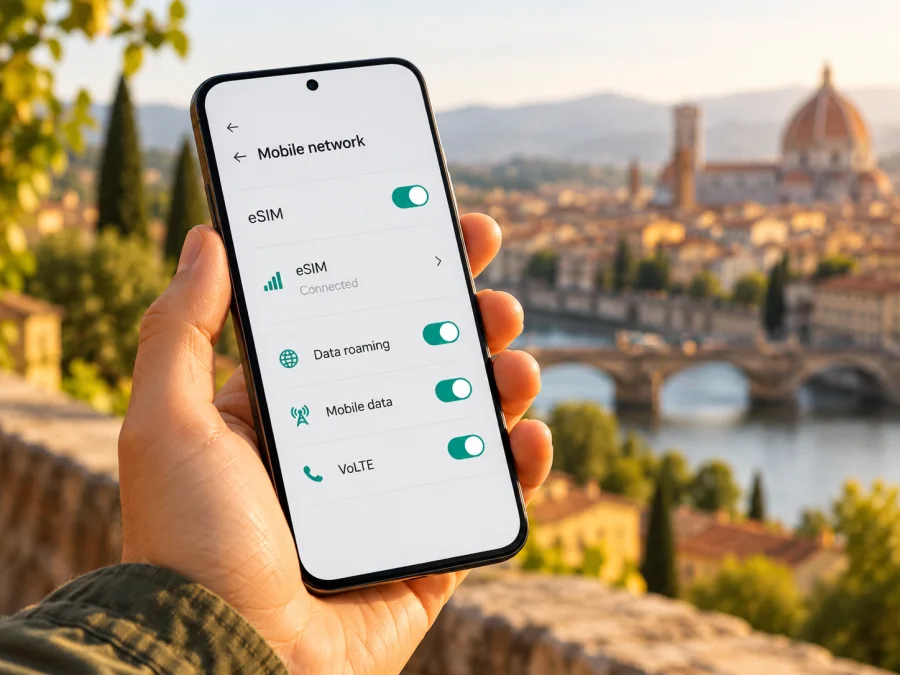
Motorola Edge 70 Fusion+ 512GB 5G eSIM: compatibility and setup
Short answer: eSIM support is plausible for the Motorola Edge 70 Fusion+ family, but the available official information does not confirm that every regional Motorola Edge 70 Fusion+ 512GB 5G SKU has an enabled eSIM. Motorola’s model-specific user guide says the phone might support eSIM and advises checking with the carrier. Treat this exact variant as unconfirmed until you see an EID or an eSIM setup option on your own phone and your seller or carrier confirms the regional SKU. The 512GB capacity and 5G label alone do not establish eSIM capability.
This distinction matters if you are preparing for a trip. A digital data plan can be installed only when the phone has the required eSIM hardware and software, is not restricted by a carrier, and supports the networks used by the plan. The checks below help establish those points before you choose a travel eSIM.
At a glance
| Detail | What can be confirmed | What it means for eSIM |
|---|---|---|
| Device name in this guide | Motorola Edge 70 Fusion+ 512GB 5G | The “+” and “512GB 5G” modifiers identify the requested variant; they should not be dropped when asking a seller about compatibility. |
| Official model guide | Motorola publishes a user guide titled “motorola edge 70 fusion plus.” | The guide describes eSIM as a possibility, rather than a universal feature for every unit. |
| Storage option | Motorola’s Colombia product listing shows a 512 GB option for the Fusion+ family. | Storage capacity does not tell you whether an eSIM profile can be added. |
| eSIM verdict for this exact regional SKU | Not conclusively established by the official pages reviewed. | Check the device itself and confirm its country or market version before purchasing a plan. |
| 5G | Included in the requested product name. | 5G support and eSIM support are separate capabilities. A 5G label is not evidence of an EID. |
| Travel data use | Conditional on eSIM availability, an unlocked device, plan terms, and local network compatibility. | Verify the destination and settings before departure. |
Motorola uses both “edge 70 fusion+” and “edge 70 fusion plus” naming. Its user guide does not identify every sales code, country variant, storage configuration, or carrier build. The Colombia product listing confirms 512 GB, while regional specifications for the non-Plus Fusion show different SIM arrangements. These are evidence of market variation, not proof that the models are interchangeable. Motorola Support pages reviewed on 2 November 2026 support checking the actual unit.
Does Motorola Edge 70 Fusion+ 512GB 5G support eSIM?
The safest answer is: possibly, depending on the market version and carrier configuration; verify this exact phone before buying a plan. Motorola’s official “Insert or remove SIM card” guide for the motorola edge 70 fusion plus says the phone might support eSIM alongside a physical SIM. It describes setup when available and says to contact the carrier if the option is missing. This does not confirm support for every unit.
Regional specifications for some motorola edge 70 fusion versions list one nano-SIM plus eSIM, while Motorola India lists two nano-SIMs for its non-Plus model. This confirms regional variation in the family, but does not establish the Fusion+ variant’s support. “512GB 5G” does not identify the SIM hardware or firmware on a particular unit.
So, if you are considering a boxed, imported, refurbished, or carrier-sold phone, ask the seller for the full model or SKU code and the original sales country. Ask directly whether that SKU supports downloading an eSIM profile and whether it is carrier-unlocked. If possible, have the seller show the EID or eSIM setup screen on the phone being sold. A general statement such as “the Edge 70 series supports eSIM” is not enough to establish support for this particular market version.
The EID identifies a device’s embedded SIM capability. Its presence is a strong sign of eSIM hardware, but confirm that eSIM is enabled and the phone is unlocked. A missing menu can also reflect software, regional, or carrier restrictions, so confirm the model code with Motorola or the seller.
Check your phone before buying
- Look for an EID. Open Settings → About phone and inspect the device identifiers or status information. Menu labels vary by Android version and region. You can also use the Settings search field and search for EID. If an EID is shown, note it privately; do not post the full identifier publicly.
- Look for eSIM controls. Open Settings → Network & internet → SIMs & mobile network. Motorola’s Fusion+ guide describes a control to download and set up an eSIM in this area. Depending on the software build, it may be labelled Download a SIM, Add eSIM, or similar. Check for an option to add a mobile plan without inserting a physical card.
- Confirm the seller’s regional SKU. Match the model code on the box, invoice, or About phone screen against the information provided by Motorola for the same sales market. The storage size alone is not a variant code.
- Check the carrier lock. A phone tied to a mobile operator can reject an eSIM from another provider even if eSIM hardware is present. Ask the original operator or seller whether the phone is unlocked for use with another eSIM.
- Confirm with the plan provider. Check the phone’s compatibility using the exact model name and variant before you select a travel data plan. If any detail is uncertain, contact support with the model code and country of purchase.
Compatibility checklist
Before selecting a plan, confirm each item:
- [ ] The phone shows an EID or a working option to add an eSIM.
- [ ] The seller or Motorola confirms that the exact regional SKU supports eSIM.
- [ ] The phone is carrier-unlocked, or the carrier confirms that the intended eSIM can be used.
- [ ] Android is updated and you can connect to Wi-Fi during installation.
- [ ] The destination and supported mobile networks match the plan details.
- [ ] You know whether the plan starts on installation, on a scheduled date, or on first connection in the destination.
For another compatibility check, check whether your device is compatible. The exact regional model code and settings on your handset are more decisive than the broad family name.
- [ ] You know how to select the eSIM for mobile data and whether data roaming must be enabled for that profile.
A positive result for the first two points is the key prerequisite. A 5G label or another Edge 70 model’s specification cannot substitute for checking this handset.
How to add an eSIM on Motorola Edge 70 Fusion+
Labels can differ by Android version and regional software. Motorola’s guide says to connect to Wi-Fi, open SIM settings, and follow the on-screen steps. First confirm the handset and obtain the eSIM installation details.
- Prepare the phone. Install available Android and system updates, charge the phone, and connect to stable Wi-Fi. Keep the confirmation email or activation details accessible on another screen if you need to scan a QR code.
- Open the SIM settings. Go to Settings → Network & internet → SIMs & mobile network. If you do not see an eSIM or download option, search Settings for “eSIM” or “SIM.” Do not keep trying random QR codes; first confirm support for your market SKU with the seller or carrier.
- Choose the add or download option. Tap Download a SIM, Add eSIM, or the equivalent entry shown by your phone. The phone may ask you to confirm that you want to download a mobile plan.
- Scan or enter the activation details. Follow the instructions supplied for your specific eSIM. If a QR code is provided, display it on another device and scan it with the Motorola. If manual activation details are provided, enter them exactly as instructed. A QR code is normally one-time-use, so do not delete the profile or repeat installation without checking the provider’s guidance.
- Wait for the profile to install. Keep Wi-Fi active until the phone confirms that the eSIM has been added. Give it a clear label such as “Travel data” so you can distinguish it from your regular SIM. A label is for your convenience and does not change the plan.
- Set the mobile data line. In SIM settings, enable the new eSIM and select it as the line for mobile data when you are ready to use the travel plan. Keep your usual SIM selected for calls or messages if you want to continue using it, and review its roaming settings to avoid unexpected charges.
- Apply the plan’s network settings. Some travel eSIMs require data roaming to be enabled for that eSIM or provide an APN (access point name) to enter. Follow the plan’s own instructions; do not copy an APN from another device or plan. If the profile specifies a manual setting, save and select it as directed.
- Test at the right time. Some plans can be installed before travel but connect only in the covered destination. Check the activation rule for your plan. When you arrive, turn off airplane mode, select the eSIM for mobile data, enable the required roaming setting, and allow time for registration on a local network.
See Kaspersky eSIM Store’s Android installation instructions for a general walkthrough; its screenshots are specific to Samsung, so Motorola labels may differ. The iOS installation instructions apply to Apple devices, not this phone. For Motorola, follow the on-screen prompts and the plan’s instructions.
Do not remove an installed profile to troubleshoot a temporary problem. Motorola warns that erasing an eSIM removes its mobile-data capability and may require provider help to restore it. Check the profile and instructions before retrying.
Using a travel eSIM for mobile data
Once the eSIM is installed, the main task is to make it the active data line at the correct time. You can often leave your regular SIM enabled for calls or texts while using the travel eSIM for internet, but exact dual-SIM behavior depends on the phone build and local carrier. Review the SIM settings before leaving home and note which line is selected for data.
For an international trip, a practical setup is:
- Install over Wi-Fi before departure if the plan allows it.
- Keep the home SIM for calls or verification texts if needed, and review its roaming charges.
- Select the travel eSIM for mobile data when its plan is due to start; enable roaming for that profile if instructed.
- Check that every country on your itinerary is included.
- Monitor use in phone settings and your store profile.
For example, if you are travelling through two countries, compare the plan’s listed destinations with both stops before purchase. If the itinerary changes, check coverage and validity for the new destination rather than assuming that a plan for the first country will continue to work. If you only need maps and messages for a short visit, estimate those needs and select a data amount and validity that fit your expected use. If you rely on video calls, navigation, or hotspot sharing, check the plan conditions and your phone’s battery and data settings in advance.
A travel eSIM is generally designed for mobile data. Do not assume it includes a local phone number, standard calls, or SMS unless the plan says so. Messaging and internet calls depend on the app and local connection; emergency calling rules also vary by destination.
A plan’s network availability depends on its destination and the networks it can use there. The phone must support relevant bands and be allowed to register. “5G” in the device name does not promise 5G service in every country; check the destination and exact phone variant.
Kaspersky eSIM Store is an app and website where travellers can choose, arrange, and activate an eSIM with a mobile data plan for an international trip. It is not a mobile network operator. Before checkout, review destination, data allowance, validity, activation timing, device conditions, and current plan instructions.
Common problems and what to check
There is no “Add eSIM” option
Confirm the full product code and the original market with the seller. Search Settings for “EID” and “eSIM,” then restart the phone and check for a system update. Motorola’s guide treats the eSIM option as conditional and recommends checking with the carrier if it is absent. If neither an EID nor a setup option appears, ask Motorola or the seller to confirm the SKU before spending money on a plan. Do not assume that another Fusion model’s menu proves this phone is compatible.
The phone rejects the QR code
Make sure the display showing the QR code is bright, clean, and separate from the phone camera; enlarge the code only if the provider says that is acceptable. Check that the code belongs to the plan you selected and has not already been used. If scanning fails, see whether the provider offers manual installation details. Avoid repeated attempts if activation codes are single-use, and contact the provider to confirm whether it can issue or reset the profile.
The profile installs but shows no service
Check whether you are in a destination covered by the plan and whether the plan’s validity has started. Confirm that the eSIM is switched on, selected for mobile data, and allowed to use data roaming if the instructions require it. Turn airplane mode on briefly and off, then restart the phone. If automatic network selection does not connect, use manual network selection only when the plan instructions recommend it. Wait a few minutes after the first connection attempt; network registration may not be immediate.
The phone connects but apps have no internet
Verify that the travel eSIM is selected for data, mobile data is on, and any required APN is entered and selected correctly. Make sure a data limit or Data Saver setting is not blocking use. If you use a VPN or private DNS, temporarily check whether the same page loads with that setting paused, then restore your normal privacy settings. Also check the plan’s remaining data and validity in the account where it was arranged.
The eSIM disappeared after a reset or device change
An eSIM profile may not transfer by copying it. Motorola warns that erasing it removes its capabilities; contact the provider before resetting or changing phones, and do not reuse an old QR code without confirmation.
Frequently asked questions
Is eSIM definitely supported on the 512GB version?
The official Motorola material reviewed does not certify every Motorola Edge 70 Fusion+ 512GB 5G unit. The model-specific user guide says eSIM might be supported. Confirm the EID or add-eSIM option on the actual phone and verify its regional SKU with the seller or carrier.
Does 5G mean that the phone supports eSIM?
No. 5G describes cellular network capability; eSIM describes a way of storing a SIM profile. A phone can support one without the other. Check the EID and eSIM settings directly.
Can a phone from another country have a different SIM setup?
Yes. Motorola’s published specifications for related Edge 70 Fusion versions show market-specific SIM arrangements, including eSIM in some regions and two physical nano-SIMs in another. Those findings concern the non-Plus Fusion listings and should not be used as a guarantee for the Plus model. Check the exact Plus sales code and country of purchase.
Can I add a travel eSIM and keep my regular SIM?
If your specific phone supports dual SIM with eSIM, it may allow a physical SIM and an eSIM to remain available together. The exact combinations and controls vary by version. Choose which line handles mobile data, and check the home operator’s roaming terms before leaving.
Does a travel data eSIM replace my phone number?
Not necessarily. A data-only plan usually does not provide a conventional mobile number, voice service, or SMS. Keep your usual line available if you need it and use internet-based calling or messaging only where appropriate.
What if I still cannot confirm compatibility?
Ask the seller or Motorola support to check the model code and country of sale. If the phone has no visible EID or eSIM setup path and the seller cannot confirm support, do not assume it will work; use a device whose exact eSIM compatibility is confirmed or arrange mobile data another way for the trip.
Check the device, then choose a travel plan
For Motorola Edge 70 Fusion+ 512GB 5G, the useful conclusion is conditional: Motorola documents a possible eSIM feature for the Plus family, but the official guide does not promise it for every regional SKU. Check the EID or eSIM setup menu on the actual handset, confirm that the phone is unlocked, and ask the seller or carrier about the exact market code. Do this before purchasing a travel plan.
After compatibility is confirmed, compare the current destination, validity period, data allowance, activation timing, and network conditions for your itinerary. Kaspersky eSIM Store’s app and website let you choose, arrange, and activate an eSIM with a mobile data plan for an international trip. Browse current destinations and plan details on the Kaspersky eSIM Store website, then follow the instructions supplied with your selected plan. Check that the travel eSIM is the mobile-data line when you want it to connect, and keep your regular SIM’s roaming settings under control.


