Travel connectivity guide
Motorola Edge 70 Fusion+ 512GB eSIM Guide
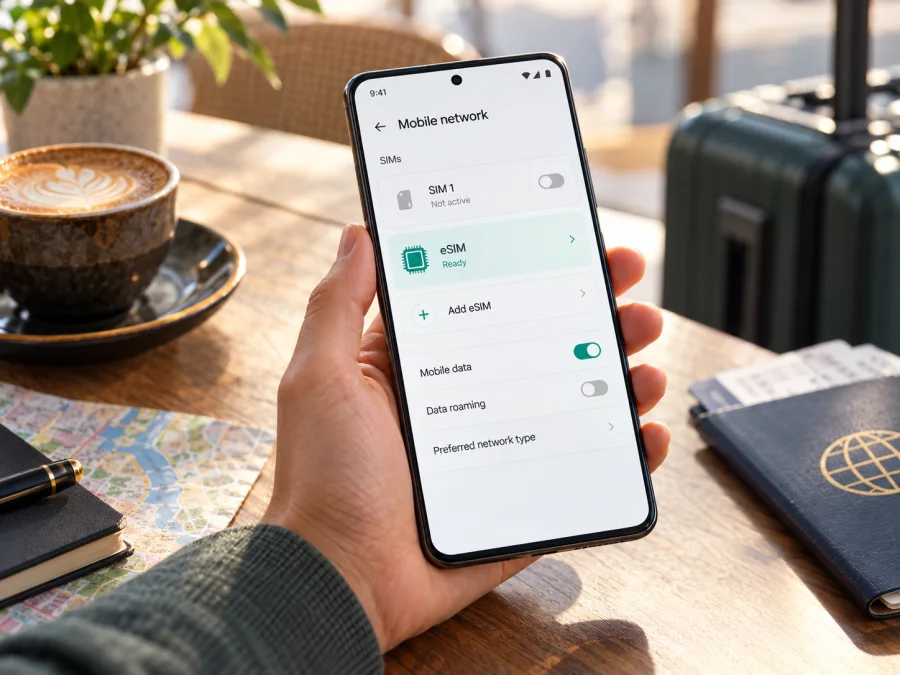
Motorola Edge 70 Fusion+ 512GB eSIM: compatibility and setup
Short answer: eSIM is supported on the 512GB Motorola Edge 70 Fusion+ configuration listed by Motorola in Brazil. Motorola’s user guide for the Edge 70 Fusion+ also describes eSIM setup, while its wording says that support can depend on the particular phone and carrier. Because names, specifications and network provisioning can vary by market, check the unit in your hand before choosing a travel plan: look for an EID or an option such as Download new SIM in Settings. If neither appears, ask the seller or Motorola support to confirm the regional model and software build.
Storage size alone does not guarantee that every phone sold under a similar name has identical SIM hardware or software. Use the 512GB capacity, Plus suffix and country of sale when asking for confirmation. This guide focuses on Motorola Edge 70 Fusion+ 512GB: how to check it, add a travel eSIM, select it for data and resolve common setup issues.
Motorola Edge 70 Fusion+ 512GB eSIM compatibility
Motorola’s Brazilian store listing for the 512GB Motorola Edge 70 Fusion+ identifies eSIM compatibility and lists a nano-SIM plus eSIM configuration. Motorola’s user guide for the Edge 70 Fusion+ describes adding an eSIM from Android’s mobile network settings. At the same time, the guide says that the phone “might” support eSIM and directs users to confirm support if the download option is missing. The practical answer is therefore yes for the documented 512GB Brazilian configuration, but verify the exact regional handset before purchase or installation.
Motorola notes on its product support pages that some specifications vary by market. A device name can be reused across countries while the supported SIM arrangement, firmware, bands or carrier provisioning differs. Retailer listings can also combine details from several variants. Do not infer eSIM support from the Edge family name, 5G capability, available storage or the presence of a physical SIM tray. Use the model number, country of sale and the phone’s own settings to establish what your handset can do.
| Check | What is documented or what to look for |
|---|---|
| Exact article variant | Motorola Edge 70 Fusion+ 512GB |
| eSIM in the listed 512GB configuration | Yes, on Motorola’s Brazilian product listing |
| Setup path in the Edge 70 Fusion+ guide | Settings → Network & internet → SIMs & mobile network → Download new SIM |
| Physical SIM | The 512GB Brazilian listing shows nano-SIM alongside eSIM |
| Regional qualification | Motorola says specifications can vary by market; confirm the exact handset |
| Best check on your phone | An EID in device/SIM information or an available eSIM download/add option |
| Network access during setup | Use stable Wi-Fi if the phone is not already online |
This is a guide to the device’s eSIM capability, not a promise that every eSIM plan will work everywhere. A plan must also be valid for your destination and compatible with the handset’s available network bands and the local network. An operator lock, an unsupported regional build or a carrier restriction can prevent activation even when the device family includes eSIM-capable versions.
Regional versions and the exact 512GB model
When buying a phone abroad or through a marketplace, check the complete product code on the box, invoice or Settings → About phone page. Ask the seller to confirm in writing that this particular 512GB unit has an active eSIM function in the country where it will be used. If the phone has been imported, its country of origin can matter more than the country where you currently live. A software update may change menu wording, but it cannot add missing eSIM hardware to a version that was built without it.
The Brazilian 512GB listing is a specific positive reference for the requested variant. Motorola’s general support documentation for the Edge 70 Fusion+ gives the setup procedure and warns that availability may depend on the phone and carrier. These details do not establish the configuration of an unrelated unit sold in another market. Treat the documentation as confirmation for the listed market and the on-device check as the final confirmation for your handset.
Carrier support is separate from device capability. An operator may require its own app, QR code or identity checks. Make sure the phone is unlocked and have the plan’s installation details before leaving a reliable internet connection.
Check your handset before buying a plan
Use this short checklist on the Motorola Edge 70 Fusion+ 512GB you intend to travel with:
- Find the EID. Open Settings → About phone and look under device details, SIM status or identifiers. On some Android builds, searching Settings for “EID” finds it directly. The EID is the identifier for the phone’s embedded SIM hardware. You can also open the dialler and enter
*#06#; on some phones, the information screen includes an EID. Availability and labels differ, so a missing result from one route is not conclusive by itself. - Look for the eSIM control. Open Settings → Network & internet → SIMs & mobile network. Check for Download new SIM, Add eSIM or similar wording. Menu labels can change with Android version, language and updates.
- Check the model and market. In Settings → About phone, note the model number and compare it with the box and purchase record. Ask Motorola or the seller whether that exact regional model supports eSIM, especially if the handset is imported or refurbished.
- Confirm it is unlocked. Ask the original operator or seller whether another operator’s eSIM can be added. A SIM lock can block activation even when an EID and eSIM menu are present.
- Install updates and connect to Wi-Fi. Update Android and Motorola system components before you travel. A stable Wi-Fi connection helps the phone download the profile and reduces the chance of an interrupted installation.
- Check the travel plan’s terms. Confirm that the selected eSIM covers the country or region on your route, its data allowance and validity period, activation rules, supported networks, and whether data roaming must be enabled.
An EID is a strong sign that eSIM hardware is present, but it does not guarantee that a profile can be activated on a locked device or that a particular travel plan will connect. Conversely, a missing menu can reflect a regional build, a disabled feature, carrier restrictions or an outdated software version. If the checks disagree, pause before payment and ask Motorola or the seller to confirm using the exact model number. Check your device before selecting a plan.
Choose a travel eSIM for your route
Once compatibility is confirmed, match the plan to the trip rather than to the phone’s storage capacity. Pick the destination or region, compare the data amount and validity period, and read when the plan starts counting time or data. A short city break with maps, messaging and occasional browsing calls for a different allowance from a multi-week itinerary with video calls, cloud backups or a laptop hotspot. Consider how often you can use trusted Wi-Fi and whether you need data on arrival at the airport.
Kaspersky eSIM Store is an app and website where you can choose, purchase and activate an eSIM with a mobile-data plan for travel abroad. You can browse current destinations and available plans and review the plan details shown for your route. The homepage is a general destination and plan-browsing page; it is not a country-specific tariff. Check that the exact destination is included and read the terms displayed for the selected plan before completing an order.
Most travel data eSIMs are intended for mobile internet. Do not assume that the plan includes a local phone number, conventional voice calls or SMS; those features depend on the individual plan terms. You can usually keep your regular SIM available for calls and messages while assigning mobile data to the travel profile, but your home operator may charge roaming fees if its line uses data abroad. Review both lines’ settings before departure.
Also check whether the profile is reusable or tied to one installation. Some eSIM profiles can only be installed once or cannot be transferred after activation. Keep the order confirmation and installation instructions available, but do not share the QR code: it can act like a credential for downloading the profile. If you need to reinstall or move an eSIM, contact the plan provider first instead of deleting it as a test.
How to install an eSIM on Motorola Edge 70 Fusion+ 512GB
Motorola’s Edge 70 Fusion+ guide describes the Android path below. Your wording may differ slightly by language or software update. Follow the instructions supplied with your eSIM if they provide a different supported method.
- Prepare the phone. Confirm that an EID or eSIM option is present, the handset is unlocked, Android is up to date and the battery has enough charge. Connect to Wi-Fi. Keep the QR code on another screen or print it so the phone can scan it.
- Open SIM settings. Go to Settings → Network & internet → SIMs & mobile network. If needed, use the Settings search field for “SIM” or “eSIM.”
- Start adding a profile. Tap Download new SIM, Add eSIM or the equivalent option. If Android asks whether you want to download a SIM, confirm and follow the prompts. Choose the QR-code scan option if it is offered and scan the code supplied for your plan. Some providers may instead give a manual activation code or a provider app flow.
- Wait for the profile to download. Keep the Wi-Fi connection active and do not close the setup screen while the phone is installing the profile. If the phone displays a confirmation, give the new line a clear label such as “Travel data” so you can distinguish it from your regular SIM.
- Choose how each line is used. When prompted, decide which SIM handles calls, messages and mobile data. You can keep your usual SIM for calls and select the travel eSIM for data, if the phone and plan allow that arrangement. Avoid enabling mobile data on the home SIM abroad unless you have checked its roaming charges.
- Activate at the right time. Some plans begin when the eSIM is installed; others start when the profile first connects to a supported network or when you manually activate it. Follow the plan’s stated timing. If it starts on first connection, you may install it before departure and leave the line switched off until you are ready.
- At your destination, enable the travel line. Turn on the eSIM, set it as the mobile-data SIM and enable data roaming for that line only if the plan instructions require it. Wait for it to register on a supported network, then test a simple webpage or map.
For additional Android guidance, see Motorola eSIM setup instructions. The iOS eSIM instructions are useful if you are helping someone with an iPhone; the steps are not for this Android phone. If the Android screen offers no eSIM option, stop and confirm the exact regional model with Motorola or the seller before trying alternative codes or unofficial software.
Use the travel eSIM for mobile data
After landing, open Settings → Network & internet → SIMs & mobile network and select the travel profile as the mobile-data SIM. Check that the profile is enabled and that mobile data is on. If the plan’s instructions require data roaming, enable roaming on the travel eSIM. Make sure the home SIM is not selected for mobile data unless you intend to use its roaming service.
First connection can take a few minutes. Disable airplane mode and wait in an area with reception. Use automatic network selection unless the plan instructions say otherwise. Connection depends on plan coverage and local signal; an eSIM icon is not a coverage guarantee.
For a multi-country itinerary, check whether the plan includes every country. Compare the route, data amount and validity rather than assuming one eSIM works in every destination. Wi-Fi for large updates, video and cloud backups can help conserve travel data. If you use a hotspot, confirm that the plan permits tethering.
Two common trip patterns
- One-country break: choose a plan for that destination; connect at the airport after its activation conditions are met.
- Several stops: check every country on the route and prefer a regional option only if its displayed coverage and validity match the itinerary.
Common problems and checks
“Download new SIM” is missing
Search Settings for “eSIM” and “SIM,” then check for Android and system updates. Restart the phone and look again. Confirm that you are checking the exact regional model and not relying on another Edge 70 variant’s instructions. If there is still no EID or add/download control, ask Motorola or the seller to confirm whether eSIM is enabled on that unit. Do not buy a plan on the assumption that a similar model name proves compatibility.
The QR code will not scan
Increase the brightness on the screen displaying the code, clean the phone camera lens and hold the camera steady. Make sure the QR code is for an eSIM profile and is not expired, already used or intended for a different device. If scanning fails, check whether the provider supplied a manual activation option. Do not repeatedly scan or share the code publicly; contact the provider if the profile may have been consumed.
The profile downloads but shows no service
Check that the eSIM is enabled, the phone is not in airplane mode and the travel profile is selected for mobile data. Confirm that you have reached a country covered by the plan and that its activation conditions are met. Turn the line off and on once, then restart the phone. If the plan requires data roaming, enable it on the travel eSIM. If the provider specifies a network or access point setting, follow its instructions exactly.
The phone connects, but apps have no internet
Check that mobile data is enabled for the selected line and that the plan still has data and validity remaining. Turn Wi-Fi off briefly to test cellular data. If only some apps fail, check Android’s data-saver or per-app data restrictions.
The home SIM is using data abroad
Verify which line is selected for mobile data. Disable roaming data on the home SIM if you want to avoid its roaming charges, and review call and message settings separately. Check your home operator’s terms if you need to keep that line active.
The profile was installed twice or disappeared
Many QR codes are single-use. Check the active SIM list and plan account before reinstalling. If the phone was reset or the profile was removed, ask the provider whether it can issue a replacement. Deleting a profile does not necessarily cancel a plan or restore a used code.
Service is slow or drops intermittently
Move to an area with clearer reception, check airplane mode and restart once if needed. Confirm the plan covers your location and allows the selected network mode. Congestion, indoor reception and local outages can slow service even when setup is correct. If you contact support, give the country, approximate location, model number and steps tried; never send passwords or the full QR code.
Frequently asked questions
Does Motorola Edge 70 Fusion+ 512GB support eSIM?
Motorola’s Brazilian listing says the 512GB configuration supports eSIM with nano-SIM. The Edge 70 Fusion+ guide provides setup steps but says availability can depend on the phone and carrier. Check the EID or add-eSIM control on your handset, especially if it was sold elsewhere.
How can I check whether the phone has eSIM hardware?
Look for an EID in Settings → About phone or check whether the SIM settings offer Download new SIM. If neither appears, confirm the exact regional model with Motorola or the seller.
Can I install the eSIM before my trip?
Often, if the plan permits advance installation. Check when its validity begins: that can be at installation, first network connection or a separate activation step.
Will the eSIM replace my regular number?
Not necessarily. You may keep your usual SIM for calls and messages and use the travel eSIM for data, if the phone and plan allow it. A data-only plan does not automatically include voice or SMS.
Can I move the profile to another phone later?
Do not assume so. Contact the provider before deleting or transferring a profile; some require a replacement activation code.
What if I cannot confirm eSIM support?
Ask Motorola or the seller to check the exact model number and market. If there is no EID or eSIM option after updates, wait for confirmation before buying. If the handset is not compatible, use another unlocked compatible phone or a different connectivity option for the trip.
Final check before choosing a plan
For the documented Brazilian 512GB Motorola Edge 70 Fusion+ configuration, eSIM support is confirmed. For an individual phone, confirm the regional model, look for an EID or Download new SIM, check for an operator lock and make sure the software is current. Then choose a plan whose coverage, data allowance, validity and activation rules fit your route.
Once those checks are complete, use the Kaspersky eSIM Store app or website to browse destinations, compare the displayed plan terms and choose an eSIM for mobile data during your trip. Keep the installation details private and follow the plan’s activation instructions. A few minutes spent checking the handset and the plan before departure can prevent a compatibility surprise when you need maps, messages or travel information abroad.


