Travel connectivity guide
Motorola Edge 70 Fusion+ eSIM: Setup Guide
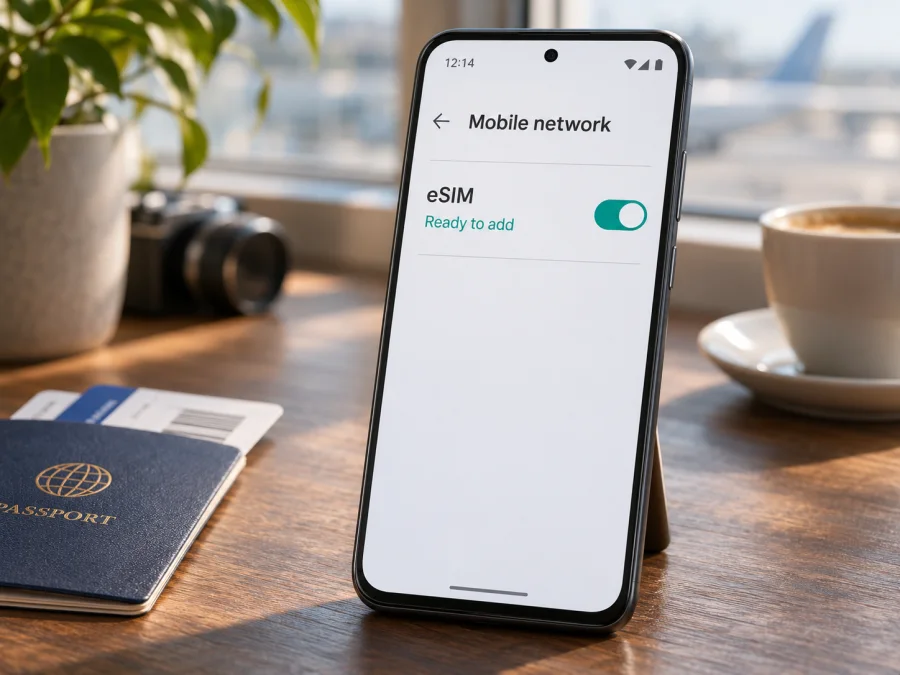
Motorola Edge 70 Fusion+ eSIM: compatibility, setup, and travel use
If you are considering an eSIM for travel, the key question is whether your exact Motorola Edge 70 Fusion+ unit has eSIM hardware enabled in its market and software build. Motorola publishes an eSIM setup guide for the motorola edge 70 fusion plus, but phrases device support conditionally: the phone “might support” eSIM, and users should confirm in Settings or with their carrier. That is a useful setup reference, not a guarantee that every phone sold under this name has an eSIM.
Practical answer: eSIM support is possible on the Motorola Edge 70 Fusion+, but do not assume it from the model name alone. Check for an EID and a “Download new SIM” or equivalent option on the phone you will use. If both are absent, ask Motorola support or the seller to verify the exact regional SKU before buying a travel plan. This distinction matters because a phone can have the same marketing name and exterior while its SIM hardware, supported networks, and software features differ by sales market.
Motorola’s US English online user guide, Insert or remove SIM card — motorola edge 70 fusion plus, checked on 4 November 2026, describes adding an eSIM through Android settings and notes that availability depends on the device and carrier. Motorola’s About your hardware guide identifies the “motorola edge 70 fusion+” as a distinct variant, but that page does not publish a separate, definitive eSIM specification for every regional SKU. The evidence supports a cautious, unit-by-unit answer rather than a universal yes.
Compatibility at a glance
| Item | What to know about Motorola Edge 70 Fusion+ |
|---|---|
| eSIM status | Possible, but confirm on the exact handset. Motorola’s model-specific guide says it might support eSIM. |
| Quick device check | Look for an EID in About phone or search Settings for “EID”; then look for an option to add or download a SIM. |
| Setup route | Motorola documents Settings → Network & internet → SIMs & mobile network → Download new SIM. Wording can vary by software version. |
| Market variation | SIM configurations can differ across regional products. A specification for the standard Edge 70 Fusion is not proof about the Fusion+ or your SKU. |
| Travel use | If supported and unlocked, a compatible travel eSIM can provide mobile data abroad under its own plan conditions. |
| Before purchase | Confirm handset eSIM support, carrier unlock status, destination coverage, plan validity, and activation rules. |
“Possible” is deliberate: Motorola’s guide is conditional, and a physical SIM tray alone cannot confirm eSIM capability. Check the handset’s EID and add-eSIM control, then confirm the model code and market with Motorola if the evidence is unclear.
Why the region and exact variant matter
Motorola sells devices through different national product pages and support portals. Hardware configurations and supported cellular bands can vary by market, and a feature listed for one market should not automatically be carried over to another. The “+” suffix in Motorola Edge 70 Fusion+ is part of the requested model name; it should not be silently replaced with the more broadly documented Motorola Edge 70 Fusion.
Motorola’s Spain and Rest of Europe support specification pages for the standard motorola edge 70 fusion, both checked on 4 November 2026, differ: Spain lists one physical nano SIM plus eSIM, while Rest of Europe lists two physical nano SIM cards. These are not Fusion+ specifications, so they show market variation in the family without proving the SIM design of a Fusion+ sold in any particular country. The Fusion+ user guide is more relevant to setup, but still tells owners to verify support on their device.
There are three separate questions to answer:
- Does this handset contain an active eSIM capability? Look for an EID and an add-eSIM setting. Some market builds may omit or disable the feature.
- Is the phone unlocked for another provider’s profile? A device may support eSIM but still be restricted to its original carrier. Ask the seller or original operator to confirm the lock status.
- Will the travel plan work at the destination? Compatibility with eSIM hardware does not guarantee that a plan includes your country or connects to every local network. Check the plan’s listed destination and conditions before checkout.
A listing that says “dual SIM” is not enough on its own: dual SIM can mean two physical cards, one physical card plus eSIM, or a market-dependent arrangement. Likewise, a 5G badge describes radio capability, not eSIM availability. Keep the exact name Motorola Edge 70 Fusion+ and the device’s model or SKU together when asking the retailer or Motorola support about compatibility.
Check your Motorola Edge 70 Fusion+ before buying
Use these checks while you have the phone in hand. Menu names vary slightly by Android release and language, so use Settings search if a label does not match.
- [ ] Search Settings for “EID”. Open Settings and type “EID” in the search field. If the phone exposes an EID, it is a strong sign that eSIM hardware is present. EID means the identifier associated with the embedded SIM; it is different from the IMEI used to identify a handset on mobile networks.
- [ ] Open About phone. Look under Settings → About phone → Device details, SIM status, or Status information. Depending on the software build, an EID may appear there. A missing result is a reason to verify further, not proof by itself that all units of this model lack eSIM.
- [ ] Look for an add-eSIM control. Open Settings → Network & internet → SIMs & mobile network. Check for “Download new SIM”, “Add eSIM”, “Add mobile plan”, or similar wording. Motorola’s Fusion+ guide specifically describes the Download new SIM route.
- [ ] Confirm the exact model identifier. Check the model number and regional SKU in About phone, the original box, purchase receipt, or the seller’s product record. The full retail name alone may not distinguish every market configuration.
- [ ] Ask about the carrier lock. If the phone was supplied by a mobile operator, ask that operator whether it is unlocked for an eSIM profile from another provider.
- [ ] Check the destination plan. Confirm that the intended country or region appears in the offer, that the data allowance and validity suit the trip, and whether installation or activation must happen before departure.
If anything is unclear, contact Motorola with the model number and country of sale. Ask whether that exact SKU should show an EID and Download new SIM on its current software. Online buyers can request seller confirmation before relying on eSIM for a trip.
Check your device before choosing a travel plan. This check is especially useful when a phone was imported, refurbished, bought through a carrier, or updated with software intended for a different market.
Add an eSIM on Motorola Edge 70 Fusion+
If the EID and menu check indicate support, install the profile while you have stable Wi-Fi. Keep the QR code or activation details available on another screen or printed page; a phone cannot scan a code displayed on its own screen unless the provider offers a direct installation flow. Do not share an activation code publicly, because it may be intended for one installation only.
- Prepare the handset. Install pending Android updates before travel, charge the phone, and connect to Wi-Fi. Keep your regular SIM active until you have confirmed that the new profile works, unless the plan instructions say otherwise.
- Open the SIM settings. Go to Settings → Network & internet → SIMs & mobile network. If that path differs, search Settings for “SIM” or “Download new SIM”.
- Start the installation. Tap Download new SIM or the equivalent add-eSIM control. Follow the on-screen prompts. If the seller or plan provider supplies a QR code, scan it when Android asks; if it provides manual activation details, enter them exactly as issued.
- Wait for the profile to download. Keep Wi-Fi connected and do not close the setup screen or restart midway through the download. The phone may take a short time to register the profile after installation.
- Name the profile. Use a clear label such as “Travel data” so you can distinguish it from your home line. The name is only for your own settings and does not alter the plan.
- Choose the line for mobile data. In SIM settings, select the travel eSIM as the mobile data SIM when you are ready to use it. If you need your usual number for calls or texts, keep that line available and review its roaming settings separately.
- Follow the plan’s activation instructions. Some profiles can be installed before departure and used later; other plans may start their validity or data session under specific conditions. Read the instructions shown with your selected plan rather than assuming installation and first use are the same event.
- Test carefully. If the plan is intended for your current location, turn Wi-Fi off briefly and check whether mobile data connects. If you are still at home and the plan only works in the destination, leave it installed and test after arrival.
Motorola documents a similar flow in its Fusion+ Android guide. For more help, see the Android eSIM installation instructions or the iOS eSIM installation instructions. The iOS guide is provided for readers setting up another device in their travel party; iPhone steps do not apply to the Motorola handset.
Installing a profile, enabling its line, and starting a plan are separate events. Check the confirmation screen and plan rules to know when the profile is ready and when data use or validity begins.
Use a travel eSIM for mobile data abroad
Once compatibility is confirmed, a travel eSIM can keep your physical SIM in its tray while you use a separate data profile in another country. This can be useful for maps, ride bookings, messaging, email, and travel updates. The eSIM works only where the selected plan and its participating local network are available; it does not make every network or destination accessible automatically.
Before travel, check the plan’s covered countries, data amount, validity, activation window, and required settings. A regional option may suit a multi-country route; a country option may suit a single destination. Terms and availability can change, so review them when choosing. If you do not have a destination link, start at the Kaspersky eSIM Store homepage to browse current options; it does not guarantee a particular tariff.
Keep your regular line for calls or messages if needed, and select the travel eSIM for mobile data. In Android’s SIM settings, disable automatic data switching if you do not want the phone to fall back to your home SIM. Review roaming on each line: the home line may incur charges, while the travel eSIM may require roaming under its plan instructions.
Kaspersky eSIM Store’s homepage FAQ, checked on 4 November 2026, describes its eSIM plan as data-only, without a standard phone number, voice calls, or SMS. Check the terms of your selected plan for its exact services. Internet messaging and calls can still work through apps. Keep your regular number available for verification texts if needed, and check home-line roaming charges.
Example travel setups
Short city break: Install the plan over Wi-Fi before departure if the instructions allow it. On arrival, select the travel eSIM for data and use your usual SIM for calls if that is part of your plan. Check maps and messaging with Wi-Fi turned off before leaving the airport.
Multi-country itinerary: Confirm every country is covered. After a border crossing, allow the eSIM to register and check that it remains selected for data.
Work trip: Keep the home line for calls or verification texts, select the travel eSIM for data, and review roaming settings for both lines.
Imported or carrier-sold handset: Verify EID, the add-eSIM menu, and unlock status before travel; arrange a physical-SIM alternative if any check remains uncertain.
Troubleshooting: when an eSIM will not install or connect
Start with the stage where the problem occurs. A profile that cannot be added points to compatibility, network access, or activation details; a profile that is installed but offline points more often to line selection, coverage, or plan conditions.
| Symptom | What to check |
|---|---|
| No EID and no add-eSIM option | Confirm the exact SKU and sales market. Restart after updates and search Settings again. Ask Motorola or the seller whether this unit supports eSIM. |
| QR code is rejected | Check that the code is for this device and has not already been used. Use stable Wi-Fi, clean the camera lens, and request a replacement activation method from the provider if the code is damaged. |
| Profile download stalls | Reconnect to reliable Wi-Fi, disable any interrupted download, restart the phone, and try again only if the provider permits another attempt. Avoid deleting a profile unless support tells you how to restore it. |
| eSIM installed but no data | Make the eSIM the mobile data line, confirm it is enabled, check the plan’s destination and validity, then toggle airplane mode once or restart. |
| Signal appears but apps are offline | Check that mobile data is on and that the correct SIM is selected. If the plan instructions require data roaming for the eSIM, enable it for that line only. |
| Connection works at home but not abroad | Confirm the country is covered, the plan is active for the travel date, and automatic network selection is enabled. Move to an area with outdoor reception and allow the phone time to register. |
| Home SIM is using data | Recheck the preferred data SIM and disable automatic switching to the home line. Review your home operator’s roaming settings and usage alerts. |
| Option vanished after an update | Restart and search Settings for EID and SIM again. If both have disappeared, record the Android version and model number and ask Motorola support before removing any working profile. |
Do not factory-reset the phone or erase a working eSIM as an early step: restoring it may require a new code. Record the message, Android version, and model number, then contact Motorola or the plan provider. Keep the existing line until any replacement profile works.
Frequently asked questions
Does Motorola Edge 70 Fusion+ support eSIM?
Motorola publishes an eSIM setup guide for motorola edge 70 fusion plus, but says the phone might support it. The safest answer is that support is possible and must be checked on the exact unit. Confirm the EID and add-eSIM option, then verify the regional SKU and carrier lock.
Is an EID enough to confirm compatibility?
An EID is strong evidence of eSIM hardware. Also confirm that the phone can add a profile, is unlocked, and can use a plan that covers your destination.
Does the plus variant have the same SIM setup as Motorola Edge 70 Fusion?
Do not assume that it does. Motorola’s support materials identify Motorola Edge 70 Fusion+ as a separate variant. Regional specifications published for the standard Motorola Edge 70 Fusion even differ in their listed SIM arrangement, which is a reason to check model number and market rather than extrapolating either direction.
Can I keep a physical SIM and use eSIM at the same time?
Motorola describes eSIM alongside physical SIMs on supported units. Check the SIM manager to see which lines can be active and choose which handles data.
Can I install the eSIM before I leave?
Often, if the plan allows it and you have Wi-Fi. Installation may not start data use; check activation rules and do not delete the profile without guidance.
Will a travel eSIM replace my phone number?
A data-only travel eSIM normally provides mobile data rather than a standard voice number or SMS service. Keep your usual line for calls or texts when needed, and check its roaming conditions. Internet calling and messaging apps can use the data connection.
What if the menu names are different?
Search Settings for “SIM”, “EID”, or “Download new SIM”. If the EID or add option is missing, ask Motorola to verify the exact model number.
Before you choose a plan
For the Motorola Edge 70 Fusion+, first confirm that the phone in your hand has an EID and an add-eSIM option. Then verify its market, exact model number, and carrier-unlock status. Only after those checks should you choose a plan, matching its destination coverage, data amount, validity, and activation instructions to your trip.
Kaspersky eSIM Store is an app and website that helps travelers choose and activate an eSIM plan for mobile data on an international trip. Use the website or app to review the current destination and plan terms, and keep the plan instructions available during setup. If your exact phone does not pass the eSIM checks, consider a compatible physical SIM or another unlocked device. A few minutes spent checking the handset before purchase can prevent a connectivity surprise after you arrive.


