Travel connectivity guide
Motorola Edge 70 Pro 128GB eSIM Compatibility
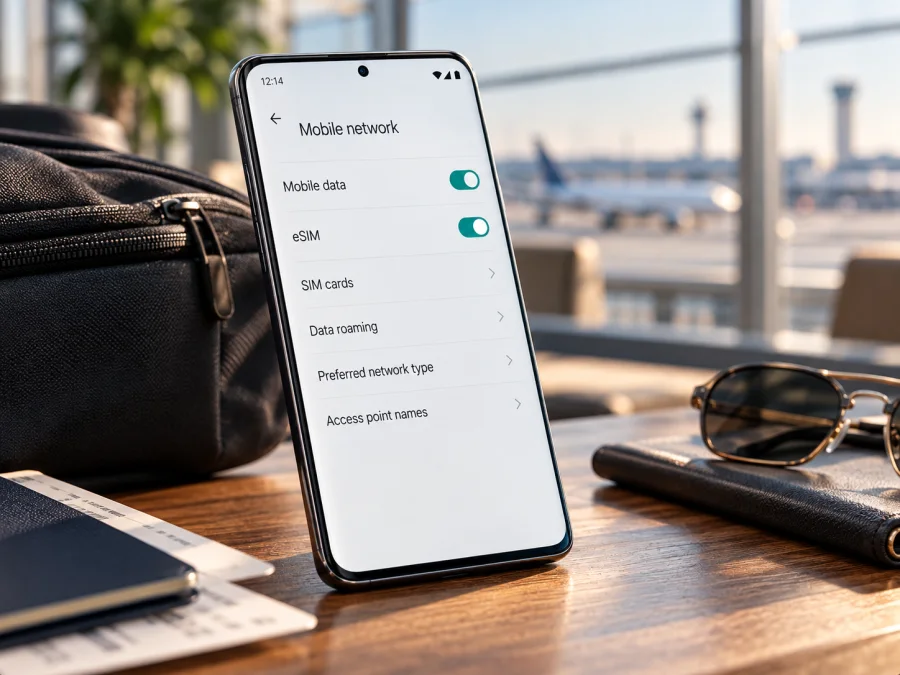
Motorola Edge 70 Pro 128GB eSIM: compatibility and setup guide
Short answer: eSIM support is not confirmed for every Motorola Edge 70 Pro configuration, and Motorola’s official specifications reviewed for this article do not list a 128GB version. Some market-specific Edge 70 Pro specifications list one nano-SIM plus eSIM, while Motorola’s India support page lists two physical nano-SIMs. Treat the exact Motorola Edge 70 Pro 128GB as unverified until you check the phone itself and confirm its regional model with the seller or carrier. The storage label alone does not prove that eSIM is available.
This guide explains how to check before choosing an eSIM plan, what the regional differences mean, and how to install and use a travel data eSIM if your particular phone supports it. The key evidence is on the device: look for an EID and the option to download a SIM. If neither appears, do not assume that an update or a QR code will add eSIM capability.
Does the Motorola Edge 70 Pro 128GB support eSIM?
There is no reliable universal yes or no for every handset sold under the Edge 70 Pro name. Motorola’s official US support specifications for the Edge 70 Pro describe dual SIM as one nano-SIM plus one eSIM. Motorola’s official India support specifications instead describe two nano-SIMs and add that specifications may vary by market. These are different SIM configurations for a device carrying the same family name.
The exact storage modifier in this query matters. The official Motorola specification pages checked for this guide list 256GB and 512GB variants in some markets; another official regional listing shows 512GB. They do not verify a 128GB Edge 70 Pro configuration. That does not prove a 128GB handset cannot exist in a separate sales channel or region, but it means its eSIM capability cannot be safely inferred from the name alone. Check the model or SKU printed on the box, invoice, or About phone screen, then match it to a local Motorola specification or ask the seller to confirm eSIM support in writing.
Motorola’s Edge 70 Pro user guide is deliberately conditional: the phone might support eSIM, and the user should check with the carrier. It provides an installation path for compatible versions but does not say every regional version has an embedded SIM. For that reason, use the following practical verdict:
- If the phone shows an EID in Device details and offers Download new SIM in SIM settings, it has strong on-device evidence of eSIM capability. Confirm that the carrier or travel eSIM provider accepts that exact regional model.
- If it has two physical SIM status entries and no EID or download option, its current configuration may be a dual-physical-SIM market version. Ask Motorola support or the seller to verify the specific SKU before buying a plan.
- If the menus are absent or unclear, treat compatibility as unconfirmed. Do not purchase an eSIM plan on the assumption that every Edge 70 Pro supports eSIM.
Motorola Edge 70 Pro 128GB eSIM facts at a glance
| Check | What can be established | What it means for this 128GB device |
|---|---|---|
| Device name | Motorola Edge 70 Pro is present in Motorola support material | The exact 128GB SKU was not listed in the official specifications reviewed |
| eSIM in an official market specification | Some Motorola regional specs list 1 nano-SIM + eSIM | Confirms eSIM for those documented configurations, not every regional unit |
| India SIM configuration | Motorola India lists Dual SIM (1 Nano SIM + 1 Nano SIM) | This specific operator-market configuration is physical-SIM-only according to that spec |
| Official setup guidance | Settings > Network & internet > SIMs & mobile network > Download new SIM | The option is useful to check, but its availability can depend on the handset version |
| EID check | Motorola guidance for supported Edge phones directs users to About phone > Device details | An EID is a useful sign of eSIM hardware; confirm the exact SKU and carrier eligibility too |
| Carrier status | Motorola says to contact the carrier for details and eligibility | A carrier lock or provisioning restriction can still prevent activation |
Quick compatibility checklist
Before paying for an eSIM plan, go through these checks on the actual phone:
- [ ] Open Settings > About phone > Device details and look for EID or EID · eSIM.
- [ ] Open Settings > Network & internet > SIMs & mobile network and look for Download new SIM. Menu wording can vary slightly by software version.
- [ ] Check whether the device currently reports two physical SIM slots. That may help identify a dual-physical-SIM regional configuration, but it is not a substitute for confirming the SKU.
- [ ] Ask the seller or carrier to confirm eSIM support using the full model/SKU and sales market, not only “Edge 70 Pro.”
- [ ] Confirm that the phone is carrier-unlocked and eligible for an eSIM from the provider you intend to use.
- [ ] Check the travel plan’s destination, validity period, data allowance, activation rules, and supported network bands.
How to check for EID or eSIM settings
The menu can change with Android version, language, or regional firmware. On the Edge 70 Pro, start with Motorola’s device-details and SIM settings paths. Search Settings for “EID” or “SIM” if a translated menu has a different label.
Check the EID
- Unlock the phone and open Settings.
- Tap About phone.
- Open Device details. On some software builds, this may be under a more detailed device or status screen.
- Look for EID or EID · eSIM. An EID is a unique identifier associated with an embedded SIM profile system.
- If you find one, do not post or share the full number publicly. Give it only to a trusted carrier or provider when required for compatibility support.
Check for “Download new SIM”
- Open Settings.
- Select Network & internet.
- Tap SIMs & mobile network.
- Look for Download new SIM or a similar option to add an eSIM.
If both an EID and this option appear, proceed to verify the model with the provider. If the option is missing, restart the phone, install available official system updates, and check again. A missing item is not enough to identify the reason: the handset may be a regional physical-SIM version, carrier-restricted, or using different menu wording. Ask the seller or carrier to identify the exact model before concluding that it is compatible.
Do not rely only on the SIM tray shape or on the number of IMEI entries. A tray can contain one or two physical SIMs depending on market, while eSIM capability is checked through the device information and SIM settings. Likewise, an IMEI is not an EID.
What differs between regional and carrier versions?
The commercial name may be the same even when SIM hardware or firmware differs. Motorola’s India support page lists two nano-SIMs for the Edge 70 Pro. Its US support page lists one nano-SIM plus eSIM and notes that specifications may vary by market. The user guide also says that eSIM support depends on the phone and recommends checking with the carrier.
Check three things separately: the country and model code on the box or in Settings > About phone; the EID and eSIM download option on the handset; and whether the intended carrier accepts that exact, unlocked version. Storage capacity is not a regional identifier, and a 128GB label alone cannot establish SIM support. Ask the seller or carrier to confirm the full SKU before purchase.
Check whether your device is compatible before you select a plan. The check should be made on the handset that will travel with you; a product page for another country’s version is not enough.
What to check before choosing a travel eSIM plan
Confirm that the exact handset supports eSIM and is unlocked before checkout. Then review the plan’s destination, data allowance, validity period, activation rule, and whether it requires data roaming. These details differ by plan; do not assume a profile begins or expires at a particular moment.
Before a trip, check that:
- the EID and Download new SIM option appear on the phone;
- the plan includes every country on your route and enough data for your use;
- you know whether validity starts at installation or first connection;
- the travel eSIM will be selected for mobile data, avoiding unintended roaming on your home SIM;
- you have stable Wi-Fi for installation and can access support details if needed.
Kaspersky eSIM Store is an app and website where you can choose, arrange, and activate an eSIM with a suitable mobile-data plan for an international trip. Once you have confirmed compatibility and carrier eligibility, review the destination, allowance, validity, and price in the app or website. Plan coverage and service follow the selected plan’s terms and local network arrangements.
How to install an eSIM on Motorola Edge 70 Pro 128GB
Install only after confirming compatibility and obtaining the activation details for your plan. Keep the phone connected to Wi-Fi, have the QR code or manual activation details available on another screen, and do not delete a profile just to retry. Many activation codes can only be used once; if an attempt fails, check the provider’s instructions before requesting a replacement.
Installation steps
- Connect to Wi-Fi. A working internet connection may be needed to download the eSIM profile.
- Open SIM settings. Go to Settings > Network & internet > SIMs & mobile network.
- Choose the download option. Tap Download new SIM or the equivalent option to add an eSIM.
- Scan the activation QR code. Point the camera at the QR code supplied with the plan. If the provider supplied manual activation details, use the manual entry option instead.
- Review the profile. Follow the on-screen prompts and wait for the download and installation to finish. Do not close the settings screen while the profile is being added.
- Name the line. Choose a clear label such as “Travel data” so it is easy to distinguish from your usual SIM.
- Choose when to use it. If you are not at the destination yet, leave the travel line switched off unless the plan’s instructions say to enable it sooner.
- Set mobile data. When ready to use the plan, select the travel eSIM as the mobile-data line. Enable data roaming for that line only if the plan instructions require it.
- Wait for registration. After arrival, allow a few minutes for the phone to connect. If it does not connect, use the troubleshooting checks below.
For more detailed platform guidance, see the Android eSIM installation instructions and the iOS eSIM installation instructions. The iOS guide is not for this Motorola phone; it is included as a reference for someone setting up a separate Apple device.
Activate the line for data
Adding a profile and using it for mobile data are separate steps. After installation, open the SIM settings and confirm that the travel line is enabled. Set it as the preferred line for mobile data. Keep your home SIM as the default for calls or texts only if that suits your needs, and check its roaming charges first. If the travel plan requires data roaming, turn it on for the travel eSIM rather than globally or on the home line.
Using the eSIM for mobile internet while travelling
For a trip, the simplest arrangement is often to leave the existing physical SIM available for the services you still need and use the travel eSIM for mobile data. The phone’s exact dual-SIM behavior depends on the regional version and its software. Check the SIM settings to see which lines can remain active at the same time and which one is selected for data.
Before departure, make a short setup plan:
- Install the eSIM while connected to dependable Wi-Fi if the plan allows pre-installation.
- Review the plan’s start date or first-connection rule so you do not begin its validity unexpectedly.
- Label the plan clearly and take note of the provider’s support details in case you need them offline.
- Set the travel line as the data SIM at the right time.
- Turn on data roaming for that eSIM only if required by the plan.
- Keep automatic data switching off if your phone offers it and you want to avoid data falling back to a home SIM with roaming charges.
At the destination, check that airplane mode is off, the travel eSIM is enabled, and the data line selection is correct. If the plan requires a supported network selection or access point name, follow the plan’s setup instructions. Network availability and speed depend on the local network, location, coverage, device radio bands, and plan conditions; an eSIM does not guarantee a signal everywhere.
A travel data eSIM is generally intended for internet access. Do not assume that it includes a conventional phone number, SMS, or cellular voice calls unless the specific plan terms say so. Internet-based messaging and calls can work through apps when data is available. When you use maps, translation, tickets, or messages, the data allowance is consumed according to your plan.
Troubleshooting common eSIM problems
The eSIM option does not appear
Check Settings > About phone > Device details for an EID, then look under Settings > Network & internet > SIMs & mobile network for Download new SIM. Restart the phone and install available official updates. If both remain absent, contact the seller or Motorola support with the exact model code and country of sale. The configuration may be regional or carrier-restricted; wait for confirmation before buying a plan.
The QR code will not scan or the download fails
Use stable Wi-Fi, increase brightness on the device displaying the QR code, and make sure the entire code is visible. If it is displayed on the Motorola itself, show it on another screen or use manual activation details. Check whether the profile is already installed or the code has expired. Do not delete a partly installed profile or reuse a one-time code without checking with the plan provider.
The eSIM is installed but there is no mobile data
Confirm that the travel line is enabled and selected for mobile data, the plan is active and covers your location, and airplane mode is off. Some plans require data roaming on the travel line or a specific access point name; follow the plan instructions. Toggle Wi-Fi off briefly to test cellular data, then restart if needed. Check the data balance and expiry if connection begins but browsing fails.
The provider rejects the device or only one line is active
An EID does not prove that the phone is unlocked or eligible with every provider. Ask the original operator about carrier restrictions and provide support with the exact model code and error message. Also note that storing several eSIM profiles does not mean they can all operate at once; active-line behavior depends on the regional version. Do not share the full EID publicly.
Frequently asked questions
Is eSIM confirmed for the Motorola Edge 70 Pro 128GB?
No definitive confirmation was found for that exact 128GB variant. Motorola lists eSIM for some regional versions, but its checked specifications do not list 128GB, and the India configuration has two physical nano-SIMs. Check the handset’s EID, SIM menu, model code, and carrier eligibility.
Does every Motorola Edge 70 Pro support eSIM?
Motorola’s regional documentation shows different SIM configurations, so do not assume support from the family name alone. Verify the exact handset.
Where can I find the EID?
Check Settings > About phone > Device details for EID or EID · eSIM. If it is missing, look for Download new SIM and ask the seller or carrier to verify the model code.
Can I install a travel eSIM before departure?
Often, but the start of validity depends on the plan. Check whether it begins at installation or first network connection and follow the provider’s instructions.
Does a travel eSIM include calls and SMS?
Do not assume so. Kaspersky eSIM Store plans are for mobile internet during international travel unless a specific plan says otherwise. Messaging and internet calls can use the data connection.
What if the download option is missing?
Restart and update the phone, check for an EID, and confirm the exact regional model with Motorola or the seller. Do not select a plan until support is confirmed.
Final check before your trip
For Motorola Edge 70 Pro 128GB, compatibility remains unconfirmed from the official specifications reviewed: those pages do not verify the 128GB storage variant, and SIM configurations differ by market. On the phone you plan to take, check Settings > About phone > Device details for an EID and Settings > Network & internet > SIMs & mobile network for Download new SIM. Then confirm the exact model code, regional version, unlock status, and provider eligibility.
Once those checks are complete, compare the destination, data allowance, validity, and activation conditions for your trip. Kaspersky eSIM Store’s app and website let you choose, arrange, and activate an eSIM plan for mobile data abroad. Confirm compatibility before choosing a plan, install with Wi-Fi, and set the travel eSIM as the mobile-data line when you are ready to use it.


