Travel connectivity guide
Motorola Edge 70 Pro 256GB eSIM Guide
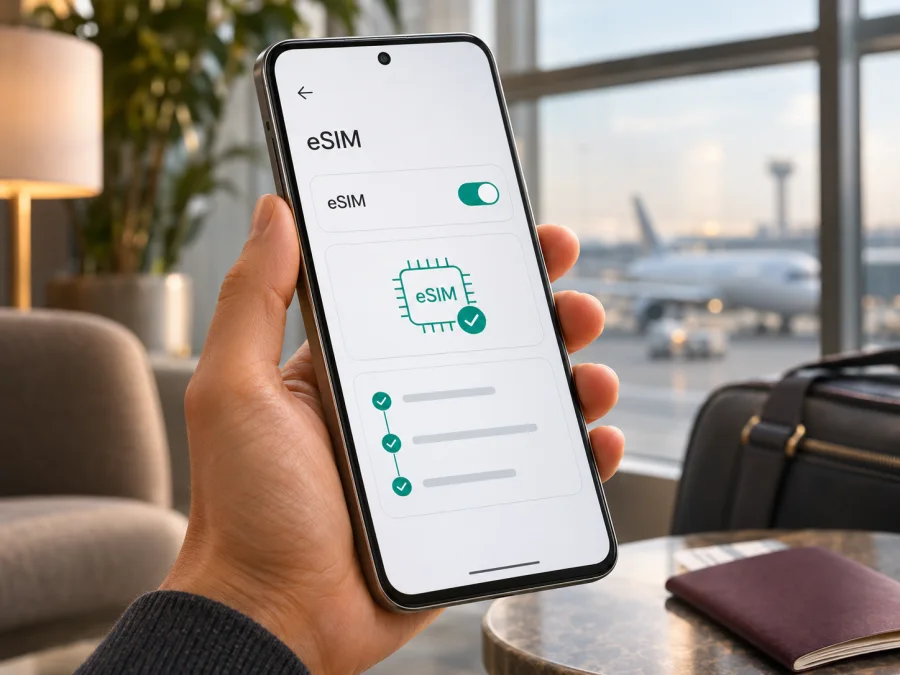
Motorola Edge 70 Pro 256GB eSIM: compatibility and setup guide
A Motorola Edge 70 Pro 256GB may support eSIM, but the storage size by itself cannot confirm that the particular phone in your hand has an active eSIM function. Motorola’s current Edge 70 Pro support materials describe eSIM setup, and an official Motorola specification page lists a dual-SIM configuration with one nano-SIM and eSIM. Motorola’s regional product pages also show that memory and storage combinations vary. Before choosing a travel plan, check the phone’s own settings and EID, then confirm the exact model code and market version with the seller or Motorola support.
That distinction matters because “Motorola Edge 70 Pro 256GB” names a storage configuration, not a complete radio or sales-region identifier. A handset intended for one operator or market can differ from another unit with the same family name. An operator may also restrict eSIM activation, and software menus can change with the Android version or regional firmware. The practical answer is therefore: the model family has documented eSIM support, but confirm the exact 256GB unit rather than treating storage as proof.
What is known about the Motorola Edge 70 Pro 256GB
| Check | What current information supports | What it means for your phone |
|---|---|---|
| Device name | Motorola lists an Edge 70 Pro product family and regional configurations. | Keep the complete name Motorola Edge 70 Pro 256GB when checking the listing and receipt. |
| Storage | Motorola’s India store lists 256GB storage configurations, including different memory combinations. | 256GB does not identify RAM, country version, carrier firmware or SIM configuration. |
| eSIM at family level | Motorola support instructions explain downloading and setting up an eSIM on Edge 70 Pro. Official regional specifications list one nano-SIM plus eSIM. | This is strong evidence that some Edge 70 Pro versions support eSIM; it is not a guarantee for every unit worldwide. |
| Exact unit status | The phone’s EID and a working “Download new SIM” or equivalent menu are the most useful checks. | Confirm these on the device before buying a plan. |
| Network access | A compatible eSIM profile still needs an eligible local partner network and matching radio bands. | Check the plan’s destination, device unlock status and travel conditions separately. |
The manufacturer’s user guide gives the general Android path as Settings > Network & internet > SIMs & mobile network > Download new SIM. Its support article also says that if the eSIM option is absent, you should ask the carrier whether that particular phone supports eSIM and how it should be activated. This wording is important: Motorola documents the setup process for the family while acknowledging that support can depend on the specific phone. A family-level feature page and a particular carrier’s provisioning rules answer different questions.
A current manufacturer specification page describes the Edge 70 Pro SIM arrangement as “Dual SIM (1 Nano SIM + eSIM).” Motorola’s India store separately identifies 256GB versions. Taken together, these sources support a cautious conclusion: the family includes eSIM-capable versions, while the 256GB label is not enough to establish that the phone sold in every country has the same SIM hardware or software. If the seller cannot show the eSIM menu or confirm an EID, ask for the exact model number and written confirmation before purchase.
Why the regional version matters
Phone names are often shared across markets even when the radio configuration, SIM tray, supported bands, firmware or carrier approval differs. The store listing may show storage and memory while leaving the SIM implementation unclear. A model imported from another country may also have different network bands or activation rules from a locally distributed unit. Do not infer compatibility from a product photo, the number of SIM tray positions, or a listing that only says “dual SIM.” Dual SIM can mean two physical SIMs, one physical SIM plus eSIM, or a configuration that varies by market.
There are three separate checks:
- The phone must contain an eSIM function. Look for an EID and the menu to add or download an eSIM.
- The software and operator profile must allow it. A carrier-branded phone can be locked or have eSIM disabled, and not every carrier supports every device.
- The selected travel plan must work in the destination. Compatibility does not guarantee that the plan has coverage in every area or connects to every local network.
The phrase “256GB” resolves none of those checks. Nor does a seller’s claim that a model is “unlocked” prove eSIM compatibility: unlocked status concerns whether the phone can accept another carrier’s service, while eSIM capability is a device feature. If you are buying second-hand or importing, request a screenshot of the EID screen and the SIM settings from that actual phone. Check that the displayed model code matches the packaging and the device information screen.
Check compatibility before choosing a plan
Use the phone itself as the first source of truth. Menu names can vary slightly by Android release, language and carrier software, so search Settings for EID, SIM, or eSIM if the paths below do not match exactly.
Quick compatibility checklist
- [ ] Open Settings > About phone > Status or Device details and look for an EID (Embedded Identity Document number). Some software versions place it under SIM status or show it after opening the SIM settings.
- [ ] Open Settings > Network & internet > SIMs & mobile network and look for Download new SIM, Add eSIM, Set up an eSIM, or a similar option.
- [ ] If available, open the add-eSIM screen far enough to confirm the feature exists. You do not need to scan a purchase QR code just to inspect the menu.
- [ ] Check whether the phone is carrier-unlocked. Ask the original operator or seller if you cannot confirm this in the device settings.
- [ ] Update Android and restart the phone, then check the SIM menu again if it is missing.
- [ ] Ask the seller or Motorola support to confirm eSIM support for the full model code and country version, not only the family name.
- [ ] Check the selected plan’s destination, validity period, data allowance and any device or network requirements.
An EID is a useful indicator that the phone includes eSIM hardware, but it does not by itself confirm that the device is unlocked or that a particular eSIM provider accepts it. Conversely, a missing menu can result from regional firmware, a carrier restriction, an outdated software build or a settings path that differs from the guide. Treat either result as a reason to verify, not as a substitute for checking the exact model. If no EID is shown and no eSIM option appears after an update, do not assume that a QR code will work.
For a second check, compare the identifier in Settings > About phone with the model code on the box or purchase record. Ask the retailer to confirm the SIM type in writing. If you have already contacted your home operator, ask whether the phone is locked and whether its eSIM function is enabled for that exact model. The local operator that issued the phone can confirm its own restrictions; a travel plan provider can confirm the plan’s activation requirements. Neither check alone confirms the other.
Check whether your device is compatible before selecting a travel eSIM. If you are still comparing phones, verify the feature on the precise retail variant rather than relying on a general list of Edge models. \n## What to confirm before purchase
Compatibility is only one part of setup. Before paying, confirm the destination, data allowance, validity period and when validity begins. Regional plans may include several countries, so check the current destination list rather than assuming nearby stops are covered. Estimate data for maps, messaging, browsing, bookings and uploads; streaming and photo backups use more. Kaspersky eSIM Store describes its travel eSIM plans as data-only, without an ordinary phone number for calls or SMS. You can keep your usual SIM for those services if your home operator permits it, but check its roaming charges. Also confirm that the phone is unlocked and note any activation, APN or roaming requirements.
Kaspersky eSIM Store is an app and website where you can choose, arrange and activate an eSIM with a mobile-data plan for an international trip. Network access depends on local network partners, destination and plan conditions. Kaspersky is not a mobile operator or network owner: the store helps you prepare an eSIM, while the device and local network determine whether it connects at your destination.
How to install an eSIM on Motorola Edge 70 Pro 256GB
Connect to Wi-Fi first and have the provider’s QR code or installation details ready. Menu labels vary by Android release and carrier software.
- Open Settings > Network & internet > SIMs & mobile network. If the path differs, search Settings for “SIM” or “eSIM.”
- Tap Download new SIM, Add eSIM or the equivalent option, then choose the QR-code setup method if available.
- Scan the code using the setup screen. If it is displayed on the same phone, use manual entry or display it on another screen. Keep the activation code private; it is usually for one installation.
- Follow the prompts to download and install the profile. Keep Wi-Fi connected until setup finishes.
- Name the line “Travel” or use the destination name. This makes it easier to distinguish from your home SIM.
- Choose the lines for calls, messages and mobile data separately. You can usually keep your home line for calls and select the travel eSIM for data.
- Wait for registration, which may take several minutes. Keep the profile if you plan to use it on arrival; do not delete it as a troubleshooting shortcut.
- When ready to use the plan, select the travel eSIM for mobile data. Enable roaming for that profile only if its instructions require it, and enter any provided APN details.
See the Android eSIM installation guide for a visual reference. Its screenshots may use another manufacturer’s menus. The iOS eSIM installation guide is for iPhone users and does not describe Motorola’s Android interface.
You can often install before departure over Wi-Fi, then leave the profile off or unselected for data until needed, depending on the plan’s instructions. Plans can begin validity at purchase, installation, a scheduled date or first connection; check the specific terms before installing.
Use the eSIM for mobile data while travelling
At your destination, open Settings > Network & internet > SIMs & mobile network. Make sure the travel profile is enabled and selected under SIM for mobile data. Keep the home SIM for calls or texts only if its roaming terms suit you. Some travel plans require data roaming on the travel eSIM because it connects through a partner network. This is separate from roaming on your home SIM; follow the plan instructions and enable it only on the travel line when required.
To reduce the risk of accidental home-plan data use, select the travel eSIM as the mobile-data line and disable automatic data switching if that option appears. Check the profile’s APN if the provider specifies one. When it registers, test a simple webpage before relying on maps or bookings, and check remaining data and validity in the service app or website. Hotspot use depends on the device and plan and draws from the same allowance.
For a single-country trip, compare a country plan; for a multi-country route, verify each stop in the regional plan’s destination list. Estimate your data needs before choosing a package. These checks cannot guarantee speed: performance depends on local coverage, signal, congestion, device bands and network conditions. An eSIM can reduce reliance on public Wi-Fi but cannot guarantee service in every building or remote area.
Common issues and checks
- No eSIM menu: Search Settings for “EID” and “eSIM,” update Android, restart, and check About phone and SIM settings again. If there is still no EID or add-eSIM option, verify the full model code and market version with Motorola or the seller. Ask the original carrier about restrictions on operator-supplied phones.
- QR code will not scan: Use the scanner inside Android’s eSIM setup, increase screen brightness, clean the camera lens and display the code on another screen. If the code was already used or reports an error, contact the provider before attempting another installation.
- Profile downloads but does not activate: Keep Wi-Fi available during setup, confirm the profile is enabled and check the plan’s activation date and destination. Some profiles only register on a supported local network after arrival. Share the exact error with support, but do not share your QR code or activation credentials publicly.
- No signal after arrival: Turn off airplane mode, confirm the travel profile is on and selected for data, then move to a clearer-signal area and wait. Check destination availability, the plan’s roaming instructions and any APN details. Restart if needed; local network or location conditions can also affect registration.
- Signal but no data: Confirm mobile data is assigned to the eSIM, check the plan’s remaining data and validity, and verify the APN. Temporarily turn off Wi-Fi to test mobile data. Avoid deleting the eSIM or resetting network settings unless support recommends it.
- Home SIM uses data or plan is refused: Recheck the selected data line and automatic switching. Confirm the phone is unlocked with its original carrier. eSIM hardware does not remove a carrier lock, and a travel-plan provider cannot unlock a device.
Frequently asked questions
Does Motorola Edge 70 Pro 256GB support eSIM?
Motorola’s current Edge 70 Pro support materials document eSIM setup, and an official regional specification lists one nano-SIM plus eSIM. However, 256GB identifies storage, not the full region or carrier variant. Check the actual phone for an EID and add-eSIM option, and verify the full model code with the seller or Motorola.
Does an EID guarantee that a travel plan will work?
No. The device must allow another provider’s profile, and the plan must cover the destination and connect to a local network. Check unlock status, destination and plan conditions before purchase.
Can a physical SIM and eSIM be used together?
Motorola documents a physical SIM plus eSIM configuration on supported Edge 70 Pro versions. Simultaneous use depends on the exact device and software. Calls, messages and data may have separate preferred-line settings.
Does a travel eSIM replace my phone number?
The travel data plans described by Kaspersky eSIM Store do not include an ordinary number for standard calls or SMS. Keep your usual SIM if you need those services and its roaming terms are acceptable, or use messaging and calling apps over data.
What if no EID appears?
Update and restart the phone, then check About phone and SIM settings again. If the EID and eSIM option are still missing, confirm the full model code and sales region with the seller or Motorola. Do not rely on storage capacity alone to establish compatibility.
Before you travel
The Edge 70 Pro family has documented eSIM support, but Motorola Edge 70 Pro 256GB is not a complete regional identifier. Confirm the EID, add-eSIM menu, unlock status and full model code on the actual handset. Then review the plan’s destination, data amount, validity and setup instructions. When these checks are complete, use the Kaspersky eSIM Store app or website to choose and arrange an eSIM data plan for your trip. The English Kaspersky eSIM Store homepage lets you browse current destinations and plan details; it is a general store entry point, not a specific country tariff. Install over Wi-Fi and select the travel profile for data when you are ready to use it. Resolve remaining device or activation questions with Motorola, the seller or the relevant provider before departure.


