Travel connectivity guide
Motorola Edge 70 Pro 5G eSIM: Compatibility Guide
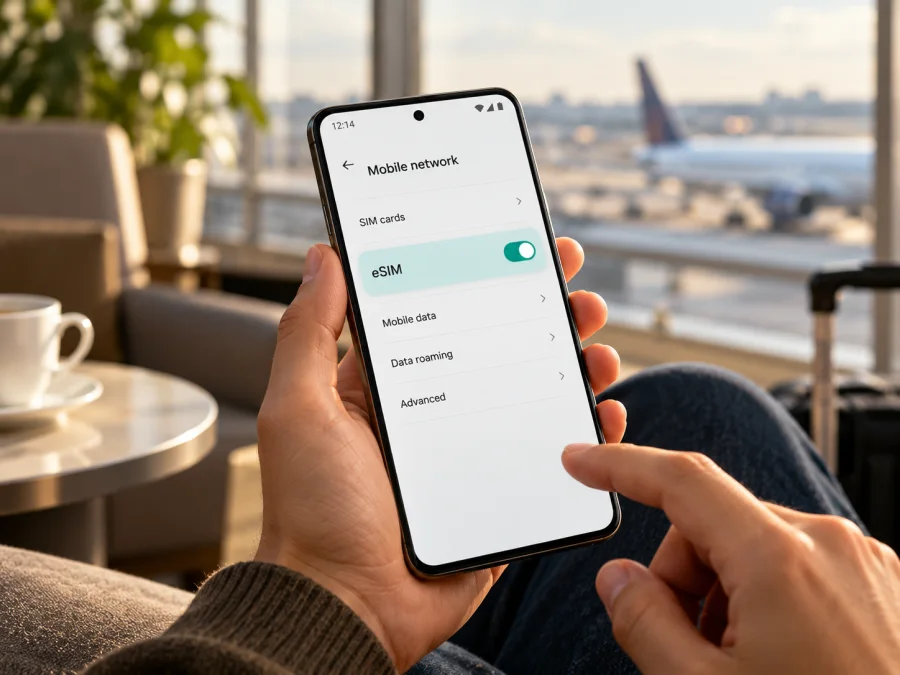
Motorola Edge 70 Pro 5G eSIM: compatibility and setup guide
Short answer: Motorola’s published specifications for the motorola edge 70 pro list dual SIM with one nano-SIM and one eSIM, and Motorola’s model-specific support guide explains how to download an eSIM. That confirms eSIM capability for documented variants of the Motorola Edge 70 Pro 5G. It does not prove that every phone sold under this name in every country has the same SIM hardware, firmware, or carrier configuration. Check the exact regional model and the settings on your own handset before you choose a travel plan.
This guide shows how to verify the eSIM option, install a profile, select it for mobile data, and troubleshoot common issues. “5G” in the device name describes its mobile-network generation; it does not, by itself, confirm eSIM availability or guarantee 5G service on a particular travel network.
Motorola Edge 70 Pro 5G eSIM at a glance
| Item | What to know |
|---|---|
| Device in this guide | Motorola Edge 70 Pro 5G |
| eSIM support | Listed by Motorola for at least one published market variant as dual SIM: one nano-SIM plus eSIM |
| Physical SIM | The documented configuration includes one nano-SIM; check the exact SKU because market configurations can differ |
| Setup path in Motorola’s guide | Settings → Network & internet → SIMs & mobile network → Download new SIM |
| Mobile data selection | Choose the travel eSIM under SIM for mobile data |
| Internet needed for setup | Connect to Wi-Fi if you do not already have a working network connection |
| Main caveat | Availability can depend on the regional variant, carrier restrictions, software and the specific eSIM provider |
The table is a starting point, not a substitute for checking your phone. The Motorola model manual uses conditional wording (“might support”) and directs owners to confirm with their carrier if the download option is absent. Meanwhile, a Motorola regional specification page for the Edge 70 Pro explicitly identifies one nano-SIM plus eSIM. Read these together: the model family includes eSIM-capable configurations, but the exact device in your hand still needs a local check.
Does Motorola Edge 70 Pro 5G support eSIM?
Yes, eSIM is supported on Motorola Edge 70 Pro 5G variants documented by Motorola with a one nano-SIM plus eSIM configuration. Motorola’s published specification for a regional version lists that arrangement, and Motorola’s manual for the model includes steps to add an eSIM. If your phone comes from another market, was sold through a carrier, or has a different software build, do not assume that this capability is identical. Confirm that the exact regional SKU exposes the eSIM controls before buying a plan.
A physical-SIM tray can coexist with eSIM, and “5G” alone says nothing about eSIM support. Check the regional model, the phone’s own SIM settings, and whether the carrier has restricted the device.
Why regional and carrier versions matter
The same model name can cover devices sold in several countries, with differences in SIM configuration, software, and supported bands. Imported or carrier-branded phones may also have network restrictions. Ask two separate questions: does this handset offer eSIM, and is it allowed to use your chosen profile?
Motorola’s global manual says eSIM may be supported, while a regional specification lists one nano-SIM plus eSIM. Before purchase, ask for the exact SKU and target market, and get confirmation that eSIM is enabled. For a carrier-branded phone, confirm it is unlocked and accepts another provider’s profile.
Profile support and network service are separate. Even after installation, the plan, local coverage, supported bands and destination network determine the connection. A 5G-capable phone can use 4G where 5G is unavailable.
Check compatibility before buying a travel eSIM
Do these checks on the Motorola Edge 70 Pro 5G you will take with you, not only on a product page or a similar phone in a shop.
- [ ] Open the SIM settings. Go to Settings → Network & internet → SIMs & mobile network. Look for “Download new SIM,” “Add eSIM,” or a similar option. Labels can vary by Android version and language.
- [ ] Check for an EID, if the phone shows one. Open Settings → About phone → Device details or SIM status and look for “EID” or “EID · eSIM”; menu names can vary with software and region. A visible EID is a strong sign that eSIM hardware is present, but confirm the add/download control is available and usable. Do not post the EID publicly; it is a device identifier.
- [ ] Check the exact model code. Compare the SKU or model number in Settings → About phone with the seller’s listing and the regional Motorola specification. A family name alone may not identify the market version.
- [ ] Confirm the phone is unlocked. Ask the original carrier or seller whether a network lock prevents installing or using an eSIM profile from another provider.
- [ ] Check the destination and plan conditions. Confirm the selected country or region, supported network type, data allowance, validity period, start conditions, and whether hotspot use is allowed if you need it. If you are buying before departure, save the plan instructions somewhere you can open offline and make sure another device can display the QR code during installation.
- [ ] Keep a working internet connection for setup. Wi-Fi is useful if the phone has no active mobile connection while downloading the profile.
If the eSIM entry is absent, restart and check for an official update. If it remains missing, treat support as unverified until Motorola or the seller confirms the SKU. A QR code cannot add a feature missing from the phone’s configuration.
Before checkout, compare the model code shown by the phone with the seller’s confirmation and make sure the device can access the eSIM menu. A compatibility check can help identify supported models, but it cannot remove a carrier lock or override a regional hardware difference. Check your device before placing an order.
Install and activate an eSIM on Motorola Edge 70 Pro 5G
Add the profile through the provider’s app or by scanning its QR code, shown on another screen or printed. Some QR codes are single-use; do not delete a profile or repeat installation without checking the provider’s instructions.
Before you begin
- Confirm that the phone is eSIM-capable and unlocked, using the checks above.
- Connect to a stable Wi-Fi network if mobile data is unavailable.
- Update Android using the phone’s official system update screen, if an update is offered.
- Read the plan’s installation and activation notes. Installation downloads a profile; activation or first network use may start the plan’s validity, depending on its terms.
- Keep your primary SIM active if you want to continue receiving calls or messages on it. Review its roaming settings to avoid unexpected charges while abroad.
Motorola settings method
- Open Settings on the Motorola Edge 70 Pro 5G.
- Tap Network & internet, then SIMs & mobile network. If your Android build uses different wording, open the SIM or mobile network section under Network & internet.
- Tap Download new SIM. If prompted, choose the option to add or download an eSIM.
- Follow the on-screen prompts. Scan the QR code supplied for your plan, or enter the activation details manually if the provider gives that option.
- Wait while Android downloads and installs the profile. Keep Wi-Fi connected and do not close the setup flow or restart the phone unless prompted.
- Give the profile a clear label such as “Travel data” or the destination name. A label helps distinguish it from your home SIM; it does not change the plan.
- When installation finishes, leave the eSIM switched off until you are ready to use it if the provider’s instructions say the validity period starts on first use or on arrival. Follow the plan’s own timing rules.
- To start using mobile data, return to SIMs & mobile network, enable the travel profile, and select it under SIM for mobile data. Turn on data roaming for that eSIM only if its provider’s instructions require it.
For a visual walkthrough, see the Android eSIM installation guide. The guide describes Android installation, but its pictured menus are Samsung-specific; on Motorola, use the Motorola path above and follow the plan’s own activation instructions. The iOS installation guide is for iPhone and is included only for travelers setting up a separate iOS device; it does not apply to Motorola Edge 70 Pro 5G.
QR installation and manual details
If you use the camera or an in-settings QR scanner, scan the code from a different display or paper copy. Increase screen brightness on the device showing the code, clean the camera lens, and keep the full code within the scan frame. If scanning fails, check whether the provider offers a manual activation code. Enter it exactly as supplied; do not guess missing characters or use a QR code from a different order.
If the provider offers in-app installation, sign in, select the purchased eSIM, and follow Android’s prompts over Wi-Fi. A profile appearing in Settings does not necessarily mean the plan has started or connected to a network; follow the provider’s activation timing.
Use the eSIM for mobile data during a trip
The Motorola Edge 70 Pro 5G can keep a physical SIM and an eSIM available together on supported configurations. Android lets you choose which SIM handles mobile data. Select the travel eSIM for data and leave the home SIM enabled only if you want to receive calls or texts on it. Your home operator may charge roaming fees for those services, so check its rules or turn that SIM off if you do not need it.
Before departure, choose the destination in Kaspersky eSIM Store’s app or website and compare the plan’s covered geography, data amount, validity, price, and activation rules. Kaspersky eSIM Store is the app and website where you can choose, arrange, and activate an eSIM with a mobile-data plan for an overseas trip. The service is not the mobile operator or the network itself; service availability and signal depend on the plan, local partner network, destination and device configuration. You can browse available destinations and current options after you have confirmed your phone’s compatibility.
A practical setup is to install the profile at home while you have reliable Wi-Fi, but keep it disabled until the plan’s stated activation point if that is what the instructions require. At the destination, enable the profile, select it as the mobile-data SIM, and turn on data roaming for that profile if instructed. Open a simple webpage to confirm access before relying on maps or ride-hailing. Keep the home SIM’s data roaming off unless you intend to use it.
Three common travel setups
Data for maps and messaging: Set the travel eSIM as the mobile-data SIM. Keep the home SIM available for calls or texts only if your operator’s roaming costs are acceptable. Messaging apps will use the data connection, but the eSIM plan should not be assumed to include a standard phone number, voice calls or SMS unless its terms say so.
Several countries on one route: Check whether the selected plan covers every country on the itinerary, including transit stops where you need service. A plan advertised for one country may not cover a neighboring country. Confirm the validity dates and whether the plan’s allowance is shared across its covered destinations.
A work phone that must remain reachable: Keep the home line available for incoming calls, set the travel eSIM as the data line, and disable automatic switching to the home SIM for data if that control is present. Test both data and important calls before departure. A travel data profile does not guarantee that a home number will receive calls abroad without charges.
Monitor data use in Android and the provider’s account; video, backups and hotspot use can consume data quickly. Check plan terms before using hotspot.
Common problems and what to check
“Download new SIM” or “Add eSIM” is missing
Check Settings → Network & internet → SIMs & mobile network again and search Settings for “SIM” or “eSIM.” Restart the phone and install the official software update if available. If the option is still missing, compare the exact SKU with the regional specification and contact Motorola or the original carrier. The manual specifically recommends confirming support with the carrier when the option is absent. A missing menu can reflect a market variant, firmware, carrier setup, or lack of eSIM support; a QR code cannot resolve those causes.
The QR code will not scan
Make sure you have the code for the correct order and that the profile has not already been installed. Display the code on another screen, enlarge it without cropping, increase brightness, and clean the camera lens. If the provider permits manual installation, use the exact activation details it supplied. If the code was already used or the profile was removed, contact the provider before attempting another installation.
The profile installs but shows no service
Check that the profile is enabled, airplane mode is off, the plan covers your country, and validity and data remain. Select it under SIM for mobile data and enable data roaming if required. Restart once; if service does not return, ask the provider to check profile status, partner network and any APN settings.
Signal appears, but apps cannot access the internet
Verify the mobile-data selection and check whether Android has a data limit or data-saving rule blocking access. Confirm the plan’s allowance and validity in your account. If the provider supplied an APN, compare the current Access Point Name with its instructions and enter only the supplied value. Do not copy APN values from an unrelated device or country. Temporarily turn off a VPN or private DNS setting only as a diagnostic step if the provider’s support team recommends it; these settings are not a substitute for a valid data profile.
Data is being used by the wrong SIM
Check SIM for mobile data, disable automatic switching if available, and review the home SIM’s roaming setting. Android uses one SIM for mobile data at a time.
It worked before, but stopped
Check remaining data, validity, coverage and profile status; then toggle airplane mode or restart. Do not erase the eSIM as routine troubleshooting. Motorola notes that restoring a deleted profile may require contacting the carrier, so ask the provider first.
Frequently asked questions
Can I use a physical SIM and eSIM together?
Motorola’s model guidance describes using a physical SIM and an eSIM together on supported versions, and its regional specification lists one nano-SIM plus eSIM. Check your exact phone and carrier configuration. Android’s SIM settings let you choose a preferred line for mobile data and separate defaults for calls or messages.
Does 5G in the name mean the travel eSIM will connect to 5G?
No. The device name does not guarantee a 5G connection. The selected plan, destination network, local coverage, supported bands, and any operator restrictions determine whether 5G is available. A compatible 4G connection may be used instead where 5G is not available.
Is an EID enough to prove compatibility?
An EID is an identifier associated with eSIM hardware and is a helpful check. Also verify that the phone offers an add or download eSIM control, that the exact regional model is supported, and that the phone is unlocked. If you are uncertain, ask the seller or carrier to confirm the SKU in writing before purchasing a plan.
Can I install the profile before travelling?
Usually you can install while connected to Wi-Fi, but the plan’s validity may start at installation, activation, or first connection. Check the plan’s stated activation rule before installing. If the start time is not clear, ask the plan provider before proceeding.
Will the eSIM replace my phone number?
A travel data eSIM is for mobile internet unless its individual plan terms explicitly include calls, SMS, or a phone number. Your existing SIM can remain available for those services, subject to your home operator’s roaming charges and settings.
Can I move an installed eSIM to a new phone?
Do not assume it can be transferred. Some profiles are single-use or tied to the first device. Check the profile’s terms and contact its provider before deleting it or changing phones. Removing an eSIM from the Motorola does not automatically cancel a plan or guarantee that the profile can be restored.
Final check: verify the phone, then choose the trip plan
Motorola documents eSIM on one nano-SIM plus eSIM variants of Motorola Edge 70 Pro 5G, while its general manual advises checking a phone that lacks eSIM controls. Verify the model code, look for Download new SIM, and confirm the phone is unlocked. An EID is useful supporting evidence; also check the add-profile control and exact variant.
Once compatibility is clear, choose a plan for the countries on your route, compare its data allowance and validity with your expected use, and read when its activation period begins. Install over Wi-Fi, select the travel eSIM for mobile data when you are ready, and enable roaming only for the eSIM if its instructions require it. Kaspersky eSIM Store’s app and website can help you choose, arrange, and activate an eSIM plan for mobile internet during an overseas trip. Check compatibility before purchase, and ask the seller or provider about any unresolved regional or carrier restriction.


