Travel connectivity guide
Motorola Edge 70 Ultra 256GB 5G eSIM Guide
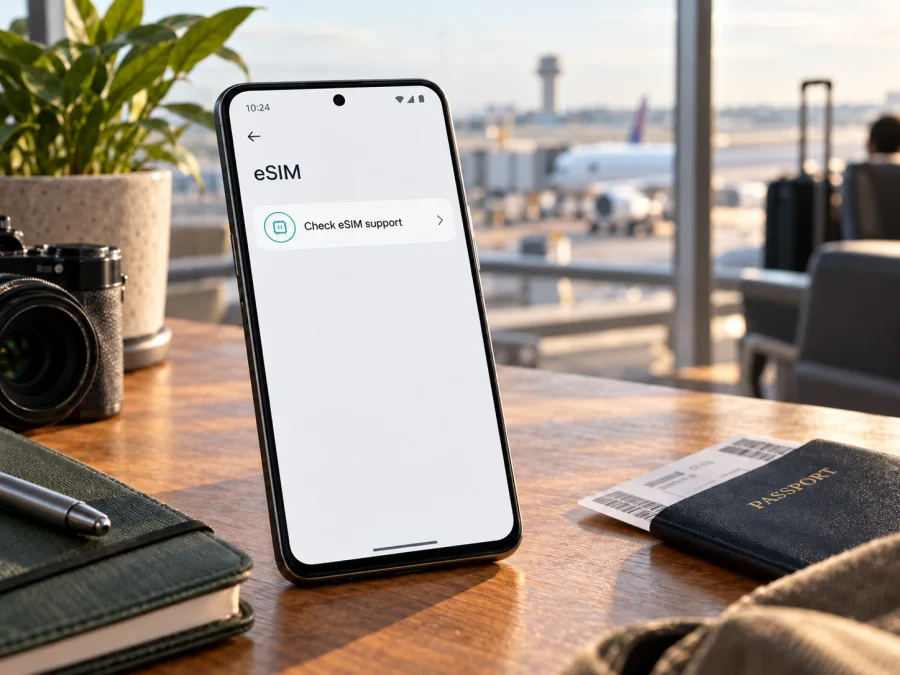
Motorola Edge 70 Ultra 256GB 5G eSIM compatibility and setup
Short answer: I can’t confirm eSIM support for the exact Motorola Edge 70 Ultra 256GB 5G named here. Motorola’s current official product and support records do not identify a phone by that exact name. The official records distinguish motorola edge 70 from motorola edge 50 ultra, and eSIM details shown for one model or market cannot be transferred to another. Before buying a plan, check the phone itself for an EID or an eSIM setup option, and ask the seller or Motorola support to confirm the exact model number and market variant.
That distinction matters because a phone can support 5G and still lack eSIM. Storage capacity, a listing title, or the word “Ultra” does not establish the presence of an embedded SIM. Use the steps below to identify the actual handset and decide whether it is ready for a travel eSIM.
At a glance
| Item | What can be confirmed for the exact name supplied |
|---|---|
| Name in the request | Motorola Edge 70 Ultra 256GB 5G |
| Exact model found in Motorola’s current support catalogue | No exact match found in the catalogue checked on October 16, 2026 |
| 5G support | Not verified for this exact device name |
| 256GB configuration | Not verified for this exact device name |
| eSIM support | Unconfirmed; do not assume it is supported |
| What to check next | Model number, EID, eSIM setup menu, sales region, carrier lock status |
The table deliberately separates the name in a shop listing from an officially identified model. A seller may use an incomplete, translated, combined, or incorrect title. The model number printed in the phone’s settings, on the box, and in the seller’s documentation is the better identifier. If those identifiers do not agree, pause before purchasing an eSIM plan.
Does Motorola Edge 70 Ultra 256GB 5G support eSIM?
There is not enough official evidence to give this exact configuration a reliable yes or no. Motorola’s support catalogue, checked on October 16, 2026, lists the motorola edge 70 and the motorola edge 50 ultra as separate devices. It does not list “Motorola Edge 70 Ultra” as a model name in the catalogue. The official specification page for motorola edge 70 also does not validate the additional “Ultra” wording in the supplied name.
This is not proof that a handset advertised under that name cannot exist in a particular shop or market. It means that its identity and SIM hardware cannot be established from the manufacturer records available for this check. It would be unsafe to infer that it supports eSIM because a different Motorola Edge model does, or because a similar name appears in a listing. The 256GB and 5G labels do not answer the eSIM question either.
Motorola’s official materials demonstrate why the market and exact model need to be checked. Its Australian product information for motorola edge 70 describes a dual-SIM arrangement with one nano-SIM and eSIM. Motorola’s US support specification for an Edge 70 listing describes two nano-SIMs. Those are statements about the Edge 70 product information in those markets; they do not establish the configuration of a device called Edge 70 Ultra, nor do they show that every phone sold as Edge 70 has identical SIM hardware. The manufacturer also notes that specifications may vary by market.
The word “Ultra” also appears in a different official name, motorola edge 50 ultra. That model has its own support and specification records. Do not assume it is another name for an Edge 70 Ultra, an updated version with identical SIM hardware, or the same phone as a marketplace listing. A model-name resemblance is not sufficient for compatibility.
In practice, there are three separate questions:
- What phone is it? Confirm the manufacturer’s commercial model name and model number.
- Does that exact regional version contain eSIM hardware? Look for an EID or the eSIM download option in Settings and confirm with Motorola for that model number.
- Can it use the particular travel plan? Confirm the phone is not carrier-locked and that the eSIM profile and destination plan are supported.
All three answers need to be clear before you pay for a plan. A device can pass one check and fail another: for example, it may contain eSIM hardware but be restricted by the seller’s carrier lock, or it may accept an eSIM profile that is not suitable for the destination or plan you selected.
Confirm the model number and market version
Before checking menus, identify the handset in front of you. Names in product feeds can omit a region suffix or combine two models. Use the phone’s own information and compare it with the box and the seller’s invoice.
- Open Settings.
- Tap About phone or About device. The wording can vary with Android version and manufacturer software.
- Note the full model name and model number. Do not record only “Edge” or “5G.”
- Compare that number with the label on the original box and the seller’s product documentation.
- Ask the seller or Motorola support whether that exact number and sales market support eSIM.
Do not publish or send an IMEI, EID, serial number, or account detail in a public forum. A model number is generally enough to ask a compatibility question. Keep the phone’s private identifiers for the manufacturer or seller’s official support channel when they specifically request them.
A regional version is the device configuration sold for a particular market. SIM arrangements and operator provisioning can differ across regions, and an imported handset keeps the hardware of its original version. Check the original sales market and model number.
An operator version may have carrier-specific restrictions or a network lock. That is separate from having eSIM hardware. Ask whether the handset is unlocked for another provider before treating it as travel-ready.
How to check for an EID or eSIM menu
An EID is an identifier associated with an eSIM component. It is a useful sign that the handset has eSIM capability, but the presence of a compatible service and an unlocked phone still matter. A menu can also be hidden, moved, or unavailable under a particular carrier configuration. Check both the device details and the SIM settings.
Look for an EID
On many Motorola Android phones, open Settings → About phone → Device details and look for EID or eSIM. Menu labels differ across software versions. Motorola’s user guidance for supported devices uses this area to locate the EID. If the menu path is different, search Settings for “EID” or “SIM,” or ask Motorola support for the path for your exact model number.
If an EID is shown, write down only that the phone displays one; do not paste the full identifier into a public post. Then verify with Motorola or the seller that the model number belongs to a version with eSIM enabled in your market. An EID alone does not confirm that a travel profile can activate while the handset is locked to a carrier.
Look for the add-eSIM option
Open Settings → Network & internet → SIMs & mobile network and look for wording such as Download a SIM, Add eSIM, or Download new SIM. The exact wording depends on Android version and software build. You may need to connect to Wi-Fi before the phone displays setup choices or contacts the activation service.
If the option is present, that is encouraging but still not the whole compatibility check. Do not scan or install a paid profile just to test whether the menu works. First confirm that the device is unlocked, the model number is correct, and the plan’s installation terms fit your trip. Some eSIM activation codes are single-use or become associated with the device when installed.
If neither an EID nor an eSIM option appears, do not conclude immediately that every version of the model lacks eSIM. Update the phone using its normal software update process, restart it, and check again. Then give the exact model number to Motorola support. If Motorola confirms that this version does not support eSIM, the settings will not add eSIM hardware; use another compatible device or an appropriate physical SIM option instead.
Compatibility checklist before buying a plan
Complete this checklist for the physical phone you intend to take on the trip:
- [ ] The phone’s model number is visible in Settings and matches the box or seller documentation.
- [ ] Motorola or the seller confirms eSIM support for that exact number and sales market.
- [ ] The phone shows an EID or an eSIM download/add option.
- [ ] The phone is not locked to a carrier that prevents adding another eSIM profile.
- [ ] The Android version is current enough for the device’s normal SIM setup flow.
- [ ] You can connect to Wi-Fi while downloading the profile if needed.
- [ ] The selected plan covers your destination and the conditions fit your trip dates.
- [ ] You know whether installation, activation, or first network connection starts the plan’s validity period.
- [ ] You know how to choose the eSIM for mobile data and whether data roaming must be enabled for that profile.
If any of the first three checks is uncertain, wait before purchasing. The phrase “5G eSIM phone” in a marketplace listing is not the same as the manufacturer confirming your unit’s eSIM support. If you need help identifying the model, ask the seller for the model number rather than asking only whether “this Edge Ultra” supports eSIM.
Check your device before choosing a travel plan. Kaspersky eSIM Store is an app and website where you can choose, arrange, and activate an eSIM with a plan for mobile data on an international trip. Select a destination and review the plan conditions after you have confirmed that the phone supports eSIM and is carrier-unlocked.
How to install an eSIM on a compatible Motorola Android phone
The steps below apply only if Motorola or the seller confirms that the exact phone variant supports eSIM. They describe a common Motorola Android setup path; labels can differ by region, Android version, and software build. Follow the instructions supplied with your eSIM profile if they differ from the general steps.
Before starting, have the phone connected to Wi-Fi, keep the activation details from your order available, and make sure you have not already installed the same profile on another phone. Do not delete an existing eSIM to troubleshoot unless the plan provider or support team tells you to: deleting a profile can require a new activation code and does not necessarily cancel the underlying service.
Install by scanning a QR code
- Read the eSIM instructions and confirm the QR code is intended for this phone.
- Connect the Motorola phone to Wi-Fi.
- Open Settings → Network & internet → SIMs & mobile network.
- Tap Download a SIM, Add eSIM, or the equivalent option, then choose QR scanning.
- Scan the supplied code, review the details, and confirm the download.
- Wait for installation, label the profile if prompted, and enable it now or later according to the plan instructions.
Some providers supply manual activation details instead of a QR code. In that case, use the manual entry option in Android’s eSIM flow and enter the details exactly as supplied. Do not guess a server address, activation code, or confirmation code. If the profile cannot be added, stop repeated attempts and contact the plan’s support team with the exact model number and a description of the error.
Motorola’s support instructions for eSIM-capable devices describe the general flow under Settings → Network & internet → SIMs & mobile network, with an option to download and set up a SIM. For an illustrated Android walkthrough, see the Android eSIM installation instructions. If you are also setting up a separate iPhone for the same trip, use the iOS eSIM installation instructions; the iPhone steps do not apply to a Motorola handset.
Choose the eSIM for mobile data
After installation, open the SIM settings and select the travel profile for mobile data when you want it to carry data. Keep your primary number active for calls or messages if you need it and your settings allow dual SIM operation. The available combinations depend on the device version and carrier configuration.
If the plan is intended for use only after arrival, install it beforehand when the plan terms permit, then leave the profile disabled or leave mobile data assigned to your usual line until the right time. Instructions differ between plans: some validity periods begin at installation, while others begin at a later activation or first connection event. Check the plan’s stated rules before changing settings. Do not assume that installing a profile never starts its validity period.
Once you are ready to use the travel plan, enable its SIM profile, select it as the mobile data line, and follow the plan instructions about data roaming. If roaming is required for the travel profile, enable it for that line only when appropriate. Data roaming on the home SIM can create separate charges under your home carrier’s rules, so check which line is selected for data before leaving Wi-Fi.
Using a travel eSIM during a trip
A travel eSIM can provide mobile data abroad without swapping a physical SIM. On an unlocked compatible phone, select the travel profile for mobile data. You may be able to keep your primary line active for calls or messages, subject to your home plan and the phone’s dual-SIM settings.
Before departure, check that the plan covers every destination on your route and that its data allowance, validity period, supported networks, and activation timing suit your trip. A plan for one country should not be assumed to work in another. Network availability and service quality depend on local networks and conditions.
A data-only eSIM does not automatically include a regular number, standard voice calls, or SMS. Those are included only if the specific plan says so. Internet-based messaging and calling apps can work over data. If you keep your primary line enabled, check your home operator’s roaming rules and charges.
Kaspersky eSIM Store is an app and website where you can choose, arrange, and activate an eSIM with a mobile-data plan for an international trip. It is not a mobile operator and does not own or operate the local network. Review the selected plan’s conditions before completing your choice.
Common problems and what to check
There is no eSIM or download option
Check the model number again. The phone may be a different model or regional variant than the listing suggests, or its software may label the option differently. Search Settings for “eSIM,” “download SIM,” or “EID.” Install available system updates, restart, and check again. If the option is still missing, contact Motorola or the seller with the model number. Do not infer that the phone is eSIM-capable because a related Edge model has the feature.
The eSIM is installed but there is no mobile data
Check that the travel profile is turned on and selected as the mobile-data SIM. Confirm that the plan is active, covers your current country, and has remaining data and validity. Follow its instructions about data roaming for that eSIM. Restart the phone after changing the settings and allow a few minutes for it to connect. If possible, test outdoors or in another location, because an indoor signal issue can look like a setup failure.
The phone is carrier-locked
An eSIM menu or EID does not remove a carrier lock. Ask the carrier that supplied the phone whether it is unlocked and can accept an eSIM profile from another provider. If it is restricted, request an unlock through the carrier’s normal process or use a different compatible device. A travel plan cannot override a device restriction.
Frequently asked questions
Can I use eSIM on Motorola Edge 70 Ultra 256GB 5G?
It is unconfirmed for the exact name supplied. Motorola’s official records checked for this guide do not identify an “Edge 70 Ultra” model. Confirm the phone’s model number, EID, and eSIM menu, then get confirmation for the exact regional version from Motorola or the seller before buying a plan.
Does 5G mean the phone supports eSIM?
No. 5G describes a mobile network capability; eSIM describes a SIM method. A 5G handset can use physical SIM cards only, while eSIM capability depends on the device hardware, software, regional configuration, and carrier restrictions.
Is Motorola Edge 70 Ultra the same as motorola edge 70 or motorola edge 50 ultra?
Do not treat those names as interchangeable. Motorola’s records list motorola edge 70 and motorola edge 50 ultra as distinct products. The exact “Motorola Edge 70 Ultra” name was not present in the official support catalogue checked for this article. Confirm the model number before relying on specifications for any similarly named phone.
Final check before choosing an eSIM for a trip
For Motorola Edge 70 Ultra 256GB 5G, the responsible compatibility answer is not confirmed until the exact handset identity is established. Confirm the manufacturer model number and regional version, look for an EID and an eSIM setup option, and ask Motorola or the seller to verify the model. Check that the phone is unlocked and that the chosen plan covers your destination, data needs, and travel dates.
When those checks are complete, Kaspersky eSIM Store’s app and website can help you choose, arrange, and activate an eSIM with a mobile-data plan for an international trip. Review the plan conditions, follow the setup instructions for your device, and select the correct SIM for mobile data. If the model identity or eSIM support remains unclear, resolve that question before purchasing the plan.


