Travel connectivity guide
Motorola Edge 70 Ultra 256GB eSIM guide
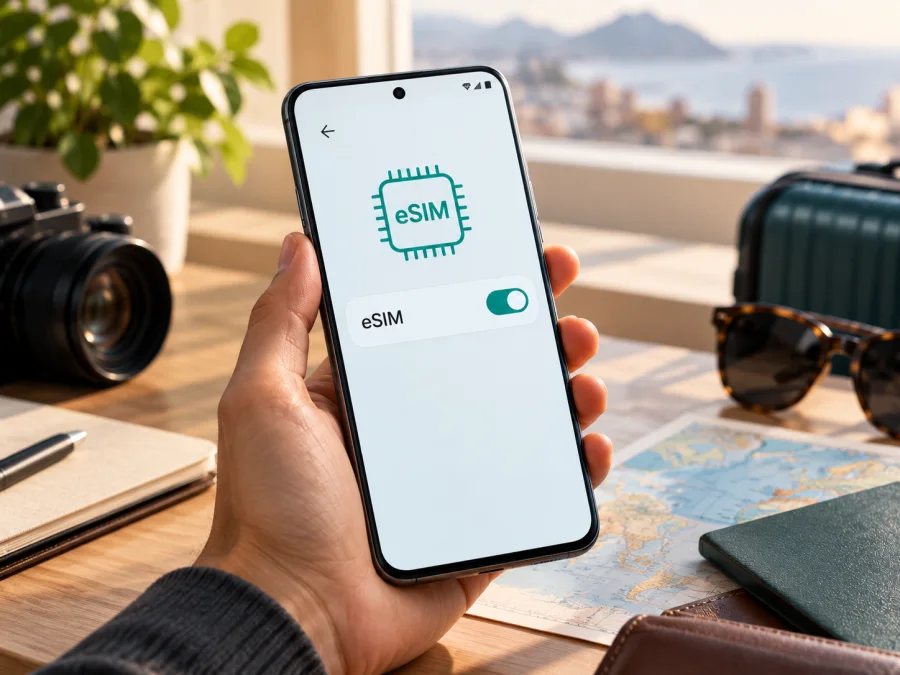
Motorola Edge 70 Ultra 256GB eSIM: compatibility and setup
Short answer
eSIM support for the exact Motorola Edge 70 Ultra 256GB variant is not confirmed by an official Motorola specification or support page that I could verify. That means the safe answer is “check the individual phone,” not a definite yes or no. The storage figure, 256GB, does not tell you whether an eSIM chip is present or enabled. Do not buy a travel eSIM on the assumption that every phone described as Edge 70 Ultra supports it.
This distinction matters because listings and discussions may use similar names for different devices. Motorola publishes information for other Edge 70 family models, but a specification for a separately named model cannot establish the capability of the exact “Motorola Edge 70 Ultra 256GB” in your hand. Regional model codes, firmware, sales market, and carrier configuration can also affect which SIM options appear. Treat the full product name as the search topic, then verify the specific unit before purchase.
At a glance
| Check | What can be confirmed for Motorola Edge 70 Ultra 256GB? | What to do |
|---|---|---|
| Exact product identity | I could not confirm an official Motorola product record for this exact name and storage variant. | Ask the seller for the model code and official regional product page or documentation. |
| eSIM hardware | Not confirmed for this exact variant. | Look for an EID and an eSIM download/add option in the phone itself. |
| 256GB storage | The 256GB label identifies storage only and does not establish eSIM support. | Do not use storage capacity as a compatibility test. |
| Region and operator | No single market or operator version can be inferred from the name alone. | Confirm the country/market code, carrier lock status, and intended operator eligibility. |
| Travel data plan | Depends on device support, unlock status, and plan conditions. | Confirm all three before placing an order. |
Motorola’s official material for the separately named motorola edge 70 shows why model-level checking matters: its regional specification page lists one nano-SIM plus eSIM, while its general support instructions say the phone might support eSIM and direct users to check the device and carrier. The manufacturer also notes that specifications can vary by market. These details are useful context about the Edge 70 family, but they do not verify the Edge 70 Ultra 256GB. They should not be copied across as if the two names described the same handset.
How to check the exact phone before you buy
If you have not bought the phone, ask for evidence tied to the exact regional model code. A general claim that “the Edge series supports eSIM” does not establish support for this variant. Keep the seller’s answer and return terms in case the delivered unit differs from the listing.
- [ ] Match the full name on the listing, invoice, box, and phone. Do not treat an answer about a regular Edge 70, Edge 70 Pro, or another Ultra as proof.
- [ ] Ask for the full model/SKU code and the market for which it was made. Compare it with Motorola documentation for that market, if available.
- [ ] Confirm that the exact code includes eSIM hardware, that it is enabled in that market, and that the handset is unlocked.
- [ ] Ask whether official regional firmware and normal software updates are installed.
- [ ] If eSIM is essential, confirm that you can return the phone if it lacks an EID or the intended operator refuses activation.
For a phone you already own, use the checks below. Check your device before choosing a plan. A 5G badge, a “dual SIM” listing, or two SIM indicators is not enough: dual SIM may mean two physical cards or one physical SIM plus eSIM, depending on configuration.
Find the EID or eSIM option
An EID is associated with an embedded SIM component. If it appears in the phone’s settings, that is strong evidence of eSIM hardware, but it does not guarantee activation eligibility for every operator or plan.
On supported Motorola phones, check Settings → About phone → Device details for EID or eSIM. Also open Settings → Network & internet → SIMs & mobile network and look for Download a SIM, Add eSIM, or similar. Labels can vary by Android version, market, and software build.
If you find both an EID and an add/download control, confirm the model code and ask the intended operator whether it can activate the phone. If neither appears, restart, install available official updates over Wi-Fi, and check again. A missing menu warrants a pause, but may reflect regional software or a carrier configuration. Ask the seller or Motorola support to verify the exact code; do not repeatedly scan a QR code to force the feature.
If support cannot confirm compatibility, consider a physical local SIM if the handset has an available slot, another unlocked eSIM-capable phone, or Wi-Fi. Do not buy a travel plan until the uncertainty is resolved.
What regional and operator versions mean
A regional version is configured for a sales market; radio bands, SIM trays, software, and enabled features can differ. An operator version may have a network lock, carrier software, or activation rules. These are separate from the presence of eSIM hardware.
For this exact product name, I could not confirm regional or operator variants in official Motorola documentation, so there is no verified country-specific answer for the 256GB version. Seller location, interface language, or a “global version” label does not establish the phone’s intended market or prove eSIM support. Ask for the market code and unlocked status, then verify independently: an EID, an add-eSIM control, no operator restriction, and eligibility with the intended operator or plan.
5G is separate too. A phone may use 5G with a physical SIM and have no eSIM; an eSIM phone may use 4G depending on the destination, radio bands, plan, and network. A 5G label cannot confirm eSIM hardware or service on a particular trip.
Before installing a travel eSIM
A travel eSIM can provide mobile data abroad without replacing your physical SIM. Many travel plans are data-only, so check whether voice, SMS, or a regular number is included. Review destination coverage, data allowance, validity, activation timing, supported networks, hotspot rules, and whether data roaming must be enabled for that profile.
Before setup, confirm compatibility and unlock status, connect to Wi-Fi, and keep the QR code or activation details available on another screen. Read when the plan starts: installation may start validity on some plans, while others start on first connection abroad. Install at the right time and avoid deleting the profile during troubleshooting.
Install and activate eSIM on a Motorola Android phone
The exact device menus have not been verified, so use these as general Motorola/Android steps and follow the selected plan’s instructions. If there is no add-eSIM control, stop and reconfirm compatibility.
- Connect to Wi-Fi. Keep a stable connection during profile download.
- Open SIM settings. Go to Settings → Network & internet → SIMs & mobile network. Look for Download new SIM, Add eSIM, or a similar option. Settings search for “SIM” may help.
- Add the profile. Scan the supplied QR code or enter activation details manually if offered. Keep the code private. If it is displayed on the same phone, use another screen or a supported manual method.
- Confirm and label it. Wait for the profile to download, then name it “Travel” or another clear label. If a one-time QR code says it has already been used, check the activation status with the provider instead of retrying repeatedly.
- Choose the data line. Select the travel eSIM for mobile data when ready. You may keep your home SIM enabled if your configuration allows, but check its roaming terms and turn off its mobile data if you want to avoid unintended charges.
- Set roaming only as instructed. Some travel eSIMs require data roaming on that profile. Enable it only for the travel eSIM when the plan instructions require it.
- Test at the right time. If the plan starts on arrival, leave the profile installed and follow its activation rules. After landing, turn off airplane mode, select the travel eSIM for data, and allow a few minutes to register.
For a visual walkthrough, see the Android eSIM installation instructions. The iOS eSIM installation instructions are for iPhone users setting up a separate iPhone; they do not describe Motorola menus.
When you have confirmed compatibility, Kaspersky eSIM Store is an app and website where you can choose, arrange, and activate an eSIM with a mobile-data plan for an international trip. Use the Kaspersky eSIM Store website to browse destinations and check current plan availability and terms. This is the general store homepage, not a country-specific tariff page; destinations and plan conditions may change.
Use the eSIM for mobile data while travelling
If the phone is confirmed compatible, a practical setup is to keep your home SIM for its usual number and select the travel eSIM for data, if both plans and the device allow it. Confirm your home operator’s roaming terms before leaving that line enabled. Travel eSIMs commonly provide data only, so messaging and calls usually need internet apps unless the plan says otherwise.
Choose a plan by your route. Confirm that every country you will visit is included; a single-country plan should not be assumed to work across a border. Compare data allowance and validity with your use of maps, ride-hailing, email, translation, and video calls. Background sync and video can consume data quickly, so download large items over Wi-Fi when practical.
- Data at landing: Install over Wi-Fi before departure, but follow the plan’s start rule. On arrival, select the eSIM for data and wait for registration.
- Keep your number reachable: Leave the home SIM enabled only if you understand call and roaming charges. Make the travel eSIM the data line.
- Multi-country route: Confirm each destination and any network-switching conditions before choosing a regional plan.
- Hotspot use: Check that tethering is allowed and supported. Test data on the phone first.
- Limited data: Disable automatic updates or cloud backups over mobile data and monitor usage in Android settings.
Kaspersky eSIM Store helps users choose and activate a travel eSIM plan for mobile internet. The selected plan and local network determine service and performance; Kaspersky eSIM Store is not a mobile operator, does not operate the local network, and does not provide the underlying mobile connection. Unless a plan says otherwise, do not expect a regular phone number, ordinary voice service, or SMS.
Common problems and checks
No “Add eSIM” option
Check Settings → About phone → Device details for an EID. Confirm the model code and market with the seller or Motorola support, install official updates, and restart. If the EID and eSIM control remain absent, the unit may not support the feature or its regional/carrier software may not expose it. Pause activation until the exact model is verified.
QR code will not scan
Clean the other screen, raise its brightness, and frame the full code. Confirm it belongs to the selected plan and has not already been used. Use manual activation only if offered. Keep the QR code private because it may contain activation credentials.
Profile downloads but there is no service
Check airplane mode, profile status, selected data SIM, destination eligibility, and whether plan validity has started. Follow the plan’s instruction for data roaming, restart once, and allow a few minutes to register. Contact the plan provider if it remains offline.
Connected, but apps have no internet
Confirm the selected data line and mobile data setting. Toggle mobile data, then check whether a VPN, private DNS, or data limit is interfering. If the plan specifies an APN, compare it with the supplied value; do not guess.
Wrong SIM uses data or 5G is missing
Recheck the selected data SIM and disable automatic data switching if available. A 4G connection can still provide data; 5G depends on local coverage, regional bands, plan, and operator. A 5G label does not guarantee service everywhere.
The profile was removed
Do not delete an eSIM during troubleshooting unless support instructs you to. Some profiles cannot be installed again after removal. Ask the provider about restoration before resetting the phone or changing devices.
FAQ
Does Motorola Edge 70 Ultra 256GB support eSIM?
I could not verify support for this exact variant in official Motorola documentation. Check the EID and add-eSIM setting on the phone, then confirm its model code before buying a plan.
Is 256GB the eSIM version?
No conclusion follows from storage capacity. The 256GB label does not prove eSIM hardware is present or enabled.
Does the regular Edge 70 specification prove support for Edge 70 Ultra?
No. A separately named motorola edge 70 is a different product. Verify the exact model code.
Does an EID guarantee that a travel plan will work?
No. An EID is evidence of eSIM hardware; activation also depends on configuration, carrier lock, software, operator eligibility, destination, and plan terms.
Can I install before departure, and will my number remain?
Often a profile can be installed in advance over Wi-Fi, but validity may start at installation or first connection, depending on the plan. A data eSIM usually does not replace your number; keep your home SIM only after checking roaming charges.
What if Settings shows no EID?
Restart, check official updates, and verify the model code with the seller or Motorola. If compatibility remains unconfirmed, use a physical SIM option or another confirmed compatible device.
Before you choose an eSIM for your trip
For Motorola Edge 70 Ultra 256GB, eSIM compatibility remains unverified at the exact-variant level. Confirm the handset’s model code, look for an EID and an add-eSIM control, check that it is unlocked, and ask the intended operator or plan provider to confirm eligibility for the destination. The 256GB storage label and information about a similarly named Edge 70 model are not substitutes for those checks.
Once the phone is confirmed, choose a travel plan by destination, route, data allowance, validity, and activation rules. Use the Kaspersky eSIM Store app or website to browse and arrange a suitable eSIM for mobile data abroad, then install it over Wi-Fi and set it as the data line when you are ready to travel. If any compatibility check is inconclusive, resolve it before purchase or use a confirmed compatible alternative.


