Travel connectivity guide
Motorola Edge+ 2023 256GB eSIM Support & Setup
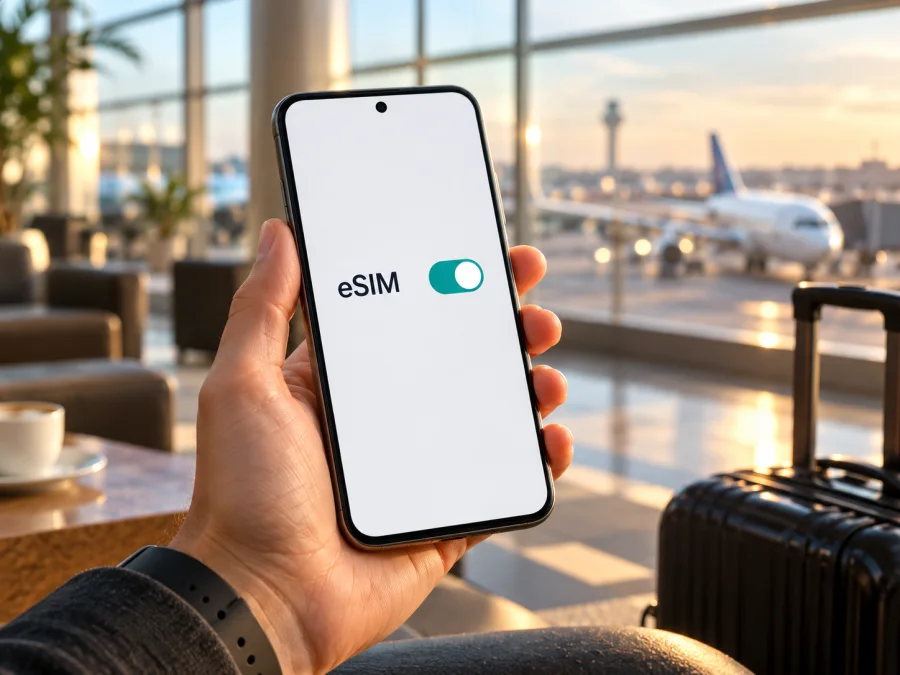
Motorola Edge+ 2023 256GB and eSIM: compatibility, setup, and travel use
If you are checking whether Motorola Edge+ 2023 256GB can use an eSIM, the accurate answer is conditional. Motorola confirms eSIM support for the Edge+ (2023) in its US specifications, but warns that the option may be unavailable in some regions. That specification lists 512GB of internal storage, not 256GB. I could not confirm an official Motorola Edge+ (2023) configuration with 256GB, so support for the exact 256GB variant in your hands is unverified.
This matters because a regional SKU, carrier firmware, or a retailer’s listing can differ from the official US configuration. Do not assume that a 256GB-labelled handset supports eSIM just because another Edge+ (2023) configuration does. Check the phone itself before buying a travel plan.
Quick answer
For the US-market motorola edge+ (2023) in Motorola’s support specifications, the listed SIM configuration is dual SIM using eSIM plus a physical SIM. Motorola adds that eSIM may not be available in certain regions. Since the official listing says 512GB, it does not establish eSIM support for Motorola Edge+ 2023 256GB. Treat this requested variant as “possibly supported, but verify on the exact handset.”
| Item | What can be confirmed |
|---|---|
| Requested device name | Motorola Edge+ 2023 256GB |
| Motorola US model entry | motorola edge+ (2023) |
| Storage in that entry | 512GB, not 256GB |
| SIM configuration in that entry | eSIM + physical SIM; regional availability can differ |
| Exact 256GB Edge+ configuration | Not confirmed by the official source checked |
| Best check | Look for an EID and an eSIM download option on the actual phone; confirm its model code with Motorola or the seller |
Motorola’s setup guidance says the phone might support eSIM and describes downloading one through the mobile-network settings. The issuing provider must also support activation for the handset and market. A working travel data eSIM therefore depends on device capability, an unlocked phone, the plan, and service availability at the destination.
Why the 256GB detail needs checking
The supplied name combines “Edge+ 2023” with “256GB.” Motorola’s US support page lists 512GB for the Edge+ (2023). Motorola separately lists a “motorola edge (2023)” with 256GB, but that is a different model name and must not be treated as another spelling of Edge+. The storage mismatch is a reason to verify the device identity, not to substitute a different model.
A market-specific listing, reseller error, different model code, or configuration documented in another market could explain the discrepancy; none proves that the handset has eSIM enabled. Storage capacity does not determine eSIM support. Hardware, firmware, market configuration, and sometimes carrier provisioning matter. Motorola’s US statement does not guarantee every similarly named retail unit supports eSIM.
Compare the model number shown in Settings with the box and purchase listing. If they differ, ask the seller or Motorola to confirm the exact variant and whether eSIM is enabled for its original sales market. Carrier lock is a separate issue: a phone can contain eSIM hardware but reject another provider’s profile if it is restricted.
Check eSIM support on your own phone
Use these checks before buying a plan. Evidence from the handset is more useful than a product title alone.
1. Look for an EID
Open Settings and search for “EID.” Depending on Android version, it may appear under About phone, Status, or SIM information. An EID is an identifier associated with eSIM hardware and is a strong sign that the handset can support eSIM. Keep it private if a carrier asks for it.
If you cannot find an EID, check the SIM settings as well. Menu placement and visibility can vary, so a missing number in one screen is not conclusive. If both the EID and eSIM setup option are absent, ask Motorola to verify the model code; do not rely on an IMEI alone as proof.
2. Find the eSIM setup option
Connect to Wi-Fi and open Settings → Network & internet → SIMs & mobile network. Look for Download an eSIM, Download new SIM, Add eSIM, or Set up an eSIM. Motorola’s Edge+ (2023) instructions describe downloading an eSIM from this mobile-network screen.
If the option appears, the current software exposes an eSIM setup flow. You do not need to finish installing a profile just to check. If the action is missing, restart the phone, install available system updates, and check again. If it remains absent, contact Motorola and the original carrier to confirm support and activation steps. For this 256GB-labelled variant, also verify the model code and regional configuration.
3. Check for restrictions
Ask the seller or original carrier whether the phone is unlocked and can accept a travel eSIM. Confirm that it is not managed by an organization or restricted by a carrier profile. These restrictions can prevent activation even when the handset has an EID.
Compatibility checklist
- [ ] The model number in Settings matches the box and purchase listing.
- [ ] An EID is visible, or Motorola confirms eSIM support for the model code.
- [ ] SIM settings show an eSIM download/add action, or Motorola explains why it is absent.
- [ ] The phone is unlocked and has no management restriction.
- [ ] The operating system is updated and Wi-Fi is available.
- [ ] The plan covers your destination and works with the phone’s supported network bands.
- [ ] The plan’s data allowance, validity, and activation timing suit the trip.
Treat these checks as a sequence: the model code identifies the handset, the EID and setup menu indicate whether eSIM is exposed in its software, and the carrier or provider confirms that a profile can be activated. Passing one check does not replace the others.
For a separate compatibility check, check whether your device supports eSIM. Confirm the actual handset rather than relying on “Edge+ 2023” alone.
Install and activate an eSIM
Keep Wi-Fi available during installation. Read the eSIM provider’s instructions and have the activation details ready. Some QR codes can be used only once, so do not repeatedly scan one or remove a profile while troubleshooting.
Install through Android settings
- Confirm compatibility. Make sure the eSIM setup option appears and the phone is unlocked.
- Connect to Wi-Fi. Keep the connection until the profile downloads.
- Open SIM settings. Go to Settings → Network & internet → SIMs & mobile network.
- Start eSIM setup. Tap the available download or add eSIM option.
- Follow the provider’s flow. Scan the issued QR code or enter details manually if that option is provided.
- Wait for installation. Follow the screen until Android confirms that the profile has been added.
- Label the profile. Use a clear name such as “Travel data.”
- Choose the data SIM. Select the travel eSIM for mobile data when you are ready to use it.
- Check roaming instructions. Enable data roaming for the travel eSIM only if its plan requires it. Check that your home SIM is not selected for data if you want to avoid its roaming allowance.
Menu names can differ by Android version or carrier configuration. Motorola’s support steps point to Network & internet → SIMs & mobile network and the eSIM download option. If your menu differs, search Settings for “SIM” or “eSIM,” update the software, and follow the instructions for your handset and plan.
See the Android eSIM installation instructions. The iOS eSIM installation instructions apply to iPhones, not this Motorola phone.
QR code and activation checks
Open the eSIM download flow and scan the QR code from another screen or a printed copy. Treat it as private because it may contain a one-time activation credential. If the camera cannot read it, use manual activation only when the provider has supplied those details. If the phone says the code has already been used, stop and contact the provider about restoring the profile or issuing a replacement.
After setup, return to SIM settings and confirm that the travel profile appears and is enabled. Installation does not always mean that the phone has connected to a local network. Plans can start at purchase, on first network connection, or at a scheduled time; check the selected plan’s terms instead of assuming when its validity begins.
A travel plan may be data-only, without a regular phone number, ordinary calls, or SMS. Your home SIM can remain available for calls or messages if its roaming terms allow it. Apps can use data for internet calls and messages when their accounts and connection are working.
Use Motorola Edge+ 2023 256GB for data while travelling
An eSIM is a digital SIM profile stored on a compatible phone. It can let you install a travel data plan without opening the SIM tray or replacing your home SIM. Choose a plan for the countries or region on your itinerary. Review data allowance, validity, price, activation timing, supported network, and hotspot limits. Coverage and performance depend on the plan, local network, the phone’s supported bands, and conditions where you travel.
Kaspersky eSIM Store is an app and website where you can choose, arrange, and activate an eSIM with a plan for mobile data on an international trip. After confirming compatibility, browse current travel options on the Kaspersky eSIM Store site. Check the destination and terms shown for the selected plan; the general store page is not a country-specific tariff or a guarantee of coverage.
Before departure
If the provider allows it, install the profile while you have reliable Wi-Fi. Keep its instructions accessible offline and label the profile clearly. Note which SIM is selected for calls, messages, and data. If you want to wait until arrival to use the travel plan, leave its profile off or do not select it for data until then, following provider instructions. This does not necessarily delay plan validity, which depends on its terms.
If the provider says data roaming must be enabled, you can wait until arrival. Make sure you enable roaming for the travel eSIM, not your home SIM, because the home operator may charge separately.
On arrival
Turn off airplane mode when permitted. Confirm that the travel eSIM is enabled and selected for mobile data. Allow a few minutes for network registration. Enable roaming for that profile if the plan requires it. If there is no connection, restart once and review the selected SIM and plan instructions. Some plans connect automatically; others may require manual network selection or provider-specific APN settings.
Keep the right SIM in control
Android can let you set separate defaults for calls, messages, and mobile data. Select the travel eSIM for data abroad and review automatic data switching so the phone does not unexpectedly use your home SIM. A data-only eSIM should not be selected as a voice line unless the plan includes voice service.
When you return, switch data to your preferred home SIM. Keep the travel profile until you are sure you no longer need it. Do not erase it casually: Motorola notes that removing an eSIM removes its services from the phone, and restoring it may require provider support.
Common problems and what to check
The eSIM option is missing
Search Settings for “eSIM,” update Android, restart, and check Network & internet → SIMs & mobile network again. If the option is still absent, ask Motorola and the original carrier about the exact model code and region. A regional or firmware limitation may explain the missing menu; unrelated QR codes cannot enable eSIM hardware.
The EID is missing
Search Settings and inspect About phone or SIM status. Compare the model number with the box and listing. If the EID and add eSIM action are both unavailable, ask Motorola to verify the exact device. An IMEI by itself does not prove eSIM support.
QR scanning or activation fails
Check Wi-Fi, camera focus, code validity, and whether the code has already been used or expired. If it fails again, save the error message for support without sharing the QR code publicly. The provider can confirm whether the profile needs to be restored or reissued.
The profile is installed but there is no data
Confirm that the eSIM is enabled and selected for mobile data. Check that the plan covers your current country, its activation time has arrived, and data remains. Enable roaming for that eSIM if instructed. Toggle airplane mode once or restart. If the plan specifies an APN, compare it with the mobile-network settings.
The phone uses the wrong SIM
Review the defaults for data, calls, and messages separately. Turn off automatic switching to the home SIM for data if needed. If you keep your home SIM enabled for calls, check its roaming charges.
Data is slow or drops
Check signal, selected network, plan limits, and local coverage. Indoor walls, congestion, and supported network bands affect performance. A 5G indicator does not guarantee a particular speed; the phone may use 4G where 5G is not available through the local network or plan.
The profile disappears after a reset
Check whether it is switched off or hidden before deleting other profiles. If it was erased, contact the provider to ask whether it can be restored or needs a new activation profile. Some codes are single-use.
Practical travel scenarios
Short city break: Estimate use for maps, ride-hailing, messaging, and browsing away from Wi-Fi. Choose data and validity for the trip, then check the plan’s start and expiry conditions.
Several countries: Confirm that every country on your itinerary is included. A single-country plan may stop working after a border crossing even if its eSIM profile remains installed.
Keep your usual number reachable: Leave the home SIM enabled only if its roaming terms suit you, and select the travel eSIM for data. Check automatic switching. A data-only plan does not provide a regular number, calls, or SMS.
Work or hotspot use: Check whether tethering is allowed. Video calls and laptop use can consume data quickly. Monitor the provider’s remaining allowance as well as Android’s data-usage screen; the counters may not match exactly.
A 256GB-labelled handset from another market: Verify the model number, EID, and eSIM menu before departure. Ask the original carrier whether the phone is unlocked. If compatibility remains uncertain, arrange a confirmed alternative such as a supported physical SIM or Wi-Fi access.
Frequently asked questions
Does Motorola Edge+ 2023 256GB support eSIM?
It is unverified for the exact 256GB configuration. Motorola lists eSIM plus physical SIM for the US Edge+ (2023), but that entry says 512GB and notes regional limits. Check the EID and eSIM download option on your phone and confirm its model code with Motorola.
Why does Motorola show 512GB?
The US Edge+ (2023) support entry specifies 512GB. Motorola’s separate motorola edge (2023) entry shows 256GB, but it is a different model. Do not infer that a 256GB listing is the same Edge+ variant.
Does an EID mean any eSIM will work?
No. An EID indicates eSIM hardware, but activation can depend on firmware, carrier lock, provider support, plan rules, and destination network. Check the setup menu and plan compatibility before paying.
Can I keep a physical SIM installed?
Motorola’s US Edge+ (2023) configuration lists eSIM plus physical SIM. Whether both work together on your exact regional variant depends on its model code and settings.
Will a travel eSIM include a phone number?
Not necessarily. Check the plan terms. Many travel eSIMs are data-only; apps can still use the internet for calls or messages when data is available.
Should I enable data roaming?
Only if required by the travel eSIM instructions, and only for that profile. Check the home SIM separately to avoid unintended roaming use.
Can I move the eSIM to another phone?
Do not assume so. Transfer and reinstallation rules depend on the profile and provider. Check before erasing the eSIM or changing devices.
Before you choose a travel plan
For Motorola Edge+ 2023 256GB, verify the handset rather than relying on a model-family label. Motorola confirms eSIM for a US Edge+ (2023) configuration, but its official listing specifies 512GB and includes a regional availability caveat. The requested 256GB identity remains unconfirmed. Look for an EID, check the eSIM download option, and verify model code, sales market, software, and carrier-unlock status with Motorola or the original seller.
Once compatibility is confirmed, choose an eSIM plan that covers your destination and fits the trip’s duration and data needs. Review activation timing, data allowance, roaming requirements, and hotspot limits. Kaspersky eSIM Store’s app and website can help you browse, arrange, and activate a travel eSIM plan; terms and network availability depend on the selected plan and destination. If eSIM support cannot be verified, use an alternative confirmed for your exact phone.


